Equipment by Constructable
Construction equipment management software for the whole fleet
Our construction equipment management software keeps every machine you own, rent, or bring in through a sub in one equipment register, with its paperwork, a QR code for the cab, and the hours your crews log on the Daily Log. Equipment comes with every plan, and we do flat pricing with unlimited users.
Equipment register
Every machine you own, rent, or bring in through a sub, in one list
The equipment register is one list for the whole company, shared by every project. Each row carries the machine's number, name, category, type, status, make, model, year, serial number, ownership, and supplier.
• Rentals: set Ownership to Rented or Subcontracted, pick the rental company from your Global Directory, and fill in the rental start and end dates
• Finding a machine: search by number, name, make, model, serial number, supplier, or any custom field, and filter by category, status, ownership, or supplier
• The insurer wants the fleet list: group by category and download what's on screen as a PDF or CSV
• Clean data: Make and Model suggest names already in the register, so CAT and Caterpillar don't become two makes

Equipment pages
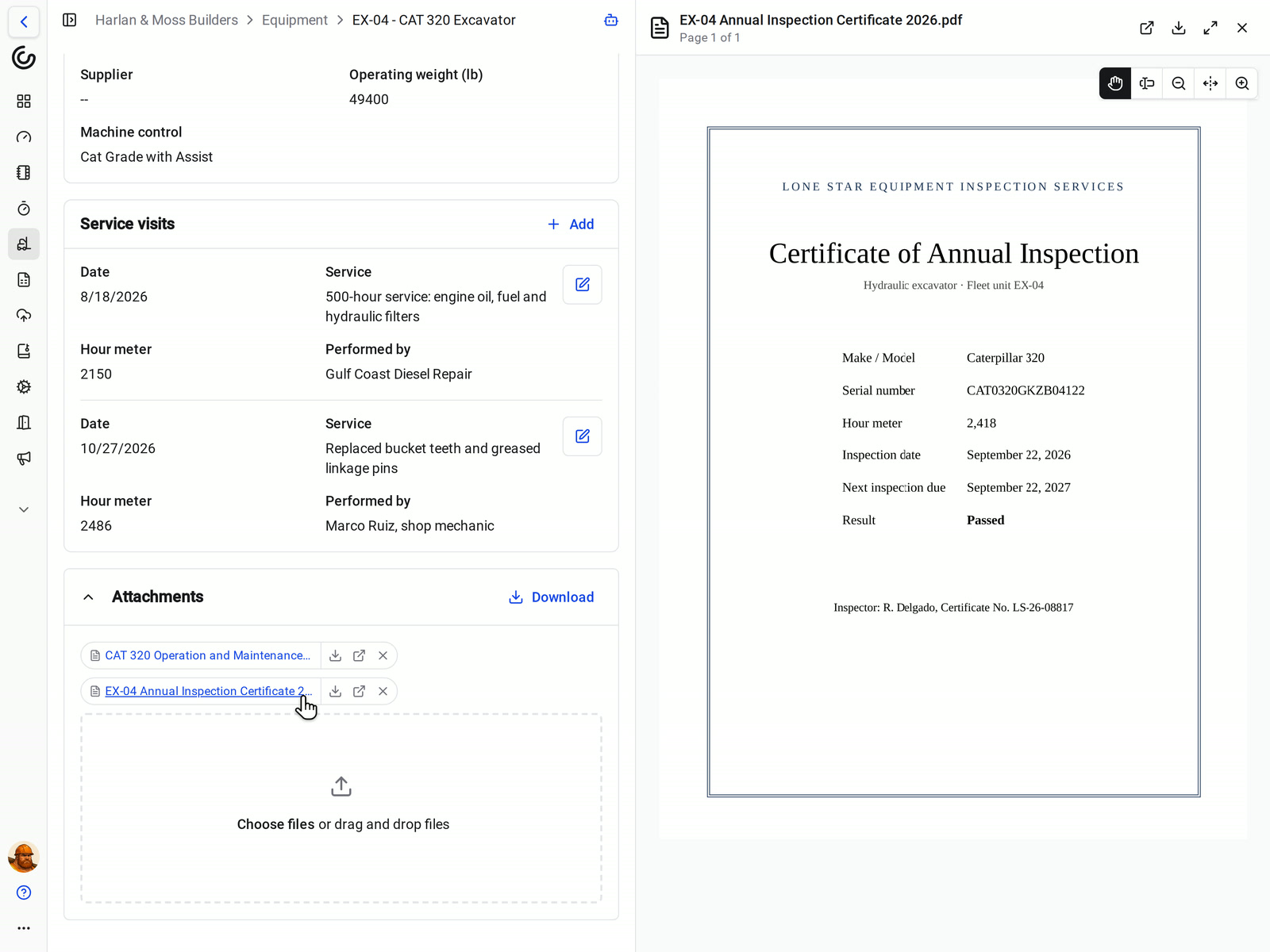
The manual and the inspection certificate, on the machine's page
Every machine has its own page with its details, the sections its category adds, and its files. Open an attachment and it opens beside the page.
• Paperwork: attach the operator's manual, the annual inspection certificate, and the rental agreement
• Service history: add an entry to a section such as Service visits each time the machine is serviced, with the date, the work, the hour meter, and who did it
• Status: mark the machine Available, In use, or Unavailable
On the Daily Log
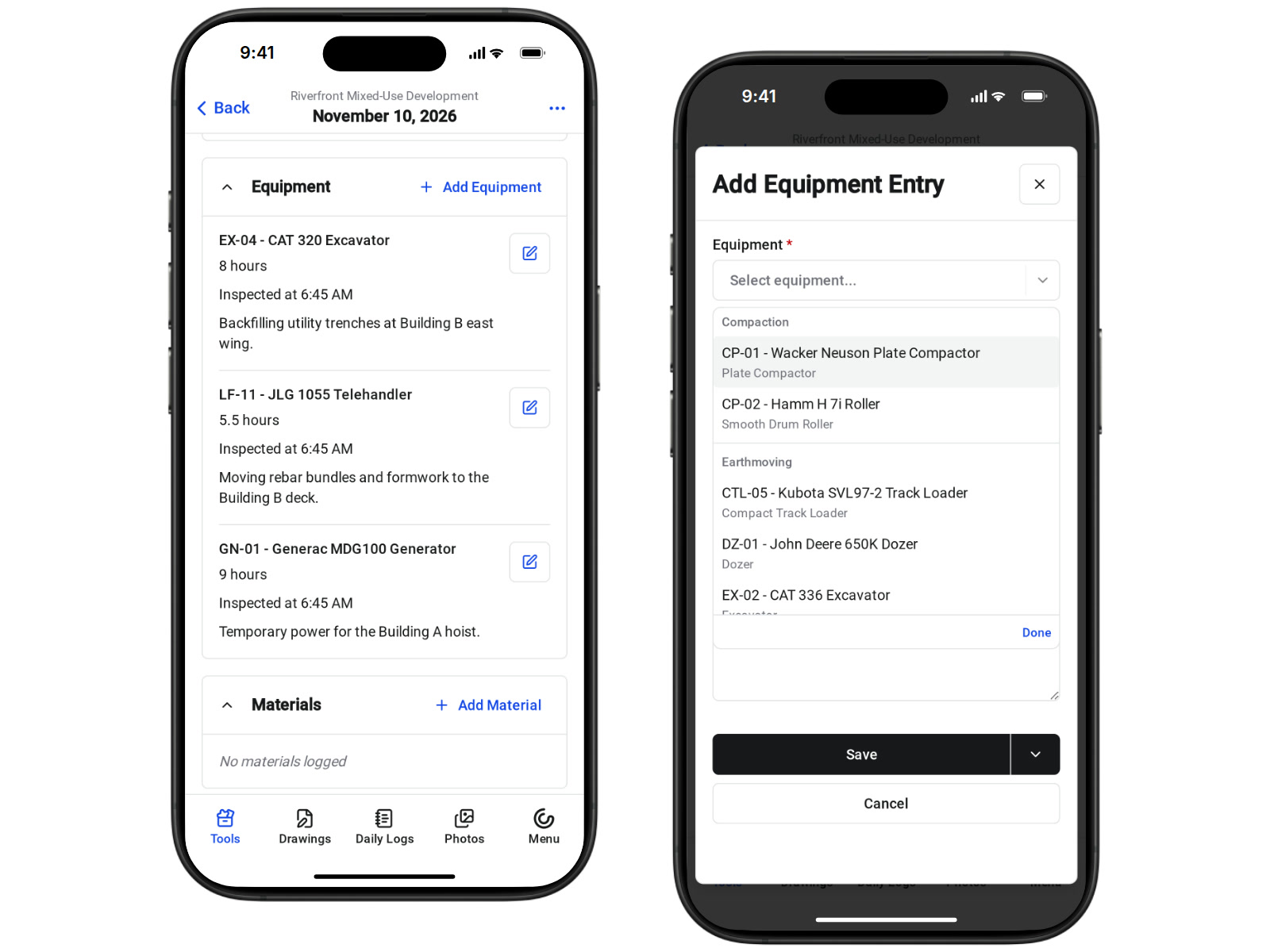
Crews log hours against the machines in your register
The Daily Log's Equipment section picks from the same register, so every project records the same machine the same way.
• Picking the machine: the picker groups machines by category and shows each one's type under its name, and searches by name, number, category, or type
• What gets recorded: Hours Used, Inspected At, Notes, and Maintenance
• Same machines as yesterday: Repeat brings yesterday's equipment over to today's log
• A machine that just showed up: people who manage equipment can type a new name in the picker to add it to the register
Usage across projects
See which jobs the excavators were on, and for how many hours
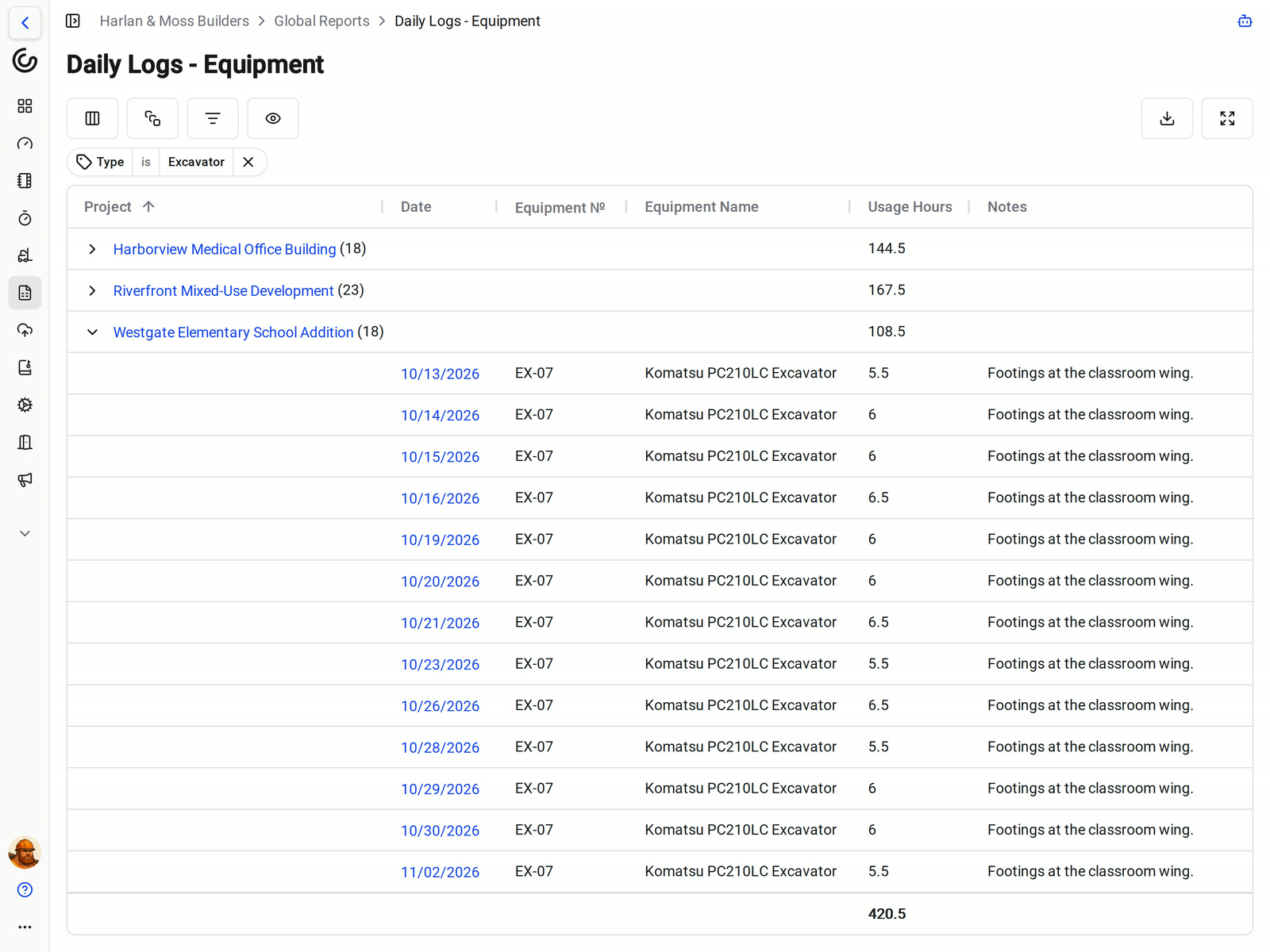
The Daily Logs - Equipment report in Global Reports lists every equipment entry from every project's Daily Logs and totals the usage hours on screen.
• By job: group by project to see each job's hours
• By kind of machine: filter or group by category or type to see all your excavators or lifts at once
• The details: each row has the date, equipment number and name, usage hours, inspection time, notes, and maintenance
• Monthly review: save the view and export it. See our construction reporting software
QR codes
Put a QR code in the cab, and scan it to open the machine's record
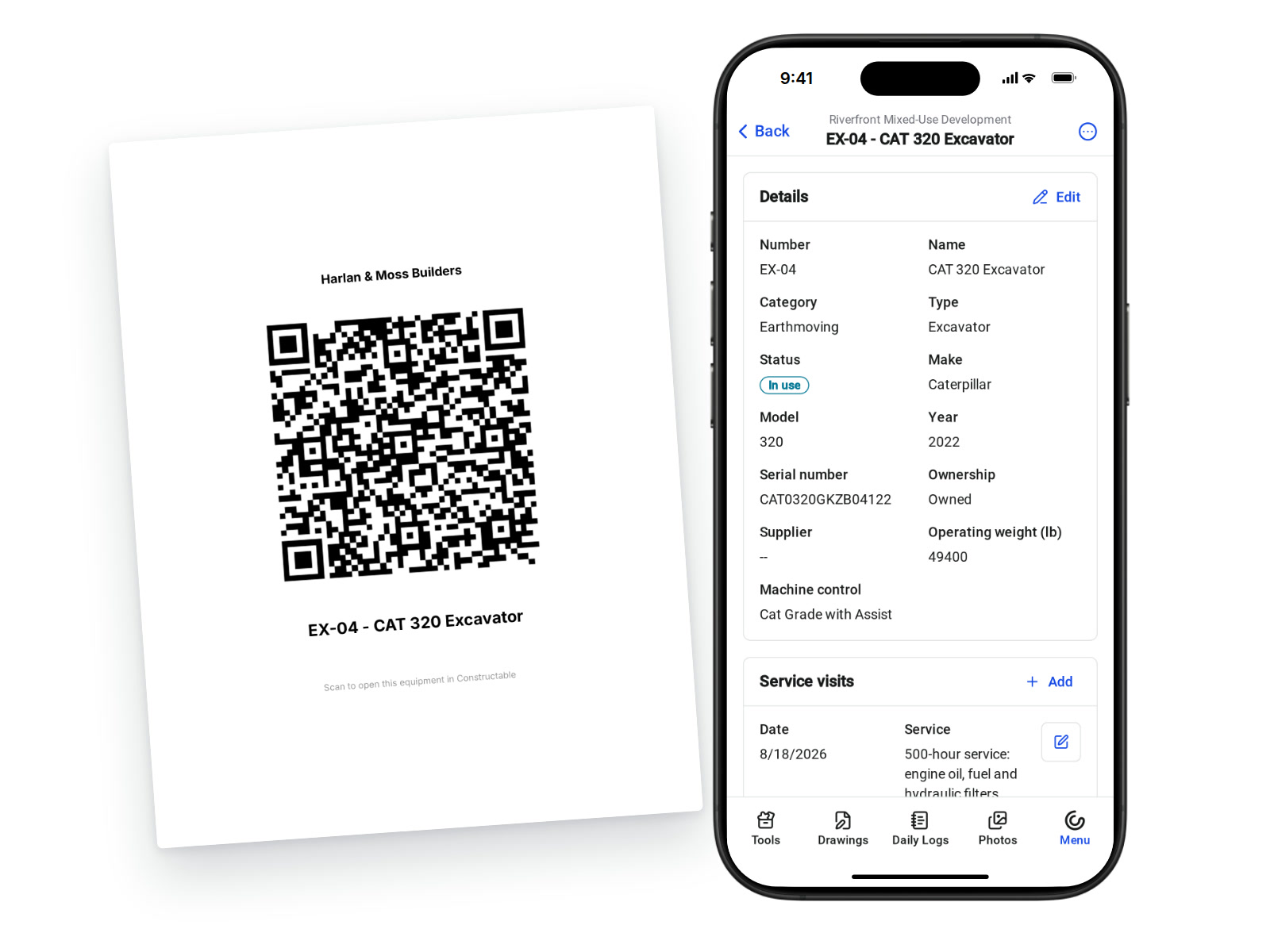
Download one machine's QR code from its page, or tick machines in the register and download a PDF of labels, one letter-size page per machine with your company name, the code, and the machine's number and name.
• Scanning: the code opens that machine's page, with its details, service history, and files
• Who can open it: anyone signed in to your organization, including Subcontractor, Consultant, and Owner roles
• Not for the public: whoever scans the code has to sign in as a member of your organization
Categories and custom fields
Each kind of machine asks for its own details
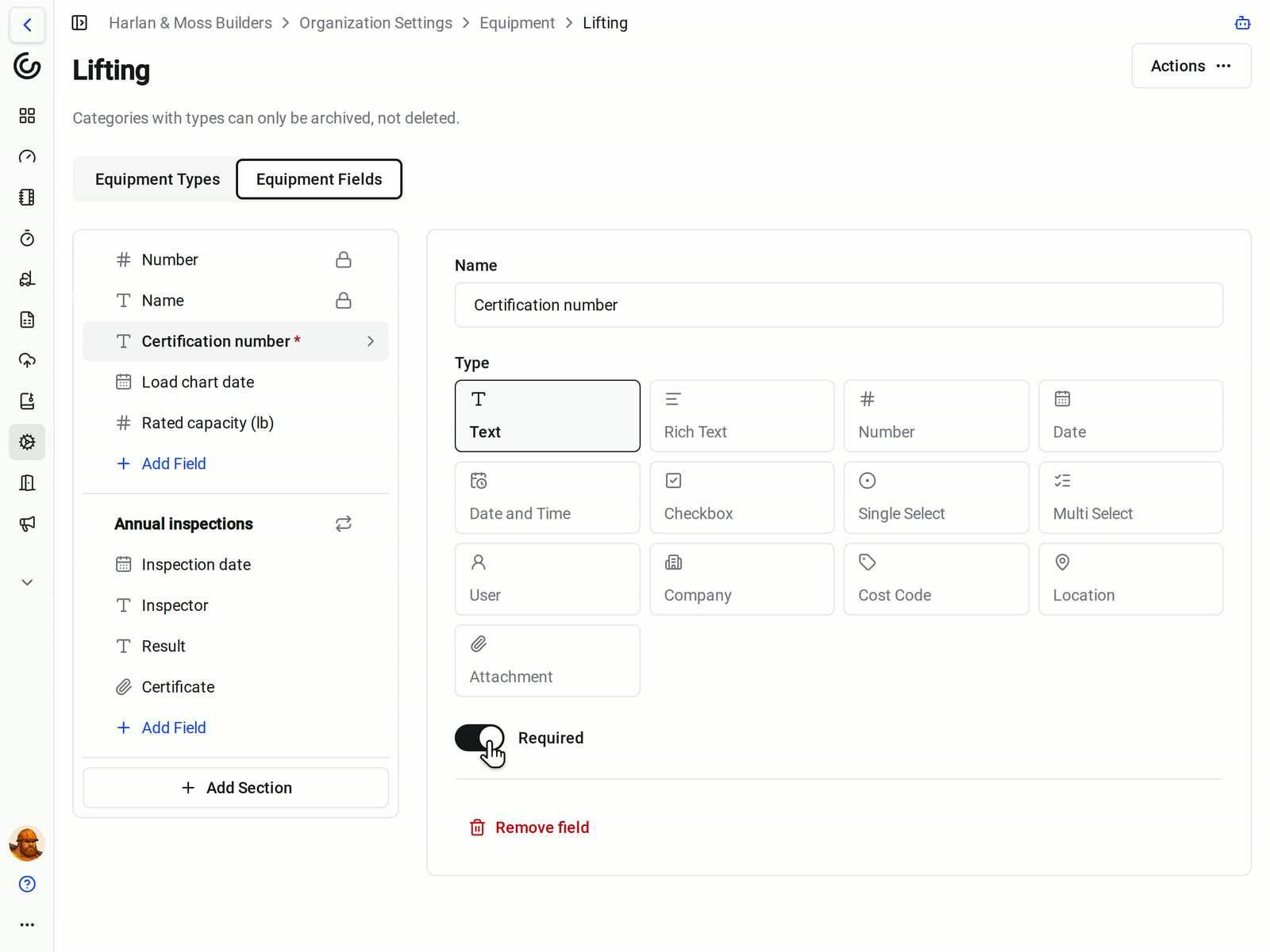
Sort the fleet into categories such as Earthmoving, Lifting, and Generators, with types inside each one, like Excavator and Skid Steer. Then give each category the fields it needs.
• Cranes and lifts: a required certification number and the load chart date
• Generators: kVA and fuel type
• Records that repeat: turn on Has many entries for a section such as Annual inspections, and add one entry per inspection
• In the register: fields outside a repeating section get their own column and filter
Bulk edits and archiving
Update a dozen machines in one save, and retire them without losing history
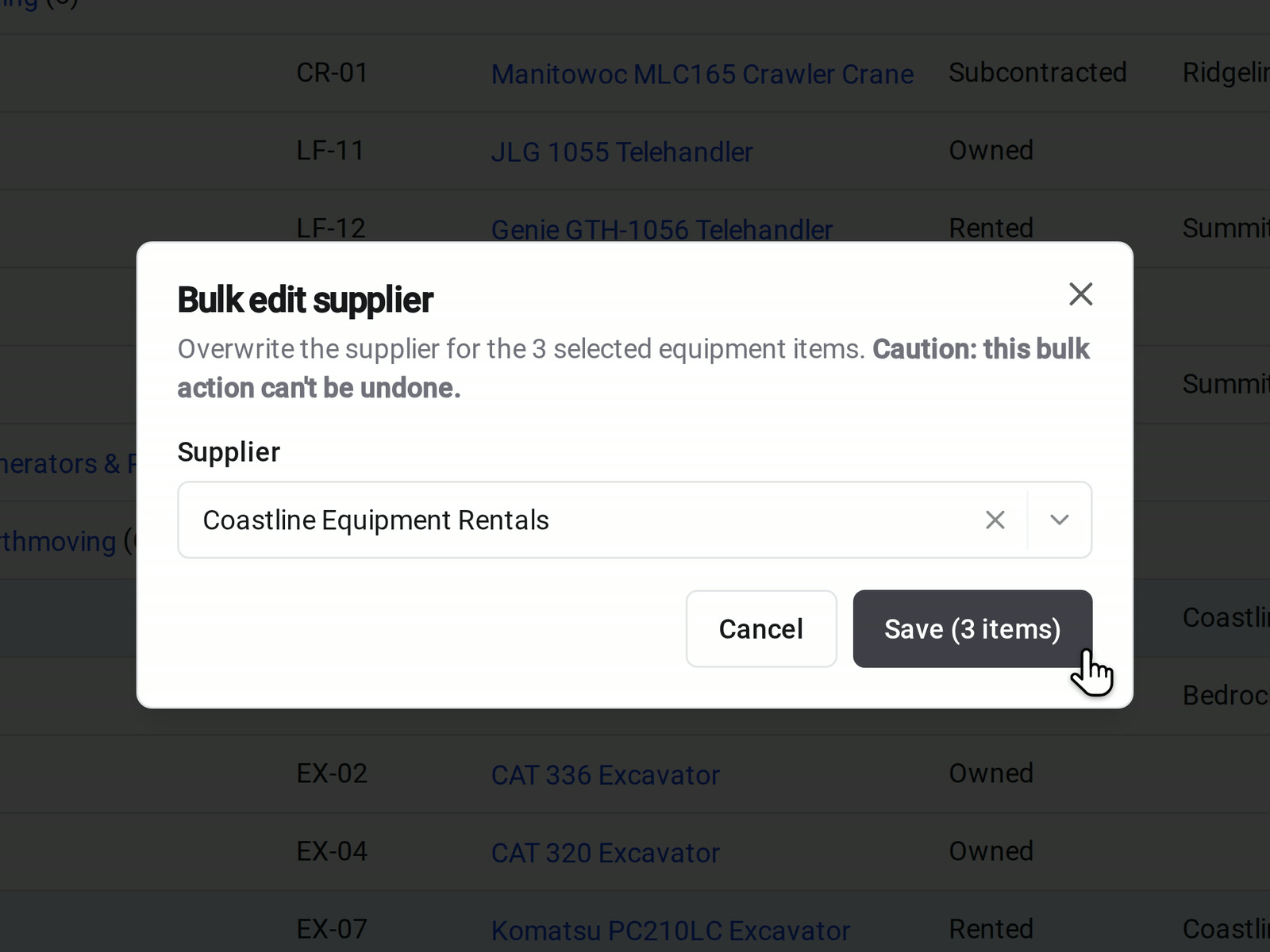
Tick machines in the register, open Actions, and change them all at once.
• Bulk edits: change the category, type, make, model, year, ownership, or supplier on every selected machine. If the save fails, nothing changes
• Machines that leave the yard: archive them, and they drop out of the register and every Daily Log picker
• History stays: Daily Logs that recorded an archived machine keep their entries, and you can unarchive it any time
Part of the rest of your company's records
Suppliers from your directory
The fleet list, on demand
Included on every plan
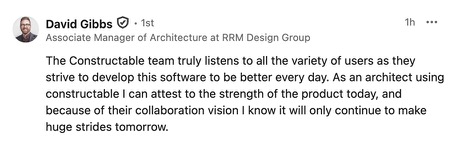
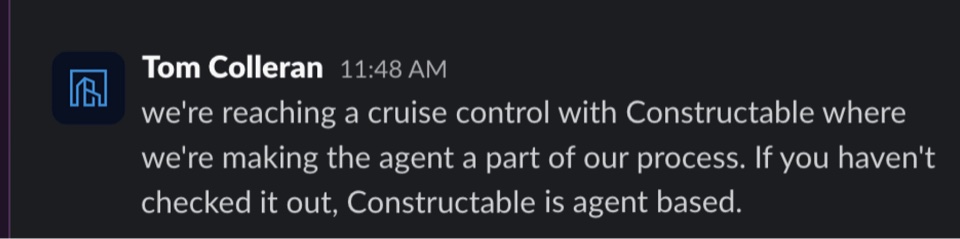
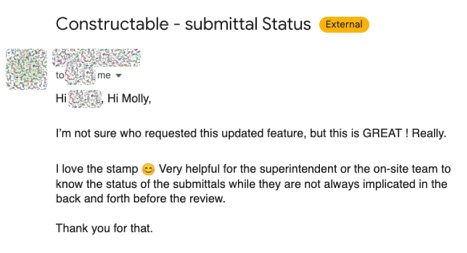
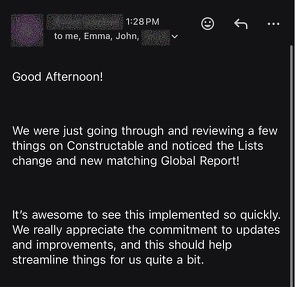
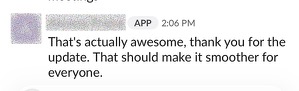
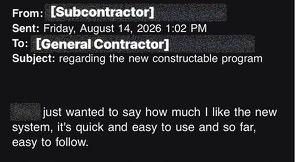
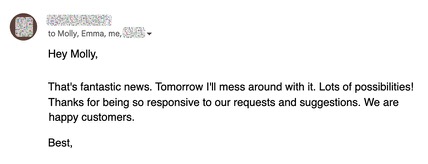
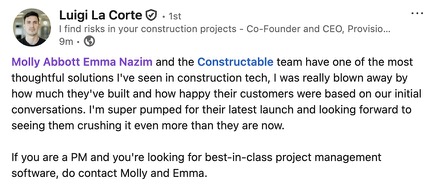
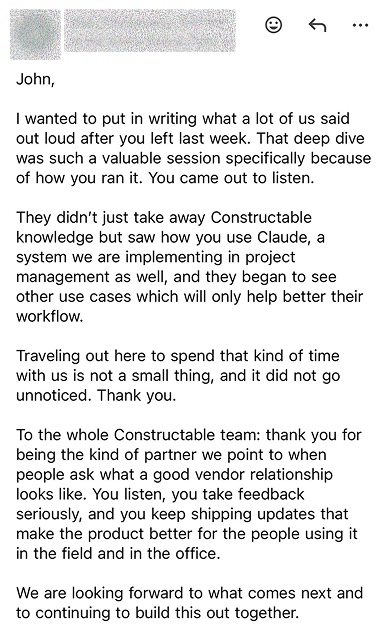
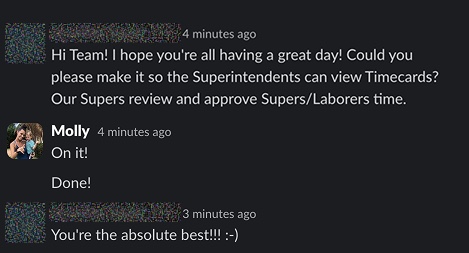
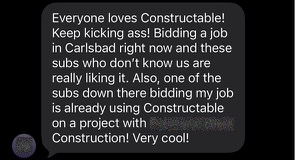
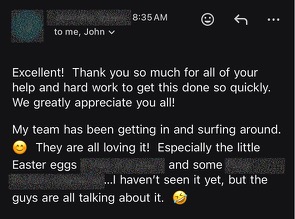
Hear from the GCs building with Constructable
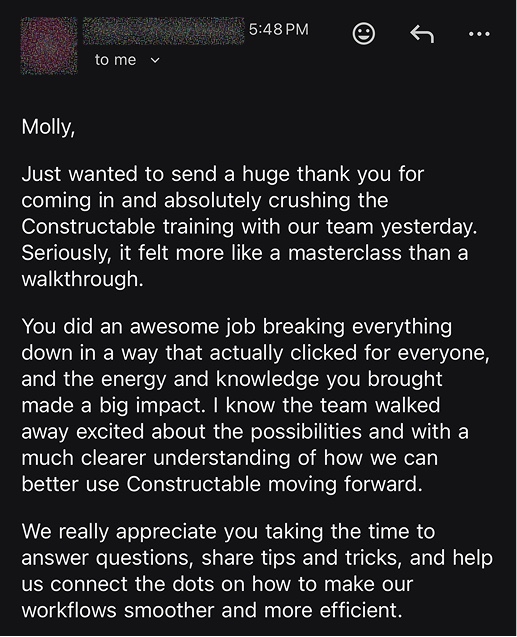
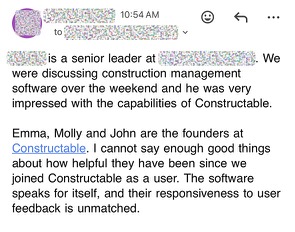
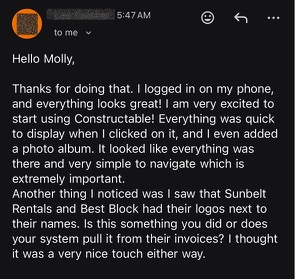
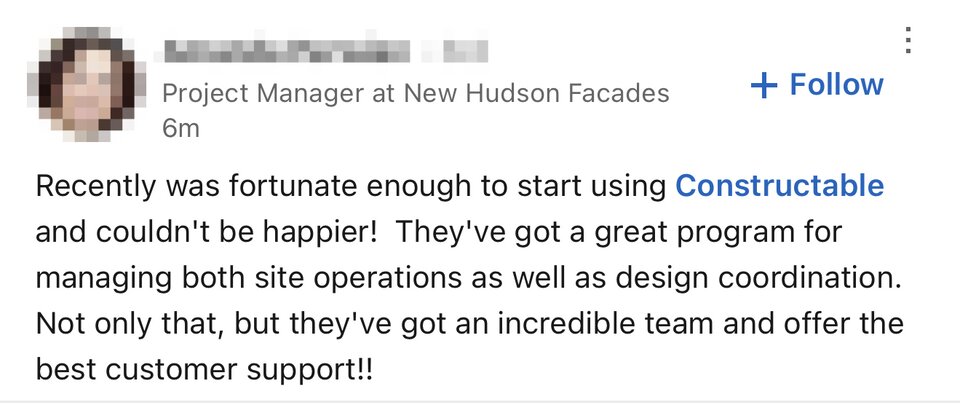
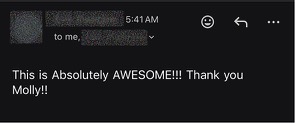
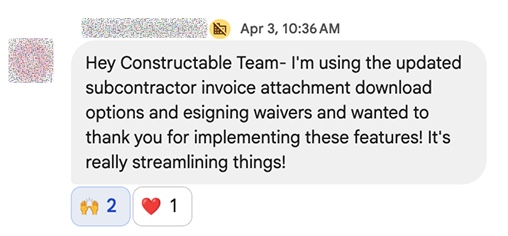
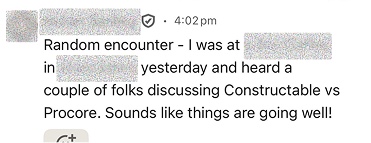
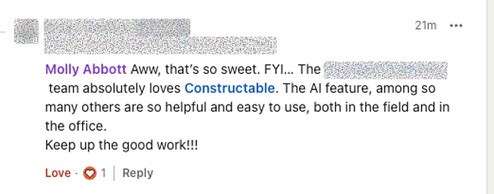
Loved in the office and in the field
Log equipment hours and pull up any machine's record from the jobsite with the Constructable app for iPhone, iPad, and Android.


Every machine.
Every hour on every job.
Book a 30-minute demo with our team.
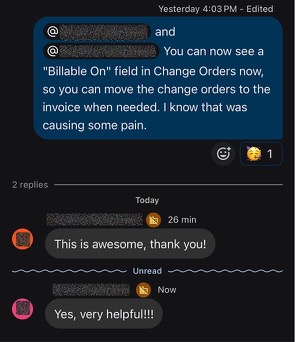
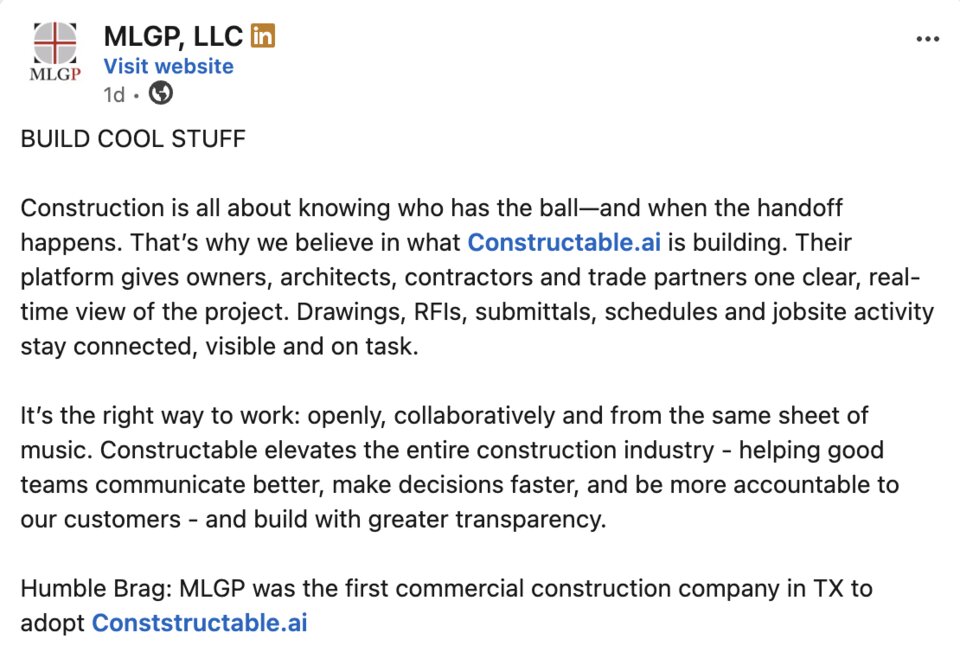
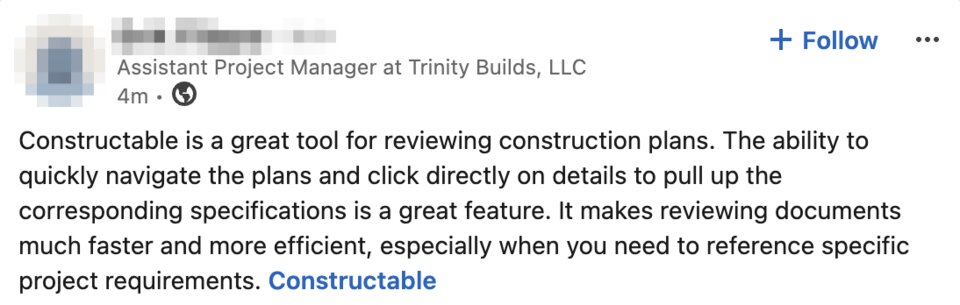
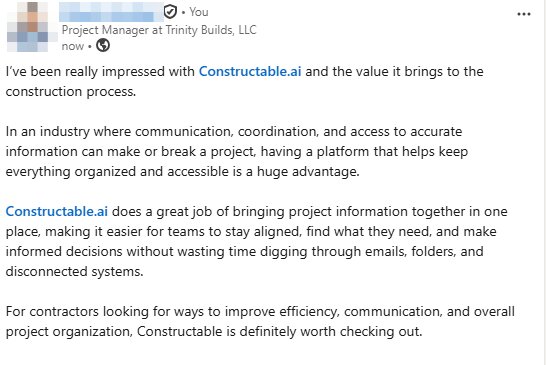
WallofHappiness


















Frequently Asked Questions
Can I track rented and subcontractor equipment, not just what we own?
How do QR codes work, and who can scan them?
Can crews log equipment hours on the daily report?
How do I see which projects a machine was on and how many hours it logged?
Can I add my own fields, like certification dates or kVA?
Does Constructable schedule preventive maintenance or connect to telematics?
Can I import or bulk update the fleet?
What happens to old Daily Logs when a machine is archived?
Which plan includes Equipment?
subs log their crews
every project
and cost code