Use this guide to review available records across projects in filterable, exportable tables. Global Reports answer organization-wide questions while preserving project and record access restrictions.
Start here
- Choose a cross-project Report: Open a Global Report.
- Review operations or compliance: Use cross-project and compliance Reports.
- Narrow and distribute results: Filter, group, and export.
- A Report is missing or empty: Troubleshoot Global Reports.
Common task recipes
- Review RFIs across projects: Open Global Reports → All RFIs, filter by project, status, due state, or participant, then open individual records.
- Compare field activity: Choose the relevant Daily Logs Report, keep the project field visible, and filter by date and project.
- Verify a system email: Open Email Activity and filter by date range, status, sender, or recipients.
- Review expiring insurance: Open Contractor Insurance Expiration. Use Actions → Download All when you need the certificate PDFs in one file.
- Give the team a standing filter set: Build it on the report, open Views → Save current to new view..., check Share with everyone in this organization (Admin and Manager can by default), and select Save.
- Compare billed vs complete across jobs: Open WIP Report under Financial Reports. Each row is a project; a totals row at the bottom sums the numeric columns.
Choose and review
Open a Global Report
- Leave the individual project's navigation.
- Open Global Reports.
- Choose an available Report.
Non-financial reports can include:
- All RFIs, All Submittals, All Lists, and Email Activity
- Daily Logs, Personnel, and Time Cards
- Equipment, Deliveries, Dumpsters, Inspections, and Materials
- Contractor Insurance Expiration
The visible list follows organization packages, permissions, and enabled Daily Log sections. All RFIs, All Submittals, and Email Activity need the Project Management package. All Lists, the Daily Logs Reports, and Contractor Insurance Expiration are there on the Field package too, so a field-only organization can still report across every project's lists. All Invoices and WIP Report are financial Reports and need the Financial package. WIP Report is covered below; All Invoices is covered in the Invoices guide. Hidden projects do not appear in these reports.
Use cross-project and compliance Reports
- Use All RFIs and All Submittals to compare status, due work, and responsibility across projects.
- Use All Lists to see every list item on every project, with grouping and filtering by project, list name, status, assignee, trade, and location. It needs View punch list items on top of report access, and it doesn't need the Project Management package. Built-in fields a list hides stay blank for that list's items. Custom fields on your lists add their own filterable columns, listed in Columns under Custom Fields or under their custom section's title — they work the same way as on the project report; see Use the List Report.
- Use the Daily Logs Reports to review field activity by project, date, company, equipment, delivery, dumpster, inspection, material, or phone call. Phone Calls appears when Phone Calls Section is enabled.
- Use Equipment to see every Daily Log equipment entry across projects with its Category, Type, Usage Hours, and Maintenance notes. Group or filter by Category or Type to review a whole class of machine at once; entries for equipment without one fall under Uncategorized or No type. Category and type reflect each machine's current setup in the equipment register, so recategorizing a machine moves its past entries too. See Report equipment use across projects.
- Use Time Cards to review your own employees' hours across projects. It reads time cards, so it needs View time cards, and it appears when Time Cards Section is enabled for the organization.
- Use Email Activity to review system-sent emails by date range, status, sender, and recipients. It requires View the Email Activity report.
- Use Contractor Insurance Expiration to review insurance and compliance expiration information from Global Directory. Actions includes Download All for the certificate PDFs on the filtered rows, plus Download as PDF and Download as CSV for the grid itself. Download All merges readable PDFs into one file, skips files it can't read, and follows the filters you have on. It needs the same View non-financial reports access as the report.
Keep the project column or filter in a cross-project result. Similar record numbers can exist in different projects.
Read the Global WIP Report
Project Budget already has a WIP Report tab by cost code. This Global Report is the same math one row per project — billed versus complete across the organization.
- Open Global Reports.
- Under Financial Reports, select WIP Report.
- Search with Search by project... when the list is long.
- Open a project name to jump to that project's Budget.
Each row is a project. Columns are Project, Over Billed, Under Billed, then Revenue (Actual Revenue, Projected Revenue, Revenue % Complete) and Costs (Actual Costs, Forecast at Completion, Costs % Complete). There are no column letters on this report. A totals row at the bottom sums the numeric columns across the list.
Actions includes Show Pending Change Orders in Totals, on by default. Use Download as PDF and Download as CSV for the grid. The empty list reads No projects found.
Note: You need View financial reports and the Financial package. This is not the project Budget tab — that one stays on the job, by cost code.
You can see which projects are over- or under-billed without opening each Budget.
Refine and distribute
Filter, group, and export
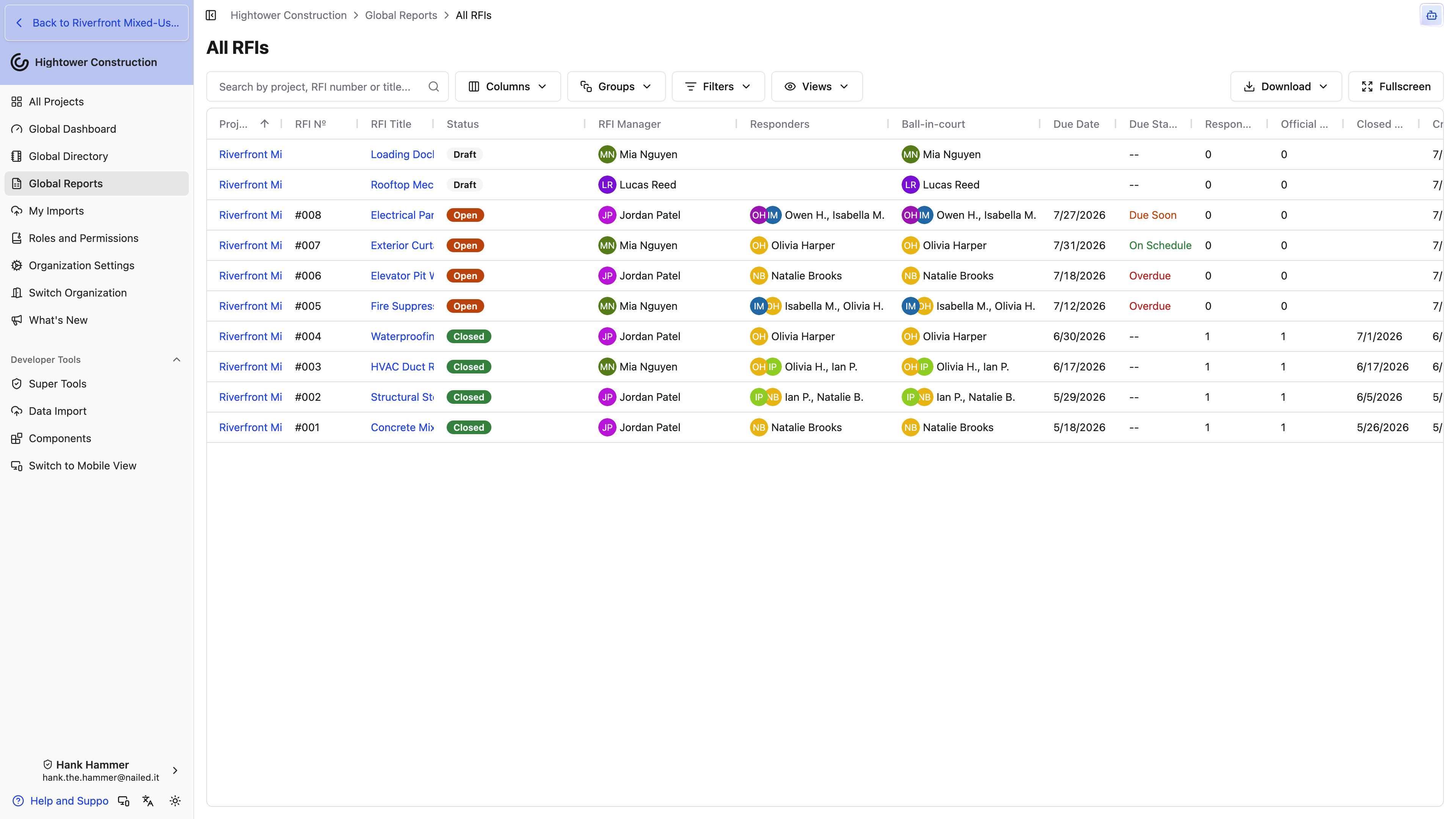
- Clear stale search or filters when the list looks unexpectedly narrow.
- Search by available number, title, name, or text.
- Filter by project, date, status, people, companies, or other available fields.
- Group by an available field such as project, date, or company.
- Confirm the visible records, totals, and project context.
- Select the export action and choose an available format.
- Review the generated file before sharing.
Totals reflect active filters and grouping. Exported files are point-in-time snapshots and do not grant recipients Constructable access.
Every Global Report, including Email Activity, has a Views menu, so a filter set you rebuild every month can be saved once and reopened. A view you save is private to you unless you check Share with everyone in this organization — that checkbox needs Share saved views with everyone on the project, set the default view, and delete shared views, which Admin and Manager have by default. Deleting a shared view removes it for everybody, with no undo, and starring a shared view makes it the report's default for everyone. Name shared views for what they show rather than for yourself, and expect A saved view with this title already exists. if you reuse a name; pick a different one rather than assuming the save went through. See Save, share, and set a default view.
Access and troubleshooting
Check Global Reports access
Global Reports requires organization-level View non-financial reports access. Report cards also follow package availability, enabled Daily Log sections, and access to underlying project records. Global Reports does not bypass project restrictions.
Email Activity has a separate permission. Financial Reports use View financial reports instead.
Troubleshoot Global Reports
A Report is missing
Confirm View non-financial reports, the required package, access to the underlying tool, and any enabled Daily Log section. All RFIs, All Submittals, and Email Activity need Project Management; All Lists doesn't. For Email Activity, confirm its separate permission.
A Report has no rows
Clear search and saved filters, confirm the date range and grouping, and compare with the source project tools. Project restrictions still apply. Hidden projects are left out of every Global Report, including WIP Report and All Lists — unhide the project from All Projects if it should be in the numbers.
Two people see different totals
Compare organization and project permissions first, then compare active filters and grouping.
An export does not match the intended view
Review the Report title, project context, active filters, grouping, visible columns, and rows, then export again.
Download All is disabled on Contractor Insurance Expiration
The filtered rows have no mergeable PDF certificates. Clear filters that hide the policies, or attach PDF certificates on the company in Global Directory. Grid Download as PDF and Download as CSV still export the table.