Revision Review by Constructable
Construction drawing comparison software that tells you what changed
Generate a revision report on a new set, and our construction drawing comparison software compares every revised sheet with the one before it and writes the briefing: what changed, sheet by sheet, including changes nobody clouded. It comes with drawings on every plan, and we do flat pricing with unlimited users.
Revision Review
Brief the trades in minutes, not an afternoon
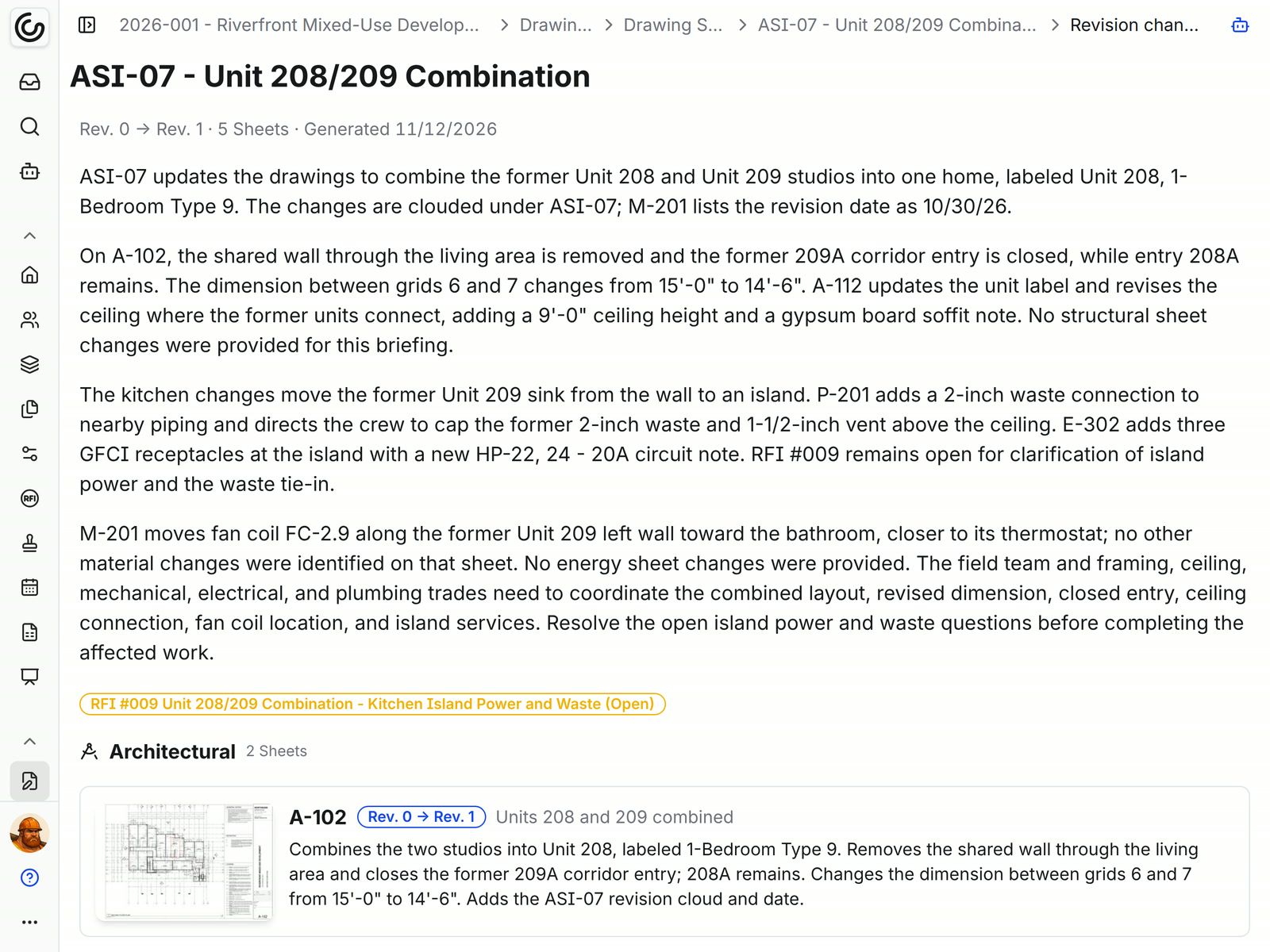
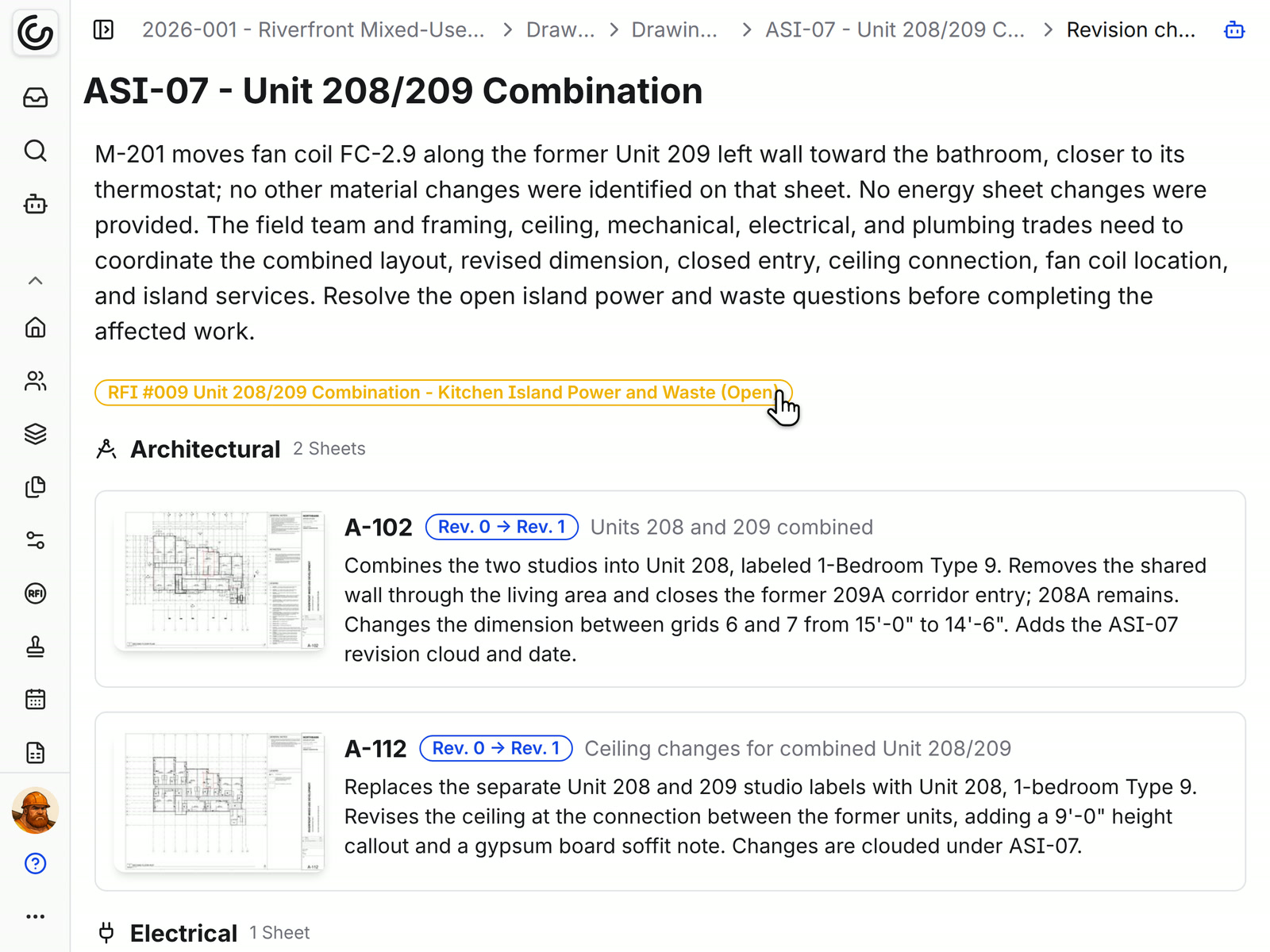
Select Generate revision report on a newly published set, and Constructable compares each revised sheet with the revision before it. The report opens with a short briefing you can hand to the team.
• Why the set was issued: the briefing opens with what the bulletin or ASI is for
• What moved: the main layout and scope changes, with sheet numbers you can follow
• Who needs to talk: which trades have to coordinate before the work goes in
• More sheets published later: the same report updates instead of starting a new one
Overlays and Split View
Check any change on the sheet itself
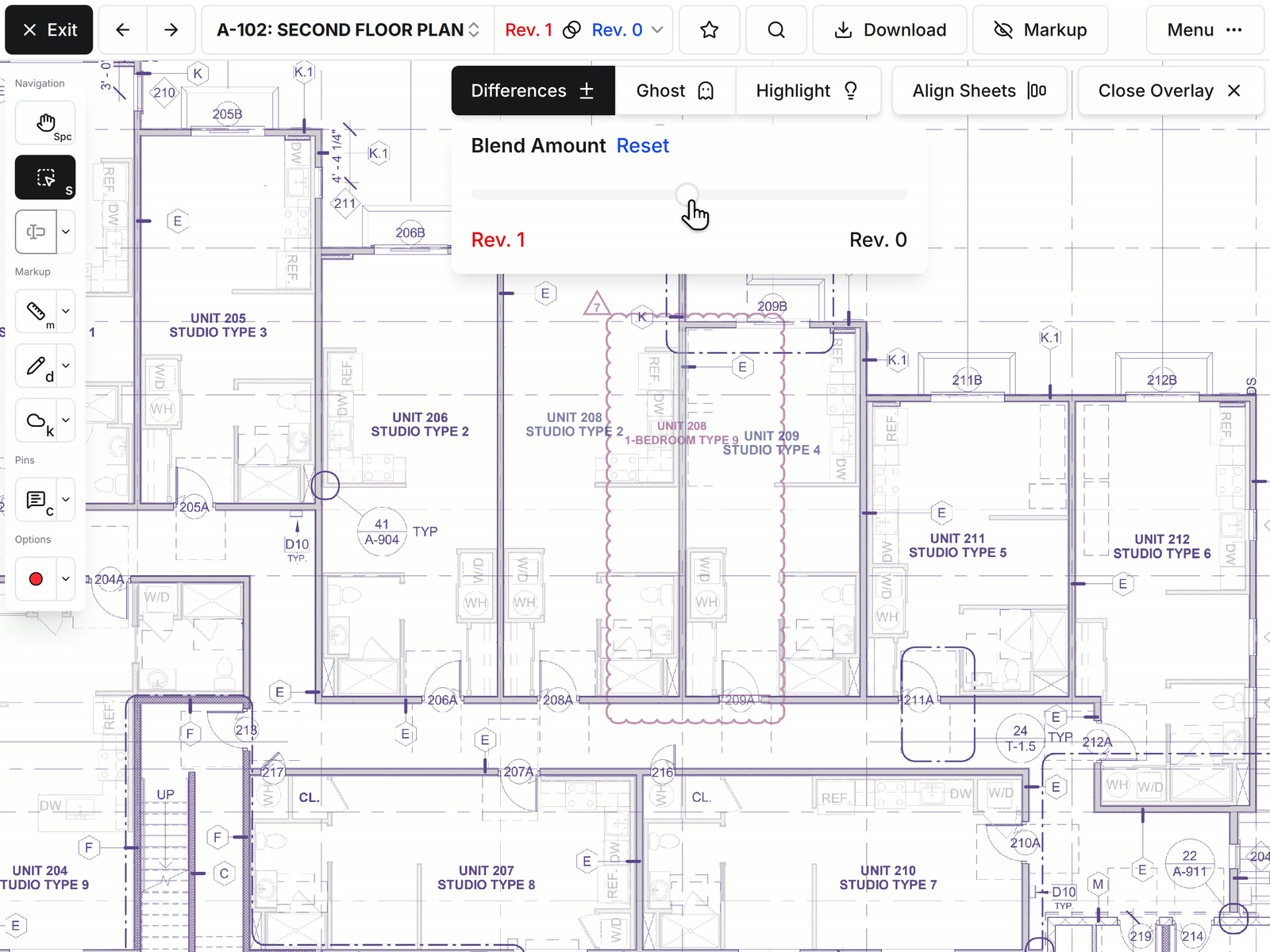
When a change matters, open the two revisions on top of each other. Constructable tints each revision a different color, so a wall that moved or a label that changed stands out from everything that stayed put.
• Chasing a dimension or a wall: Differences colors Rev. 1 and Rev. 0 against each other, and Blend Amount sets the balance
• Reading notes while you compare: Ghost fades one sheet over the other
• A busy sheet: Highlight picks out the regions that changed
• Layouts that don't line up: open both in Split View, or align the sheets on three points
• Sending it to the field: download the overlay as a PDF
Changed sheets
Look only at the sheets that moved
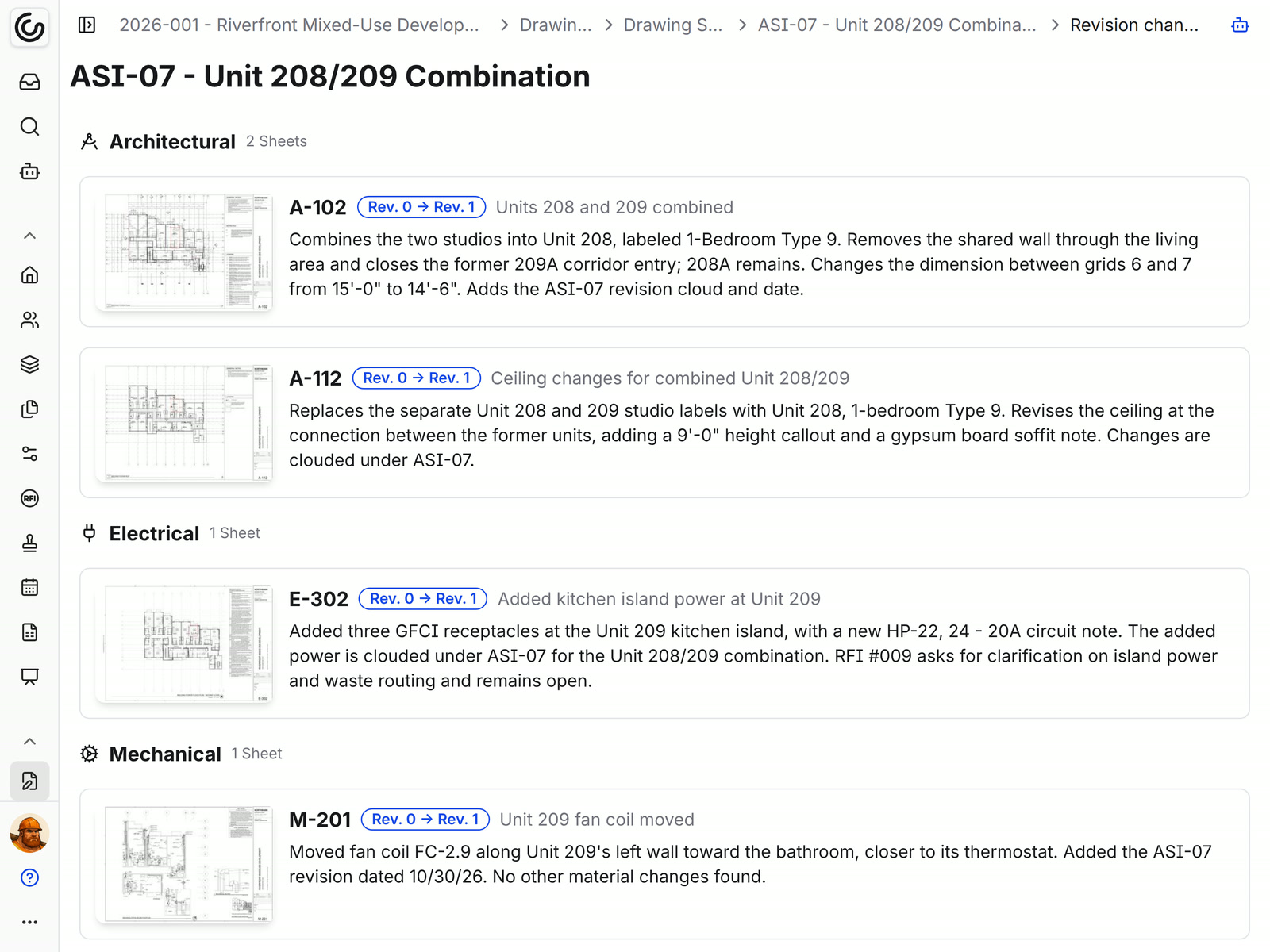
Under the briefing, the report lists every revised sheet that changed, grouped by discipline. Sheets with no material change stay off the list, so a 40-page set might show the eight that matter.
• Finding your trade's sheets: Architectural, Electrical, Mechanical, and Plumbing each get their own group
• Reading a change: each card shows the sheet number, revision range, title, and what changed
• Seeing it on the drawing: select the thumbnail to open the sheet in the viewer
The current set
Build from the current sheet, with the old one a click away
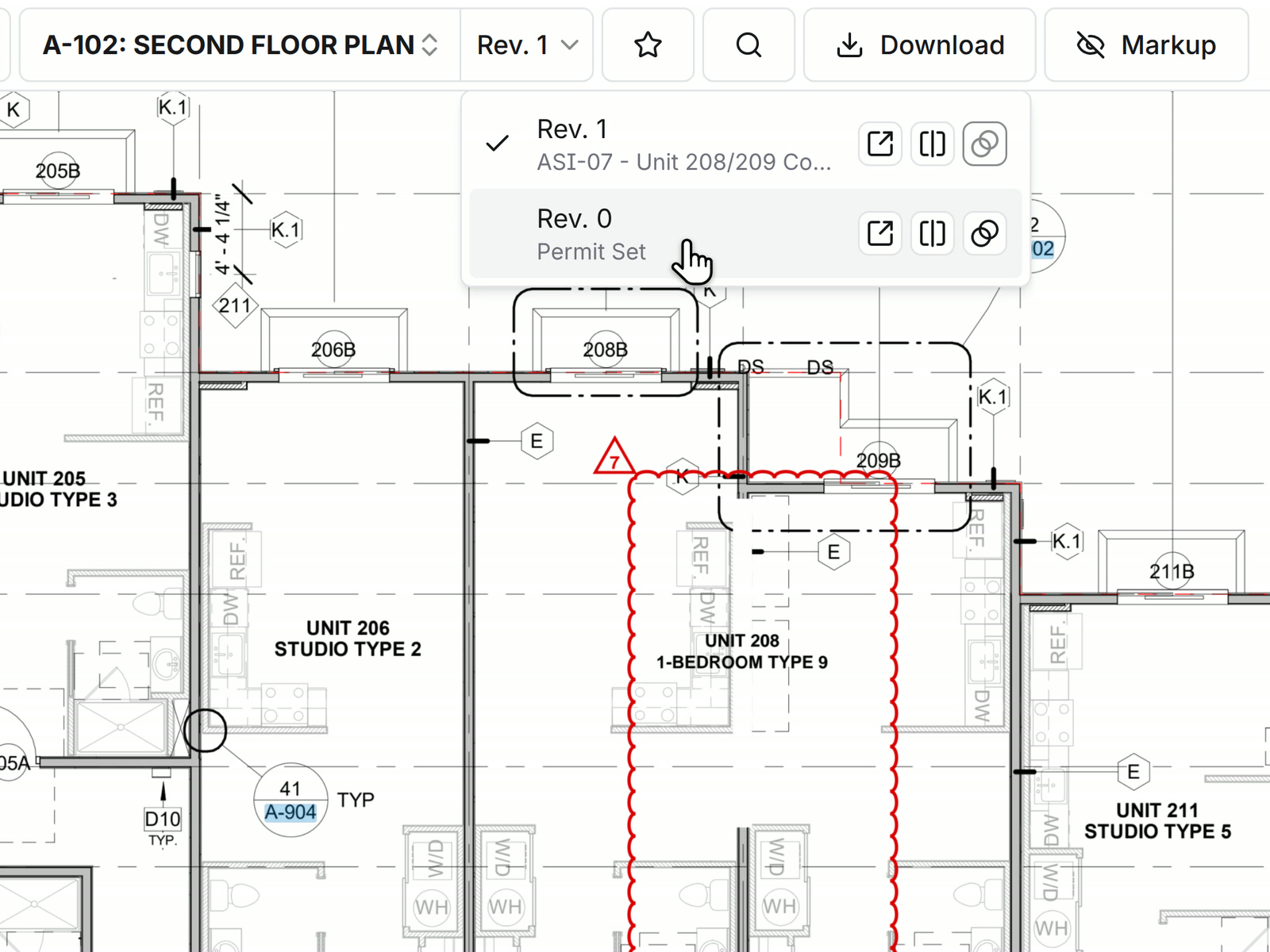
The newest published revision is the current sheet for everyone on the project. Older revisions stack under the same sheet number, labeled with the set they came from.
• Checking what the last set said: open the revision menu on the sheet and pick Rev. 0
• Comparing from the menu: open a prior revision in Split View or as an overlay in one click
• Keeping your markup: markup can carry forward to the new revision. Takeoff markup doesn't, and it's worth checking copied markup where the plan changed.
Related work
See which open RFIs a revision touches
The report links the changes to the work they affect with Related RFI, Submittal, Change order, and Document badges. A record that several sheets share shows at the top of the report, and the rest show on the card of the sheet they belong to.
• An open question on a changed sheet: the RFI badge shows its number, subject, and status
• Following up: select a badge to open the record
• Pricing the change: Submittal and Change order badges show which of those records a revision touches
Included with your drawings
No AI add-on
Unlimited users
Every device
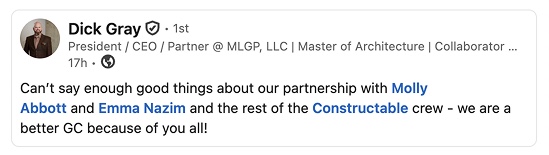
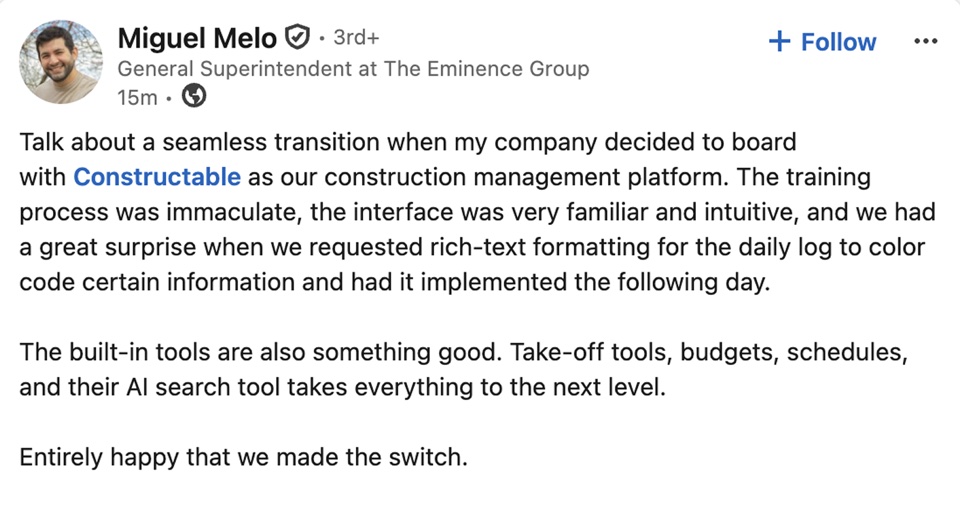
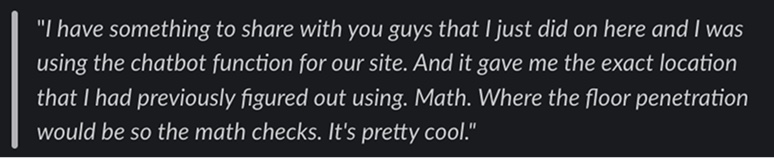
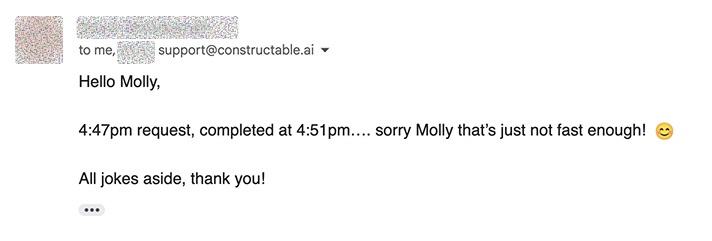
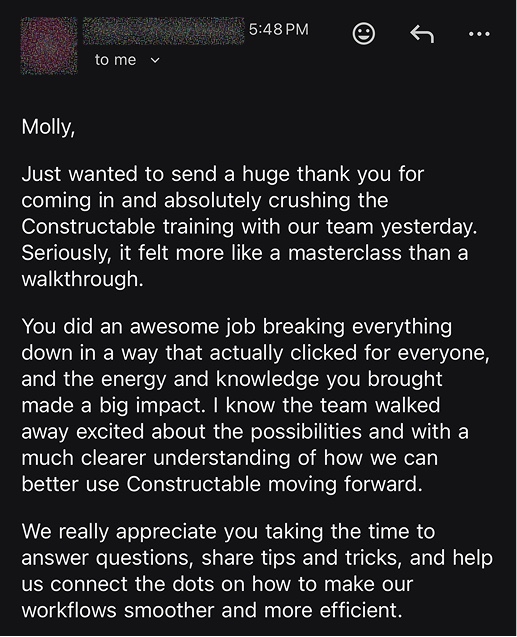
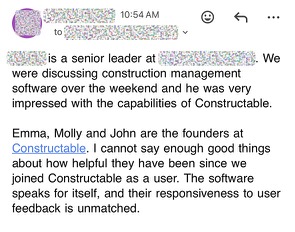
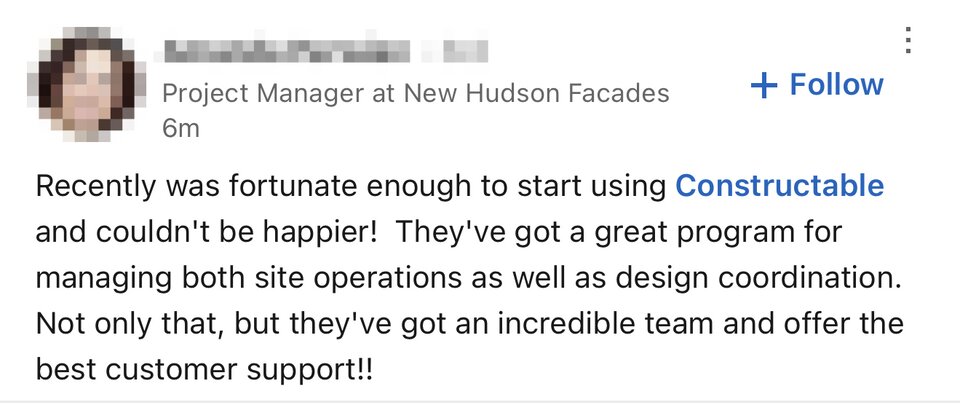
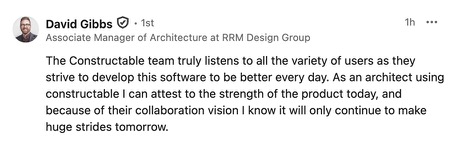
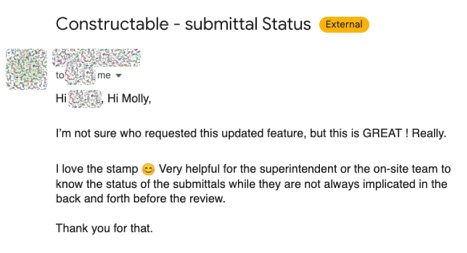
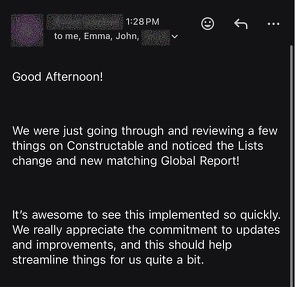
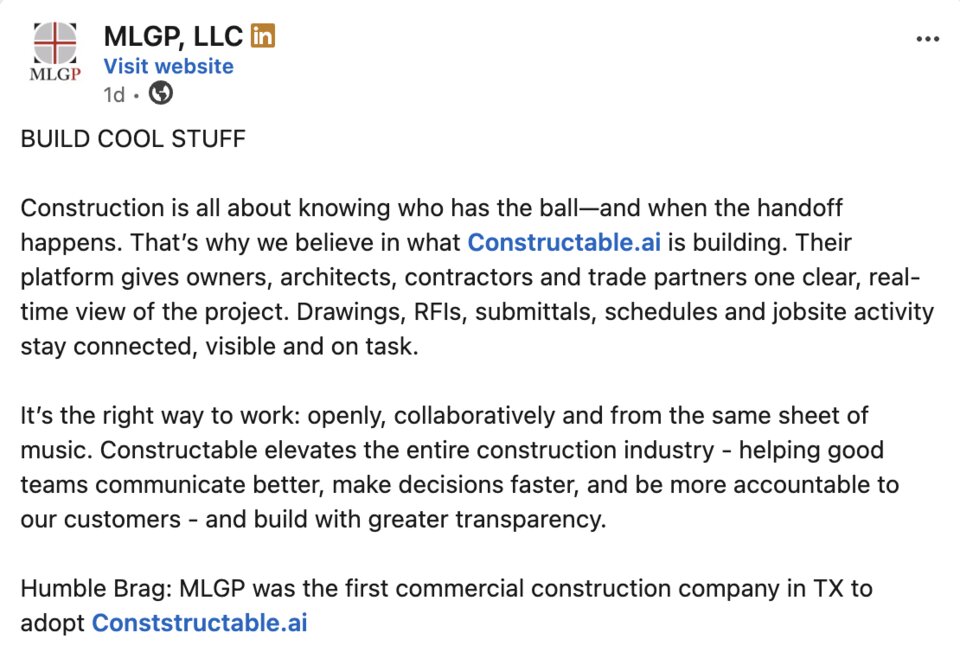
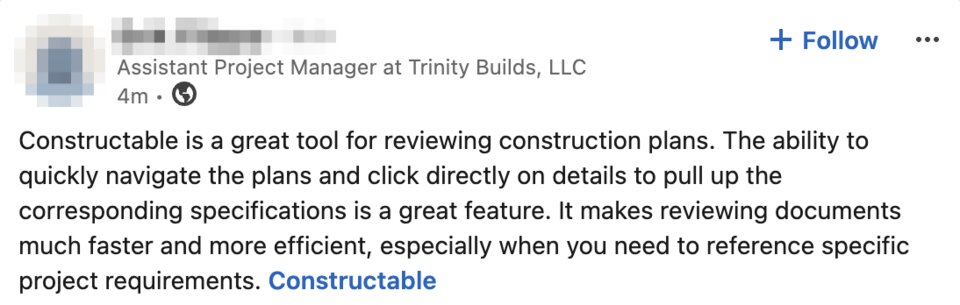
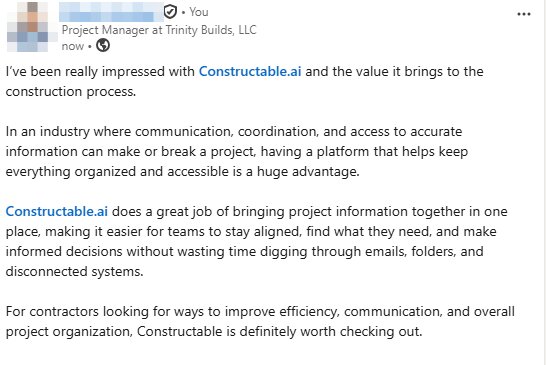
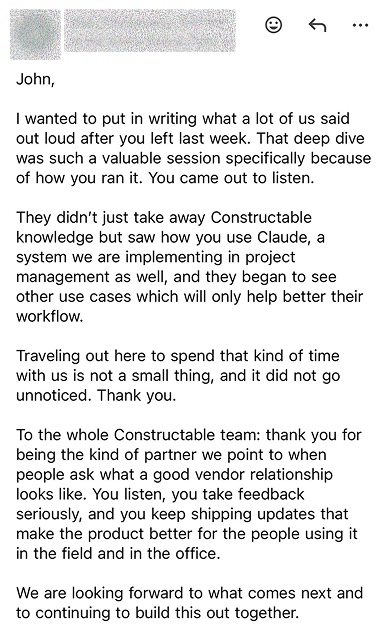
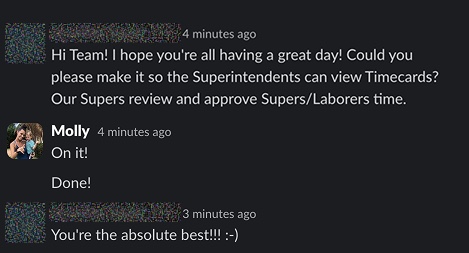
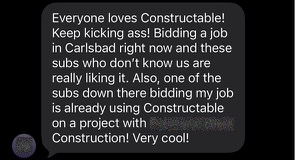
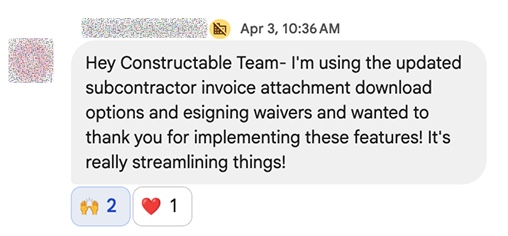
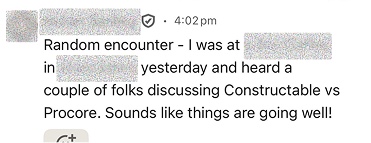
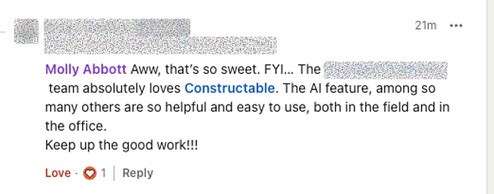
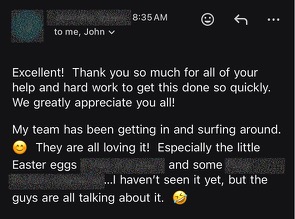
Hear from the GCs building with Constructable
Loved in the office and in the field
Compare drawing revisions on site with the Constructable app for iPhone, iPad, and Android.


Every new set.
Briefed before the trades ask.
Book a 30-minute demo with our team.
WallofHappiness























Frequently Asked Questions
How does Constructable show what changed between drawing revisions?
Does it catch changes the architect didn't cloud?
How is this different from Procore's drawing compare or overlay?
Can I compare two revisions on my phone or iPad in the field?
Does it cost extra?
What do I need to start?
on every iPad
on the sheet
tied to the drawing