Commitments by Constructable
Construction subcontract management software for general contractors
Our construction subcontract management software turns awarded bids into subcontracts and purchase orders, imports the schedule of values, and sends each contract for approval and e-signature without DocuSign. Change orders, pay apps, and payments stay tied to the contract. Commitments come with the Field, Project, and Financial Management plan, and we do flat pricing with unlimited users.
Commitments and purchase orders
See what you've bought out on every job
Every subcontract and purchase order on the project lives in one log, with its vendor, number, status, and contract amounts. A total row pinned to the bottom adds up whatever you're looking at.
• Subcontracts or POs: filter to one type, or search by company, title, or number
• One page per contract: each commitment has tabs for the contract, scope of work, SOV, change orders, invoices, and payments
• Purchase orders: POs start at zero retention and print with their own legal language
• For the file: download any commitment or PO as a PDF

Buyout
Award the winning bids as draft subcontracts
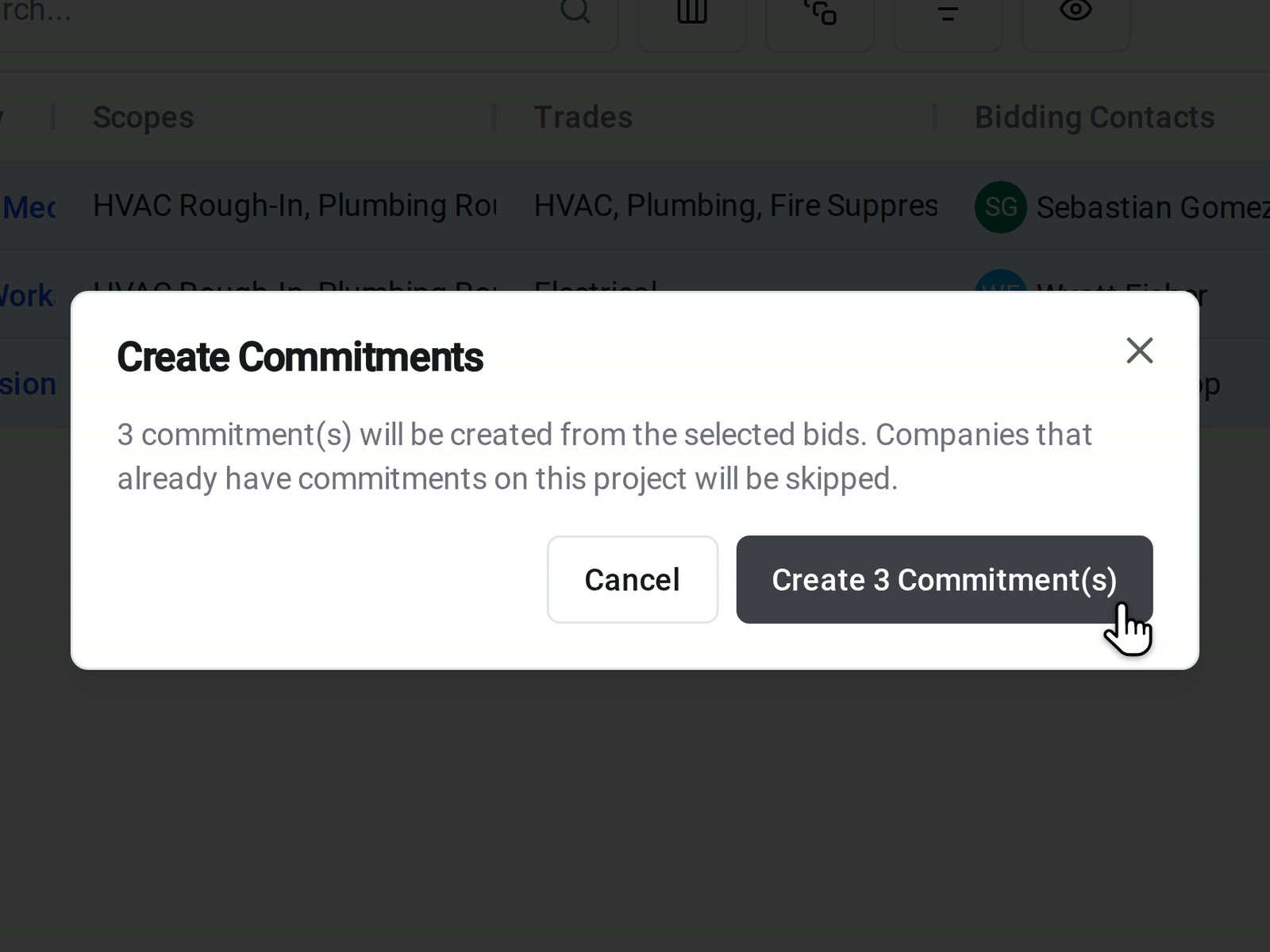
Select the bids you're awarding on a bid package and create a Draft commitment for each company in one step. Then finish the scope, coding, retention, and SOV on each one.
• No duplicates: a company that already has a commitment on the project is skipped
• A starting point: a commitment created from a bid stays a Draft until you prepare and send it
Schedule of values
Bring in the sub's schedule of values, then lock it
Add SOV lines by hand, or import the sub's CSV or PDF, including AIA G703 continuation sheets. The grid groups lines by cost code and shows the original amount, approved and pending change orders, and the revised amount.
• Unit pricing: enter a quantity, unit, and unit price, or type a lump-sum amount
• Coding: every line carries a cost code, cost type, and subproject
• Protected after signing: lock the SOV, and give only the roles you choose permission to unlock it or edit it once the contract is executed

E-signing
Send subcontracts for e-signature without DocuSign
Prepare the contract right from the commitment. Upload your own PDF, generate one from the commitment, or stack your organization's templates, such as a base agreement plus exhibits. Then place each signer's fields and send.
• Merge fields: stamp the project address, contract amount, signer name, and other values into the PDF when it's sent
• Your signing order: set in Organization Settings whether the sub or your company signs first
• Signing anywhere: subcontractors sign from the email link on a computer or a phone, or from the commitment page
• Your paper: the contract and its legal language are yours. Constructable routes and signs it

Approvals
Your team signs off before the sub ever sees it
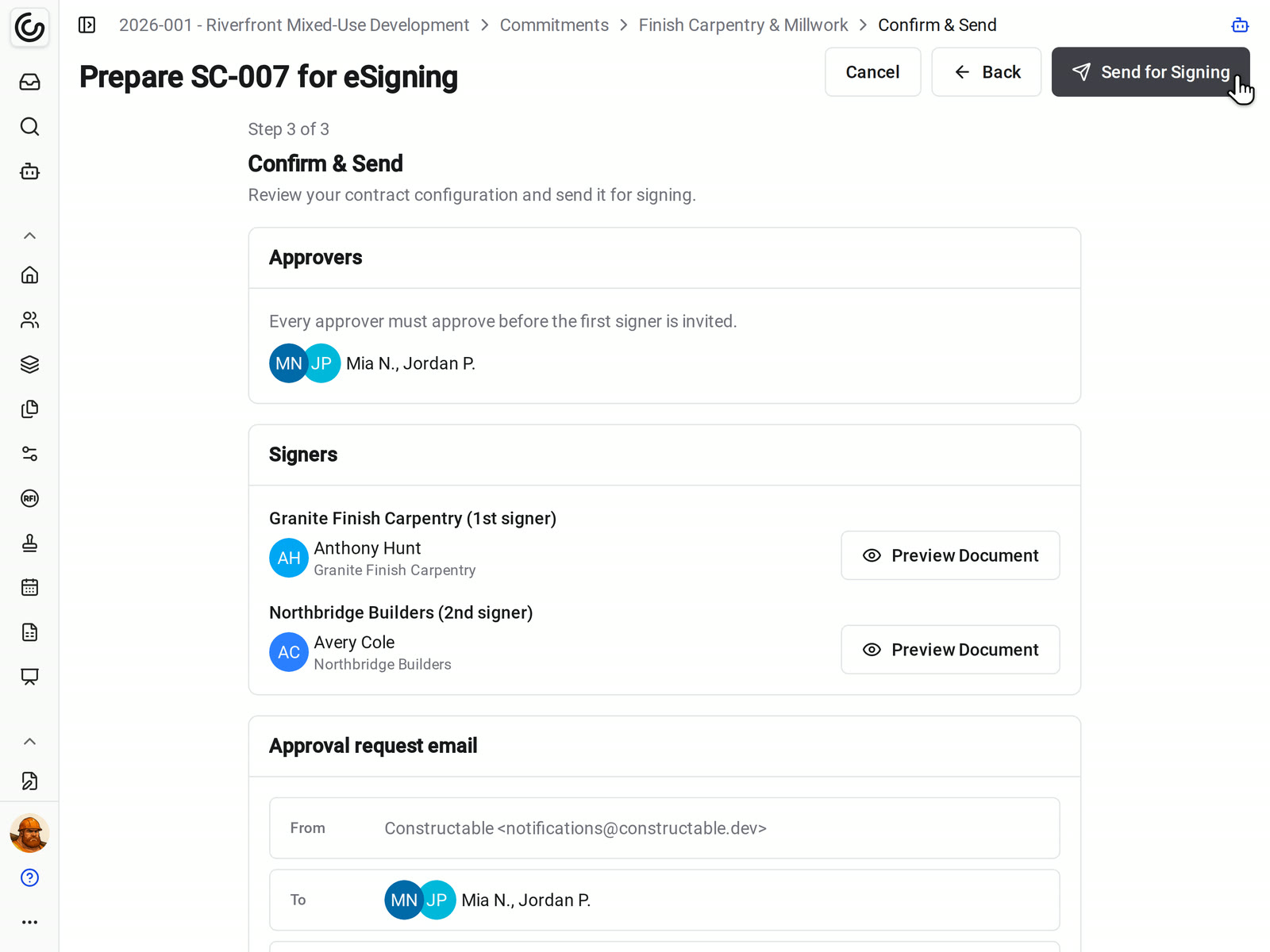
Add your project manager, controller, or anyone else who has to approve a subcontract. Approvers get it one at a time, in your order, and the first signer is invited only after the last approval.
• A rejection: the commitment goes back to Draft, and the reason stays on the record
• Copies: add copy recipients who get the signed contract without approving or signing
• Check first: preview the document as each signer will see it before you send
Contract status
See who's holding the contract, and nudge them
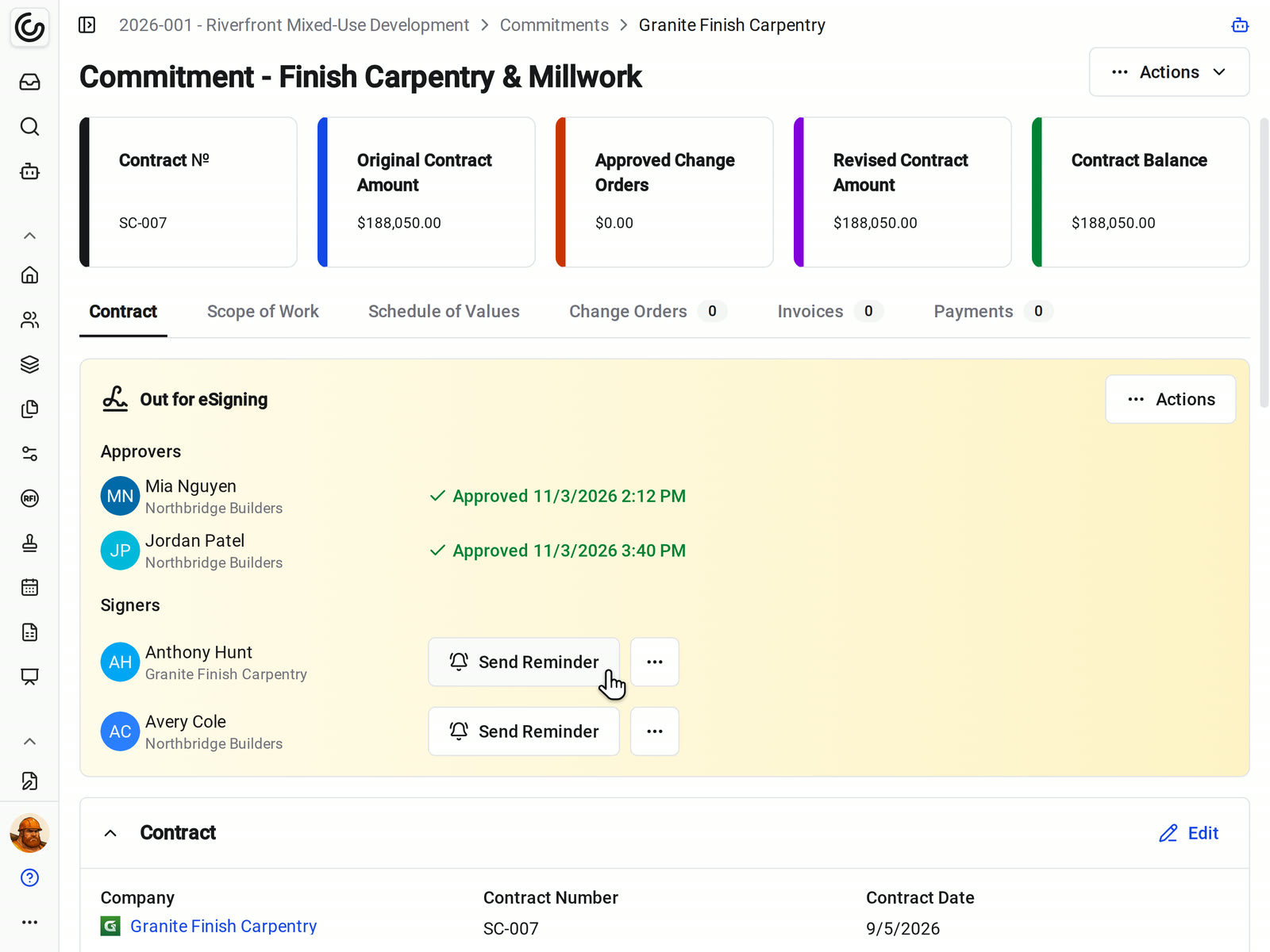
The commitment shows each approver and signer and where they stand. It moves through Awaiting Approval, Out for Signing, Ready to Countersign, and Fully Executed on its own, and the signed PDF lands on the commitment.
• Chase it: select Send Reminder beside anyone who still owes an action
• Email not getting through: copy a signer's personal link and text it to them
• Something changed: cancel e-signing, fix the contract, and send it again, with the history kept
Insurance
Collect the certificate of insurance before the sub signs
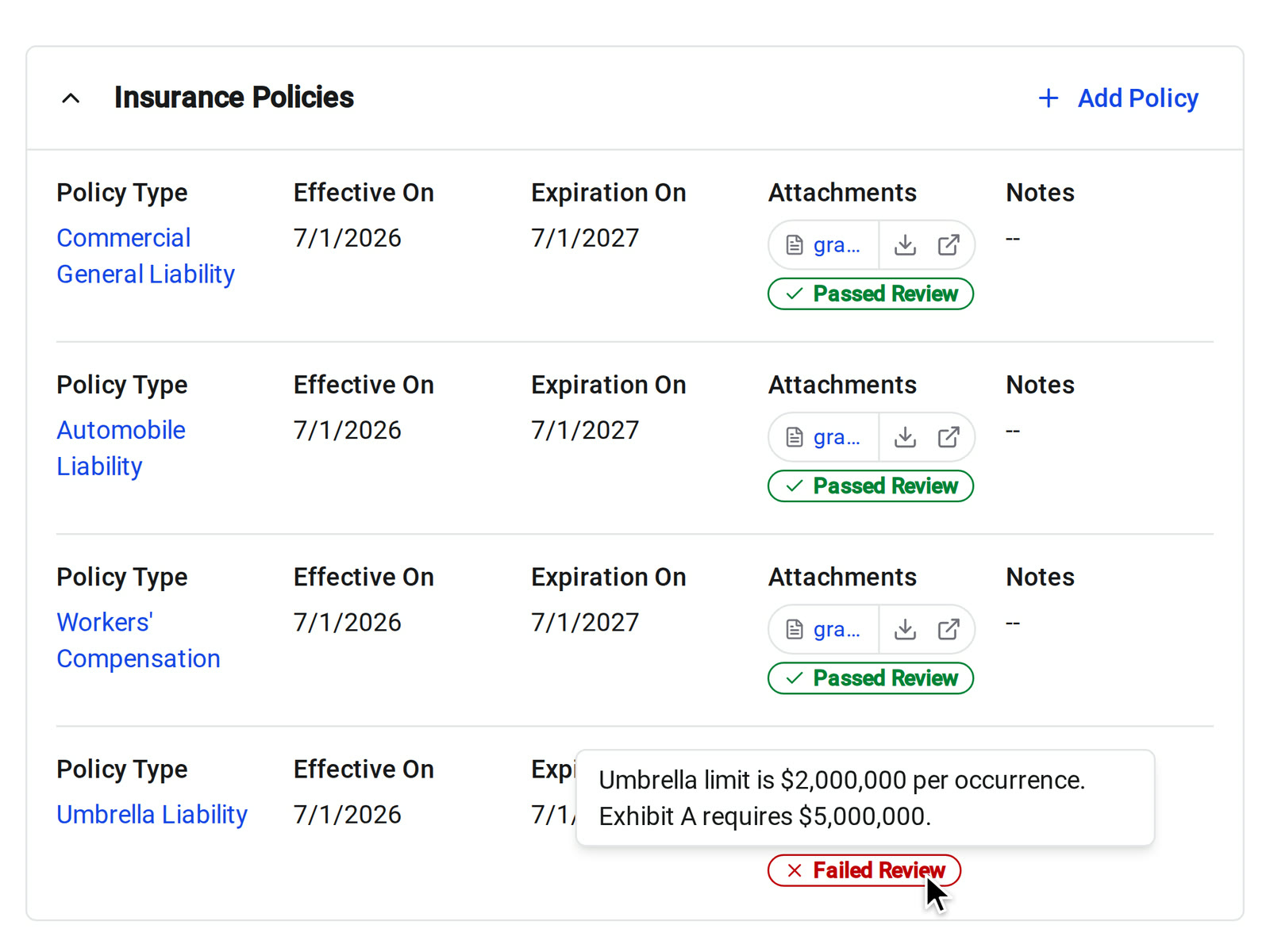
Require insurance when you send a subcontract, with a note and example documents. The subcontractor uploads the certificate as part of signing, and it gets the same review badges as the policies in your directory.
• A first review: with a Review prompt in Organization Settings, an AI check reads the certificate and marks it Passed Review or Failed Review, with its reason
• You decide: a failed review doesn't block signing, so your own compliance check still applies
• Who hears about it: choose who gets emailed when a certificate comes in
Change orders, pay apps, and budget all tie back to the subcontract
Change orders
Pay applications
Budget
Ask the signed contract, sync with Sage Intacct, and bring your Procore history
Chat with the Contract
Sage Intacct
Moving off Procore
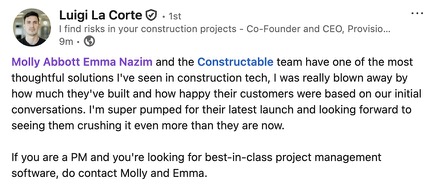
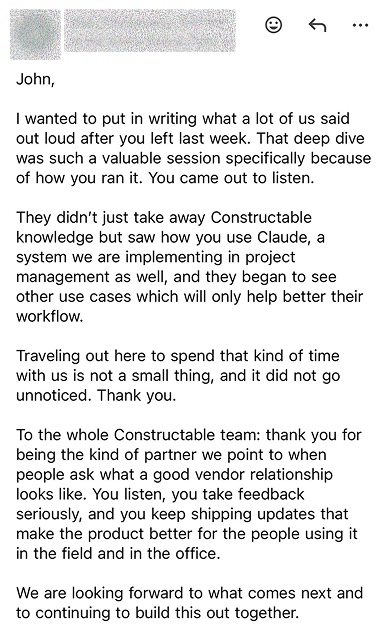
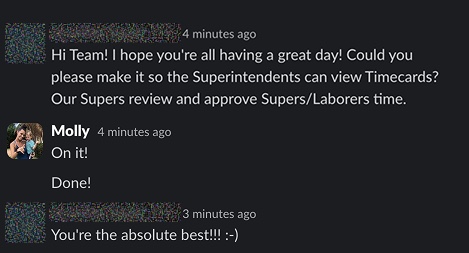
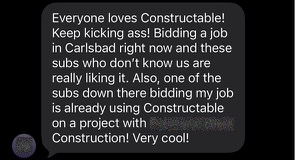
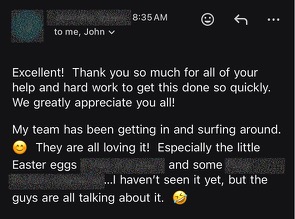
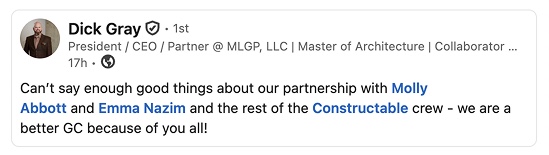
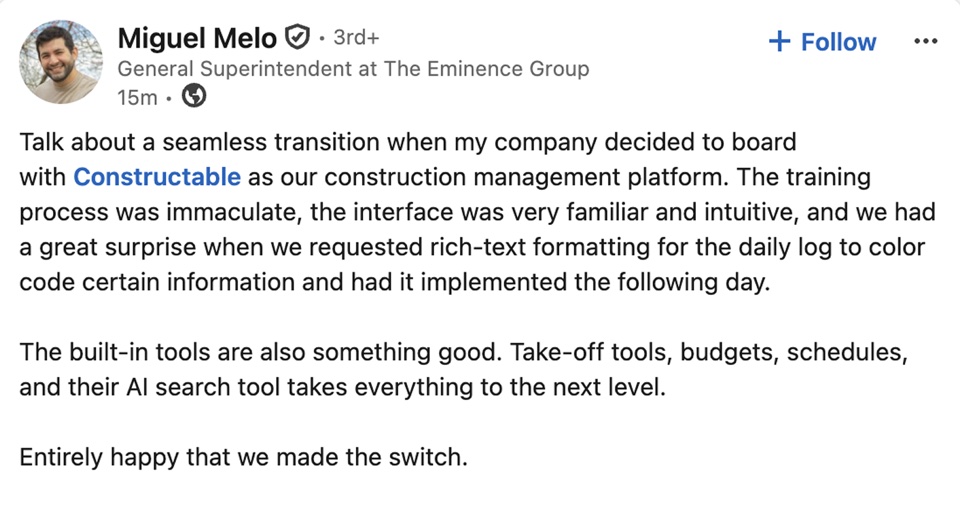
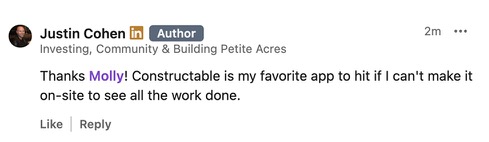
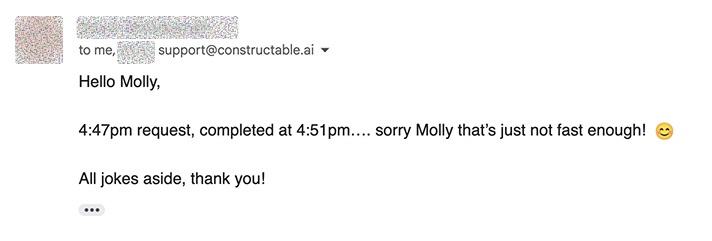
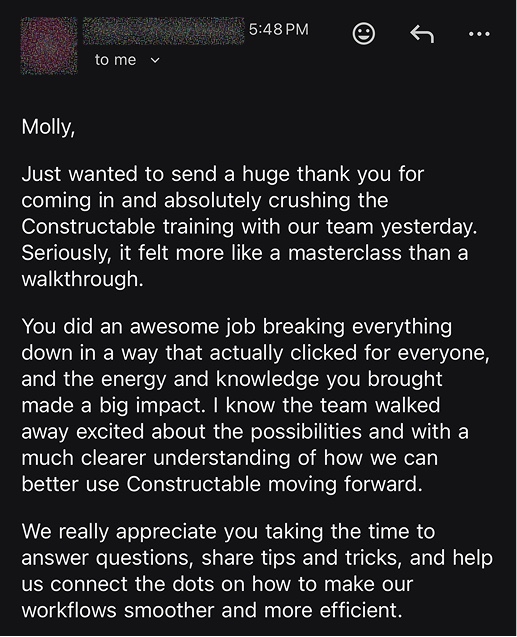
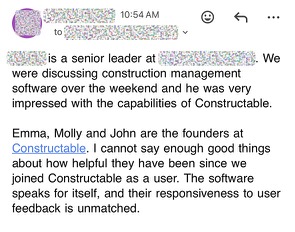
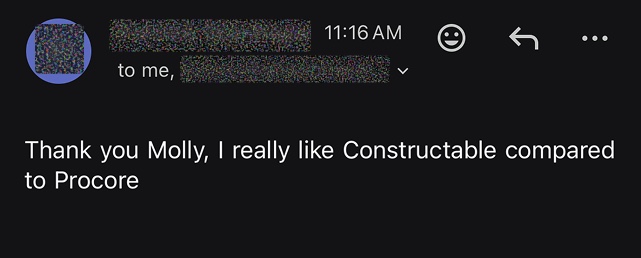
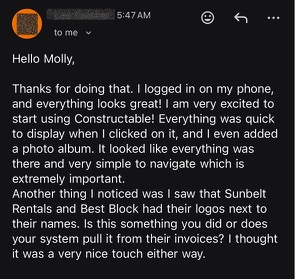
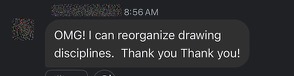
Hear from the GCs building with Constructable
Subcontractors sign and bill without a seat
Unlimited users
E-signing included
Part of Financial Management
Loved in the office and in the field
Review, approve, and track subcontracts from anywhere with the Constructable app for iPhone, iPad, and Android.


Subcontracts out the door.
Signed without DocuSign.
Book a 30-minute demo with our team.
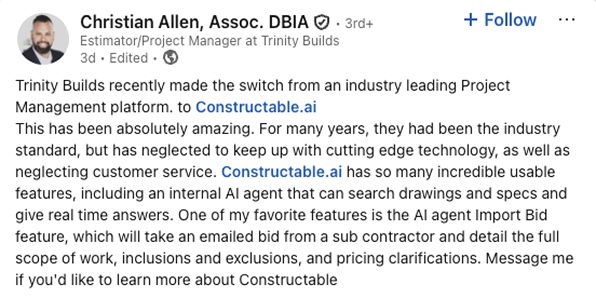
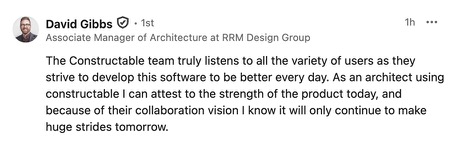
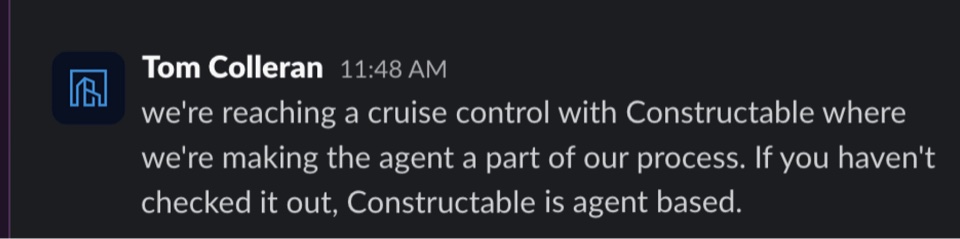
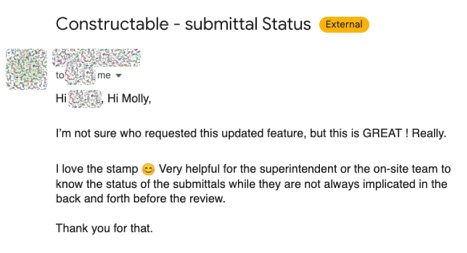
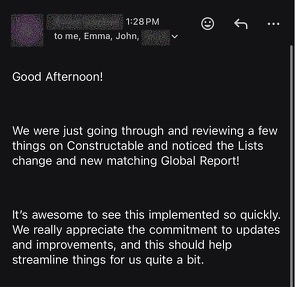
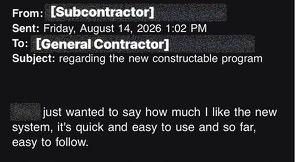
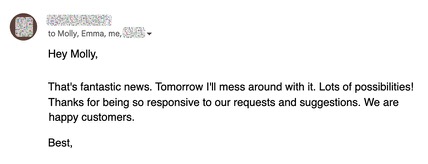
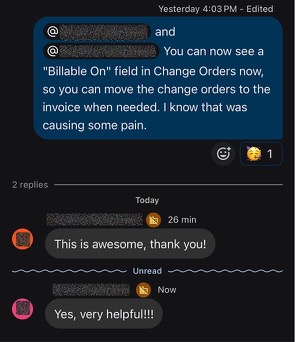
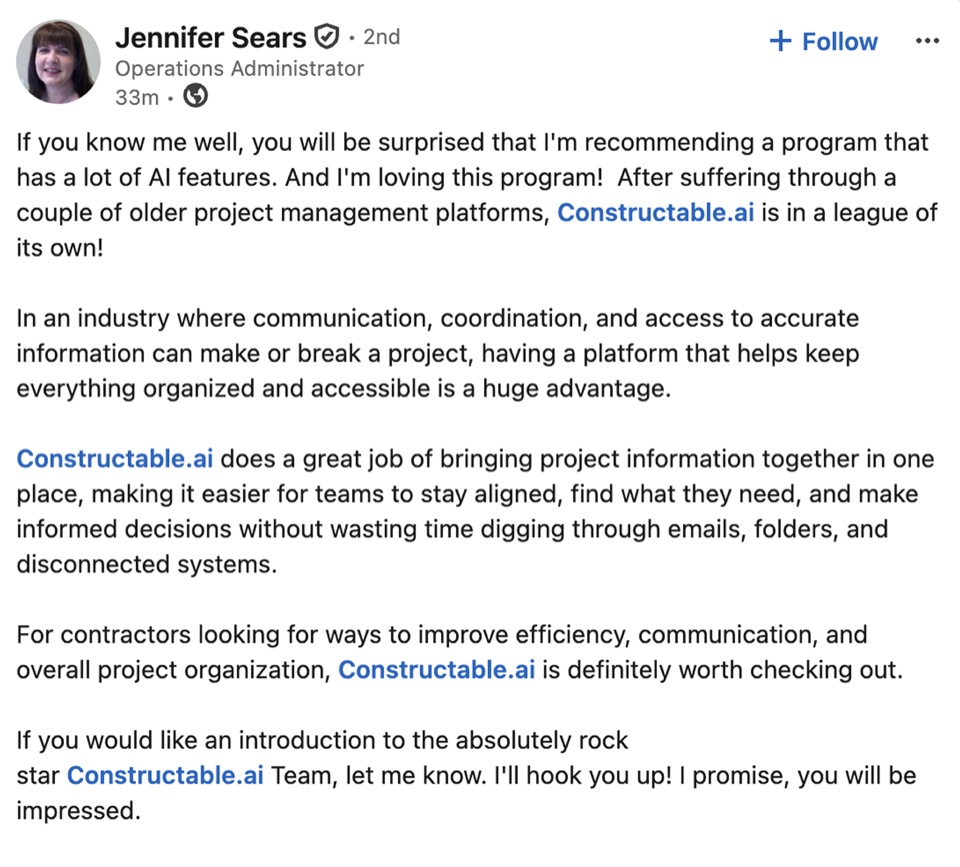
WallofHappiness






Frequently Asked Questions
Can I send subcontracts for e-signature without DocuSign?
Can I create subcontracts directly from awarded bids?
Can I import a schedule of values from a PDF or an AIA G703?
Can internal approvers review a contract before it goes to the subcontractor?
Can I require a certificate of insurance before the sub signs?
What's the difference between a commitment and a purchase order?
What happens to the SOV after a subcontract is executed?
Does it sync subcontracts and POs with Sage Intacct or QuickBooks?
Can I bring my commitments over from Procore?
Which plan includes subcontract management?
signed off in order
on every cost code
with better bids