Use this guide to create a subcontract or Purchase Order, build and protect its SOV, prepare contract documents for approval and e-signature, manage invoices and payments, download a PDF, and understand accounting consequences.
Start here
- Create a subcontract or PO: Create a Commitment or Purchase Order.
- Start from an awarded bid: Create Commitments from bids.
- Build the billing lines: Build, import, and lock the SOV.
- Send for approval and signature: Prepare a Commitment for e-signature.
- Process billing: Use invoices and payments.
- Download, void, or delete: Use Commitment actions.
- Something is blocked: Troubleshoot Commitments.
Create and structure
Create a Commitment or Purchase Order
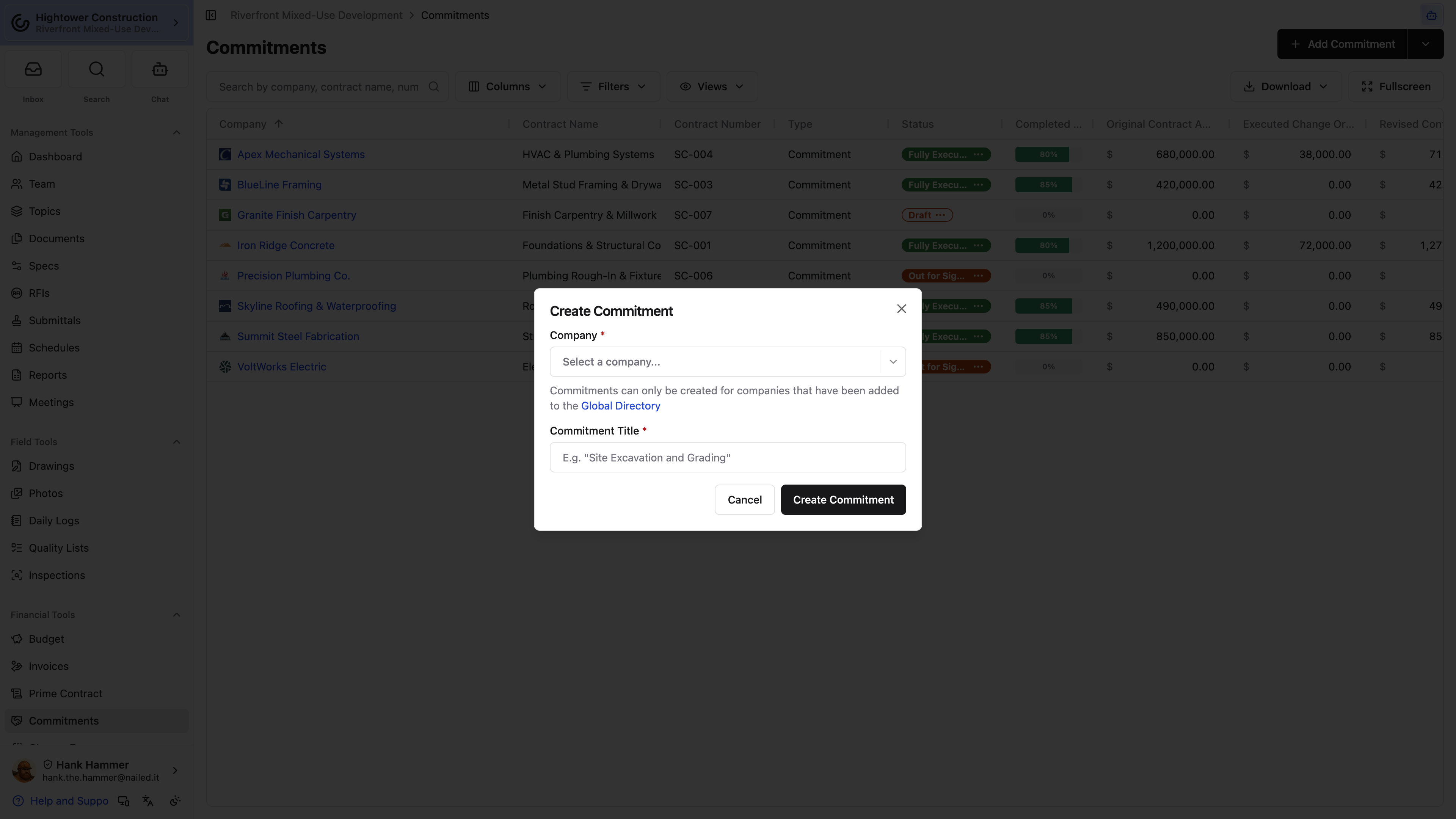
- Open Commitments.
- Select Add Commitment, or open its dropdown and select Add Purchase Order.
- Choose the vendor company. On a Sage Intacct organization, this list is limited to companies typed as Subcontractor or Vendor.
- Enter the contract number, title, dates, and scope.
- Save, then build the SOV and confirm retention.
- Add attachments or prepare the formal contract document.
A Commitment opens with its summary cards on top and a strip of section tabs below them: Contract, Scope of Work, Schedule of Values, Change Orders, Invoices, and Payments. Select a tab to jump to that part of the page. The strip stays pinned to the top as you scroll, and the highlighted tab follows where you are. Change Orders, Invoices, and Payments carry a count of what's on the contract. When the strip is wider than your screen, which is common on a phone, swipe it sideways or use the arrow at either end.
Use a Commitment for subcontracted scope that needs contract administration, an SOV, retention, changes, and progress invoices. Use a Purchase Order for purchased goods or a simpler vendor agreement. A Purchase Order is stored with Commitments and starts at zero retention.
Search by company, title, number, or type. A Purchase Order can't serve as the Prime Contract.
Back on the index, a total row pinned to the bottom of the list adds up the money columns for whatever you're currently looking at. Filter to one trade or group by vendor and you get that subtotal without exporting anything, which is the quickest way to answer how much scope you've actually bought out.
Create Commitments from bids
- Open the received bid package.
- Select the awarded bids.
- Open Bulk Actions and select Create N Commitment(s).
- Review the companies and amounts.
- Confirm.
- Open each new Commitment and complete scope, coding, retention, signers, SOV lines, and documents.
Constructable skips a company that already has a Commitment on the project and identifies it in the dialog. Review the existing contract before creating another one for the same scope.
A Commitment created from a bid is a Draft starting point, not an executed agreement.
Build, import, and lock the SOV
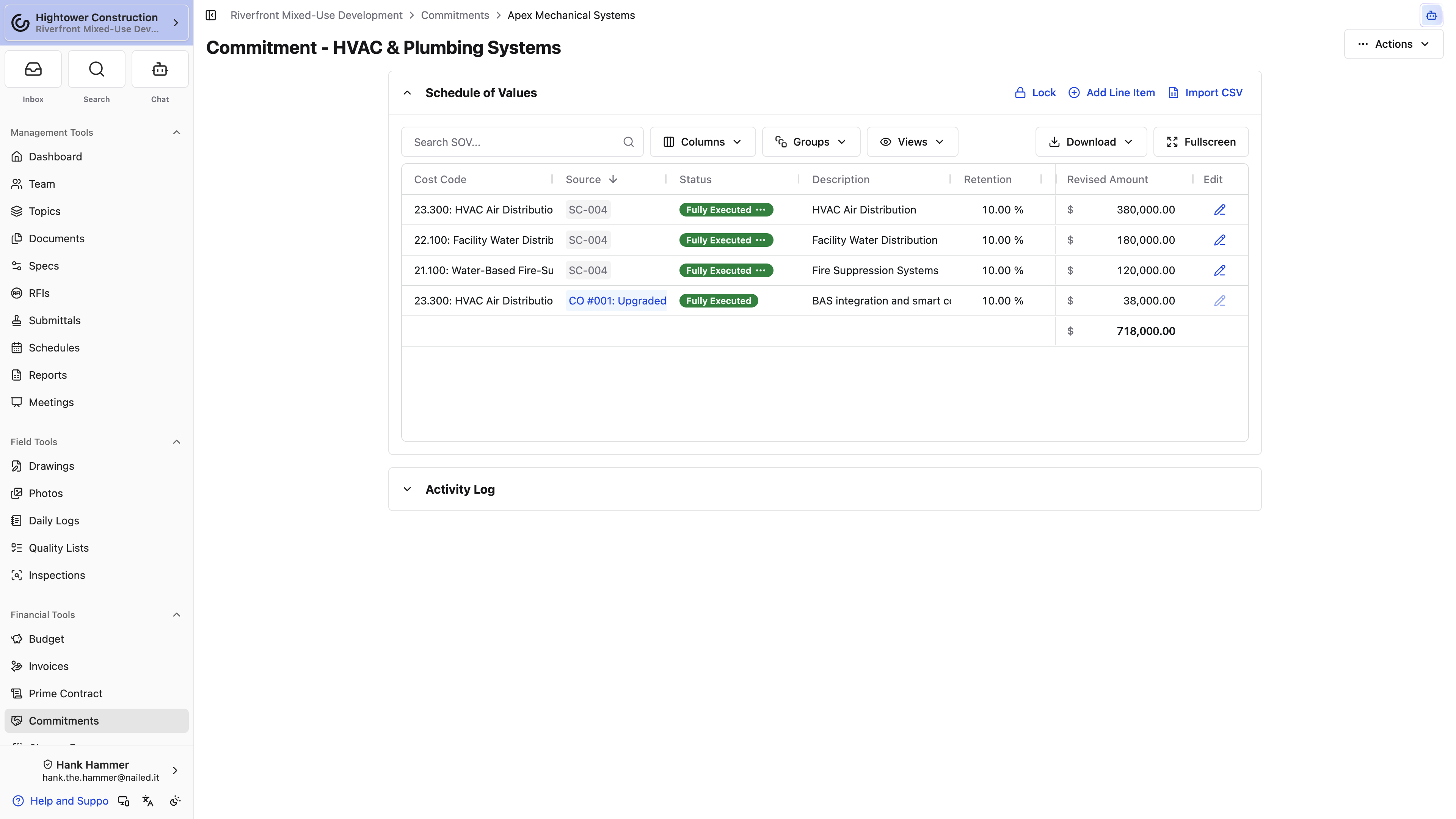
Add SOV lines manually or import a CSV or PDF. Import CSV or PDF opens Import SOV Line Items — upload a CSV or PDF of SOV line items; AIA G703 continuation sheets are supported. Large files can take a few minutes.
The grid groups lines by cost code, and each group stays collapsed until you open it. A group holds the contract's own SOV lines plus the lines from every Change Order on the Commitment that isn't void, so you can see everything that's happened to a code in one place. It opens with Original Amount, Approved COs, Pending COs, and Revised Amount showing. Approved COs counts Fully Executed Change Orders, Pending COs counts the rest, Drafts included, and Revised Amount is the original plus approved changes. Status, Sub Project, SOV Description, Retention, Qty, Unit, Unit Price, Change Orders, Remaining Amount, and Progress start hidden — turn them on from the column picker when you need them. Confirm:
- Description
- Cost code and cost type
- Subproject, when used
- Qty, Unit, and Unit Price when the line is unit-priced. Amount follows from quantity × unit price; leave those blank and type Amount for a lump-sum line.
- Retention
Lock the SOV after the contract structure is approved. Unlocking requires Unlock the SOV for editing on a commitment and should correct the SOV itself. New scope after approval belongs on a Change Order.
A Fully Executed Commitment's SOV stays editable for the people trusted with it. Adding, editing, deleting, importing, or locking lines on an executed Commitment takes Edit a commitment's schedule of values after it has been executed on top of Manage financials like change orders, contracts, receipts (excluding financial reporting). Admin and Manager have it by default, and so do custom roles built on them. Without it, the add, import, lock, and edit controls don't appear on an executed Commitment's SOV.
SOV lines can be read-only because the SOV is locked, the Commitment is executed and you don't have that permission, a Change Order created the line, or invoice activity exists. A line revised by a Change Order that's out for signing or executed is locked too, with This line item is used by a change order that is out for signing or executed, so it cannot be changed. That lock lifts if the Change Order is voided. Use the disabled control's explanation before changing history.
Note: Recoding a line after billing begins splits invoice history. Correct a Change Order-created line through its Change Order.
Set retention and contract details
The organization's Default Retention Percent supplies the starting rate for new contract lines. A Purchase Order starts at zero retention. Authorized users can set a different rate on individual lines while status and invoice history allow it.
Keep the contract's scope, dates, attachments, insurance requirement, and SOV together. These values appear in contract administration, Change Orders, invoices, Payment Applications, and reports.
Approval and status
Prepare a Commitment for e-signature
- Finish the Draft Commitment and SOV.
- Select Actions → Prepare for Esigning.
- Upload the contract document.
- Configure approvers, signers, recipients, and signature fields. Generated signature blocks include Name and Title lines, filled from Signer Name and Signer Job Title when those values are on the signer. Every signer still needs at least one signature field before you can send.
- Optionally require the subcontractor to provide insurance before signing. When a Review prompt is set in Organization Settings, that upload is checked before the outside signer reaches the signature page — see Manage contract attachments and insurance requests.
- Confirm and send.
Configured approvers act in order while the contract is Awaiting Approval. It then moves through Out for Signing, Ready to Countersign, and Fully Executed.
Notifications follow the configured approval and signing order. Which side signs first comes from Vendor Contract Signing Order in Organization Settings → Document Signing Settings — subcontracts, purchase orders, and vendor change orders all follow that setting, separately from the owner-facing Prime Contract Signing Order. While the e-signature flow is active, status can't be changed manually.
An insurance requirement applies to the subcontractor signing on the other end, not to whoever signs for your organization.
Commitments can also be Under Revision or Void.
You can correct a Fully Executed Commitment without reopening it. Anyone with Create new commitments, make changes to existing commitments can select Edit on the Contract or Scope of Work block, and the Commitment stays Fully Executed. Changing its SOV also takes Edit a commitment's schedule of values after it has been executed — see Build, import, and lock the SOV. Change Orders on the Commitment work differently: once a Change Order is executed, it stays locked until it's moved back to Draft. See Prepare a Change Order for e-signature.
To move the Commitment out of Fully Executed instead — usually to Under Revision — use the status badge on the Contract block or the Status field in its edit form. Either one takes Manage financials like change orders, contracts, receipts (excluding financial reporting). Status stays locked when the Commitment was signed through Constructable e-signing or the executed Commitment is linked to an accounting record. An edit or a reopen may not update an accounting document already created from the execution.
Understand status consequences
- Draft: contract details and SOV are being prepared.
- Awaiting Approval: configured approvers are reviewing in sequence.
- Out for Signing: a signer owes the next action.
- Ready to Countersign: the other party signed and the countersigner is next.
- Fully Executed: the contract document flow is complete.
- Under Revision: the agreement is being revised.
- Void: the record remains in history but isn't active.
Use a Change Order for approved scope or value added after execution. Don't unlock the SOV or edit the executed contract merely to make new scope fit.
Once a Commitment is Fully Executed and was signed through Constructable, you can ask questions of the contract itself. Open the command palette on the Commitment and select Chat with the Contract — answers come only from the signed PDF, so you get the terms as executed rather than as remembered. See Chat with an executed contract.
Billing, documents, and connected work
Use invoices and payments
The Invoices block shows progress billing against the Commitment SOV. The prior invoice normally must be Approved before the next can be created. See How to use Invoices for submission, blocked states, approval, lien waivers, and Payment Applications.
The Payments block records cash allocated to Approved invoices:
- Select Add Payment.
- Enter date, method, reference, and amount.
- Allocate payment lines to invoices.
- Save and verify remaining amounts due.
Allocations that cover an invoice move it to Paid. Reducing or deleting a Payment can reverse that status. Payment does not change the Commitment value.
Create and review Commitment Change Orders
Create vendor Change Orders inside a Change Event: on its Vendor Change Orders panel, select Add Vendor Change Order and pick the affected Commitment. Add cost-coded lines, retention, subproject, amount, and supporting documents. If the Commitment isn't fully executed yet, or it already has a Change Order that's neither executed, void, nor billable, the sheet shows an informational note linking to it. Neither note stops you from saving.
When a Change Order becomes Fully Executed, its lines become available on the Commitment SOV for billing. Billable On separately controls when its amount counts in billable reporting. See How to use Change Events.
The Commitment's Change Orders block, just below the SOV, lists every Change Order on it that isn't void, highest number first. Each row links to the Change Order and shows its Change Event, Status, Executed date, Schedule Impact (days), and Amount, with a total at the bottom. The block header adds up approved and pending dollars; on a phone, that summary sits above the list instead. A Commitment with none shows No change orders on this contract yet.
Use Commitment actions
From Actions:
- Prepare for Esigning appears for a Draft without an active signing flow.
- Download PDF compiles the Commitment or Purchase Order PDF.
- Delete Commitment opens a destructive confirmation.
Use Void when the agreement should remain in project history but stop being active. Before deleting, review the confirmation and dependent financial records. Deletion is not the normal correction workflow for an executed or invoiced agreement.
Accounting and troubleshooting
Understand Commitment accounting sync
Sage Intacct can exchange Commitments, Purchase Orders, Change Orders, SOV lines, and invoices according to configured document types and mappings. Executing a Commitment can create the corresponding Sage purchasing document.
Some outbound Sage flows create the document but don't send later edits. An executed Commitment linked to an accounting record keeps its status locked in Constructable. You can still edit its details here, but a flow that only creates the document won't carry those edits to Sage, so make the matching correction in Sage and record new scope on a Change Order.
QuickBooks cost sync is generally invoice- and cost-driven rather than contract-driven. Approved vendor invoices can become Bills or Vendor Credits according to the configuration.
Use the integration control to inspect the existing link. Fix and retry a failed link instead of creating a duplicate contract or invoice.
Procore financial migration is a one-time implementation transfer, not a live sync. It can bring Commitments, SOV lines, Change Orders, Billing Periods, invoice submissions and lines, invoice attachments, and payment-related lines from a Procore export.
Review the migration validation report before relying on imported balances. The transfer skips:
- Change Orders tied to more than one Change Event
- Void or terminated Commitments and Change Orders
- Rejected Change Orders
- Zero-dollar lines
Purchase Orders arrive as Commitments, and projects where one vendor has several Commitments aren't supported. Work entered later in Procore doesn't continue to Constructable.
Troubleshoot Commitments
Commitment is missing
Confirm the Financial package, View commitments and purchase orders, company-level access, project, search, and type filters.
An awarded company was skipped
It already has a Commitment on the project. Review that contract before creating another.
An SOV line can't be edited
Check lock, Change Order source, and invoice activity. On a Fully Executed Commitment, the add, import, lock, and edit controls only appear for roles with Edit a commitment's schedule of values after it has been executed as well as Manage financials like change orders, contracts, receipts (excluding financial reporting). Use a Change Order for later scope.
Prepare for Esigning is missing
The Commitment must be Draft, no active signing flow can exist, and the user needs financial write access.
Status can't be changed
An active e-signature flow controls it. Complete or resolve the approval and signing sequence. On a Fully Executed Commitment, change status from the badge on the Contract block or the Status field in its edit form. Both need Manage financials like change orders, contracts, receipts (excluding financial reporting). Status stays locked when the Commitment was signed through e-signing or is linked to an accounting record.
A subcontractor can't create the next invoice
Check for SOV lines, the prior invoice's approval, a newer invoice, Billing Period access, and the user's company-level Submit invoices for approval permission.