Use this guide to maintain the shared lists, defaults, presentation, and integrations used across projects. Use Roles and Permissions for access, and Project Setup for one project's choices.
Start here
- Maintain shared codes and classifications: Configure operational lists.
- Add, rename, or remove a trade: Maintain the Trades catalog.
- Add or archive a project stage: Maintain project stages.
- Set field reporting defaults: Configure Daily Logs and Equipment and Stamp captions on new photos.
- Share inspection checklists and answer choices across projects: Build organization inspection templates and Create custom inspection responses.
- Review uploaded certificates: Configure Certificate of Insurance.
- Set financial and signing defaults: Configure financial settings.
- Update email or dashboard presentation: Configure organization presentation.
- Connect accounting: Configure integrations.
- Connect QuickBooks Desktop: Connect QuickBooks Desktop.
- Connect an external integration: Create an API client.
- A section is missing: Troubleshoot Organization Settings.
Choose the correct settings page
Use Organization Settings for values shared across projects. The left nav groups the pages:
- Financial: Cost Codes, Cost Types, Revenue Codes, Hourly Cost Rates, Financial Settings
- Field: Daily Log Settings, Photo Settings, Inspection Responses, Inspection Templates, Equipment
- Workspace: Configure Global Dashboard, Emails, Document Signing Settings, Trades, Project Stages, Bid Tags, Certificate of Insurance
- Platform: Integrations, API Access
Select a page in the list. You only see the pages your role can open; if none are available the nav reads You do not have access to any organization settings.
Use Project Settings for one project's identity, Sub Projects, locations, people, project cost-code selection, financial choices, integration inclusion, exports, and visibility.
Changing an organization catalog does not necessarily select every value on every project. For example, maintain the shared Cost Code catalog here, then configure the current project's Cost Codes in Project Settings.
Configure shared standards
Configure operational lists
In Organization Settings, maintain:
- Cost Codes, including Add Subcode and export.
- Revenue Codes, when enabled for the organization.
- Cost Types.
- Trades used by companies and project tools. See Maintain the Trades catalog.
- Project Stages used on Project Info. See Maintain project stages.
- Bid Tags used by company profiles and Bid Management.
Archive an item to remove it from future choices without breaking records that already use it. Enable Show Archived and select Unarchive to restore it. When a parent Cost Code is archived, its subcode actions remain unavailable until the parent is restored.
Maintain the Trades catalog
Trades are the shared vocabulary your organization uses to say what kind of work a company does — Electrical, Concrete, Fire Protection. They tag companies in the Global Directory and then show up as choices on list items, inspections, and bid packages, so a trade nobody maintains turns into a filter nobody can use.
Select Trades in Organization Settings to see the catalog, sorted by Trade Name with Created and Last Updated beside it.
- To add one, open Actions and select Add Trade. Type the name in the Add Trade dialog and select Add Trade to save.
- To rename one, select the pencil at the start of its row. The Edit Trade dialog opens on the current name; change it and select Save Changes.
- To remove one, select the trash icon at the end of its row and confirm in the Delete Trade dialog, which names the trade it's about to remove.
A trade name is required and can run to 256 characters.
Note: Renaming a trade renames it everywhere it's already in use, which is usually what you want — fixing a typo shouldn't mean re-tagging forty companies. Deleting one takes it out of future choices instead of rewriting history.
Why isn't the trade I need on a list item?
Trades come from this catalog rather than from the item, so someone has to add it here first. Anyone with Update organization-level settings can, and it's available immediately on every project.
Keep the catalog tidy and the trade filters across the product stay worth using.
Maintain project stages
Project stages start from the built-in names Preconstruction, Course of Construction, and Warranty, plus any names your organization adds. Project Info on each job picks from this catalog.
- Open Organization Settings and select Project Stages.
- Select Add Stage. The dialog is Add Project Stage.
- Enter the name and save.
To rename one, open it (Edit Project Stage) and select Save Changes. To take one out of future choices, select Archive Project Stage. Projects already on that stage keep it. Enable Show Archived and Unarchive Project Stage to bring a name back.
A name is required, 256 characters or fewer, and has to be unique in the catalog.
Note: Archiving doesn't move projects off the stage. It only hides the name from new picks.
Anyone creating a project can still type a new stage in Project Info when their role has Update organization-level settings — that write goes to this catalog.
The Stage picker on every project now has the names your organization actually uses.
Configure Daily Logs and Equipment
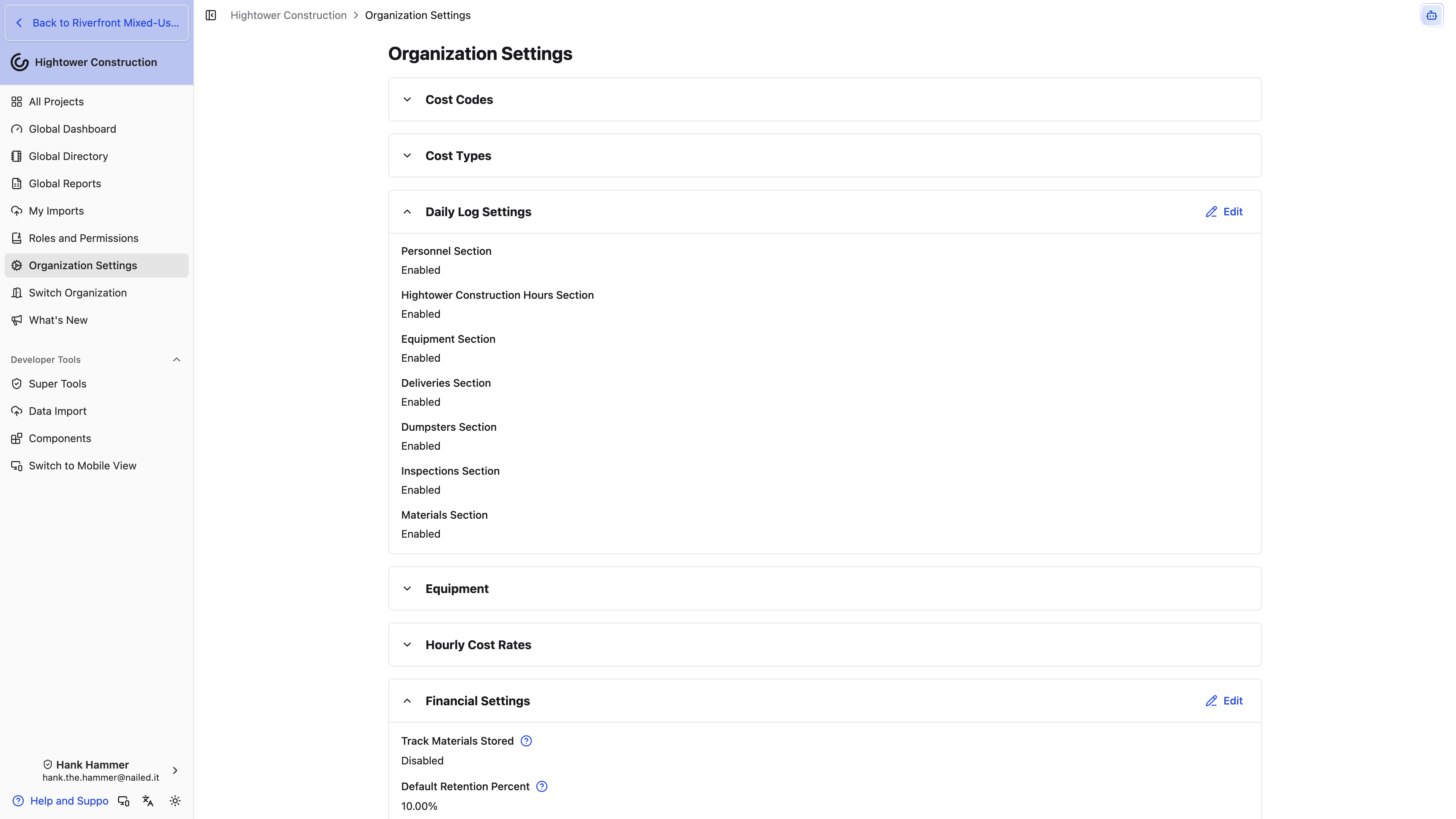
- Edit Daily Log Settings and save the sections and defaults used across projects.
- Open Equipment to add or edit shared assets.
- Archive retired equipment; existing Daily Logs retain their entries.
- Use the archived view and Unarchive to restore equipment.
- Open Hourly Cost Rates when your role includes its separate permissions.
Time Cards Section in Daily Log Settings controls whether crews can log employee hours from inside the day's Daily Log. Leave it off and hours are entered only from the organization's Time Cards page.
Safety Section in the same block gives each Daily Log a Safety area for notes and attachments — toolbox talks, near misses, corrective actions — and adds a Safety Photos group to the Daily Log PDF and distribution options. It starts enabled. Turn it off and the block disappears from new and existing logs and the section is left out of the PDF; nothing already written is deleted. See Daily Logs.
Phone Calls Section in the same block puts Phone Calls on each Daily Log — inbound and outbound calls, a summary, and an optional audio recording that's transcribed automatically. It starts enabled. Turn it off and the block disappears from new and existing logs and phone calls are left out of the PDF; nothing already logged is deleted. The organization Phone Calls report follows the same toggle.
Opening Organization Settings does not grant equipment or hourly-rate access. Equipment editing needs Add, edit, and archive equipment and other material assets, which is editable in the role matrix. Hourly rates need View hourly cost rates for employees as well as Update organization-level settings — the rates section doesn't appear without both.
Equipment is the one section that works the other way around. Someone whose role has Add, edit, and archive equipment and other material assets but not Update organization-level settings can open Organization Settings and will find Equipment waiting there on its own — a warehouse or yard manager doesn't need the cost codes and financial defaults to keep the asset list current.
Stamp captions on new photos
When photos leave Constructable — into a claim, a report, an owner's inbox — the proof of when and where they were taken usually leaves with the file, not the app. Photo Settings solves that by burning the capture date, time, and location into each image as it's uploaded.
- Open Organization Settings and select Photo Settings.
- Select Edit.
- Turn Date, Time, and Location Captions on or off.
- Save.
The panel reads Enabled or Disabled so you can confirm the current state at a glance. The setting covers both project photos and Daily Log photos across every project in the organization, and the caption carries the capture timestamp with its time zone, the resolved address, and GPS coordinates when the photo recorded them.
Note: Captions are applied at upload. Turning the setting on doesn't caption photos already in your projects, and turning it off hides captions rather than destroying the images — switch it back on and the previously captioned photos show their captions again.
Will this caption our existing photo library?
No. Only photos uploaded while the setting is on get a caption. Re-uploading is the only way to caption older media.
Why did one photo come through without a caption?
We need a capture time to build the caption, so files that don't carry one — screenshots, scans, some exported images — are left alone.
Turn it on once and every field photo carries its own timestamp wherever it ends up.
Configure Certificate of Insurance
When a certificate PDF lands on a company or on a subcontract signing request, you want someone to know — and you want a first pass against the coverage you actually require. Certificate of Insurance is where you set both.
- Open Organization Settings and select Certificate of Insurance.
- Select Edit. Changing the block needs Update organization-level settings; opening it needs Sync core organization data.
- Enter a Review prompt that describes what a passing certificate must show, or leave it blank to skip AI review.
- Under Notify organization users, pick who should get the upload email. People at the insured company are never on this list.
- Save.
Leave the prompt empty and the block reads No review prompt. Uploads then skip AI entirely — they still email the people you selected, and certificates on companies that aren't in review stay without a badge until a prompt exists and a review completes.
Review only looks at PDF certificates. A photo or Word file is stored, but it isn't reviewed.
After an upload, each PDF on Insurance Policies shows Under Review, Passed Review, or Failed Review. Hover a badge to read the reviewer's note when one exists.
Selected organization users get an email that a certificate was uploaded, with the company, the project when it's a project policy, and the review result. That email doesn't ask them to approve anything.
A Commitment that requires insurance can hold the outside signer's signing page on Reviewing your insurance until this review finishes. See Manage contract attachments and insurance requests.
Does a blank Review prompt mean certificates aren't stored?
No. The PDF still attaches to the policy. Blank only skips the AI check.
Who receives the upload email?
Only the organization users you picked under Notify organization users. People at the insured company are not included.
Set the prompt and the recipient list once, and every later certificate upload follows them.
Configure financial settings
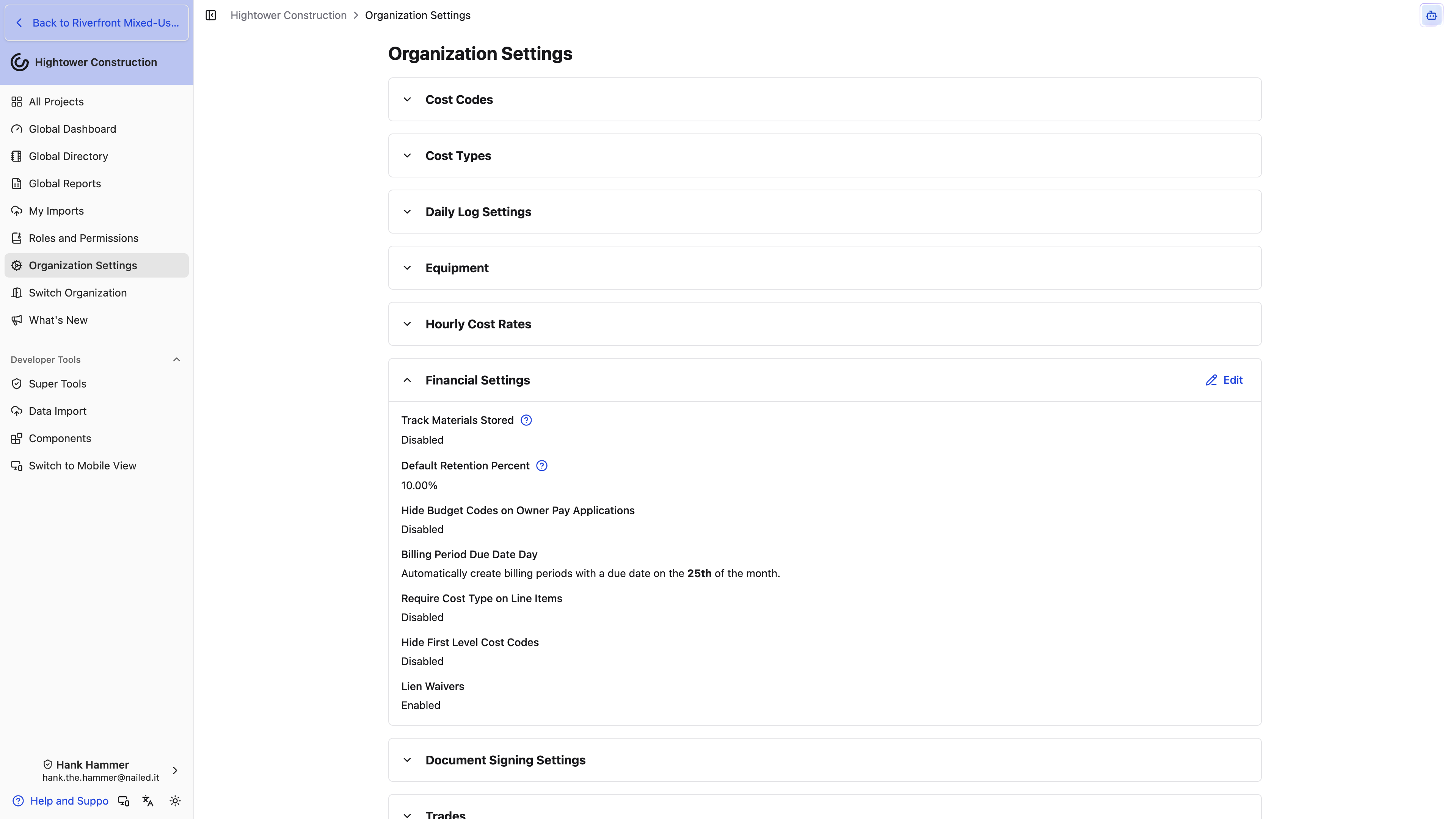
Under Financial Settings, select Edit, review the following, then save:
- Track Materials Stored
- Default Retention Percent
- Hide Budget Codes on Owner Pay Applications
- Billing Period Due Date Day
- Require Cost Type on Line Items
- Hide First Level Cost Codes
- Lien Waivers
- Automatically Sync Time Cards to Non-Committed Costs
Default retention is used for new Commitments and then their new line items. Billing Period Due Date Day accepts 1 through 31 for automatically created Billing Periods.
Automatically Sync Time Cards to Non-Committed Costs starts Enabled. While it's on, any time card line that carries a project, a cost code, and an hourly cost rate for that employee creates and maintains a payroll cost in Non-Committed Costs. Turning it off doesn't only stop new costs — it removes the ones time cards had already created, so switch it off only if labor cost reaches your projects another way. See Time Cards.
Under Document Signing Settings, signing-order cards sit above the legal-language cards. Select Set or Add language on a card, Show full or Show less to expand a long clause, and Manage Templates for the templates themselves. Cards with nothing saved read No language set.
Configure:
- Vendor Contract Signing Order: Other Party or My Organization
- Prime Contract Signing Order: Other Party or My Organization
- Prime Contract Legal Language
- Vendor Commitment Legal Language
- Purchase Order Legal Language
- Prime CO Legal Language
- Vendor CO Legal Language
Signing order is set separately for the two sides of your business, because they rarely work the same way. Vendor Contract Signing Order governs subcontracts, purchase orders, and vendor change orders; Prime Contract Signing Order governs the owner contract and prime change orders. Both default to Other Party, meaning the other side signs first.
Legal-language changes affect future documents, not documents already created. Use Manage Templates to edit document templates. See Contracts and e-signing.
Both of these sections take two kinds of access, which is the usual reason an administrator can open Organization Settings and still not find them: your role needs Update organization-level settings as well as Manage financials like change orders, contracts, receipts (excluding financial reporting).
Configure communication and integrations
Configure organization presentation
For system email:
- Open Organization Settings → Emails.
- Select Edit, update the organization email sign-off, and save.
The sign-off applies to supported system templates. It does not control which notifications a person receives.
For the dashboard:
- Open Configure Global Dashboard.
- Select Edit.
- Add or replace Organization Image with a JPEG or PNG.
- Save.
The dashboard image is separate from square and rectangle logos on the organization's Global Directory profile.
Configure integrations
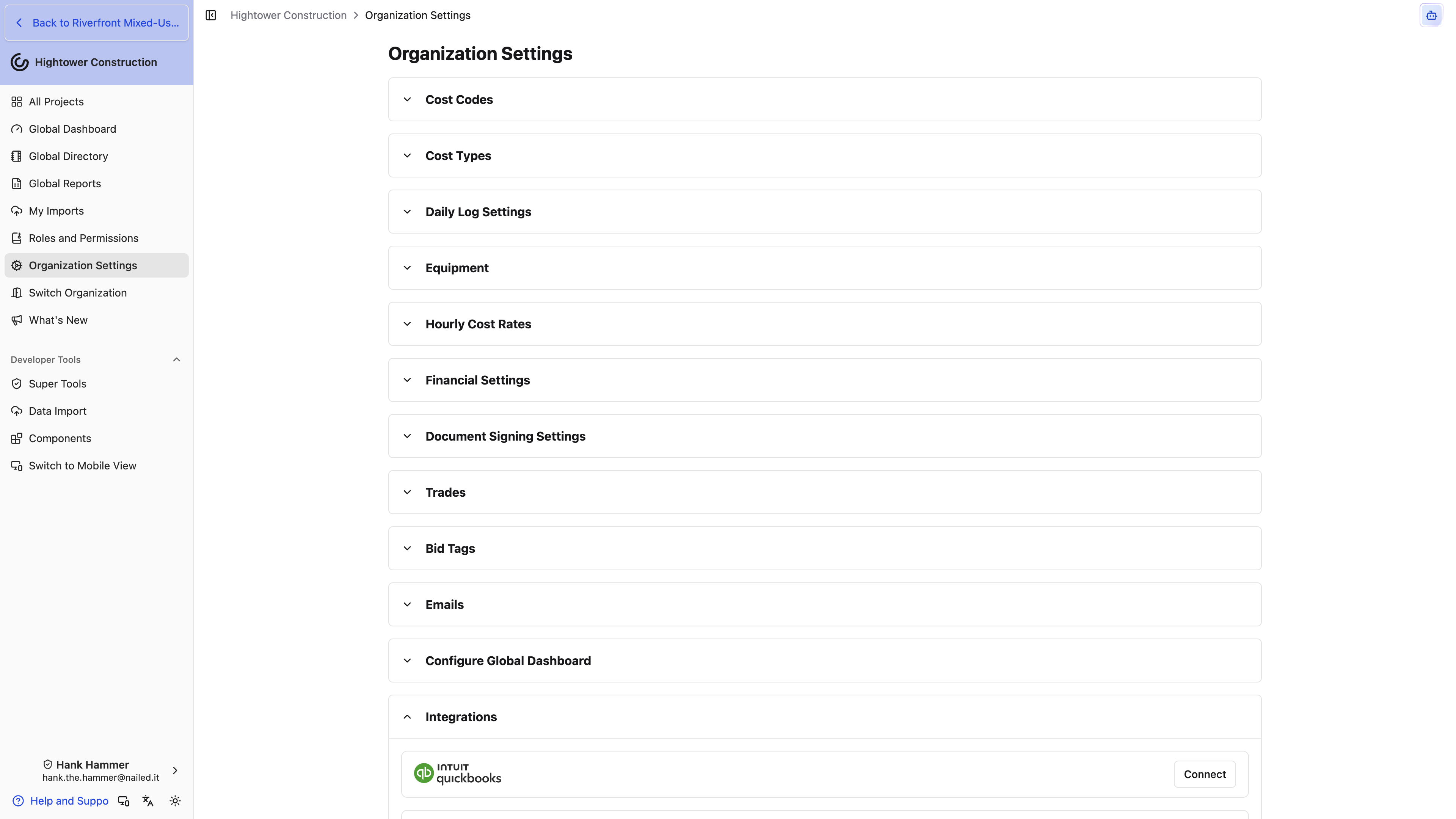
- Open Organization Settings → Integrations.
- Select the available accounting integration.
- Complete its connection or authorization steps.
- Review its state:
- Enabled means the organization integration is active.
- Disabled means it is connected but not syncing.
- Auth Error means authorization must be renewed.
- Confirm project scope, directions, dates, and mappings with Constructable.
Detailed Configure controls are limited to Constructable implementation staff. Use each project's Project Settings → Integrations to include or Exclude from [integration name] Sync without disabling the organization connection.
An integration appears only when available to the organization and your role has the required integration access.
QuickBooks Desktop uses Intuit's Web Connector instead of the Connect flow on this page. See Connect QuickBooks Desktop.
When QuickBooks Online Time Cards mappings are configured, QuickBooks time activities sync into Constructable Time Cards. See Time Cards.
Connect QuickBooks Desktop
QuickBooks Desktop reaches Constructable through Intuit's Web Connector, a Windows program that signs in with a .qwc file plus a username and password. Add that file so the connector can authenticate with Constructable.
- Install QuickBooks Web Connector on the Windows machine that runs QuickBooks Desktop, if it isn't already there.
- Save the Constructable
.qwcfile you were given, and keep the username and password with it. The password is shown only once when the file is created. - Open Web Connector and select Add an application.
- Choose the
.qwcfile. - Enter the password when Web Connector asks for it.
- Confirm Constructable appears in the application list.
- Select Update Selected to run the connection.
Web Connector should sign in and finish without pulling or pushing QuickBooks records. If you need a new password, ask Constructable for a replacement .qwc file — the previous password stops working when it's rotated.
Why did Web Connector reject the username or password?
The username or password didn't match. Request a new file and password, then add that file instead of retrying the old one.
Create an API client
API Access is how another application calls Constructable as an authorized user. This page creates the client you hand that application; it isn't a developer reference for endpoints.
- Open Organization Settings and select API Access.
- Select Create client. The dialog is Create API client.
- Enter Name and Redirect URI.
- Save. Copy Client ID and Client secret from Save your client secret. The secret is shown once.
- Store the secret in the integration before you close the dialog.
The empty list reads No API clients yet. Create one to connect an external integration. Access tokens expire after two hours; the page says so.
To stop a client, select Revoke. The dialog is Revoke API client. Existing access tokens stop working immediately.
When someone connects that client, they see Authorize API access and confirm with Authorize. They have to be signed in and have access to the organization.
Note: You need Update organization-level settings. This page is not the same as Integrations (QuickBooks, Sage Intacct).
The other software can now request access as a user in this organization.
Access and consequences
- Open organization settings is what puts Organization Settings in the nav and lets you open the page. Admin, Manager, and Employee receive it by default; company roles such as Subcontractor do not, even when they can still read shared catalogs.
- Sync core organization data makes org-wide catalogs available in project and financial tools. Most default roles have it, and it's editable in the matrix if a role shouldn't receive that data. It does not open Organization Settings by itself.
- Update organization-level settings is what actually changes those values. Admin receives it by default, and it is not editable in the role matrix — a role that can open the page without Update will find the sections read-only.
- Add, edit, and archive equipment and other material assets still needs Open organization settings, and then shows only Equipment.
- Financial Settings and Document Signing Settings additionally require Manage financials like change orders, contracts, receipts (excluding financial reporting).
- Hourly Cost Rates additionally requires View hourly cost rates for employees, and Integrations additionally requires View available integrations.
- Revenue Codes and integration-specific sections appear only when those features are enabled.
Changes here can affect shared choices and defaults across projects. They do not change project membership, role permissions, record sharing, or anyone's personal notification delivery preferences.
Troubleshoot Organization Settings
Organization Settings is missing
Confirm Open organization settings. Changing values still needs Update organization-level settings. Admin, Manager, and Employee have Open by default; only Admin has Update by default. Sync core organization data does not open the page.
A section is missing or read-only
Check its specific permission, organization feature, package, and required integration. Opening the page does not grant every section's access. The common cases: Financial Settings and Document Signing Settings need financial write on top of settings write, Hourly Cost Rates needs View hourly cost rates for employees, and Integrations needs View available integrations.
Only the Equipment section is showing
That's the equipment-manager view. Open organization settings plus Add, edit, and archive equipment and other material assets opens Organization Settings on Equipment, and everything else waits on Update organization-level settings.
Revenue Codes is missing
Revenue Codes must be enabled for the organization.
An archived item disappeared
Enable Show Archived, then select Unarchive. If it is a subcode, restore its parent Cost Code first.
A project is not using a new organization Cost Code
Open that project's Project Settings → Cost Codes and update its selection.
API Access is missing
Confirm Update organization-level settings. The page is under Platform, next to Integrations.
Project Stages is missing
Confirm Sync core organization data. Changing names still needs Update organization-level settings.
An accounting integration shows Auth Error
Renew its authorization. If the organization connection is healthy but one project is absent, inspect that project's Exclude from [integration name] Sync setting.
Certificate of Insurance is missing
Confirm Sync core organization data. The block is always on Organization Settings — it isn't tied to the Financial package. Changing Review prompt or Notify organization users still needs Update organization-level settings.