Use this guide for continuing AI conversations, page-aware assistance, file attachments, saved Chats, Skills, and connecting Claude or ChatGPT to Constructable.
Agent respects your organization, project, and record permissions. Treat generated output as assistance: open source records and verify important amounts, dates, statuses, approvals, and contract language.
Learn how permission-aware answers and source review support Trusted AI and Search.
Start here
- Ask and follow up: Start a Chat.
- Ask beside the current page: Use the desktop agent panel.
- Work from a file: Attach files and manage responses.
- Enter a proposal or invoice: Run a Chat Skill.
- Save a prompt you reuse: Create and share a custom skill.
- Catch drawing and spec conflicts: Find discrepancies.
- Check a submittal against the specs: PreCheck a submittal.
- Ask what a signed contract says: Chat with an executed contract.
- Clean up sheet numbers in a drawing set: Bulk edit sheet numbers and titles.
- Return to prior work: Find a past Chat.
- Use Claude or ChatGPT: Connect an outside assistant.
- Agent failed or is missing: Troubleshoot Chat.
Ask and continue
Start a Chat
- Open Agent in the project sidebar.
- On desktop, the conversation opens in the side panel beside the page you're on. On a phone, Agent is a full-page view.
- Type a request in Search or ask for something..., or on larger web layouts pick a suggested prompt such as overdue RFIs, last week's daily logs, or expired insurance.
- Submit and review the streamed response.
- Ask follow-up questions in the same Chat.
- Select New Chat when the subject changes.
Suggested prompts do not promise access to every feature or record. A Dashboard question can start a Chat-style session; select Continue in chat after the response to continue in Agent.
Use the desktop agent panel
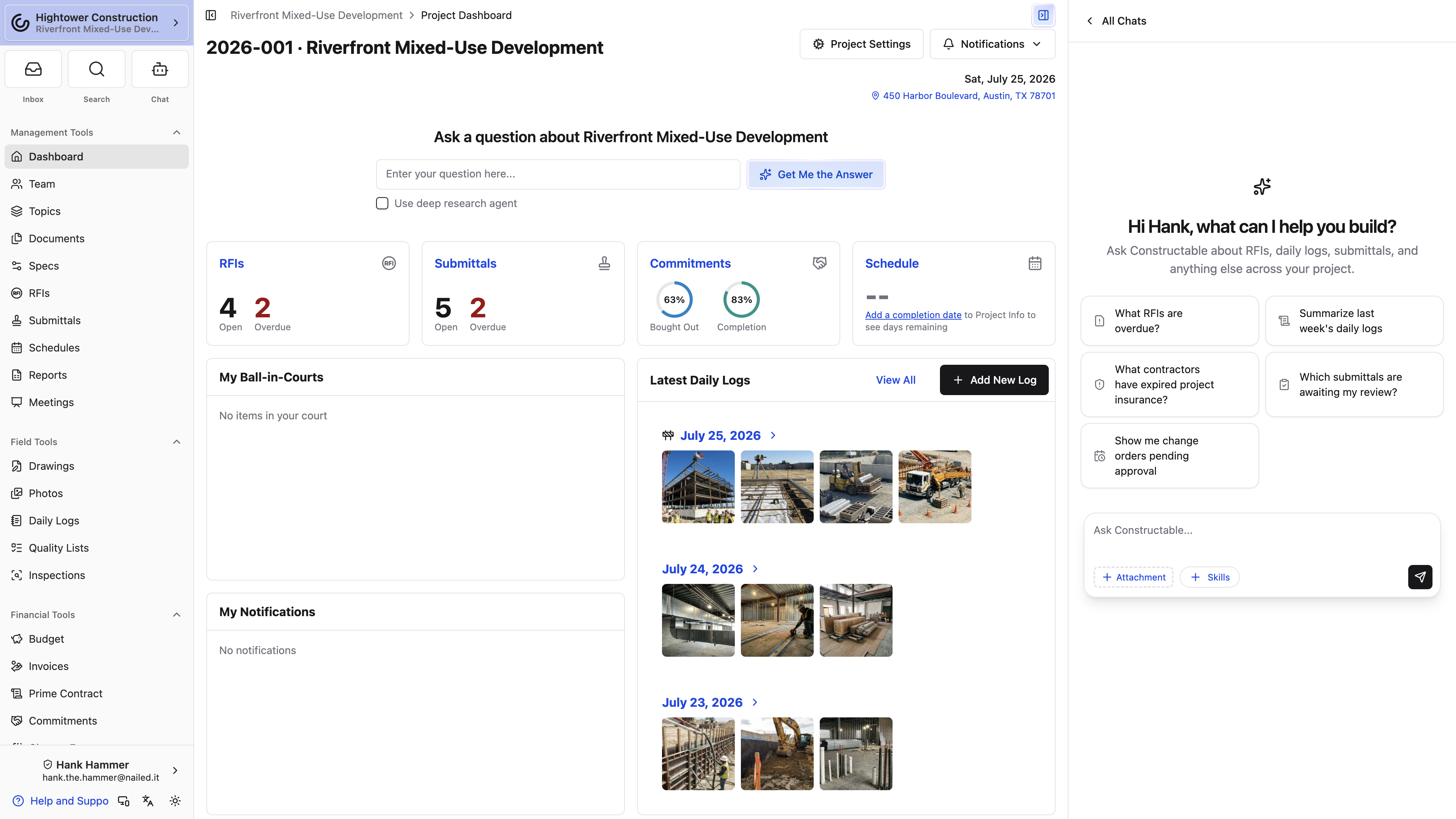
- Open the project page you are reviewing.
- Select the bot icon labelled Open agent panel, or select Agent in the sidebar — on desktop both open the same panel.
- Name the record and the outcome you want.
- Use All Chats to switch conversations or start another. The list defaults to chats for this Project. Use the Page filter when you want only chats started on this screen, or select Show project chats if that filter is on and the list looks empty.
- On desktop, use Expand panel when you need the conversation full-width, then Exit fullscreen to return to the side panel. Select Close agent panel when finished, or use the close button in the top-right corner of the panel header — it's there on both the conversation and the All Chats list.
The panel is how desktop conversations work. Messages include removable Project and Page chips so you can see — and drop — the context Agent is using. The chips name the page, not the record contents. Describe the record explicitly and verify linked sources.
Attach files and manage responses
- Use Add Attachments, drag files onto the chatbox in web layouts, or use the device picker.
- Wait for uploads to finish.
- Ask a specific question about the files.
- Submit and verify cited evidence in the originals.
Agent can also inspect an attachment already stored on a record you can access when you identify the record and file clearly. Upload success does not guarantee that Agent can interpret the file; PDFs and images are the safest formats.
Need one package out of several files? Ask Agent to combine them — "put the A-series sheets and spec section 08 71 00 into one PDF for the hardware sub," say. It can pull whole PDFs or page ranges from record attachments, files you've uploaded to the chat, spec books, and drawing sheets, in the order you ask for, and replies with a link to download the new PDF. It's named Combined.pdf unless you ask for a different name. Agent only reaches files your own access already lets you open.
Links in an answer open the record, page, or file they name; a link to a site outside Constructable asks you to confirm before it opens. To paste one into an email or a text instead, select the small copy icon right after the link — its tooltip reads Copy link — and we copy the full web address. Selecting a link to the page you're already on copies it too.
Select the stop control to end a streaming response. Stopping may leave an incomplete answer; send another message to continue.
Find a past Chat
- Open Agent.
- Select All Chats. The list has two tabs: Chats and Skills.
- Review generated titles, starting-project badges, and updated times.
- The list starts filtered to this Project. Add the Page filter when you want chats started on the current screen. If you see No chats started on this page, select Show project chats.
A spinner labelled Working appears while Agent is still answering that chat. A dot labelled Unread appears when a finished reply is waiting; opening the chat clears it. The unread dot stays hidden while the spinner is showing.
Chats are personal, ordered by recent activity, and associated with their starting project and page. The list excludes archived Chats, Chats owned by other users, and automated system runs such as drawing revision descriptions — those never appear here. Use All Chats to browse the same conversations across layouts. Find panel controls in the header or actions menu for your screen size.
Run Skills
Run a Chat Skill
Select Use a Skill, choose the workflow, attach its source PDF when the skill needs one, and send the request. The skill badge remains active in that Chat until you select Remove active skill.
Skills carry their own permissions and prerequisites. Agent asks when a project or record match is ambiguous; it should not guess. Always open and verify the resulting record.
Create and share a custom skill
A check, summary, or lookup that you type the same way every week is a custom skill waiting to be saved. Write the prompt once and pick it from Use a Skill the next time.
- Open Agent and select All Chats.
- Open the Skills tab, or from the empty landing select Add/Edit Custom Skills....
- Select New Skill.
- Enter a Title in Name this skill and the Prompt Agent should follow.
- If your role can share organization skills, you can tick Share this skill with my whole organization. Leave it cleared to keep the skill Only me.
- Select Create skill.
- Back in a conversation, select Use a Skill and pick the skill you just saved.
Create and use skills is nested under Chat access. Level of skill access is Organization skills for Admin, Manager, and Employee by default, and Only my skills for Subcontractor, Consultant, Owner, and Bidder. Organization-shared skills are visible to roles with Organization skills. A role limited to Only my skills sees and runs only that person's own skills — not the organization's shared list. You can run a shared skill without being able to edit it, as long as your level is Organization skills.
Note: The share checkbox only appears when you create a skill and your role has organization skill access. Someone limited to Only my skills can still write prompts for themselves.
You now have a reusable prompt you can start without retyping the briefing.
Why don't I see New Skill?
You need Create and use skills. Chat access alone lets you run skills other people shared; it does not let you create them.
Can someone outside my company use a skill I shared?
Not with the default Subcontractor, Consultant, Owner, or Bidder skill access. Those roles are Only my skills, so they don't see organization-shared skills. Someone whose role is Organization skills can run a skill you shared; they can't edit it unless they also have that organization level.
Find discrepancies
Drawings and specs sometimes disagree about a material, and catching that before the work starts is cheaper than finding it in the field. Find discrepancies reads the published drawings and specs and comes back with the conflicts.
The quickest way in is from Drawings:
- Open a drawing area or the drawing viewer.
- Open the command palette and select Find discrepancies.
- Review the findings table and open the cited sources.
You can also select Use a Skill → Find discrepancies in Agent. It reports material conflicts; it doesn't change drawings, specs, or statuses. Verify each finding on the sheet or spec section before you act on it.
Note: The skill needs View drawings on top of Agent access. It only looks at published drawings and specs.
Why is Find discrepancies missing?
Check View drawings. If you can open the Drawings page but not the skill, it's the drawing permission rather than Chat access.
Import a bid
- Confirm the Bid Package, company, and bid record already exist.
- Select Use a Skill → Import bid. The skill reads Import a bid PDF into the matching bid.
- Attach the proposal PDF and request the import.
- Answer matching questions.
- Open the existing bid and verify total, scope amounts, notes, attachments, and Received status against the PDF.
Package managers use bid write access. Invited bidders use Respond bid requests sent to me. The skill updates an existing bid; it does not create its package, company, or bid. See How to manage bids.
Import an invoice
- Confirm the Commitment, Schedule of Values, and valid Billing Period exist and you have financial write access.
- Select Use a Skill → Import invoice.
- Attach the invoice PDF and request the import.
- Answer project, company, Commitment, or SOV matching questions. When the PDF states an application or billing period, the skill matches that Constructable period. Otherwise it picks the period that contains the invoice date, then the current period. It asks instead of creating a Draft if that would put billing on an earlier period than invoices you already have, or if remaining SOV isn't enough.
- Open the created Draft invoice.
- Verify invoice number, date, Billing Period, SOV lines, amounts, retention, and source PDF.
The skill handles both a subcontractor invoice from a vendor and a prime invoice you bill to the owner. It reads the document first to work out which one it's looking at, then matches the company and the commitment type to suit — the subcontractor and their vendor commitment, or the owner and the prime commitment. You don't have to tell it which kind you attached, though saying so in your request saves it a question when the document is ambiguous.
The skill creates a Draft; it does not approve or submit the invoice. For other import methods, see Import a subcontractor invoice.
PreCheck a submittal
Reviewing a shop drawing against the spec section is careful, slow work, and the things that get missed are rarely the obvious ones. PreCheck reads the submittal's documents, finds the specs and drawings that govern them, and comes back with a short table of what doesn't line up.
The quickest way in is from the submittal itself:
- Open the submittal.
- Open the command palette and select PreCheck under Submittals.
- The agent panel opens beside the page and starts the check on that submittal.
You can also select Use a Skill → PreCheck in Agent, but then you'll need to say which submittal you mean, since Agent identifies it from the page you're on.
PreCheck reads the documents on the submittal and on its first stage, favoring what looks like the actual contractor package, then compares them with the project's specs and drawings. It reports only the discrepancies, in a table with columns like Issue, Where, and Why it matters — so a short answer means it didn't find much, not that it didn't look.
Note: PreCheck is a reading pass, not a response. It doesn't change the submittal's status, add a comment, or record a review, and it doesn't stand in for an approver's judgment. Verify each finding against the spec before you act on it.
Why is PreCheck missing?
It needs View submittals on top of Agent access. If you can open the submittal but not the skill, check Chat access; if you can't open the submittal either, it's the submittal permission.
What does PreCheck actually look at?
The submittal's own metadata and documents, the documents on its first stage and their approvers, and the project specs and drawings it can tie to that spec section. It asks rather than guesses when it can't tell which submittal or which spec applies.
Run it before you route the submittal and the reviewers get a cleaner package.
Chat with an executed contract
Somebody asks what the retention terms are, or whether a particular notice period applies, and the answer is on page fourteen of a subcontract nobody wants to open. Chat with the Contract answers from the signed contract PDF itself.
- Open the commitment, purchase order, or prime contract.
- Open the command palette and select Chat with the Contract under Commitments.
- The panel opens with the skill active and an empty message box. Type your question — nothing is asked on your behalf.
The answer comes from that one signed contract PDF and nothing else. Drawings, change orders, invoices, and email are deliberately out of scope, so the response is either in the executed agreement or you're told it isn't there. That's what makes it worth quoting to someone.
Note: The action only appears on a commitment that is Fully Executed and was signed through Constructable's e-signing. A contract that was signed on paper and uploaded as an attachment has no e-signed PDF for the skill to read, so you won't see it offered.
You now have contract answers with a source, instead of a recollection of what the contract said.
Why don't I see Chat with the Contract on this commitment?
Either it isn't Fully Executed yet, or it wasn't e-signed in Constructable. You also need View financials.
Can it compare two contracts?
No. It stays on the one commitment's executed contract on purpose. Ask about each separately.
Bulk edit sheet numbers and titles
A set comes back from the architect with sheet numbers formatted three different ways, and fixing two hundred of them by hand is how drawing review turns into an afternoon. This skill does the pass for you.
- Open the drawing set's review page.
- Open the command palette and select Bulk edit sheet numbers and titles under Drawings.
- Describe what you want — a consistency clean-up, a find and replace, stripping a prefix — or just ask it to make the set consistent.
- Read the before-and-after table it proposes.
- Reply to apply the changes.
Nothing changes until you say so. The skill shows you its proposal as a table of what each sheet is called now and what it would be called, and waits. Where a set has one dominant convention, it works toward that with the fewest edits it can make.
It only touches sheets still awaiting confirmation in that one set, and it only rewrites the numbers and titles already read off the sheets — it doesn't reopen the PDFs or invent values. Sheets you've already confirmed are left alone.
Note: Long sets are summarized rather than listed in full. Spot-check a few rows in the table before you apply, especially where it proposes new numbers to break a duplicate.
Confirm the review afterward as you normally would. See Reviewing and confirming an uploaded drawing set.
Connect an outside assistant
Connect an outside assistant
Constructable's MCP server is https://api.constructable.ai/mcp.
For Claude:
- Open Customize → Connectors.
- Select + → Add Custom Connector.
- Name it
Constructableand enter the server URL. - Select Add.
- Sign in on Connect MCP client, then select Confirm.
For ChatGPT, install Constructable from the app directory, select Connect, then sign in and select Confirm.
The connection runs as your account and cannot widen access. Keep read-only tools always allowed if desired, but leave write tools requiring approval. Conversations remain in the outside assistant, not Constructable. MCP permissions are separate; administrators, managers, and employees receive access by default. Contact support@constructable.ai if authorization cannot complete.
Access and platforms
- Create, update, and delete AI chats controls Agent and the agent panel.
- Create and use skills lets you write custom skills. Level of skill access is Organization skills or Only my skills.
- Project and record permissions still control every answer and attachment.
- Agent has web and native layouts. Use the prompt controls and Use a Skill to start a workflow.
- Select Agent to open your conversation. Use Expand panel / Exit fullscreen to adjust the conversation workspace; controls adapt to your layout.
- Attachments are available in Agent; use Continue in chat from Dashboard for the full attachment interface.
- Import bid additionally needs Invite new bidders, add and change bid packages, message bidders or Respond bid requests sent to me. Import invoice needs Submit invoices for approval and matching financial records — the same permission a subcontractor uses to submit billing, so you don't have to grant full financial write to let someone import an invoice. Find discrepancies needs View drawings. PreCheck needs View submittals. Chat with the Contract needs View financials and a fully executed, Constructable-e-signed contract. Bulk edit sheet numbers and titles needs Change drawing sets, drawing areas, and drawing pages, publish and unpublish drawings.
Troubleshoot Chat
Chat is missing
Ask an administrator to verify Create, update, and delete AI chats and your project access. On desktop, Agent opens the side panel — if the panel is closed, select Open agent panel.
A response stops or fails
Retry or start a new Chat. Shorten the request, remove a problematic attachment, or divide broad work into focused questions.
Chat did not use an attachment
Identify the file and evidence you need. Re-export unsupported or unreadable content as PDF or image, then verify the response against the original.
A past Chat is missing
If you applied the Page filter, clear it or select Show project chats, then check Project. Archived Chats, another user's Chats, and automated system runs such as drawing revision descriptions do not appear in All Chats.
A Skill cannot match a record
Confirm its required records exist, you have access, and the source file clearly identifies them. Answer matching questions rather than forcing an uncertain import.
New Skill is missing
Confirm Create and use skills. Sharing with the organization also needs Level of skill access → Organization skills.
An outside assistant sees no organizations
Ask an administrator to verify the MCP permission for your role. Connecting the assistant does not grant organization or project access.