Use this guide to review what each role can do, change editable permissions and access levels, export the matrix, and understand why a user may still see only some records.
Learn how roles combine with project membership, record sharing, and status in Permissions and Data Visibility.
Start here
- Audit access: Review the permission matrix.
- Change a role: Edit permissions and access levels.
- Add, rename, archive, or restore a role: Request role-structure changes.
- A tool or record is still missing: Understand permission consequences.
- A control is unavailable: Troubleshoot Roles and Permissions.
Review and edit access
Review the permission matrix
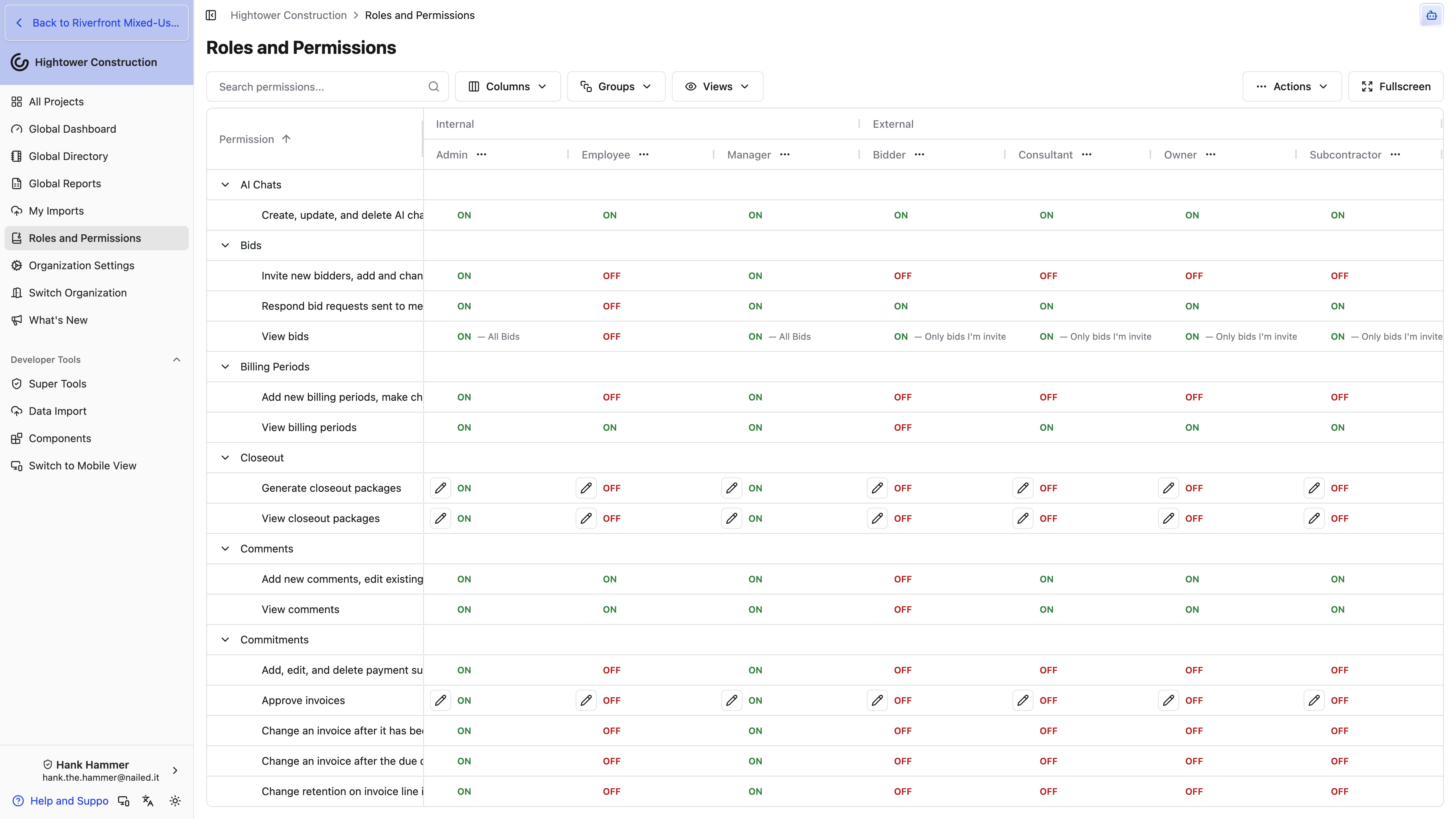
- Open Roles and Permissions.
- Review the Internal, External, and, when shown, Archived role groups.
- Search with Search permissions....
- Expand permission groups.
- Review each role cell:
- OFF means the action is disabled.
- ON means it is enabled.
- ON with a summary underneath means it is enabled with an access limit.
- Use Actions → Download as PDF or Download as CSV for an offline review.
Built-in roles are Admin, Manager, Employee, Subcontractor, Consultant, Owner, and Bidder. Names are not proof of current access because organizations can customize editable permissions. Use the matrix for the current result.
Edit permissions and access levels
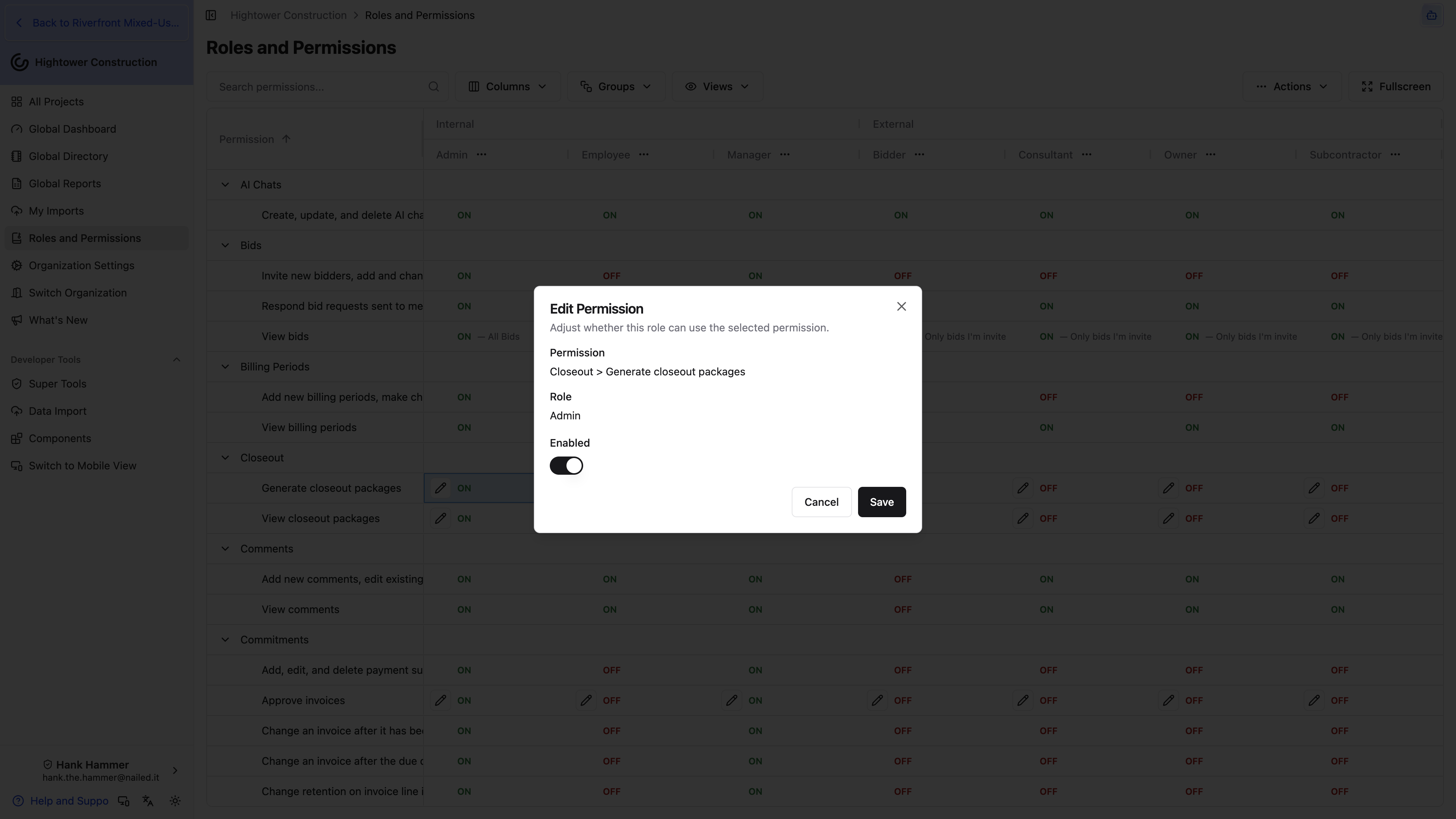
- Find the permission row and role column.
- Open the cell.
- Turn the permission on or off.
- If offered, select its access level.
- Save.
- Review dependent child permissions.
Access levels use exact product labels, including:
- All Projects or Only projects I belong to
- All RFIs or Only non-draft RFIs and my drafts
- All Meetings or Only meetings I'm a participant in
- All documents and folders or Only documents and folders I created
- All time cards or Only my time cards
- All Change Events or Related to my company
- All statuses or Non-draft or billable
Other tools have equivalent limits. An enabled but limited permission still allows the action, but only for matching records. Some child permissions require a parent permission and cannot be enabled first.
Request role-structure changes
Add Role, Modify, Archive, Unarchive, and Reset All Permissions to Default are visible but limited to Constructable super users. Email [email protected] with the requested change.
For a new custom role, provide its display name and the internal or external role it should copy. Bidder cannot be copied. The custom role begins with that role's current permissions; later manual edits to the original do not propagate, while newly released permissions follow the source role's default.
When archiving a role, specify its replacement. Current users move to that role. Admin and Bidder cannot be archived. Restoring an archived role preserves its permission configuration.
Warning: Reset All Permissions to Default removes all manual permission changes across every role and rebuilds custom roles from their source roles. It cannot be undone.
Understand permission consequences
Access is the combination of several controls:
- A role permission decides whether the user can reach a tool or action.
- Its access level limits which projects or records qualify.
- Organization and project membership determine where the role applies.
- Record sharing can narrow the audience for an individual record.
- Status can move a record out of an active view.
- Package and feature availability can hide an entire section.
- Notification settings decide only whether activity is delivered; they never grant access.
Turning off a permission can remove a tool or action from every member of that role. Narrowing an access level leaves the action enabled but can immediately hide unrelated projects, drafts, meetings, RFIs, Submittals, or other records. Review affected users and dependent child permissions before saving.
Role changes do not set anyone's email, desktop, or mobile notification preferences. Each user configures delivery under My Account.
A few permissions are worth checking deliberately, because their default breadth surprises people:
- Delete projects is Admin-only by default and nested under project write. It removes a project and its records without an in-app undo, so leave it with the smallest group that can be accountable for it.
- View closeout packages and Generate closeout packages are on for every role by default, including subcontractors, consultants, owners, and bidders. Each person still only sees the export sections their own read permissions cover, and only the packages they generated themselves — but if a role shouldn't be assembling handoffs at all, turn Closeout off for it explicitly.
- Respond to submittals hides the Respond button rather than disabling it, so an approver missing it sees a stage waiting on them with nothing to select. Check it first whenever someone reports that they "can't respond."
- Delete documents and folders is its own permission, separate from Add, rename, move, and change sharing for documents. A role can be allowed to upload, rename, move, and reshare files while never being able to remove them. Its Level of document deletion access narrows that further to Only documents and folders I created.
- Create/edit change events, Create/edit vendor change orders, and Create/edit prime change orders are independent of Manage financials like change orders, contracts, receipts (excluding financial reporting). Grant the first two without the third to let a project engineer price the subcontract side without touching owner billing. Prepare for Esigning still needs the financials permission even when a role can create both sides. Read access is split the same way (Read change events, Read vendor change orders, Read prime change orders), and Change Order read can be limited to Related to my company and Non-draft or billable.
- View time cards and Create, update, and delete time cards each carry a level. Employees get Only my time cards by default, which is why a foreman may be able to log their own hours but not their crew's.
- Update existing projects, hide projects is project write: editing and hiding projects, including This is a template project. Creating a project is a nested permission, Create new projects, so write does not automatically include New Project.
- Add people to the project team is independent of project write. Staffing a Project Team and sending invitation emails — from Team or from a person's Global Directory profile — uses this permission, not write. A coordinator who needs to staff jobs needs this permission, not a directory permission. Custom roles that already had project write when this split shipped received Add people to the project team automatically; a role created after that has to be granted it on its own.
- Open organization settings is what puts Organization Settings in the nav. Sync core organization data makes org-wide catalogs available in project and financial tools, but it does not open the page. Company roles can have catalog sync without Open.
- Add, edit, and archive equipment and other material assets is editable in the matrix. It still needs Open organization settings to reach Equipment. Creating equipment from a Daily Log picker uses this same permission.
- Limited Daily Log Entry is default-off and assignable to Subcontractor, Consultant, and Owner. Turn it on when those companies should log their own Personnel rows without the rest of the Daily Log. See Record personnel with limited Daily Log entry.
- Configure custom field definitions is Admin-only by default. It is what opens Custom Fields on a list; filling in those fields on an item still uses Add new punch list items, make changes to existing punch list items. See Configure custom fields on a list. Incident and record forms are configured from Incident Settings with Manage incident settings, including incident types. See Configure incident settings and forms.
- View incidents, Report incidents, make changes to existing incidents, Close and reopen incidents, and Manage incident settings, including incident types are the Incidents policy. View and write default to Admin, Manager, and Employee. Close/reopen and settings default to Admin and Manager. See Incidents.
- View work plans carries Level of work plan access. Admin, Manager, and Employee see All work plans; Subcontractor, Consultant, and Owner see only published plans their company authorizes, signs, or accepts. Work on items: change status, write proof of work, add and remove attachments has its own Which items level — Admin and Manager get All items, everyone else gets Only items that I or anyone at my company signs. Create work plans, edit drafts, publish and close plans defaults to Admin, Manager, and Employee. Edit published work plans, which moves them back to Draft and deletes their signatures, Delete work plans, Record signatures on someone else's behalf, and Manage work plan types and templates default to Admin and Manager. Signing your own sign-off needs only view access and being the named signer. See Work Plans.
- Create and use skills is nested under Create, update, and delete AI chats. Level of skill access is Organization skills or Only my skills. Admin, Manager, and Employee default to organization; Subcontractor, Consultant, Owner, and Bidder default to personal. Personal-access roles see and run only their own skills, not organization-shared ones. See Create and share a custom skill.
- Merge companies in the organization global directory is Admin-only by default and separate from creating companies. The dialog warns that the merge cannot be undone from this screen, so keep it narrow.
- Submit invoices for approval is editable, including Level of invoice submission access. Admin and Manager default to All Commitments; Subcontractor defaults to Only companies I belong to. If a custom role should submit billing, turn this on rather than granting full financial write.
- Approve invoices is who can approve a vendor invoice. Approve invoices on behalf of others lets someone complete another person's sequential step; Admin has it by default. View invoice approval workflows and Manage invoice approval workflows control the Subcontractor Invoice Approvals list in Project Settings — the settings panel itself is gated by Manage.
- Invite new bidders, add and change bid packages, message bidders, View bids, and Respond bid requests sent to me are editable in the matrix like any other cell. If your organization sends bid invitations from a role other than Admin or Manager, that's the group to edit.
Access and platforms
- View permissions for all user roles opens the matrix and its PDF and CSV exports. Admin receives it by default, and it is editable, so you can grant a role access to audit the matrix without changing it.
- Edit permissions for all user roles is nested under View. Admin receives it by default and it is not editable.
- Use the permission matrix to review roles and export PDF or CSV copies across desktop web, mobile web, and the native app.
- Role-structure and full-reset actions require Constructable support even when you can edit normal cells.
Troubleshoot Roles and Permissions
Roles and Permissions is missing
Confirm View permissions for all user roles. The built-in Admin role has it by default. Granting it to another role is how someone can open the matrix without receiving Edit permissions for all user roles.
Add Role, Modify, Archive, Unarchive, or Reset is disabled
These actions require a Constructable super user. Email [email protected]; this is not a missing customer permission.
A child permission cannot be enabled
Enable its required parent permission first. Review the disabled reason shown in the matrix.
A role can open the tool but sees only some records
Open the role cell and inspect its access level, then check project membership, record sharing, and status.
A teammate still cannot see a newly enabled tool
Confirm the changed role is actually assigned to that user in the relevant organization or project, the feature is in the organization's package, and any required parent permission is enabled.
Changing notifications did not fix access
Notification settings do not control visibility. Check the role permission, access level, project membership, and record sharing.