Use this guide to manage Billing Periods, create and submit subcontractor and Owner invoices, review approval consequences, work with lien waivers, download Payment Applications, record payments, and understand accounting sync.
Start here
- Set up a billing cycle: Manage Billing Periods.
- Set sequential approvers: Configure subcontractor invoice approvals.
- Submit a subcontractor invoice: Create and submit a subcontractor invoice.
- Review or approve an invoice: Review, approve, or return an invoice.
- Approve the current workflow step: Approve a sequential invoice step.
- Bill the owner: Create an Owner invoice.
- Download the formal package: Download a Payment Application.
- Record cash paid: Record payments.
- Something is blocked: Troubleshoot invoices.
Set up and find invoices
Configure invoice defaults
Before the first billing cycle, review Organization Settings → Financial Settings:
- Track Materials Stored adds separate stored-material fields to invoice lines.
- Default Retention Percent supplies the starting rate for new contract lines.
- Hide Budget Codes on Owner Pay Applications removes internal cost coding from Owner Payment Applications.
- Billing Period Due Date Day supplies the default due day for new periods.
- Lien Waivers adds waiver workflows to invoices.
Project people such as the Architect can print on the Owner Payment Application cover page. Confirm those assignments in project settings before issuing the first package.
For QuickBooks invoices with retainage, an administrator must also set Retention Receivable Item and Retention Payable Item in the QuickBooks integration settings.
Manage Billing Periods
- Open Invoices.
- Select Billing Periods.
- Select Add Billing Period.
- Enter the start date, end date, and due date.
- Save.
Ranges can't overlap. The period containing today's date is current; every other period is closed for creating invoices. Creating an invoice in a closed period requires Create invoices in closed billing periods.
A Billing Period organizes Constructable billing. It doesn't open or close an accounting period in QuickBooks or Sage Intacct.
Find Owner and subcontractor invoices
Open Invoices, then select:
- Subcontractors for vendor Commitment invoices.
- Owner for Prime Contract invoices.
- Billing Periods for period administration.
Search or group by company, Billing Period, Application №, Invoice №, or status. Both invoice tabs carry a Billing Period column and a matching Filters entry, so you can narrow a long list to the cycle you're closing. Invoices that aren't tied to a period group under No Billing Period, which is the fastest way to spot one that was created outside the cycle. The page opens the first tab your permissions allow, so users with different access can land on different tabs and see different records.
Invoice tables don't provide bulk approval. Open each invoice to review and act on it.
Set invoice notifications
Open an invoice and select its bell to choose:
- All Activity
- Only my Mentions/Ball-in-Courts/Assignments
- Do not notify me
This setting applies to that invoice. Select Reset to defaults to return to the inherited project or user setting. The same menu links to My Default Notification Settings (All Projects) and Project Specific Notification Settings.
Status changes remain in the invoice activity even when a user chooses not to receive notifications.
Subcontractor submission
Create and submit a subcontractor invoice
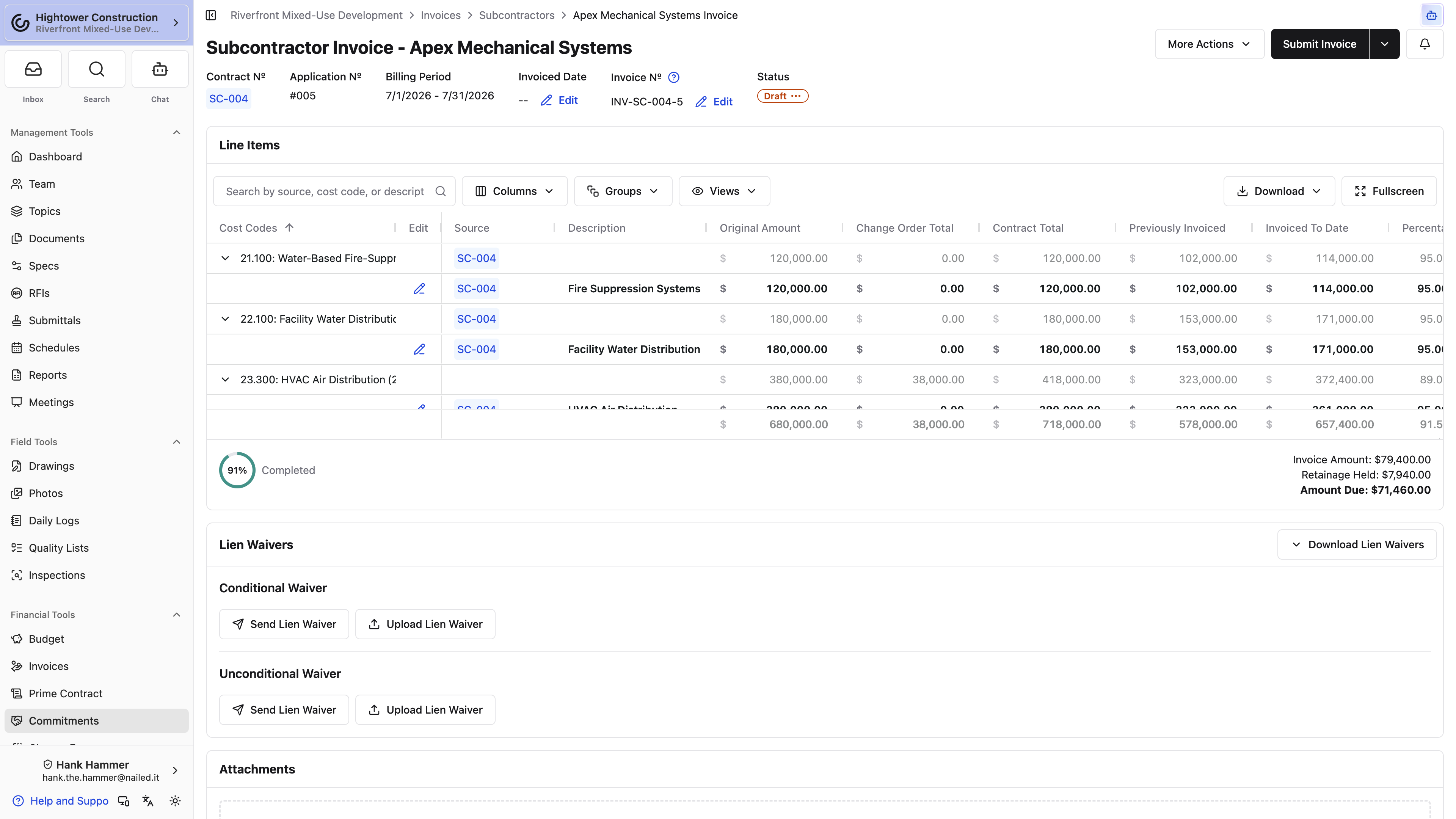
- Open Invoices → Subcontractors, or open the Commitment's Invoices block.
- Select the Commitment and Billing Period, then create the invoice.
- Enter Work Completed This Period for each applicable SOV line.
- Enter materials stored, retainage held, or retainage released when applicable.
- Enter the optional vendor Invoice № and confirm Invoiced Date.
- Upload backup documents and prepare any required lien waiver.
- Review Amount Due.
- Select Submit Invoice, then confirm.
Submission changes the status from Draft to Under Review and records the submitter and time. It doesn't approve the invoice or send it to accounting.
Application № is Constructable's sequence for billings on that contract. Invoice № is the vendor's optional reference. Keep Invoice № to 21 characters or fewer for QuickBooks and Sage compatibility.
When submission is blocked
The control explains the current reason when possible. Common blocks are:
- The Commitment has no SOV lines.
- The user lacks Submit invoices for approval for that company.
- An attachment is still uploading; the button reads Uploading attachments... until it finishes.
- A previous invoice on the Commitment isn't approved.
- A newer Billing Period already has an invoice.
- The selected period is closed and the user lacks Create invoices in closed billing periods.
Don't change dates or create a duplicate to bypass a blocked state. Resolve the prior invoice, period, SOV, upload, or permission.
When you can't create the invoice
Invoices on a contract go in order, one Billing Period at a time. Constructable refuses to create a new invoice on a Commitment or Prime Contract when:
- The contract already has an invoice that isn't Approved yet. Get that one approved (or delete it, if it's an unused Draft) before you start the next.
- A later Billing Period already has an invoice on that contract. Earlier periods aren't offered, so pick the current period or a later one.
The same rules apply to the AI invoice import and to Copy Line Items to Prime. Copying can add lines to an existing Draft owner invoice in the vendor invoice's Billing Period, but it's refused when the Prime Contract has a different unapproved invoice or an invoice in a later period.
Import a subcontractor invoice
For import runs, open My Imports and choose Invoice Imports, upload the files, resolve detected conflicts, and verify every created or updated Draft.
For one invoice PDF, open Agent and select Use a Skill → Import invoice. Attach the PDF, resolve project, Commitment, and SOV matches, then review the created Draft and attached source PDF before selecting Submit Invoice. When the PDF states an application or billing period, the skill matches that Constructable period. Otherwise it picks the period that contains the invoice date, then the current period. It asks instead of creating a Draft if that would put billing on an earlier period than invoices you already have, or if remaining SOV isn't enough. The skill handles both a subcontractor invoice from a vendor and a prime invoice you bill to the owner, matching the company and commitment type to whichever it finds. See Import an invoice.
Imports don't approve invoices and don't create a live accounting link.
Review and approval
Configure subcontractor invoice approvals
When more than one person has to sign off on a vendor invoice, put them in order here. Project Settings → Financial → Subcontractor Invoice Approvals is an ordered list. Each person on it has to finish their step before the next one starts.
- Open Project Settings and select the Financial tab.
- Open Subcontractor Invoice Approvals.
- Select Add an approver and pick someone who has Approve invoices.
- Repeat to build the sequence. The numbers are the order they'll be asked.
- Save.
The empty state reads No sequential approvers. Anyone with Approve invoices can approve submitted invoices. That's the legacy path — no list, and Approve Invoice works the way it always did.
Prime and Owner invoices skip this list. Only subcontractor Commitment invoices mint steps when you Submit Invoice.
Note: The panel needs Manage invoice approval workflows. Opening Project Settings isn't enough, and View invoice approval workflows doesn't show the block by itself.
If a person on the list later loses Approve invoices, Submit Invoice is blocked until you replace them. Don't leave a departed superintendent sitting in step 2.
The next submitted vendor invoice will wait on step 1 instead of anyone-with-approve.
Review, approve, or return an invoice
Invoice statuses are Draft, Under Review, Approved, and Paid.
Before selecting Approve Invoice:
- Confirm the Commitment or Prime Contract and Billing Period.
- Review prior and current work, materials stored, retainage held, and retainage released on every SOV line.
- Review attachments and each lien waiver's separate status.
- Confirm Invoice №, Invoiced Date, totals, and Amount Due.
- Select Approve Invoice and confirm Approve.
An approver can approve a Draft directly when the project has no sequential workflow. If Subcontractor Invoice Approvals has at least one approver, Approve Invoice stays off on a Draft — Submit Invoice first — and stays off while a step is pending. See Approve a sequential invoice step. Approval:
- Changes the invoice to Approved.
- Saves a frozen approved snapshot used by the formal Payment Application.
- Makes an in-scope invoice eligible for QuickBooks or Sage sync.
- Locks Invoice № and the invoiced date. Neither can be edited while the invoice is Approved or Paid.
To return an invoice:
- Under Review → Draft requires Change an invoice after it has been submitted.
- Approved or Paid → Draft is an unapproval and requires Unapprove invoices.
- Only the latest invoice on the contract can return to Draft.
Unapproving discards the approved snapshot. If the invoice had synced, it also retires the Constructable link; the accounting record isn't corrected or deleted. Coordinate the correction with accounting before unapproving.
Delete an invoice
Select More Actions → Delete Invoice (on a phone, it's in the three-dot menu), then confirm Delete Invoice. Deletion can't be undone, and it removes the invoice's attachments, lien waivers, and payment lines along with it.
- Deleting a Draft takes Delete draft invoices. Deleting an invoice that's Under Review also takes Change an invoice after it has been submitted.
- Approved and Paid invoices can't be deleted. Unapprove them first if they really need to go.
- Normally only the latest invoice on the contract can be deleted. The exception is an empty Draft — no line items, lien waivers, or payment lines — stranded behind a newer invoice. You can delete that one so it stops blocking the contract. A Draft with any of those keeps Delete Invoice disabled, and hovering it explains that the invoice can't be deleted after a newer invoice has been created.
Mark Invoice as Paid changes status only. It doesn't create or allocate a Payment.
Approve a sequential invoice step
Once Subcontractor Invoice Approvals has people on it, a submitted vendor invoice grows an Approval workflow block. That's where you Approve or Reject the current step — not Approve Invoice on the page.
- Open the invoice. Status is Under Review.
- Find Approval workflow. The current step shows Pending.
- Select Approve. The dialog is Approve invoice step. Add Comments if you want them, then confirm Approve.
- Or select Reject. The dialog is Reject invoice. Rejecting sends the invoice back to Draft.
The assigned approver can act with Approve invoices. Anyone with Approve invoices on behalf of others can act on a step that isn't theirs — Admin has that by default.
The last step's Approve is what moves the invoice to Approved and freezes the Payment Application snapshot. Earlier steps only clear the way.
Previous approval runs keeps earlier sequences after a reject and resubmit. Each run is numbered, with Pending, Approved, or Rejected on the steps.
Note: Approve Invoice stays unavailable while a step is pending, and on a Draft when this workflow is configured. That's expected — submit first, then work the steps.
Why can't I approve a step that isn't assigned to me?
You need Approve invoices on behalf of others as well as Approve invoices. Without it, only the person on that step can Approve or Reject.
The invoice either advanced a step or came back as a Draft you can correct and submit again.
Enter work, materials stored, and retainage
- Work Completed This Period is installed work billed this cycle.
- Materials Stored This Period is delivered but uninstalled material; it appears only when Track Materials Stored is enabled.
- Retainage Held This Period withholds part of current billing.
- Retainage Released This Period makes previously held money payable.
Open a line to enter these amounts in Edit Invoice Line Item. Its Billable Contract Amount is what the line is worth for this invoice: the SOV amount plus change orders that are billable by the end of the invoice's Billing Period. A change order with a later Billable On date doesn't count yet, so the completion percentages and the most you can bill on the line are measured against that period amount, not the line's full revised value. If a line won't accept the work you entered, check whether the change order that adds it is billable in this period.
Select More Actions → Release All Retainage to release held retainage across every invoice line. The action is disabled with the message No retainage is currently held when there is nothing to release. It isn't a single-line action.
Release still works on a line whose SOV amount was revised down to $0 after it was billed — say a deductive change order took the scope out. The held retainage on that line can be released, up to the amount actually held. New work, materials, or retainage held can't be billed against a $0 line.
Manage attachments and lien waivers
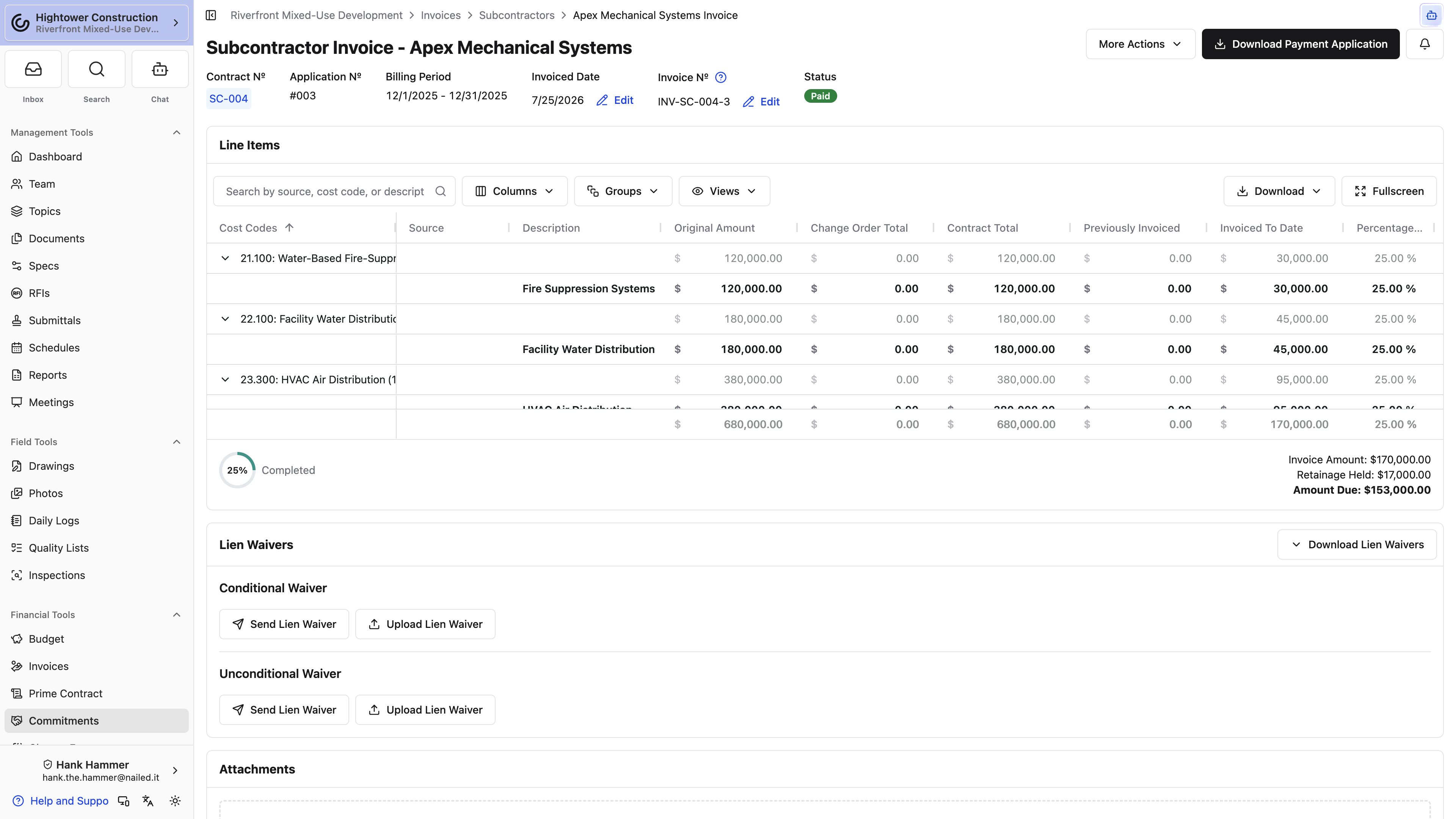
Upload supporting files before submission. Removing a file after submission requires Remove attachments from invoices after submission.
When lien waivers are enabled, invoices can carry conditional and unconditional waiver documents. A waiver has its own Draft → Out for Signing → Fully Executed lifecycle; invoice approval or payment doesn't complete it.
On Owner invoices, the signer must be an active organization member. Select Create to generate an Owner waiver. Subcontractor invoice waivers use Send for Signing, and eligible external company users can use the self-sign workflow for their own invoices.
To get a waiver form generated from the invoice, open Download Lien Waivers in the header of the Lien Waivers block and pick Conditional Progress Payment, Unconditional Progress Payment, Conditional Final Payment, or Unconditional Final Payment. The menu is on both subcontractor and Owner invoices; on an Owner invoice, the Lien Waivers block is visible only to people in your organization. Downloading a form doesn't add a waiver to the invoice or start its signing flow.
Owner billing, PDFs, and payment
Create an Owner invoice
Create an Owner invoice for a Billing Period and enter progress against the Prime SOV.
To start from vendor billing:
- Open a subcontractor invoice.
- Select More Actions → Copy Line Items to Prime.
- Choose the Prime Contract when the project has more than one.
- Map each vendor line to a Prime SOV line.
- Save.
- Open the current Draft Owner invoice and review every copied amount.
Unmapped lines don't copy. The action is disabled when the vendor invoice has no line items. Vendor and owner values can differ because contract value, markup, approved scope, and billing timing differ.
Download a Payment Application
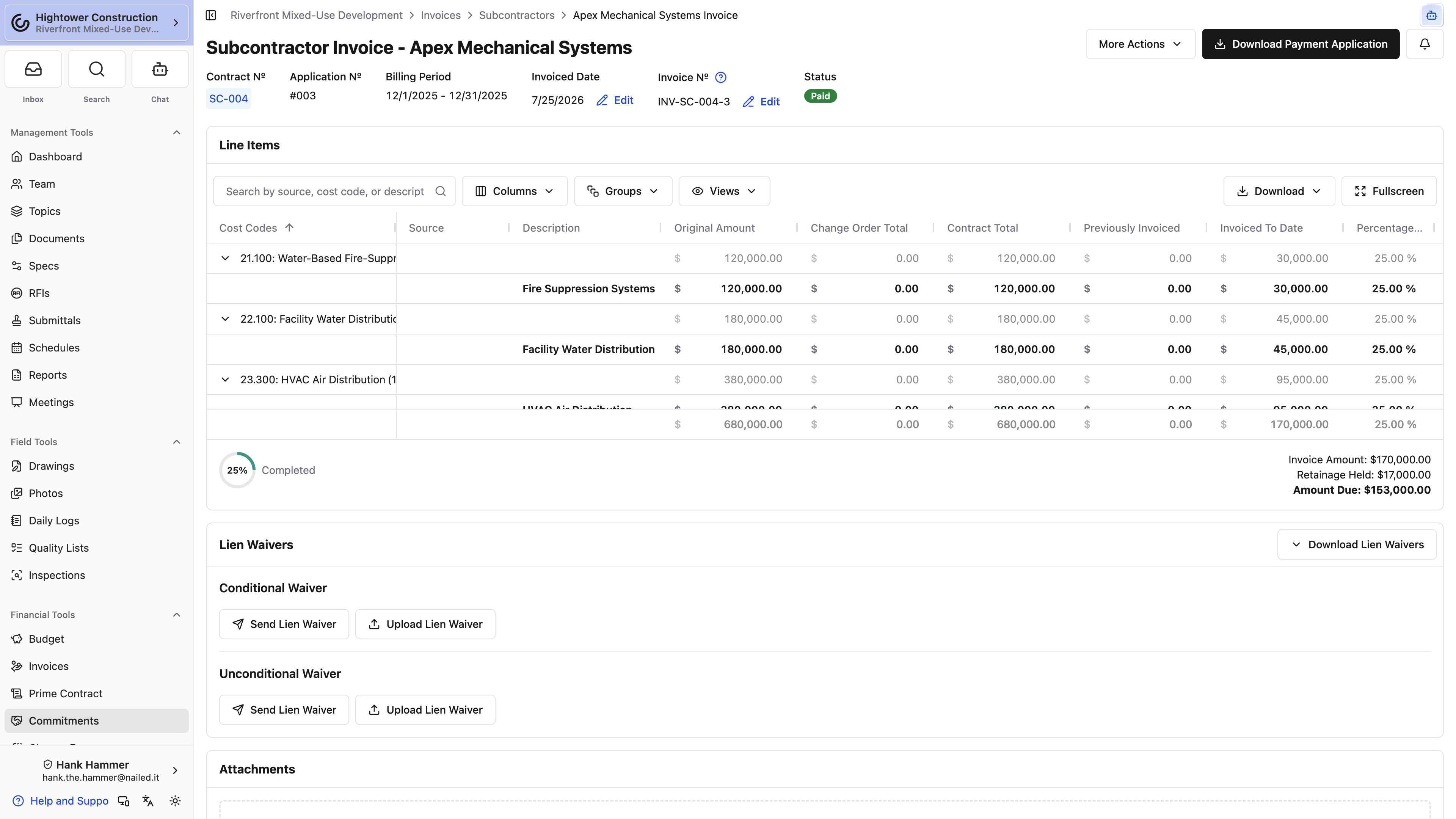
From More Actions:
- Download Default Payment Application uses the standard summary and detail sheets.
- Download "[name]" Payment Application uses a saved layout.
- Customize Payment Application configures and saves columns. Give each layout a distinct name — reuse one that already exists on the project and the dialog blocks the save with A payment application view with this name already exists in this project. rather than quietly overwriting the layout your colleague set up. Name is a hidden-by-default column that lists the distinct vendor company names on that cost-code line, separated by commas. It appears on the custom PDF when you turn the column on; the default AIA package doesn't include it.
- Download All Subcontractor Pay Applications on an Owner invoice packages vendor pay apps for the Billing Period; it is disabled when none exist.
The download dialog lets you include supported PDF or image attachments and available lien waiver documents. Approved invoices render from the snapshot frozen at approval. Download a fresh file after a correction; an existing PDF never updates.
To pull down several subcontractors' pay apps at once, use Download Pay Applications on the Subcontractors tab, or Download All Subcontractor Pay Applications from an Owner invoice's More Actions when you only want the one period. Both open Download Subcontractor Pay Applications, and the choices under Include are the same:
- Attachments & Lien Waivers comes first, with Include all attachments and Include all lien waivers. Both start ticked. The lien waiver option is only there when your organization has lien waivers turned on.
- Billing Periods comes below it, listing each period with how many pay applications it holds. All of them start ticked. This section is skipped when you started from an Owner invoice, because the period is already decided.
Warning: Because everything starts ticked, a plain Download gives you every period and every attachment and lien waiver on file — which is a large package and, more to the point, more than you probably meant to hand an owner. Untick what this reader doesn't need before you download.
If Download Pay Applications is disabled, no billing period has a subcontractor pay application yet. On an Owner invoice the tooltip says the same thing for that one period.
Record payments
- Open the Commitment.
- In Payments, select Add Payment.
- Enter date, method, reference, and amount.
- Allocate lines to the correct approved invoices.
- Save and verify each remaining amount due.
Methods are ACH, credit card, check, cash, and other. When allocations cover an invoice's amount due, it moves to Paid automatically. Reducing or deleting a Payment can move it out of Paid. Payments change the invoice balance, not the Commitment value.
QuickBooks payments and bill payments can import as Constructable Payments. Sage Intacct doesn't sync Payments.
Accounting and troubleshooting
Understand invoice accounting sync
Configured accounting sync uses approval as the eligibility gate:
- Approved or Paid Owner invoices can become QuickBooks Invoices; negative ones become Credit Memos.
- Approved or Paid subcontractor invoices can become QuickBooks Bills; negative ones become Vendor Credits.
- Sage invoice direction and document mapping depend on the organization's implementation.
- Draft and Under Review invoices don't sync outbound.
An integration link can be pending, synced, suppressed, retired, or in error. Fix and retry an existing error; don't create a duplicate invoice. For QuickBooks, common blocks are an invalid Customer or Vendor reference, a closed accounting period, or a duplicate document number.
Troubleshoot invoices
The expected tab or invoice is missing
Confirm the Financial package, the Prime Contract or Commitment read permission, company-level access, project, Billing Period, and status. The page only shows tabs the user can access.
Submit Invoice is disabled
Hover or focus the disabled control. Check SOV lines, prior and newer invoices, closed-period permission, company access, and pending attachment uploads.
I can't create the next invoice
The contract has an invoice that isn't Approved yet, or a later Billing Period already has an invoice on it. Approve the outstanding invoice, or bill in the current or a later period. If the blocker is an empty Draft stranded behind a newer invoice, delete it with More Actions → Delete Invoice — see Review, approve, or return an invoice.
Approve Invoice is unavailable
Confirm the invoice is Draft or Under Review, the user has Approve invoices, and no model validation shown by the control is blocking approval. If Subcontractor Invoice Approvals has a list, Draft invoices must be submitted first, and Under Review invoices wait on Approval workflow — Approve or Reject the current step there, or use Approve invoices on behalf of others when the step isn't yours.
An approved invoice needs correction
Coordinate with accounting first. Returning it to Draft removes the approved snapshot and can retire an accounting link without changing the accounting record.
A Payment Application shows old values
Approved PDFs use the snapshot saved at approval. Correct and reapprove through the authorized workflow, then download a new PDF.
A lien waiver is still incomplete
Invoice and waiver statuses are independent. Open the waiver and finish its signing flow.