Use this guide to review and export detailed non-financial information for one project. Reports turn project records into filterable tables; open the related tool or record to edit, respond, or review full history.
Start here
- Choose a project report: Open a Report.
- Review field activity: Use Daily Log Reports.
- Review RFIs or Submittals: Use RFI and Submittal Reports.
- Review open list items: Use the List Report.
- Narrow or export results: Filter, group, and export a Report.
- A Report is missing or empty: Troubleshoot Reports.
Common task recipes
- Prepare a Daily Log summary: Open Daily Logs Report, set the date filters, group where useful, and export the current view.
- Find overdue RFIs: Open RFIs Report, filter by due state or status, and open individual records to confirm current responsibility.
- Export a Submittal log: Open Submittals Report, apply the intended filters, then use the Report's export action.
Choose and review
Open a Report
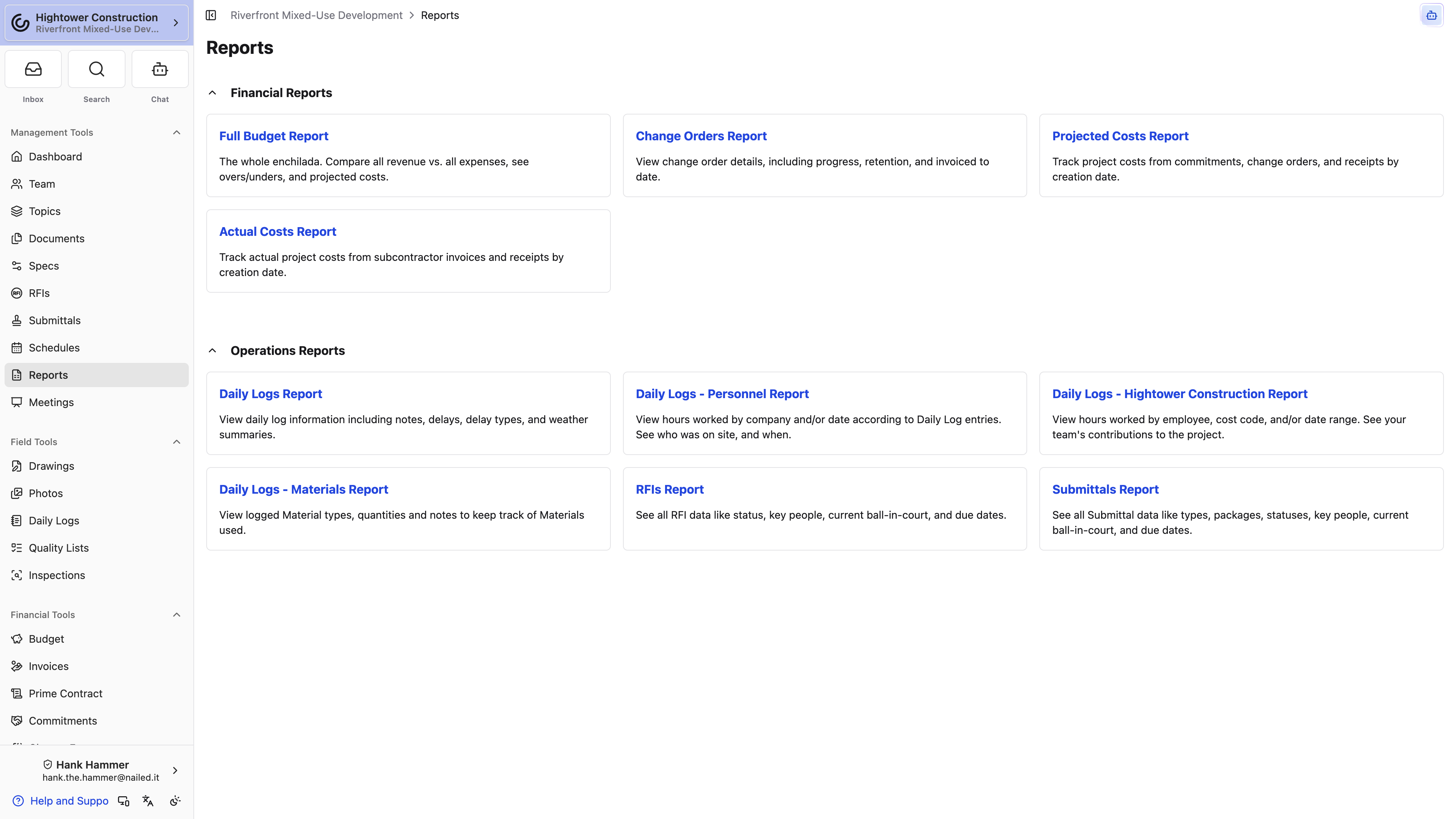
- Open the intended project.
- Select Management Tools → Reports.
- Choose an available card under Operations Reports.
Available non-financial reports include Daily Logs Report, Daily Logs - Personnel Report, Daily Logs - Time Cards Report, Daily Logs - Materials Report, RFIs Report, Submittals Report, and List Report.
Daily Log section cards appear only when that section is enabled. RFI and Submittal cards require Project Management and the corresponding tool permission. List Report needs View punch list items but not Project Management, so it's there on the Field package too. Some visible placeholder cards do not open a report.
WIP Report under Financial Reports opens the project's Budget on that tab. Cross-project WIP lives in Global Reports.
Daily Logs - Time Cards Report is the one exception to the pattern that Daily Log reports follow Daily Log access: it reads employee hours from time cards, so it needs View time cards rather than View daily logs.
Use Daily Log Reports
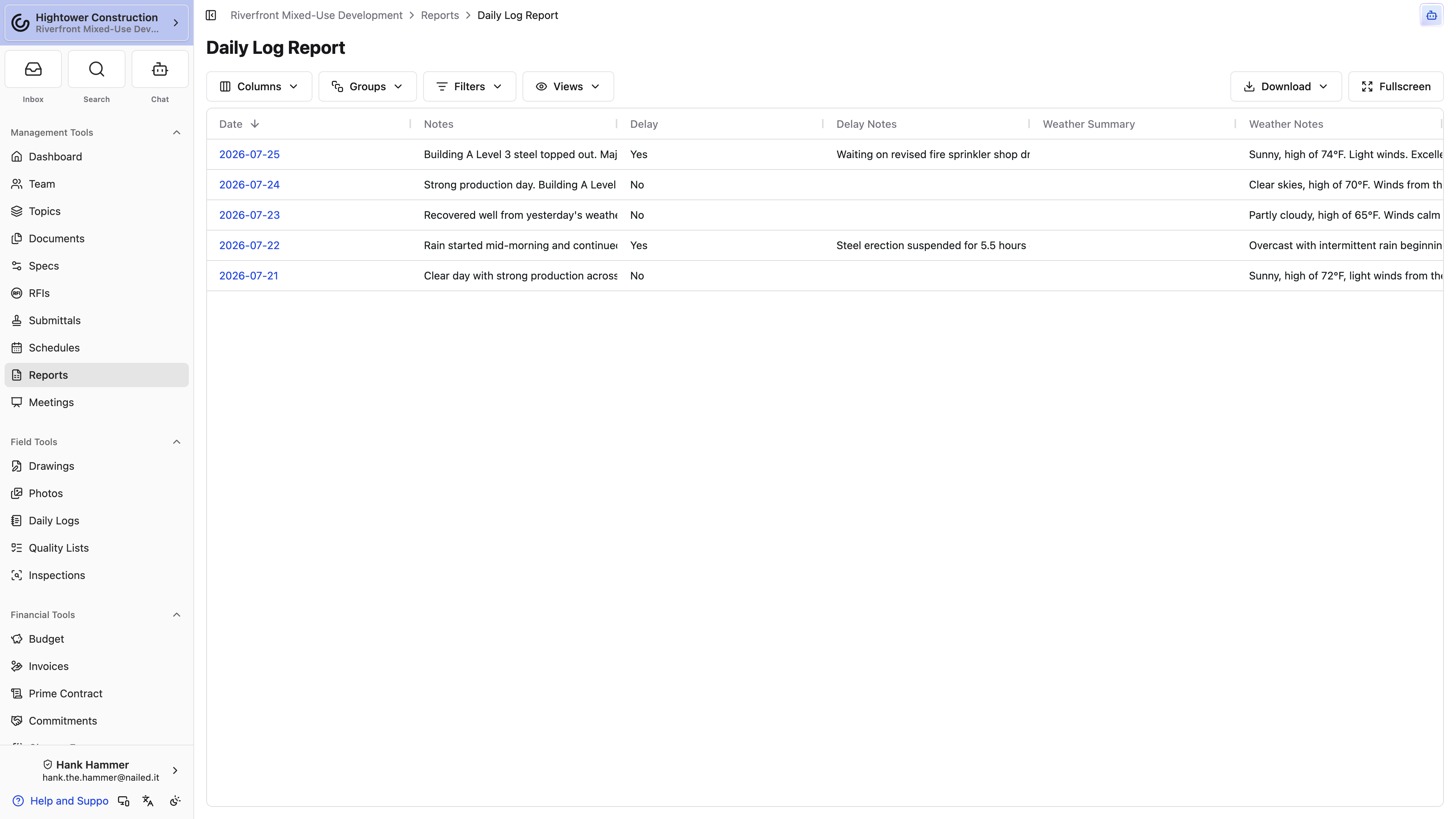
- Daily Logs Report includes dates, notes, delay flags and types, delay notes, weather summaries, weather notes, and Safety Notes.
- Daily Logs - Personnel Report reviews hours by company and date.
- Daily Logs - Time Cards Report reviews your own employees' hours, cost codes, dates, and notes, drawn from time cards.
- Daily Logs - Materials Report reviews material type, quantity, unit, and notes.
Use the date, company, employee, cost-code, and material filters offered by each report. For a delay review, start with Daily Logs Report, then open the source Daily Logs before relying on the information.
Cross-project phone calls live in Global Reports as Phone Calls — see Use cross-project and compliance Reports.
Use the List Report
Every list on a project — punch, observations, incidents, to-dos — has its own page, which is fine until someone asks what's still open across all of them. List Report puts every list item on the project in one table. Open it from Management Tools → Reports, or on desktop select Open List Report in the Lists header — that button shows when you have both View non-financial reports and View punch list items. The report works on the Field package as well as Project Management. Rows here are Lists items, including a list whose type is Incidents. They are not the records in Field Tools → Incidents. See Incidents.
Each row is a single item, with List, List Type, Title, Status, Trade, Location Tier 1 through Location Tier 4, Due Date, Assignee, Approver, and Description. The location tiers are hidden until you turn them on, which keeps the table readable on projects that don't use all four. When a list hides one of its built-in fields, such as Trade, that cell stays blank for the list's items.
Group by List, List Type, Trade, Due Date, Assignee, Status, or a location tier depending on the question. Grouping by Assignee is the fastest way to build somebody's punch walk; grouping by Trade is how you work out which sub to call. Search covers list, title, trade, location, and description.
Draft and template items stay out of the report, so what you're looking at is real work.
On the project List Report, exporting to PDF opens Export Punch List PDF with an Item Photos section — the same dialog as exporting a single list. Organization All Lists in Global Reports uses the generic grid PDF, without that punch-list photo dialog.
For the same view across every project, use All Lists in Global Reports.
Use RFI and Submittal Reports
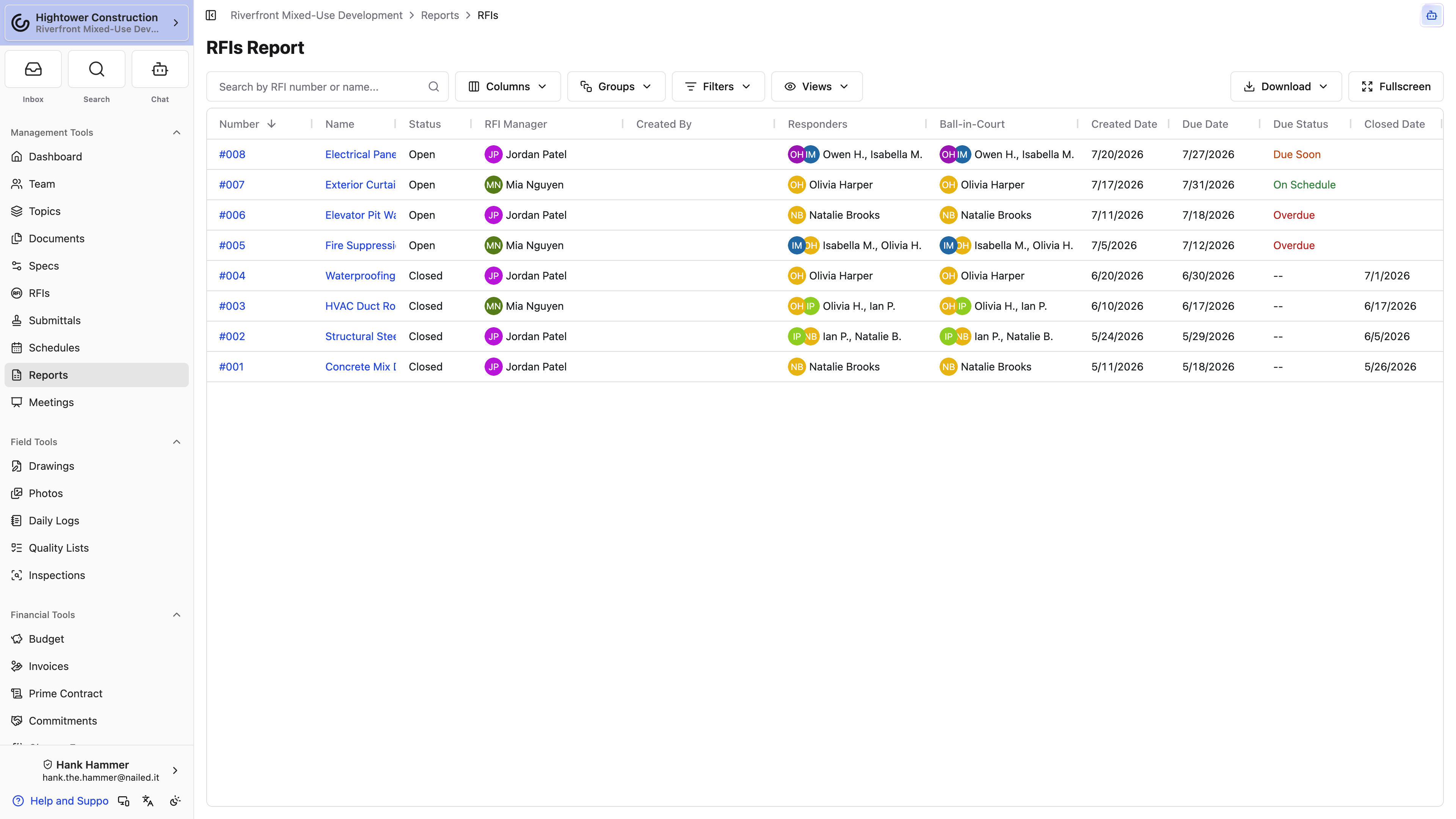
RFIs Report includes open and closed RFIs with fields such as number, name, status, manager, creator, responders, Ball-in-Court, dates, due state, and cost or schedule impact.
Submittals Report includes accessible Submittals with package, type, status, participants, Ball-in-Court, and dates.
Search for a number or title, then filter by status, due state, or participant. Reports are for finding and comparing; open the RFI or Submittal to respond or inspect its complete history.
Refine and export
Filter, group, and export a Report
- Open the Report and clear stale search or filters if the list looks too narrow.
- Search by an available number, name, title, or other text.
- Add filters for dates, statuses, people, companies, or other fields.
- Group by an available field such as date, company, or scope.
- Confirm the visible records and totals.
- Select the export action and choose an available format.
- Review the generated file before sharing.
Totals reflect the active filters and grouping. An export is a point-in-time snapshot and does not grant Constructable access.
Troubleshooting
Troubleshoot Reports
A Report is missing
Confirm View non-financial reports, permission for the related tool, the required organization package, and—when applicable—the enabled Daily Log section.
A Report has no rows
Clear saved search and filters, confirm the date range and grouping, then compare with the source tool. A report may intentionally include only particular statuses.
A Dashboard count differs from a Report
Dashboard summaries and Reports can use different status scopes. For example, the RFI widget focuses on open and overdue work while RFIs Report also includes closed RFIs.
An export is unexpected
Review active filters, grouping, visible columns, Report title, and visible rows, then export again.