Use this guide to create Bid Packages, build bidder lists, send invitations, compare responses, and close or award a solicitation. If you are responding to an invitation, use How to bid in Constructable.
Start here
- Create and issue a package: Create a Bid Package, select bidders, then send and track invitations.
- Review pricing: Review received bids.
- Enter a proposal received by PDF: Import a bid with Chat.
- Finish the solicitation: Create a Commitment or close the package.
- Something is missing or blocked: Troubleshoot Bid Management.
Create and distribute
Create a Bid Package
Create one Bid Package for each procurement effort.
- Open Preconstruction → Bid Management.
- Select Add Bid Package.
- Enter the package name and save.
- On Bid Package, add the manager, due date, project description, instructions, and attachments.
- Add bid scopes when bidders need to price separate portions of work.
Without scopes, each bidder enters one amount and a Scope narrative. With scopes, each assigned scope has its own amount and notes. Settle the scopes before inviting bidders; the bulk scope controls in Distribution are unavailable when the package has no scopes.
Use Actions → Rename Bid Package to correct the title without creating another package.
Select bidders
Select Bidders uses subcontractor companies already in the organization directory.
- Open the package and select Select Bidders.
- Search, filter, or group by company, trade, or tag.
- Select the companies to invite.
- Select Add Selected to Bid List.
- Assign scopes when the package uses them.
The bid uses each company's designated bidding contacts. A company is absent when it is not a subcontractor, is not in the directory, or is already on this package's bid list. Tags help find groups of companies; scopes tell bidders what to price.
Send and track invitations
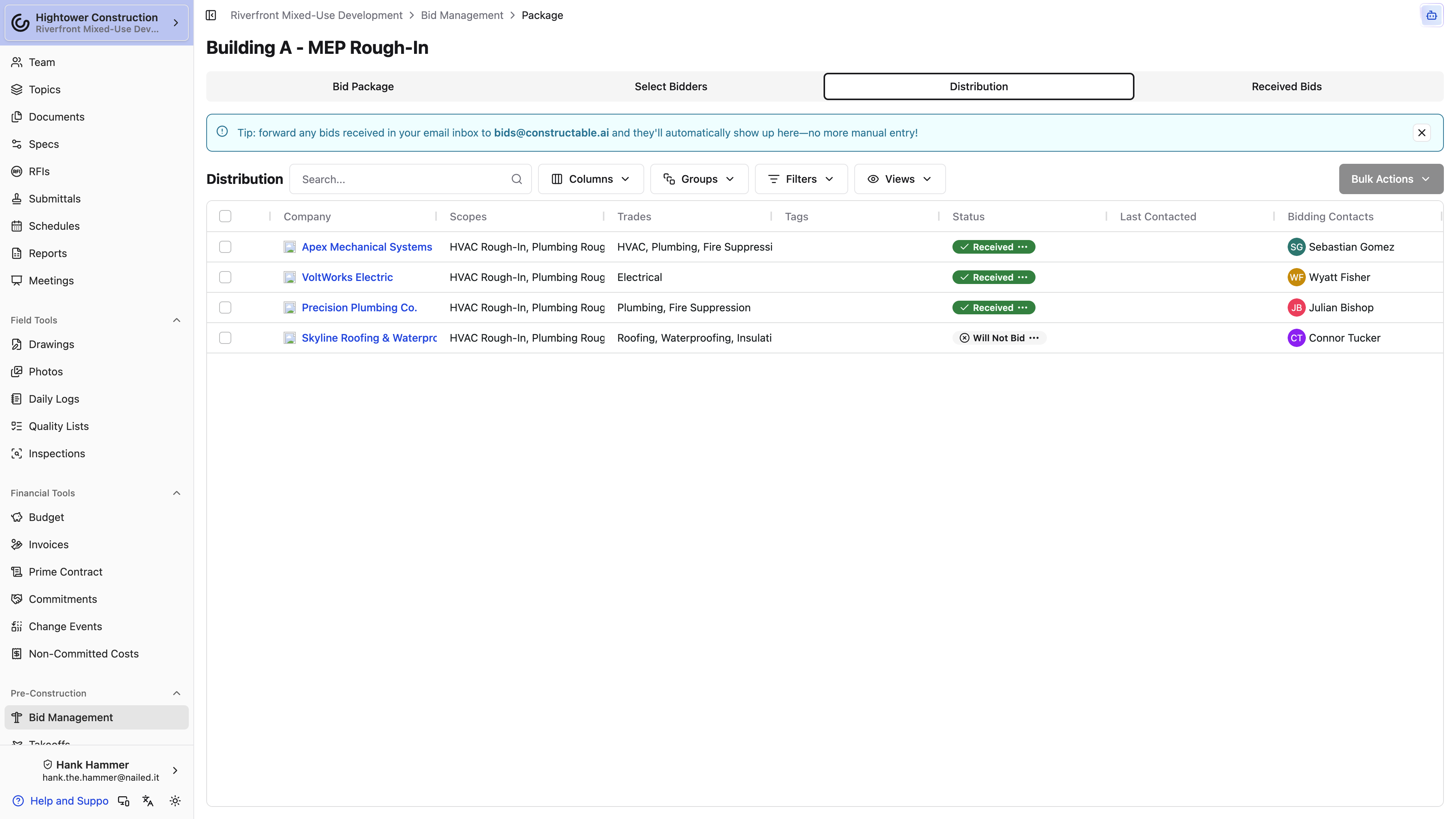
- Open Distribution.
- Filter or group by company, scopes, trades, or tags.
- Select the intended bidders.
- Select Send bid invite(s)....
- Review the recipients and message, then send.
Use Send message for follow-up without issuing another invitation. Bid Package Sent is the earliest invitation delivery; it stays blank until you've invited that company. Select Last Contacted to open that company's bid on the Correspondences tab, which lists every message sent to its contacts. Filter by recipient or sent date, and select a message to read the email that went out. If nothing has gone out yet, it reads No messages have been sent to any contacts at this company. Statuses progress through New, Sent, Will Bid, Will Not Bid, and Received.
Note: Files you attach to an invitation or message normally ride on the email. When they add up to more than 25 MB, every one of them arrives as a download link below the message instead. File types mail services refuse to carry —
.exe,.bat,.js, and.url, for example — always arrive as links.
Select rows and use Export Emails. The label includes how many rows you selected. The file is an Excel sheet of company, contact name, email, and phone numbers.
The bell on one bid changes your own notification level for that bid. It does not change bidder access, delivery, or status. Removing a company from the bid list removes that bid record, so review any submitted information first.
Review and award
Review received bids
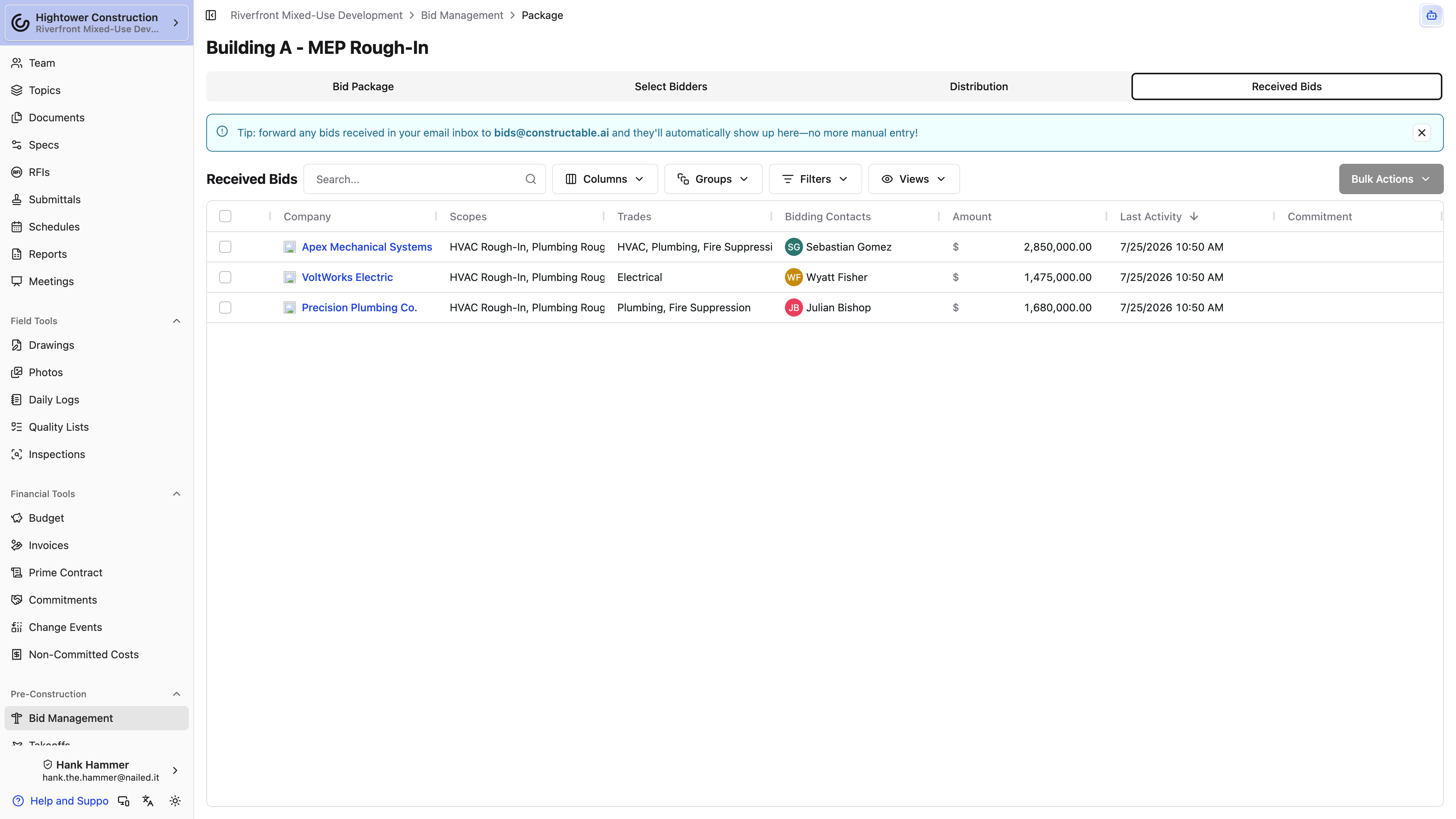
- Open Received Bids.
- Filter or group by company, scope, or trade.
- Open a company. The Overview tab holds its amounts, notes, attachments, contacts, comments, and a collapsed Activity Log you can expand; Correspondences holds the messages you've sent that company.
- Select Download PDF when you need a review copy.
Bidder PDF and image attachments are included behind cover sheets in the download. Open other file types from the bid itself. Will Bid records intent; only Submit Bid changes the status to Received.
Import a bid with Chat
Use the Import bid skill when a proposal PDF should land on an existing bid. Package managers with bid write access can import a subcontractor's PDF; invited bidders with Respond bid requests sent to me can import their own.
- Create the Bid Package and add the subcontractor to its bid list — or, as a bidder, open the invitation that already lists you.
- Open Agent.
- Select Use a Skill → Import bid.
- Attach the proposal PDF and ask Agent to import it.
- Answer questions when the project, company, package, bid, or scope match is ambiguous.
- Open the updated bid and verify every amount, note, attachment, and the Received status against the PDF.
The skill description reads Import a bid PDF into the matching bid. It updates an existing bid; it does not create the package, company, or bid record. The selected skill remains active in that Chat until you select Remove active skill. See Import a bid.
Create a Commitment or close the package
If your organization has the Financial package and you have Commitment permissions, select eligible bids in Received Bids, then select Create Commitment. A received bid does not create a Commitment automatically, and bids already linked to one cannot be selected again.
Use the package actions for the solicitation itself:
- Close Bid Package stops new or changed responses while preserving details and bid history.
- Open Bid Package restores responses and access for active bidding contacts.
- Rename Bid Package changes only the title.
- Delete Package permanently removes the package and its invitation and response history.
Closing revokes project access from a bidder whose only open invitation was this package. Access remains when the bidder has another open package or a non-Bidder project role. Close rather than delete when you need to preserve the procurement record.
Access and platforms
- View bids controls access and can be limited to All Bids or Only bids I'm invited to.
- Invite new bidders, add and change bid packages, message bidders controls package management.
- Bid Management is available when the organization has Project Management enabled.
- Creating a Commitment additionally requires the Financial package and Commitment permissions.
- Web and native layouts are available. Use desktop web for dense grids, bulk selection, filters, and PDF review.
Troubleshoot Bid Management
Bid Management is missing
Confirm the project, the Project Management package, View bids, and the bid-management permission.
A company is missing from Select Bidders
Confirm the company exists in the organization directory, is a subcontractor, has the intended bidding contacts, and is not already on the package.
An invitation cannot be sent
Select at least one bidder in Distribution, verify its bidding contact address, and inspect Last Contacted delivery history before resending.
A bid is missing from Received Bids
Confirm the bidder selected Submit Bid. Will Bid alone does not submit pricing.
Create Commitment is missing
Confirm the Financial package, your Commitment permissions, and that the selected bid is not already linked to a Commitment.
A bidder lost access after closing
The closed package was their last open invitation and they had only the Bidder role. Reopen it or add them to another open package when they still need bidder access.