Use this guide when you know what needs to happen on a submittal and need the exact path through Constructable. It covers setup, creation, review, distribution, revisions, downloads, notifications, and the actions available at each stage.
Start here
- Create and send a submittal for review: Create and open a submittal.
- Submit or review documents: Find submittals and follow-up work, then respond to an approval stage.
- Issue the reviewed package: Close and distribute a submittal.
- The package needs another review: Revise and resubmit.
- Download or report on the log: Download, report, and bulk edit.
- Something is missing or blocked: Troubleshoot submittals.
Common task recipes
- Request a contractor submission: Create the Draft, assign the responsible contractor, select Request Submission, confirm the generated stages, then select Open Submittal.
- Use a standard approval chain: Select Apply Template, choose a configured template, verify each stage, and open the submittal.
- Issue the completed package: Select Close and Distribute Submittal, choose documents and recipients, set Official Status, and send or record the distribution.
- Request another version: Select Revise and Resubmit, complete the new Draft revision, then open it.
- Export one record: Select Download PDF and choose the submittal and approver documents to include.
Set up and create
Configure submittal settings and templates
Configure project defaults when your team repeatedly uses the same manager, numbering, or approval path. Open Project Settings → General → Submittal Settings, or open Submittals, select Submittals Menu, then select Submittals Settings. Both paths land on the same page.
Use the settings page to manage:
- Default manager and Default subscribers — both pickers list the Project Team
- Numbering, including whether the spec section appears before the submittal number
- Numeric or lettered revision labels
- Approval templates
- Submittal packages
Approval templates create a repeatable review path. Build the stages and approvers once, then select Apply Template on a Draft. If the Draft already has stages, Change Template replaces them and Clear Template removes them.
Each stage's due days count from a different starting point, and the field label tells you which. The first stage reads Due Days After Creation; every stage below it reads Due Days After Previous Stage. The days stack rather than all running from the same date, so a three-stage template of 7, 5, and 5 puts the last approver's due date 17 days out, not 5. Applying the template sets those dates relative to the day you apply it.
Note: You can't replace a template after an approver responds. Existing review history remains attached to its original stages.
Open Submittal settings with the permission to create and manage submittals.
Create and open a submittal
Create a Draft while you assemble the documents and approval path. Opening the submittal assigns its active number and starts the review workflow.
- Under Management Tools, open Submittals.
- Select Draft Submittal.
- Enter the title and the project details your reviewers need, including the type, spec section, package, manager, responsible contractor, and due dates.
- Add the files being submitted under Submittal Document(s).
- Build stages manually, select Request Submission, or select Apply Template.
- Verify each approver, stage due date, and approval condition.
- Select Open Submittal.
- In Open Submittal for Approvals, select Yes, Open Submittal.
The first current stage is notified when the submittal opens. Later approvers are notified when their stage becomes current.
Note: Someone with only Create draft submittals can prepare their own Draft but can't open it for approvals. A manager with full submittal write access must open it.
Build the approval path
Approval stages determine who responds and when. The incomplete stage with the earliest due date is current; later stages wait until it is complete.
- Select Add Stage to add a review stage.
- Select Request Submission when no stages exist to create a submission stage for the responsible contractor followed by a review stage for the manager. Request Submission needs a Responsible Contractor first; otherwise you'll see Set a Responsible Contractor before requesting submission.
- Add at least one approver or submitter to every stage.
- Set the stage due dates in the order the review should run.
- Select All approvers/submitters in this step must respond when every person in the stage must answer. Leave it clear when one response can complete the stage.
You can delete an unanswered stage. Once a response exists, the stage and its history remain on the record.
Manage details, documents, and comments
Keep the scope, files, and coordination on the same submittal so reviewers can understand the request without reconstructing an email thread.
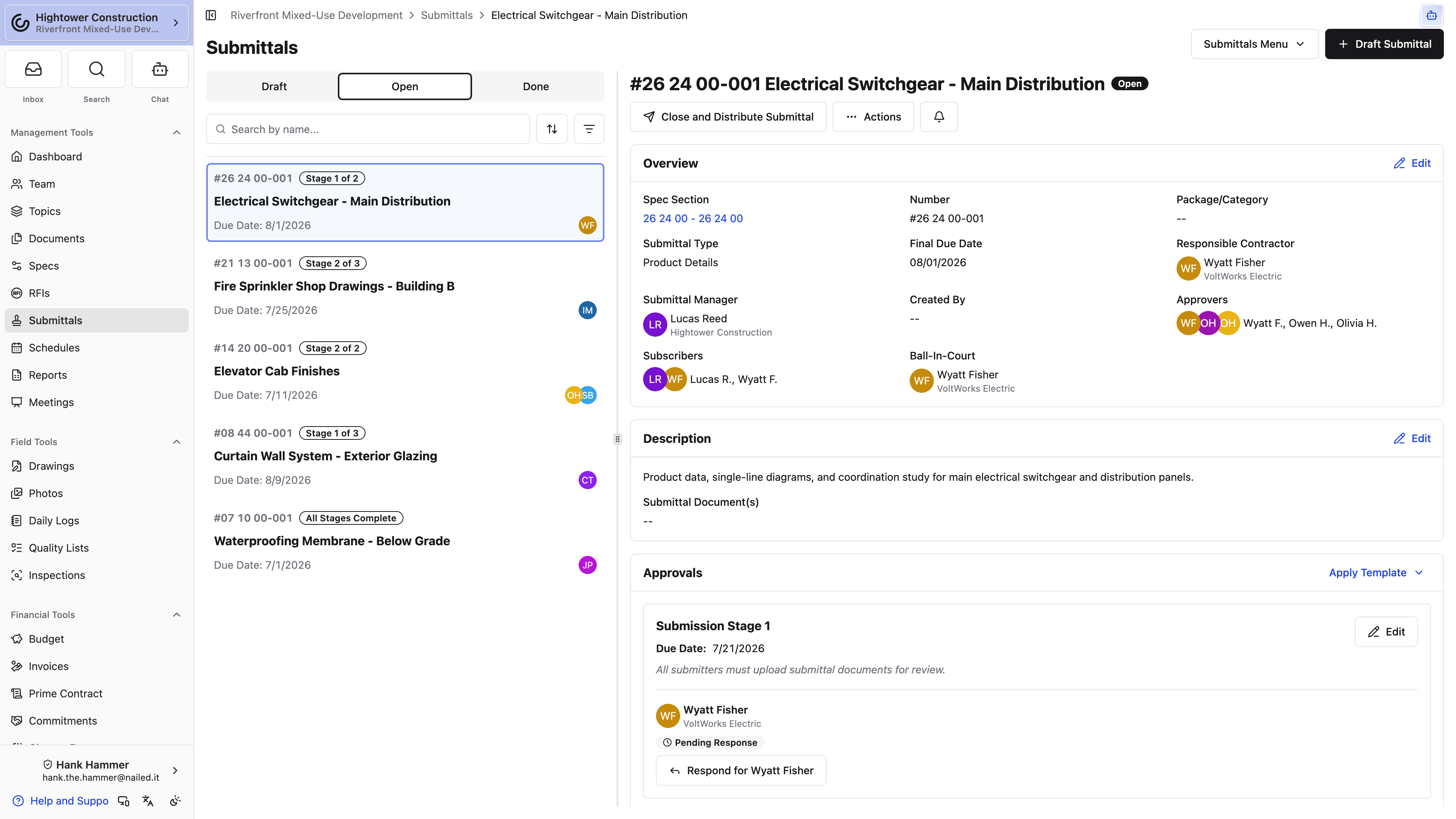
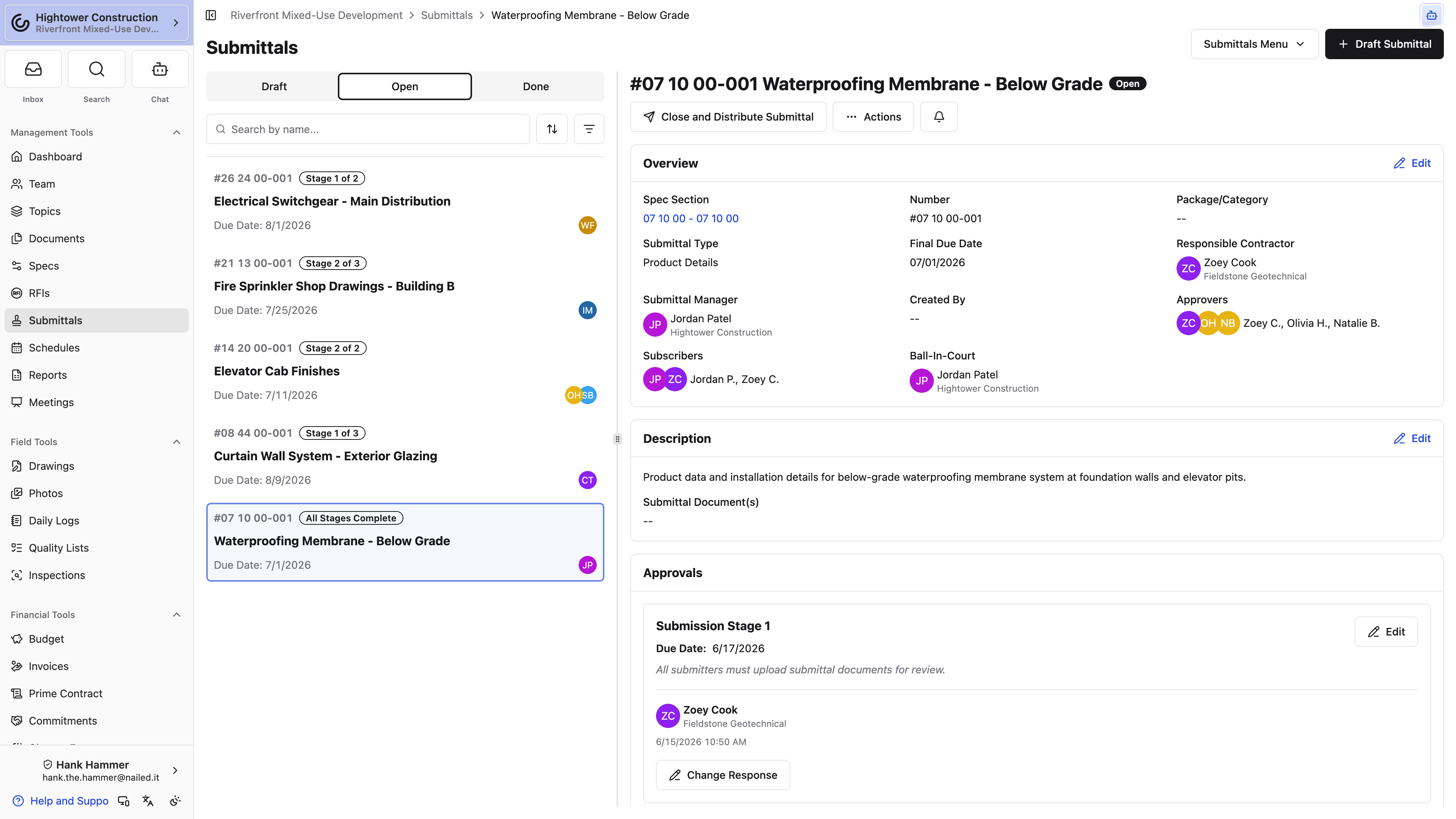
The overview includes the title, description, spec section, type, Package/Category, manager, responsible contractor, due dates, subscribers, and Ball-In-Court. The files being reviewed appear in Submittal Document(s) inside the description area.
Approvers can attach response documents with their decision. During distribution, the manager chooses which source and response documents become part of the issued package.
Note: A comment supports discussion but doesn't count as an approval response. The stage advances only from a submitted response.
Review and follow up
Find submittals and follow-up work
Use the Submittals page to find records waiting on you or another reviewer. Switch between Panel and Table views from Submittals Menu.
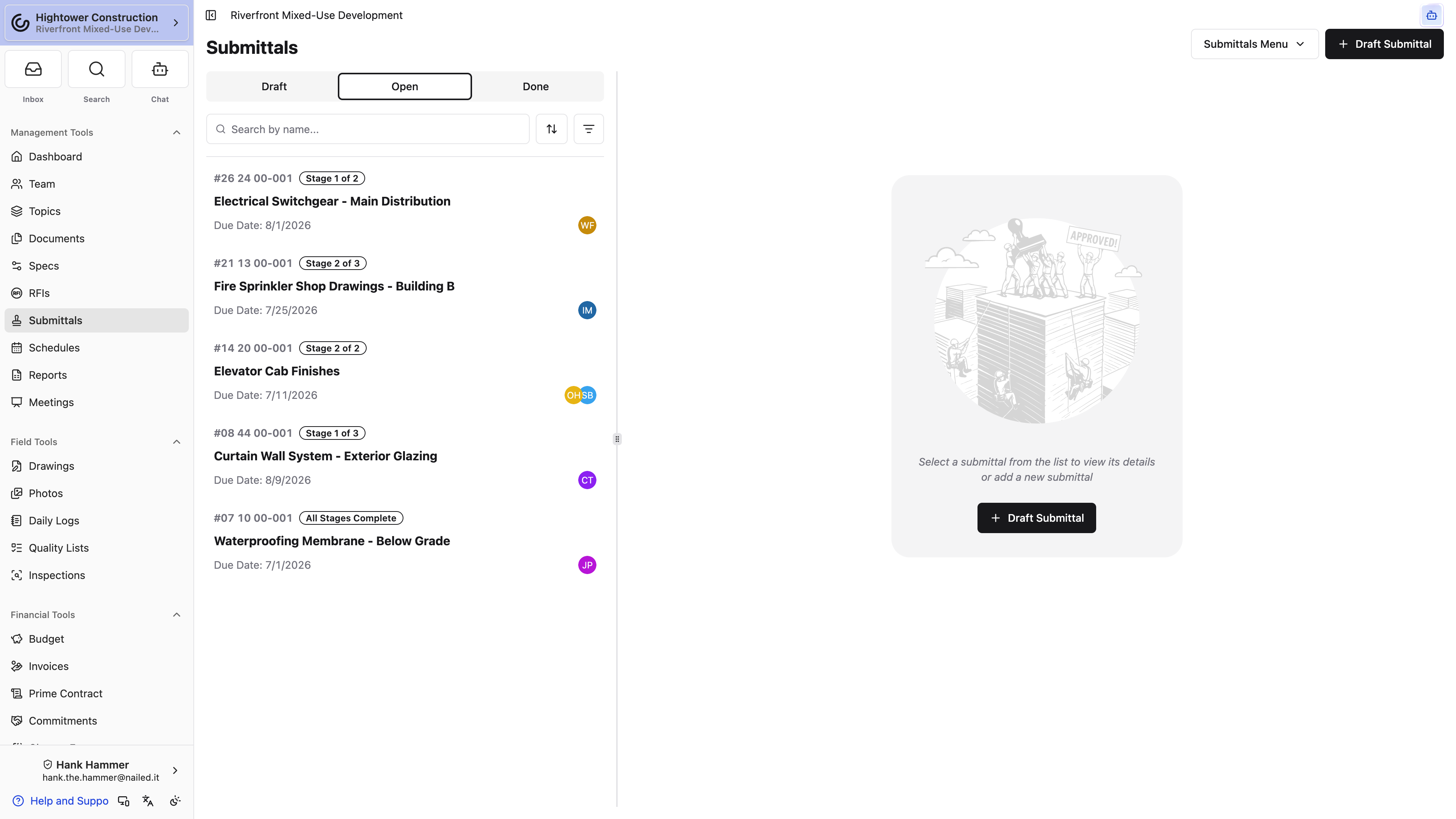
Panel view groups Open records and includes My Ball-In-Court. Table view provides broader filtering and bulk actions. Open a submittal to see the current stage and the people listed under Ball-In-Court.
For an Open submittal, a manager with write access can select Send Reminder Notification.
Note: The visible status tabs are Draft, Open, and Done. A deleted submittal is Cancelled and no longer appears in those views.
Respond to an approval stage
Respond from your row in the current stage after reviewing the submitted files and any earlier responses.
- Open the submittal.
- Review Submittal Document(s), earlier responses, comments, and the due date. To have Constructable compare the package against the project's specs and drawings first, run PreCheck from the command palette — see PreCheck a submittal.
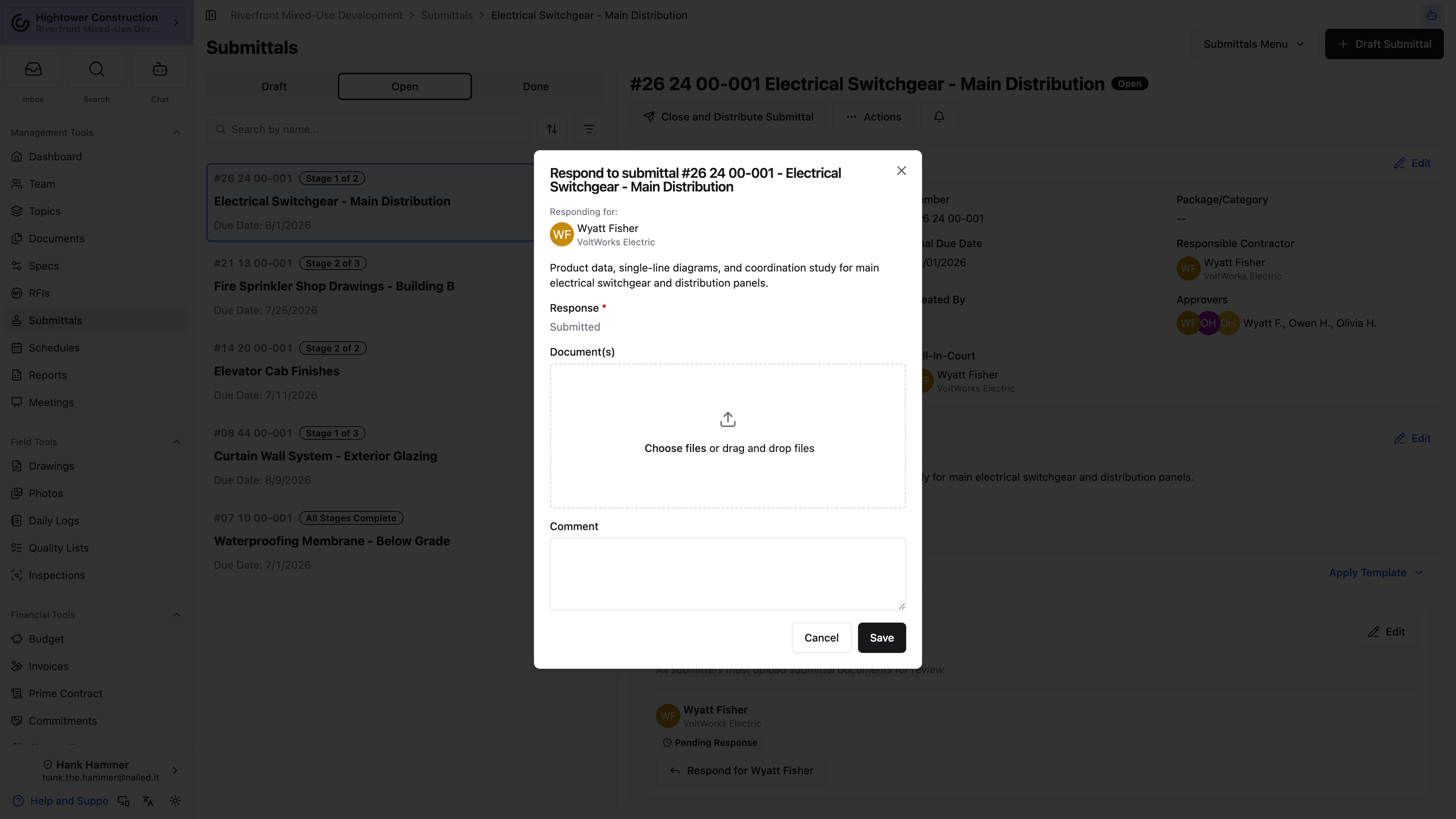
- In the current stage, select Respond.
- Choose Reviewed, No Exceptions Noted, Approved As Noted, Revise And Resubmit, Rejected, For Record, or Submitted.
- Add a comment and response documents as needed.
- Submit the response.
The stage advances only when its approval condition is met. If every approver must respond, it remains current until all responses are submitted.
Selecting Revise And Resubmit records your review decision; it does not create a new revision. The manager uses the separate Revise and Resubmit action after review.
While the submittal is Open, your completed row offers Change My Response. A user with Respond to submittals as another person can record a response on behalf of an approver; the activity history identifies who entered it, and their row shows Respond for {{name}}.
Note: Being named as an approver isn't enough on its own. Without Respond to submittals, Respond doesn't appear on your row at all — you can read the submittal and its documents, but the stage waits on you with no way to answer. If you're staring at a stage that's yours and no button, that's the permission to ask your Admin about.
Understand statuses, stages, and Ball-In-Court
Use status to understand the record and Ball-In-Court to understand who owes the next action.
- Draft: The manager is preparing the record and approval path.
- Open: The approval workflow is active.
- Done: Review is finished or the record was moved to completion.
- Cancelled: The submittal was deleted and can't return to the active workflow.
During review, pending people in the current stage have Ball-In-Court. When all stages are complete, or when no stages exist, it returns to the manager.
Done and Official Status are different. Done describes the workflow state. Official Status records the result issued during distribution.
Check access and platform availability
Submittals are available when the organization has the Project Management package. They aren't in the Field package, so the Submittals tool, drawing pins, and Dashboard widgets stay hidden there even if a role grants Submittal permissions. A user's role then controls which actions appear.
- View submittals shows the log and records allowed by the configured access level.
- Create draft submittals allows a user to create and edit their own Draft.
- Create new submittals, make changes to existing submittals, distribute and redistribute controls the full management workflow.
- Respond to submittals allows a current approver or submitter to answer.
- Respond to submittals as another person allows an authorized user to record another person's response.
- Delete draft submittals and Delete submittals control deletion for different record states.
Viewing, responding, reminders, revisions, and PDF downloads are available in web and native layouts. Use project settings, approval-template administration, bulk actions, and distribution controls to manage the workflow. In compact layouts, check the actions menu.
Understand submittal notifications
Notifications follow the active work instead of notifying every participant at once.
- Opening a submittal notifies the people in the first current stage.
- Completing a stage moves Ball-In-Court and notifies the next stage.
- Responses are recorded in activity and notify the manager and subscribers.
- Send Reminder Notification follows up on an Open submittal.
- Distribution emails go only to the recipients selected in the distribution dialog.
Approvers in later stages should not expect an opening notification. Their notification arrives when the earlier stages finish and their stage becomes current.
Complete and issue
Close and distribute a submittal
Close and distribute when review is finished and you are ready to issue the official result and selected documents.
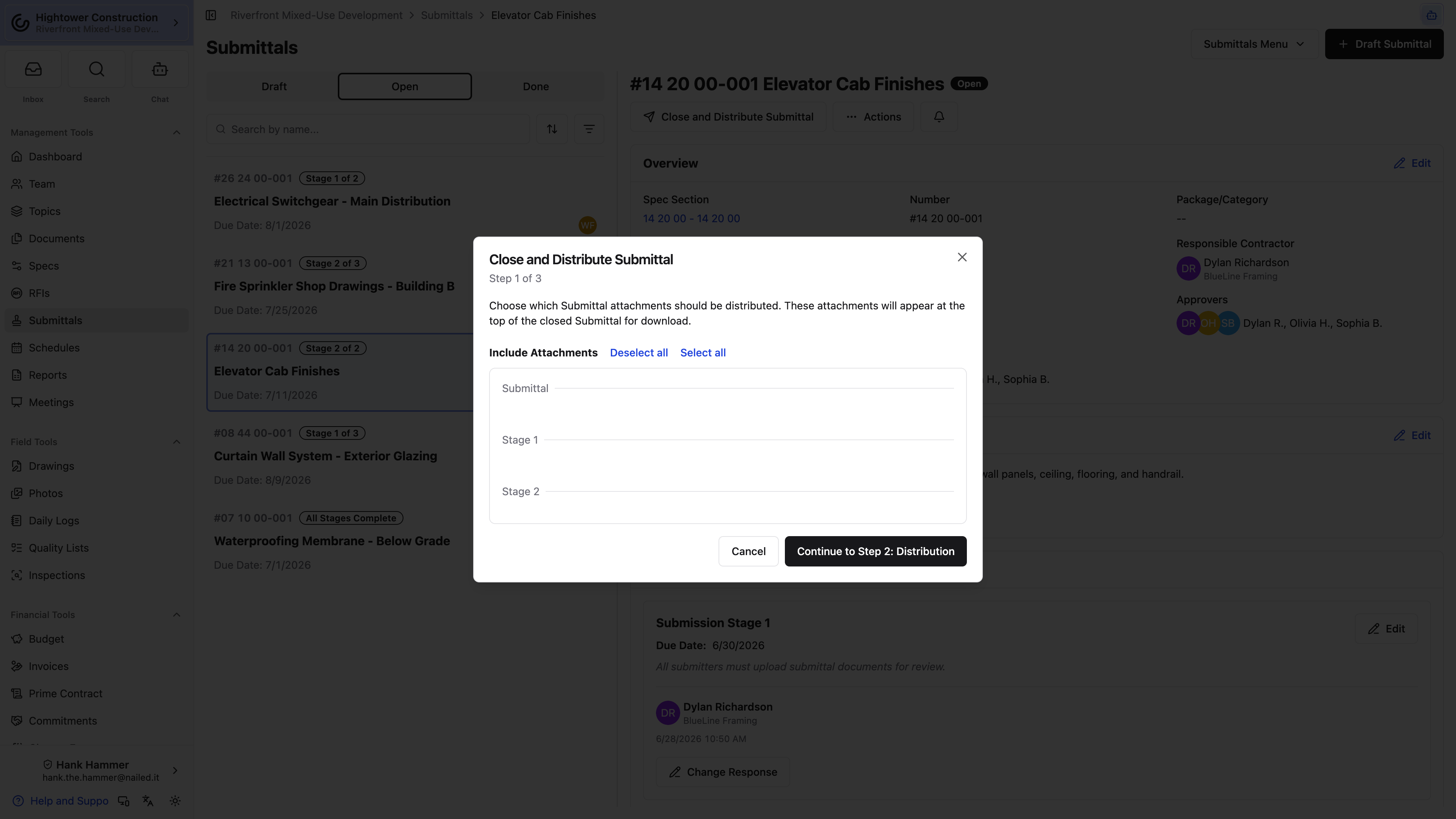
- Select Close and Distribute Submittal. On a Done record, the action is Distribute Submittal; after a prior distribution, it is Redistribute Submittal.
- Choose the source and response attachments to issue.
- Select Continue to Step 2: Distribution.
- Review the recipients. The responsible contractor, external subscribers, and external approvers are preselected.
- Select Continue to Step 3: Review.
- Set Official Status.
- Review Send email, the subject, message, merge fields, and attachments.
- Select Close and Distribute, or clear Send email and select Close.
Closing moves the submittal to Done and records the distribution. The Official Status defaults to the most severe response in the latest stage that has responses, but the manager can change it before issuing the package. For Record is the lowest-severity status — use it when the package is being issued for the file, not as a review decision.
Note: Revise And Resubmit is an approver response and an Official Status. Revise and Resubmit is the separate action that creates a Draft revision.
Redistributing creates another distribution record and preserves earlier distributions.
Note: Attachments normally ride on the email as files. When the files add up to more than 25 MB, every one of them arrives as a download link below the message instead. File types mail services refuse to carry —
.exe,.bat,.js, and.url, for example — always arrive as links, so the rest of the package still goes out.
Once it's issued, everyone who can view the submittal — subcontractors, consultants, and owners included — sees the Distributed or Redistributed card at the top of the record with the Official Status stamp and the attachments that went out. The Distribution Message itself, with the email that was sent, only shows for people with full submittal write access.
Revise and resubmit
Create a revision when reviewed material needs another pass. This preserves the earlier responses and distributions on the version where they occurred.
- Open the latest revision of a non-Draft submittal.
- Open the actions menu and select Revise and Resubmit.
- Complete the documents and approval stages on the new Draft revision.
- Select Open Submittal when the next review is ready.
Each revision can have only one live revision after it. On an earlier revision, Revise and Resubmit is disabled with Only the latest revision can be revised and resubmitted — switch to the latest one first. A double-click or a teammate revising at the same moment won't create a second Draft.
Creating the revision moves the parent submittal to Done. The new Draft prepends a contractor submission stage and puts Ball-in-Court on the Responsible Contractor when one is set. On desktop, use Select Revision to move between versions. In the native layout, select Switch to Revision…. Revision labels follow the project's numeric or letter setting.
Use the actions menu
The actions menu changes with the submittal status, your permissions, and whether you are viewing the latest revision.
- Open Submittal starts approvals from a Draft.
- Close and Distribute Submittal, Distribute Submittal, or Redistribute Submittal issues the reviewed package.
- Send Reminder Notification follows up while the submittal is Open.
- Revise and Resubmit creates a linked Draft revision from the latest revision.
- Move to Draft, Move to Open, and Move to Done change status without running the guided opening or distribution flow.
- Copy Link copies a direct link to the record.
- Download PDF exports the selected submittal documents.
- Delete Submittal permanently removes the latest revision from active use.
On desktop, revision selection appears as Select Revision. In the native layout, use Switch to Revision….
Change status or delete a submittal
Use direct status actions to correct a record that entered the wrong phase. Use the guided opening and distribution actions for normal work because they include the expected workflow and notification steps.
- Move to Draft is available from Open.
- Move to Open is available from Draft or Done.
- Move to Done is available from Draft or Open.
Delete Submittal is permanent. The dialog warns that the action can't be undone. Deletion changes the record to Cancelled, removes its number, disconnects it from its revision chain, and removes it from the Draft, Open, and Done views.
Only the latest revision can be deleted. Draft and non-Draft records require their respective delete permissions.
Export and connected work
Download, report, and bulk edit
Choose the export that matches whether you need one review package, the visible table, or the complete project log.
- On a submittal, select Download PDF and choose the source and response documents to include.
- In Table view, select Download Table as PDF or Download Table as CSV.
- From Submittals Menu, select Open Submittals Report for the project report.
- From Submittals Menu, select Export Submittals to build the complete project log through Closeout. It needs Generate closeout packages, and the ZIP arrives on the project's Closeout page.
- Table bulk actions can update type, package, status, manager, responsible contractor, spec section, or due date when you have submittal write access.
- Organization reporting includes All Submittals for work across projects.
Use submittals with drawings, meetings, and mobile
Link submittals to the project surfaces where the work is discussed and built.
- On a drawing, place a submittal pin and create a Draft or link an existing submittal. Linked sheets appear on the submittal.
- In Meetings, select Add Open Submittals to add a smart section. It follows Open submittals until the meeting is finished.
- On mobile and native layouts, open, review, respond, send reminders, switch revisions, and download PDFs from the same submittal record.
- Use settings, approval templates, bulk edits, and distribution controls to manage submittals; compact layouts group actions into menus.
Troubleshooting
Troubleshoot submittals
Check the record status, current stage, and your permission before changing the workflow.
A Draft or submittal is missing
- Confirm the organization has a package that includes Project Management.
- Confirm View submittals and its configured access level.
- For a Draft, confirm your access includes that creator or company.
- Confirm you are on the intended project, status tab, and revision.
Open Submittal is missing
The record must be Draft and you need full submittal write access. Create draft submittals alone does not include opening the workflow.
An approver can't respond
Confirm the submittal is Open, the person is in the current stage, and the stage is not complete. If all three hold and Respond still isn't on their row, they're missing Respond to submittals — the button is hidden rather than disabled, so there's nothing on screen to explain its absence.
A later stage won't start
Check whether All approvers/submitters in this step must respond is selected on the current stage. If it is, every person in that stage must submit a response.
The approval template can't be changed
A response already exists. The template control stays on screen but is disabled, with The approval template can no longer be changed. Templates can be changed or cleared only before review history is recorded.
Distribution can't continue
Select an Official Status. When Send email is selected, keep at least one recipient, a subject, message text, and the submittal link merge field.
Delete Submittal is disabled
Only the latest revision can be deleted. The required permission also differs between Draft and non-Draft submittals.
Revise and Resubmit is disabled
You're on an earlier revision. Use Select Revision on desktop, or Switch to Revision… in the native layout, to open the latest one and revise from there.