Use this guide to group a scope change, create vendor and Prime Change Orders, copy vendor pricing to the owner side, control when values affect SOVs and reports, prepare change documents for signature, and export change exposure.
Start here
- Record a scope change: Create a Change Event.
- Price cost and revenue: Create vendor and Prime Change Orders.
- Start owner pricing from vendor cost: Copy vendor pricing to a Prime Change Order.
- Understand when values count: Understand change status and financial timing.
- Approve and sign a change: Prepare a Change Order for e-signature.
- Report or export: Find, group, and export changes.
- Something is blocked: Troubleshoot Change Events.
Create and price changes
Create a Change Event
A Change Event is the folder for one scope issue: vendor cost on one side, owner revenue on the other. Create it as soon as the issue is real, even if nobody has a price yet — that's how the rest of the project sees the exposure.
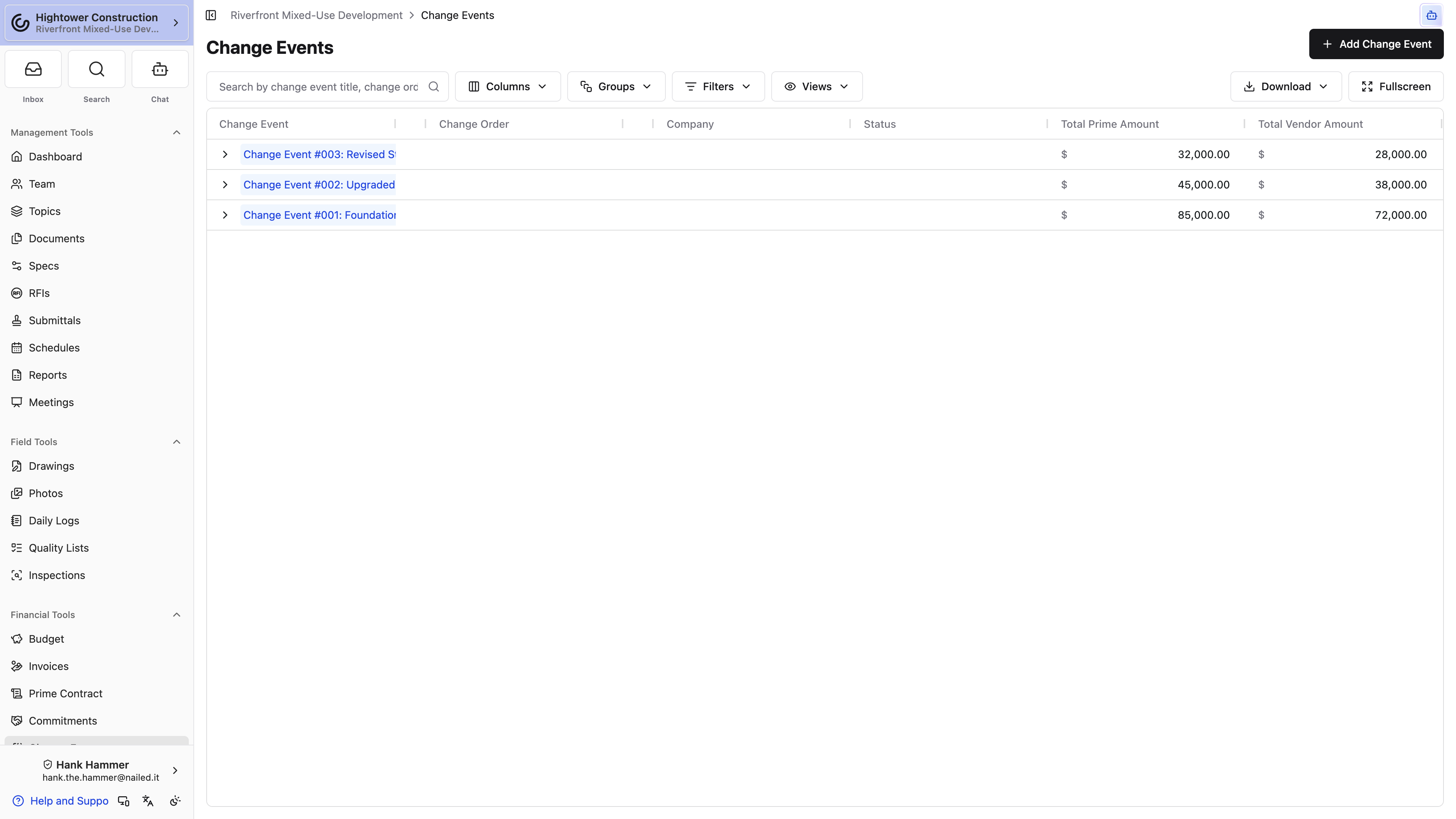
- Open Change Events.
- Select Add Change Event. On a phone, that's the plus button in the header.
- Enter a specific Title.
- Save. Constructable opens the new event so you can add a Description, Schedule Impact, line items, and the related Change Orders.
Create the event as soon as the issue is real, even if nobody has a price yet. An unpriced change still represents exposure; add line items when pricing arrives.
Create vendor and Prime Change Orders
Vendor and Prime Change Orders are how you price a Change Event: cost against a Commitment, revenue against the owner. Each side has its own panel on the event — Vendor Change Orders and Prime Change Orders — with one menu that starts a new Change Order or adds lines to one you've already drafted.
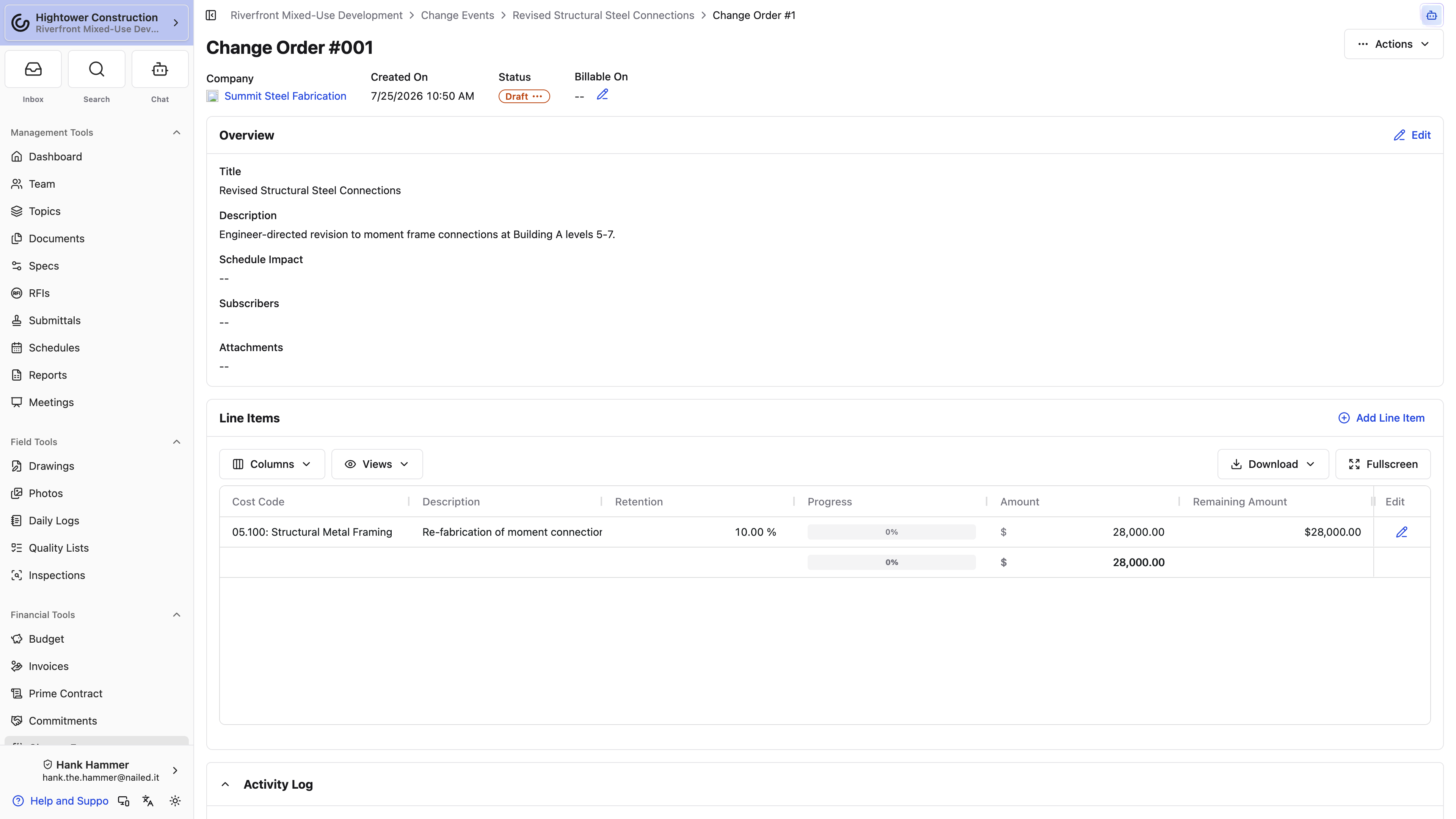
To start a new Change Order inside the Change Event:
- On the Vendor Change Orders panel, open Add Vendor Change Order in the panel header and select New Vendor Change Order. For the owner side, open Add Prime Change Order on Prime Change Orders and select New Prime Change Order.
- Pick the commitment — a subcontract or Purchase Order on the vendor side, the Prime Contract on the owner side.
- Fill in the first line. Vendor lines take cost code, cost type, Qty, Unit, Unit Price, Amount, retention, and subproject. Prime lines take revenue coding, Qty, Unit, Unit Price, owner Amount, markup, and Budget impact. The description placeholder asks What is this line for?
- Select Add another line item to start the next line. The line you just finished collapses into a one-row summary showing its cost code, description, and amount, so the sheet stays short no matter how many lines you enter.
- Keep adding with Add line item. Select the pencil on a collapsed line to reopen it, the trash can to remove it, or the up chevron on the open line to collapse it. From the second line on, the footer shows the running total and how many lines you've entered.
- Select Save and Close. The Change Order and every line are created together, so cancelling before you save leaves nothing behind.
- Attach supporting documents, then review each side independently before approval or signing.
Opening another line, collapsing, or saving checks the open line first, so a line with a missing cost code or amount stays open until you fix it. A blank line you added and never filled in is simply dropped.
To add lines to a Change Order that's already on the event, open the same Add Vendor Change Order or Add Prime Change Order menu. Below the new-order option, it lists every Draft Change Order on that side by company, with its CO or PCO number and status. Pick one to open Add Change Order Line Items and enter lines the same collapsing way. Change Orders that are out for signing, executed, or void aren't listed, because their lines are locked.
When you pick a vendor commitment for a new Change Order, the sheet warns you about two situations. Neither blocks the save:
- This commitment is not fully executed — You can still add this change order. Work against an unsigned subcontract can stack up uncommitted.
- This vendor has an unsigned change order — There is already a change order on this commitment that is not fully executed. You can still add another.
Prime Change Orders don't show those warnings.
Vendor and Prime amounts don't have to match. Margin, allowances, and costs not billed to the owner legitimately separate them.
On a vendor Change Order, the cost-code picker groups codes already on that commitment's SOV under On this commitment, so the codes you're already using float to the top.
Qty, Unit, and Unit Price are optional. When you enter quantity and unit price, Amount follows from that product. Leave them blank for a lump-sum line and type the amount directly.
Line items can be added, edited, or removed only while the Change Order is Draft. Once it's out for signing, ready to countersign, Fully Executed, or void, the edit pencil disappears from its lines, and a line-item sheet left open shows Line items can only be changed on draft change orders in place of a working save. To change the lines, move the Change Order back to Draft first — see Prepare a Change Order for e-signature.
Open Overview to change the Change Order Number. It has to be a positive whole number; two Change Orders can share a number. On a Fully Executed Change Order the overview, Billable On, and executed date are locked for everyone.
The two sides take different access, and they're independent of Manage financials like change orders, contracts, receipts (excluding financial reporting). Create/edit change events and Create/edit vendor change orders let a project engineer run the subcontract side. Create/edit prime change orders is what opens the owner side. Keep Manage financials like change orders, contracts, receipts (excluding financial reporting) for Prepare for Esigning and the rest of the contract workflow.
On a Sage-connected project that isn't excluded from sync, New Prime Change Order is disabled until the Sage Intacct project estimate has synced into the Budget. The tooltip reads Prime change orders cannot be created until the Sage Intacct project estimate has synced into the budget.
Copy vendor pricing to a Prime Change Order
When revenue codes are disabled:
- On the Change Event's Prime side, select Copy all from Vendor Change Orders.
- Choose the Prime Commitment.
- Select Copy All.
- Review the new Prime Change Order.
- Review the new Prime Change Order. Constructable copies every vendor line — including Qty, Unit, and Unit Price — and then applies the Prime Contract's Change Order markups the same way Add Markup Line Items does. Markups without a cost code are skipped, and it won't add a second set if markup cost codes are already on the order.
- Adjust revenue coding, descriptions, Markup Rate, owner amounts, and Budget impact.
The action copies every line from every vendor Change Order on the event; individual-line selection isn't available. Treat the result as a Draft owner-pricing proposal.
Copy all from Vendor Change Orders doesn't appear when revenue codes are enabled. Build Prime lines directly in that configuration. When you add or edit a Prime Change Order line, Markup % is on the form. Progress-bill lines default to 0%; T&M lines pick up the rate from the SOV line. A non-zero markup hides quantity and unit pricing and drives Amount and Budget Impact from the markup instead.
This action copies change pricing, not invoice progress. To seed an Owner invoice from vendor billing, use Copy Line Items to Prime on the vendor invoice.
Status, approvals, and consequences
Understand change status and financial timing
Change document status and financial timing are separate:
- Pending: the Change Order isn't executed and has no Billable On date.
- Billable On: the date its value begins counting in billable reporting.
- Fully Executed: the approval and signature lifecycle is complete.
- Void: the record remains in history but isn't active.
When a Change Order becomes Fully Executed, its lines become available on the contract SOV for invoicing. When a Prime Change Order reaches Billable On, Constructable creates or updates its Budget Modification and locks it.
A change can be executed before it is billable or billable before the final signature. Don't execute a change merely to include it in totals. Use Billable On or the Budget's Show Pending Change Orders in Totals according to the project's policy.
When you execute a Change Order by hand — Actions → Mark as Fully Executed, or the status badge — a dialog asks for both dates before anything changes. Executed On starts at the Change Order's existing executed date or today. Billable On starts at its existing billable date, or follows Executed On until you edit it. Select Execute to mark it Fully Executed with those dates. Pick them carefully: once it's executed, neither date can be edited.
Prepare a Change Order for e-signature
Finish the Draft lines and supporting documents, then use Actions → Prepare for Esigning to configure approvers, signers, and fields.
That action needs Manage financials like change orders, contracts, receipts (excluding financial reporting) — Change Order write access is not enough.
The document proceeds through Draft, Awaiting Approval when approvers are configured, Out for Signing, Ready to Countersign, and Fully Executed. Notifications go to each configured participant when their action is due.
While the signing flow controls status, don't force a manual status change.
A Fully Executed Change Order is locked for every role: its line items, overview, Billable On, and executed date can't be changed in place. To correct one, take it out of Fully Executed first:
- Open the Change Order and select Actions.
- Select Mark as Draft to reopen it for edits, or Mark as Void to retire it.
- Make your corrections on the Draft, then execute it again or send it back through e-signing.
Moving it takes the same access as executing it: Create/edit vendor change orders for a vendor Change Order, Create/edit prime change orders for a Prime one. From Fully Executed it can only go to Draft or Void — the signing statuses are disabled with An executed change order can only move to draft or void. Two things keep it executed no matter who you are:
- It was signed through Constructable e-signing. Status changes are disabled with This change order is managed by the esigning workflow.
- It's billable and has already been invoiced against. Status changes are disabled with This change order has already been invoiced against.
Reopening it in Constructable may not update an accounting document already created from the original execution, so coordinate with accounting before you change an executed Change Order.
Download PDF on a Fully Executed Change Order uses the values from that execution. Mark as Draft or Mark as Void clears the frozen copy. The next time you mark it Fully Executed, Download PDF uses the new values.
On vendor and Prime Change Order PDFs, Qty, Unit, and Unit Price are omitted when no line has a value, and that width goes to the description. When revenue codes are enabled, a Prime Change Order PDF rolls matching lines up by revenue code; the in-app line items stay at cost-code detail.
Understand Budget, SOV, invoice, and sync effects
- Vendor Change Orders add cost exposure and, once executed, billable SOV lines on the selected Commitment.
- Prime Change Orders add owner revenue and, once executed, Prime SOV lines.
- A Prime Change Order reaching Billable On creates or updates a locked Budget Modification labeled Budget Impact #NNN.
- While a Change Order is out for signing, ready to countersign, or Fully Executed, a contract SOV line it revises is locked on the Commitment or Prime Contract. The line shows This line item is used by a change order that is out for signing or executed, so it cannot be changed. A void Change Order doesn't hold that lock.
- Invoice progress can be entered only against SOV lines available to that contract.
- The Budget can include or exclude pending Change Orders from totals without changing their records.
Sage Intacct can create purchasing and project-contract change documents from executed Constructable Change Orders according to configured mappings. Some flows create only and don't send later edits. Coordinate corrections with accounting.
Fix and retry a failed integration link. Don't create a duplicate Change Order to work around a sync error.
Find and report
Find, group, and export changes
The Change Events page is three lists — Change Events, Prime Change Orders, and Vendor Change Orders — so you can work one side at a time. You only see the tabs your role can read.
From Change Events:
- On Change Events, desktop can switch Rows view and Table view. Phones stay on rows. The two Change Order tabs always use the table. On a narrow layout the Change Order tabs shorten to Prime COs and Vendor COs.
- In Rows view, filter with Filter change events by title.... Each row shows Created, Prime, Budget, Expenses, and Days of schedule impact, and View Change Event opens the record.
- In Table view, search with Search by change event title, change order title, or company.... Group by Change Event, Company, or Status, and filter by company and status.
- Add the Created Date column from the column controls when you need to see how long a change has been sitting. It's hidden until you turn it on; on a row grouped by Change Event it shows the event's own created date.
- Export the current table to PDF.
- Open Change Orders Report for progress, retention, and invoiced-to-date details. Description is the line-item description, not the Change Order overview narrative. Group header rows leave that column blank.
The empty-state card — No change events have been created yet. — appears only when the project has no Change Events and no Change Orders. If Change Orders exist without an event, they still show on the Prime and Vendor tabs.
Check filters and access before exporting. Some roles see only Non-draft or billable Change Orders, or only those Related to my company, so users can report different totals from the same project.
The Budget provides separate PDF and CSV exports and a Show Pending Change Orders in Totals option. An exported file is a snapshot and doesn't update.
Troubleshooting
Troubleshoot Change Events
Change Events or one side of the event is missing
Confirm the Financial package and the matching read permission: Read change events, Read vendor change orders, or Read prime change orders. A tab you can't read doesn't appear. Company restrictions (Related to my company) and Status access of Non-draft or billable can further limit results. If you have none of those read permissions, the page shows Access denied. You don't have permission to view change events or change orders.
Pricing isn't known yet
Create the Change Event anyway and add pricing when it arrives so the event remains visible as exposure.
New Prime Change Order is blocked on a Sage project
The participating Sage project has no Budget lines from the Sage Intacct project estimate. Sync the estimate, or confirm whether Exclude from Sage Intacct Sync should apply. The disabled tooltip is Prime change orders cannot be created until the Sage Intacct project estimate has synced into the budget.
Copy all from Vendor Change Orders is missing
Revenue codes are enabled. Build the Prime Change Order lines directly.
Copied Prime totals are higher than vendor totals
Review Markup Rate and each owner amount. Copied values are a starting point, not a required match.
No cost codes appear for a Prime line
When the project's revenue codes aren't mapped to cost codes, the line-item picker shows No cost codes are mapped to this revenue code on this project. instead of an empty list. Add the mapping under Project Settings → Revenue Code Mappings, then return to the line.
I can't edit, add, or delete lines on a Change Order
Line items change only on a Draft. If the Change Order is Fully Executed, use Actions → Mark as Draft first. If that option is disabled, hover it: the Change Order was signed through e-signing, or it's billable and already invoiced against, and either one keeps it executed. Record the correction on a new Change Order instead.
Change lines aren't available for invoicing
Confirm the Change Order is Fully Executed and its lines were added to the intended contract SOV.
I can add vendor Change Orders but not a Prime Change Order
That's the expected result of having Create/edit vendor change orders without Create/edit prime change orders. The owner side is a separate permission. Prepare for Esigning still needs Manage financials like change orders, contracts, receipts (excluding financial reporting) even when you can create both sides.
Download PDF doesn't match the Change Order I just edited
If the Change Order is Fully Executed, Download PDF is the frozen copy from execution. Mark it Draft, finish the edits, and mark it Fully Executed again when the PDF should reflect the new values.
A colleague sees more Change Orders
Compare vendor and Prime read permissions, Related to my company, Status access, filters, and whether the view includes only billable changes.