AI takeoffs by Constructable
AI takeoff software for general contractors
Choose the sheets, and Constructable counts the fixtures and outlines the floor areas for you. Your estimator checks a finished takeoff instead of clicking every symbol, and the whole team can work in it because we do flat pricing with unlimited users.
Automated takeoffs
Choose the sheets and get the takeoff back on the plans
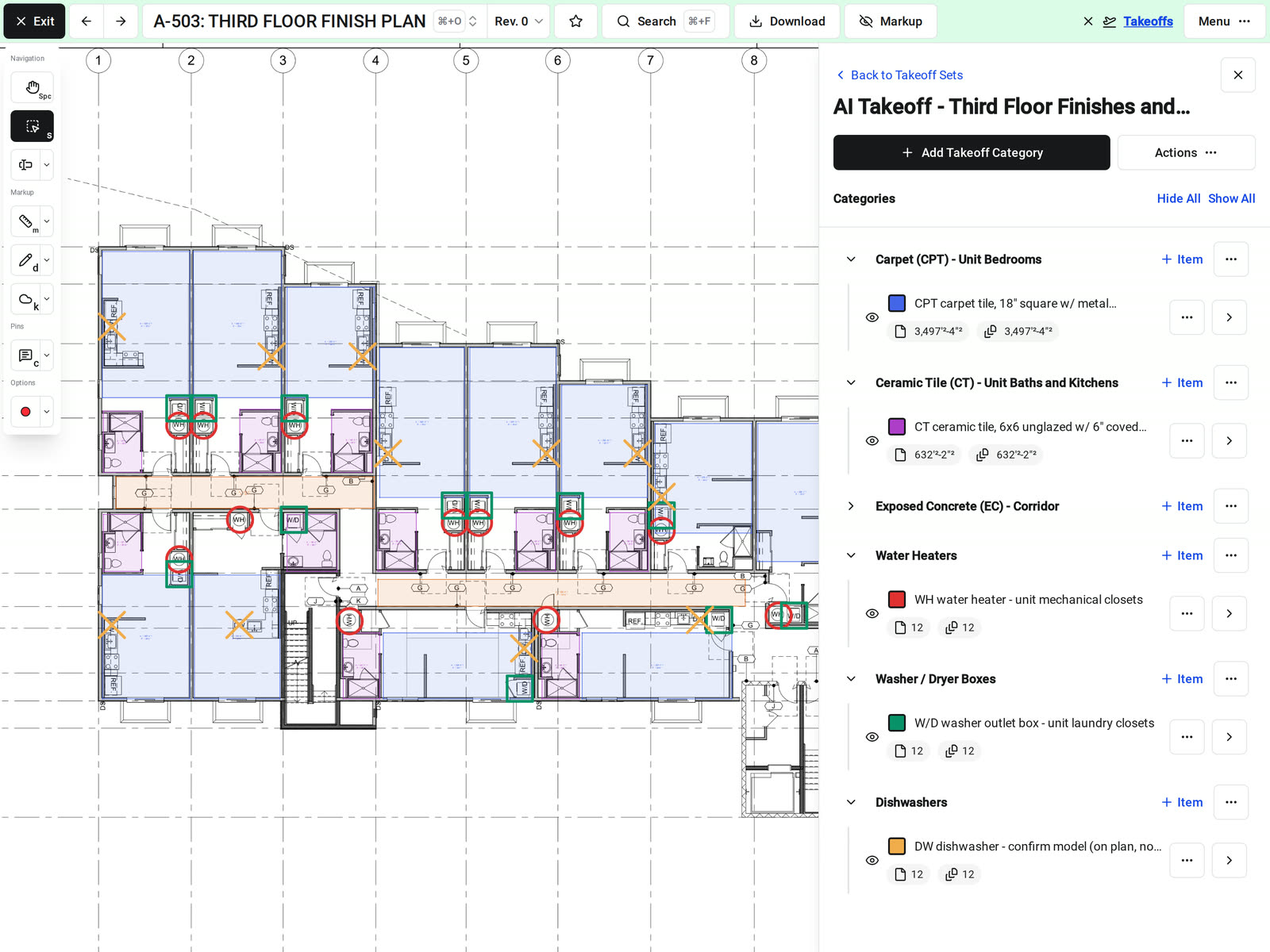
Constructable reads the plans and schedules on the sheets you choose, then marks every count and area on them. You get a takeoff set in your project that is ready to check, so your estimator doesn't start from a blank sheet.
• Plumbing fixtures and equipment: water closets, lavatories, sinks, floor drains, hose bibbs, and water heaters, each counted where it sits on the plan
• Flooring by finish: carpet, hardwood, ceramic tile, and polished concrete, outlined room by room
• Several sheets at once: one takeoff set covers every floor plan you chose
Named from the schedules
Every item comes with its tag, model, and description
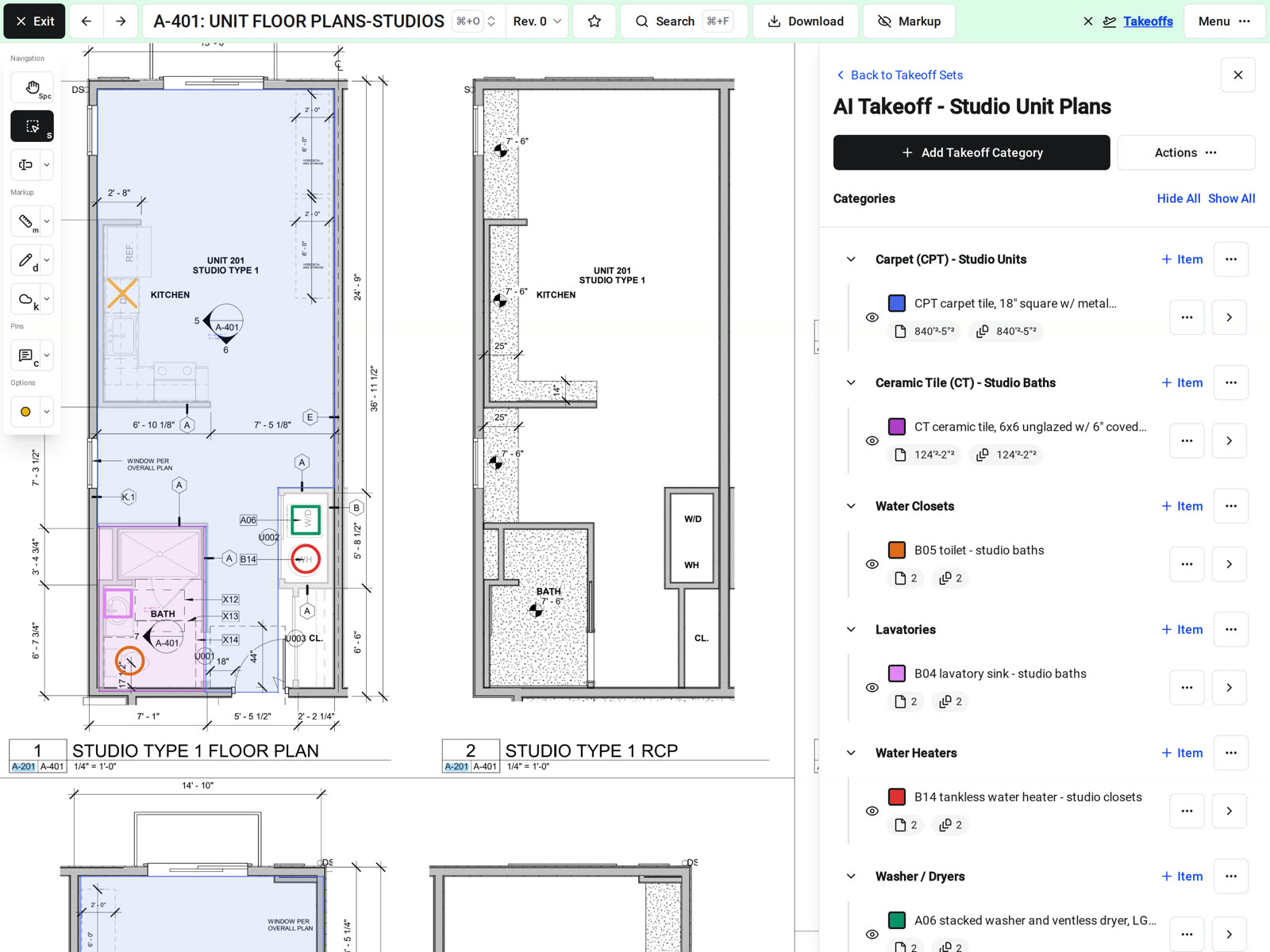
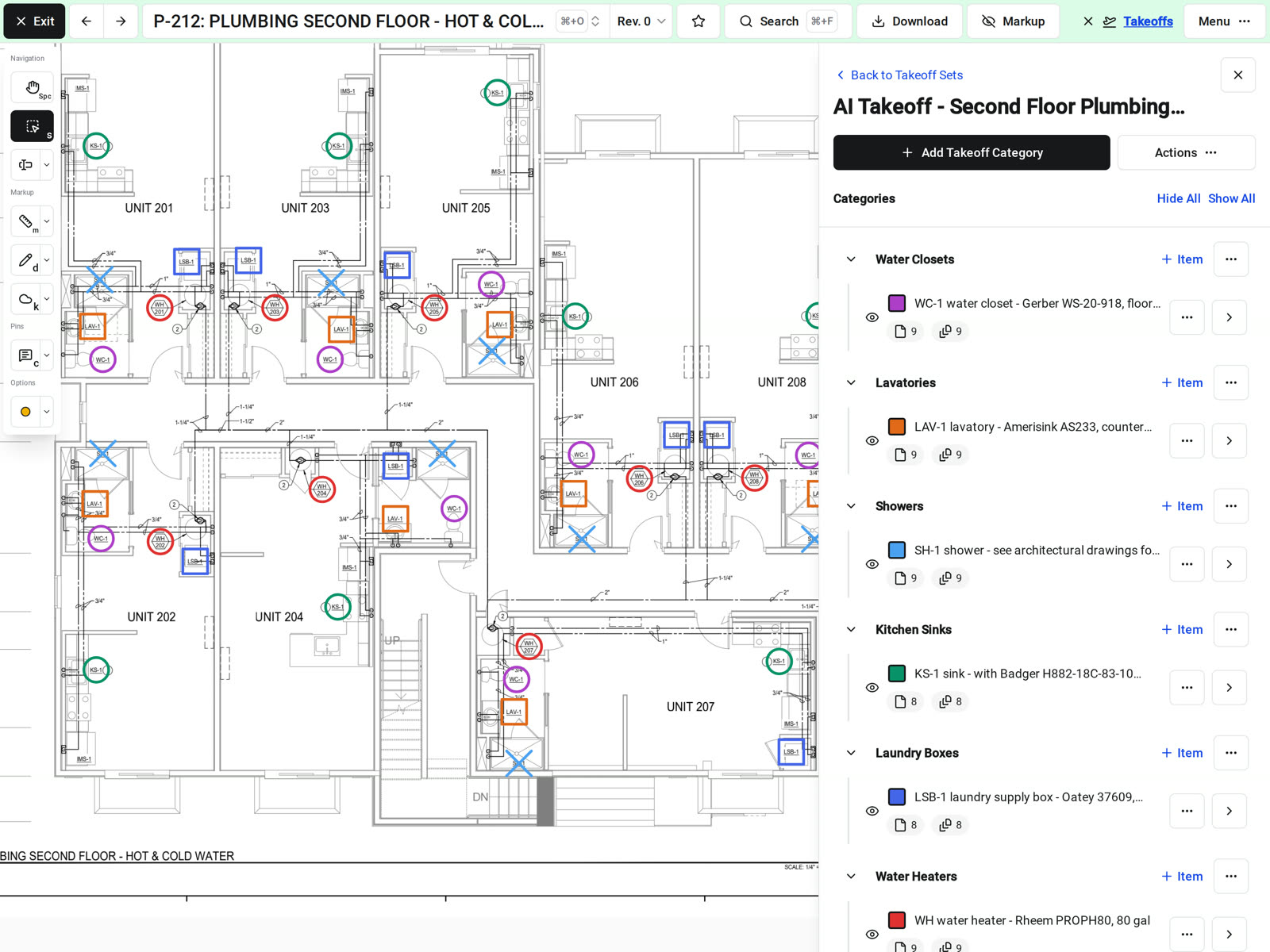
Each item takes its name from the drawing's schedules, so the takeoff reads like the plans. A fixture shows its tag, manufacturer, and model from the plumbing fixture schedule. A flooring item shows its finish tag and description from the finish schedule.
• Grouped by type: items land in categories such as Water Closets, Floor Drains and Floor Sinks, Carpet, and Polished Concrete
• Each in its own color: tell the items apart on the sheet at a glance
• Totals as you review: the side panel shows each item's sheet total and drawing total
Flagged for review
See what it couldn't confirm before you price it
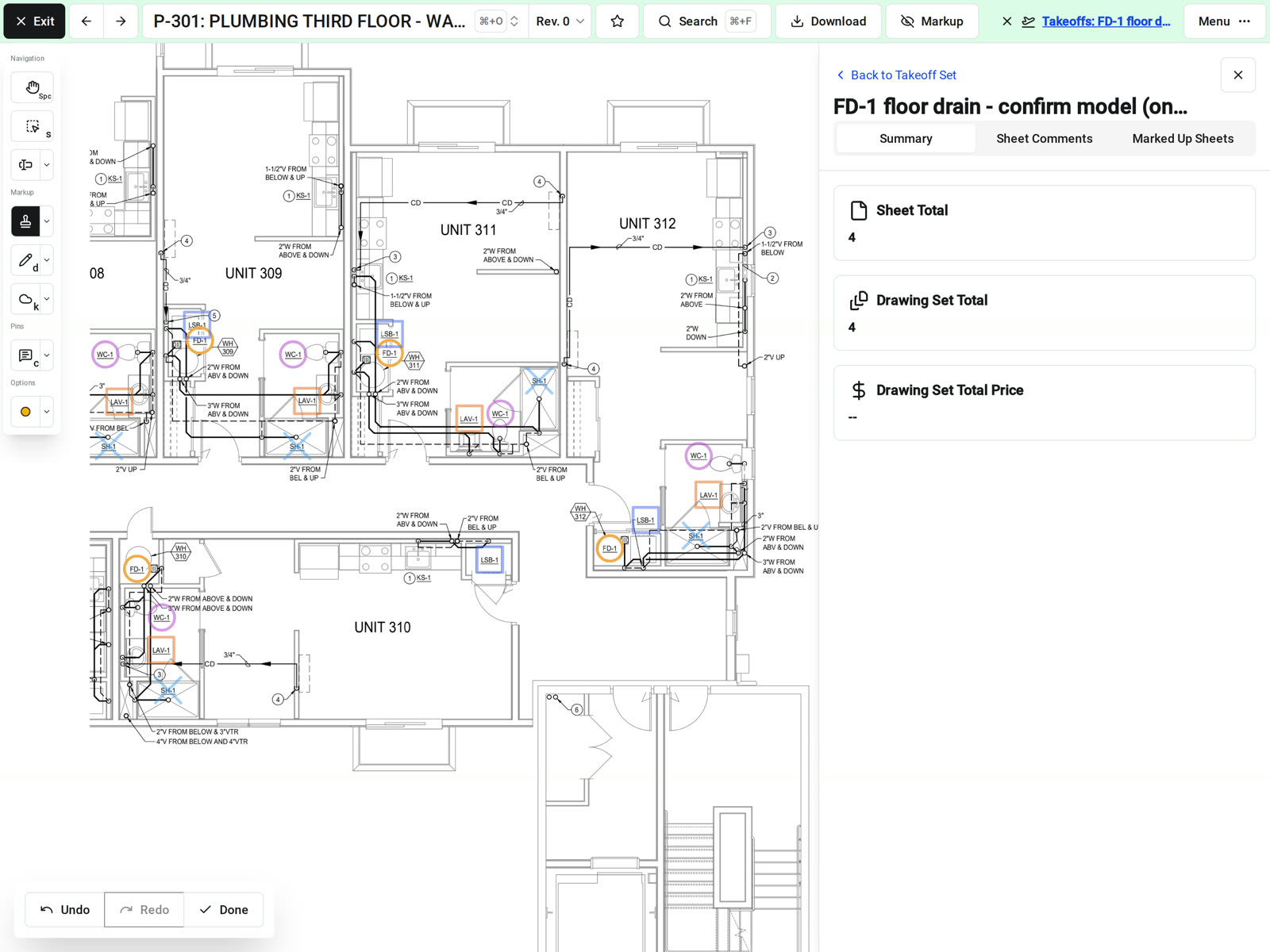
When the plan and the schedule don't agree, the item's name tells your estimator to check it. Fix what's wrong, and the rest of the takeoff is ready to price.
• Missing from the schedule: a mop sink labeled on the plan but not in the fixture schedule is named with a note to confirm the model
• Not on the plans: a scheduled item it couldn't find on the sheets shows up with a count of zero
• Yours to edit: the marks are ordinary takeoff marks, so move, delete, or add any of them
Price and export
Take the quantities into your estimate
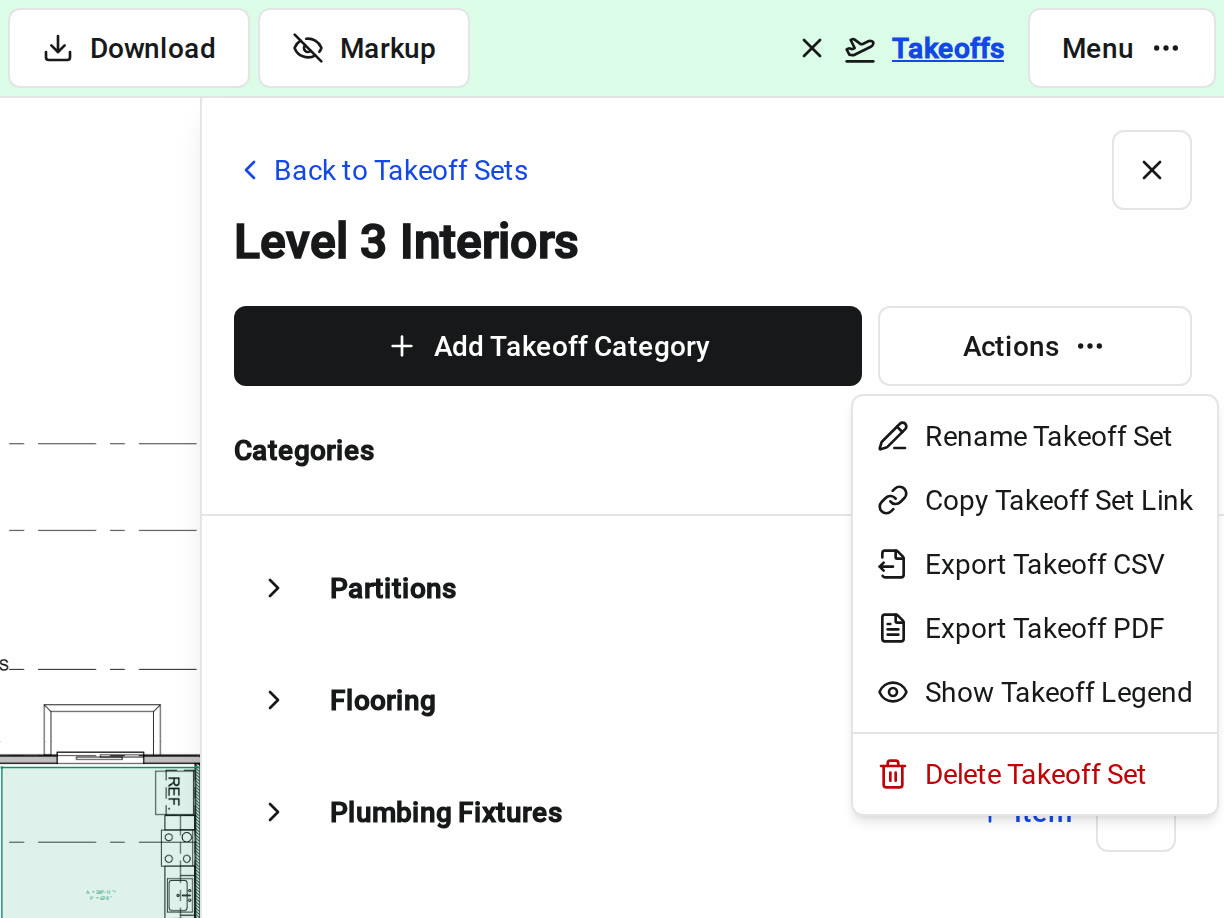
Add a unit cost to any item, and Constructable shows its total cost next to its quantities. Export the set, or one category, when the numbers are ready.
• CSV: the category, item, total, unit, multiplier, multiplied total, unit cost, and total cost for every item
• PDF: the sheets with the takeoff marks, so anyone can see where each quantity came from
• Legend: turn on the takeoff legend to add each item's name and total to the PDF
One platform for preconstruction
Measure the rest on the same sheets
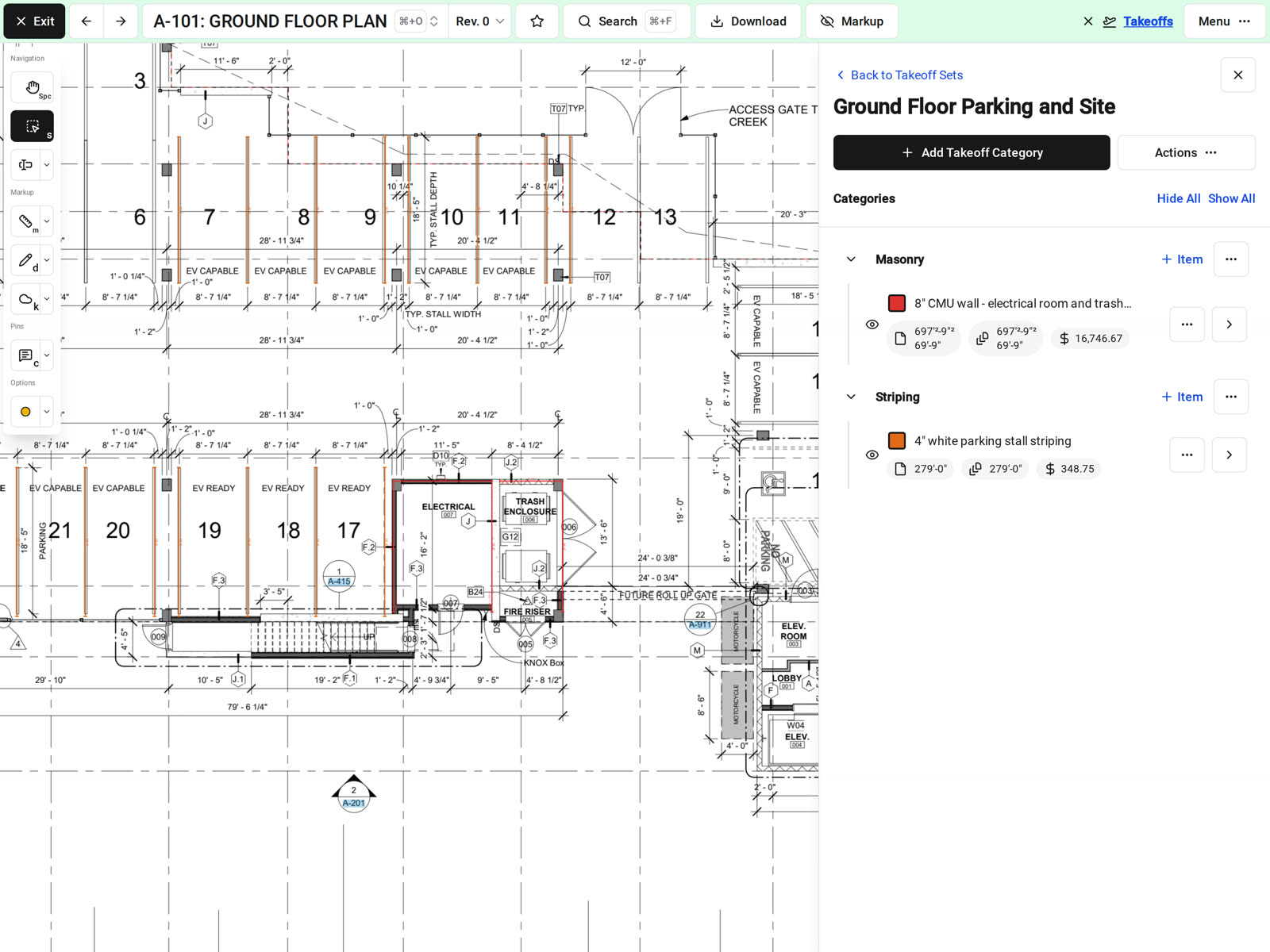
The AI takeoff lands in the same project as your drawings and bid packages. Add the scope it doesn't cover with the takeoff tools, on the same sheets.
• Walls and other linear work: trace them in linear feet, and add a height multiplier to get square feet
• Scale detection: Constructable detects each sheet's scale while it processes the drawing
• Snapping: each point snaps to the lines on the sheet as you trace
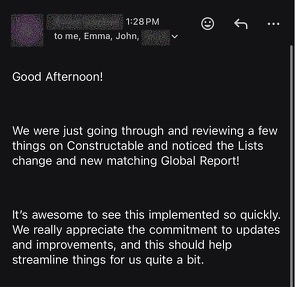
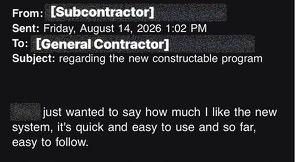
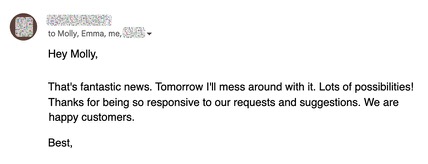
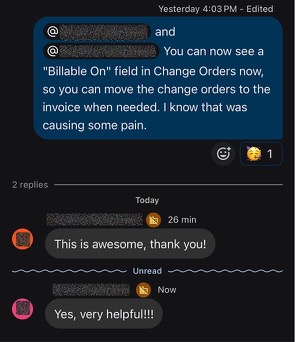
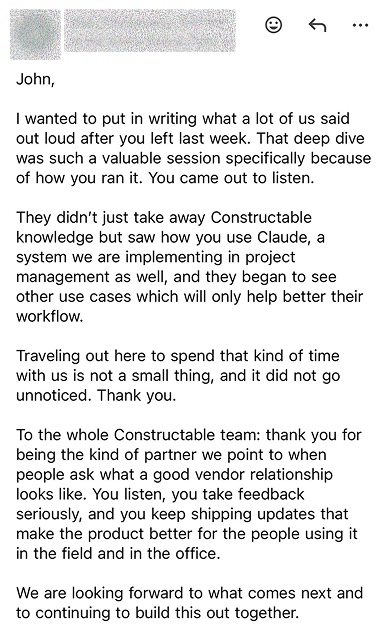
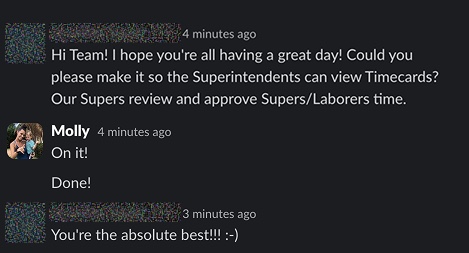
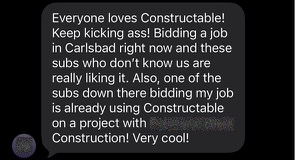
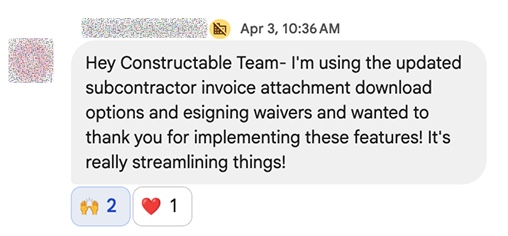
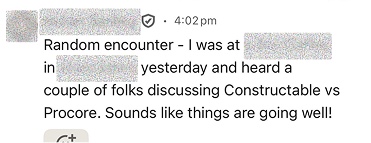
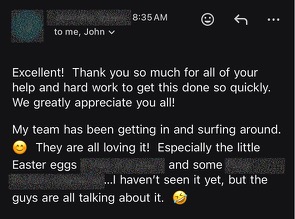
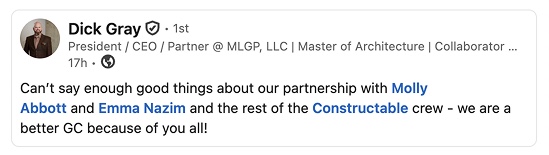
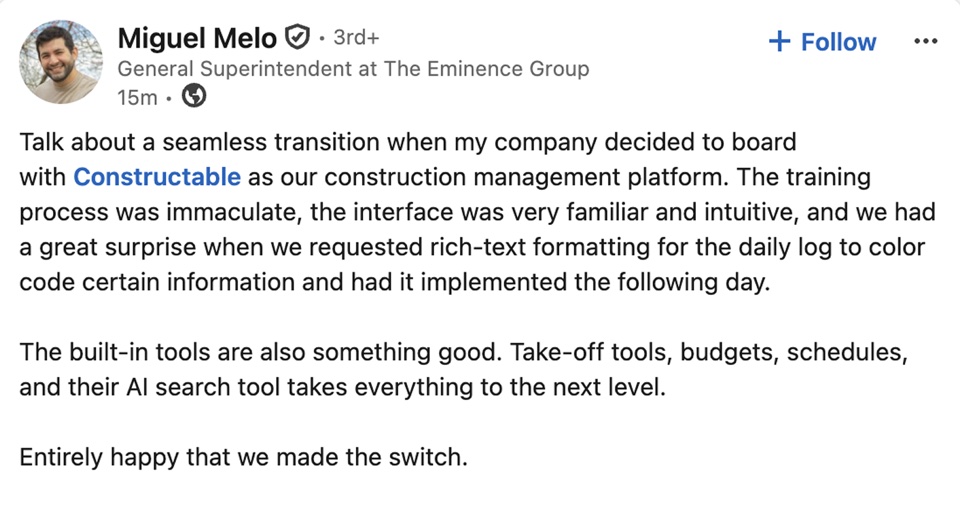
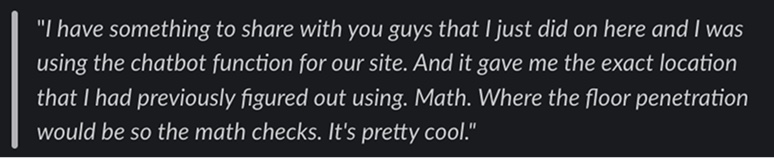
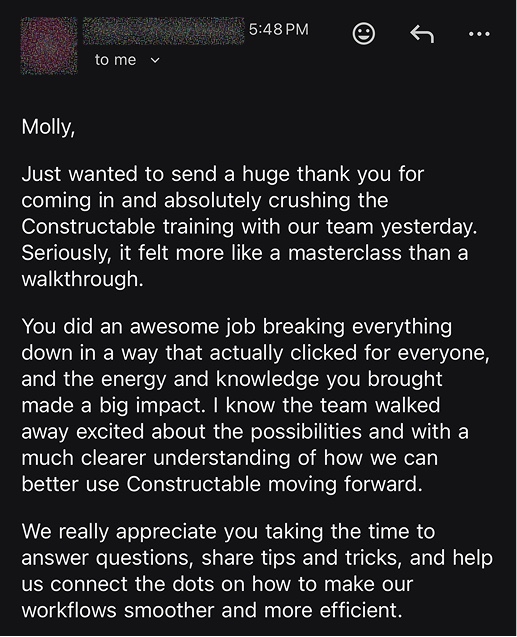
Hear from the GCs building with Constructable
Loved in the office and in the field
Review your AI takeoffs on the plans from anywhere with the Constructable app for iPhone, iPad, and Android.


Check the takeoff
instead of starting it.
Book a 30-minute demo with our team.
WallofHappiness






















Frequently Asked Questions
What is AI takeoff software?
What can Constructable take off automatically?
Where do the item names come from?
Do I still need to check the takeoff?
Can I add unit costs and export the quantities?
Do I need a separate takeoff tool?
Can I review the takeoff on a tablet or phone?
with better bids
on the same sheets
across the project