Use this guide to find project records by keyword or ask a one-question AI answer. For continuing conversations, attachments, Skills, and outside AI assistants, use How to use Agent in Constructable.
AI output is a route into the project record, not the record itself. It respects your access, can miss context or recent changes, and does not make contractual decisions. Verify totals, dates, statuses, approvals, and source language before acting.
Learn how permission-aware discovery and source links support Trusted AI and Search.
Start here
- Find a known record: Search by keyword.
- Review matching records: Open Search results.
- Get one synthesized answer: Ask a project question.
- Investigate a broader question: Use Deep Research.
- Search or an answer failed: Troubleshoot Search.
Find project records
Search by keyword
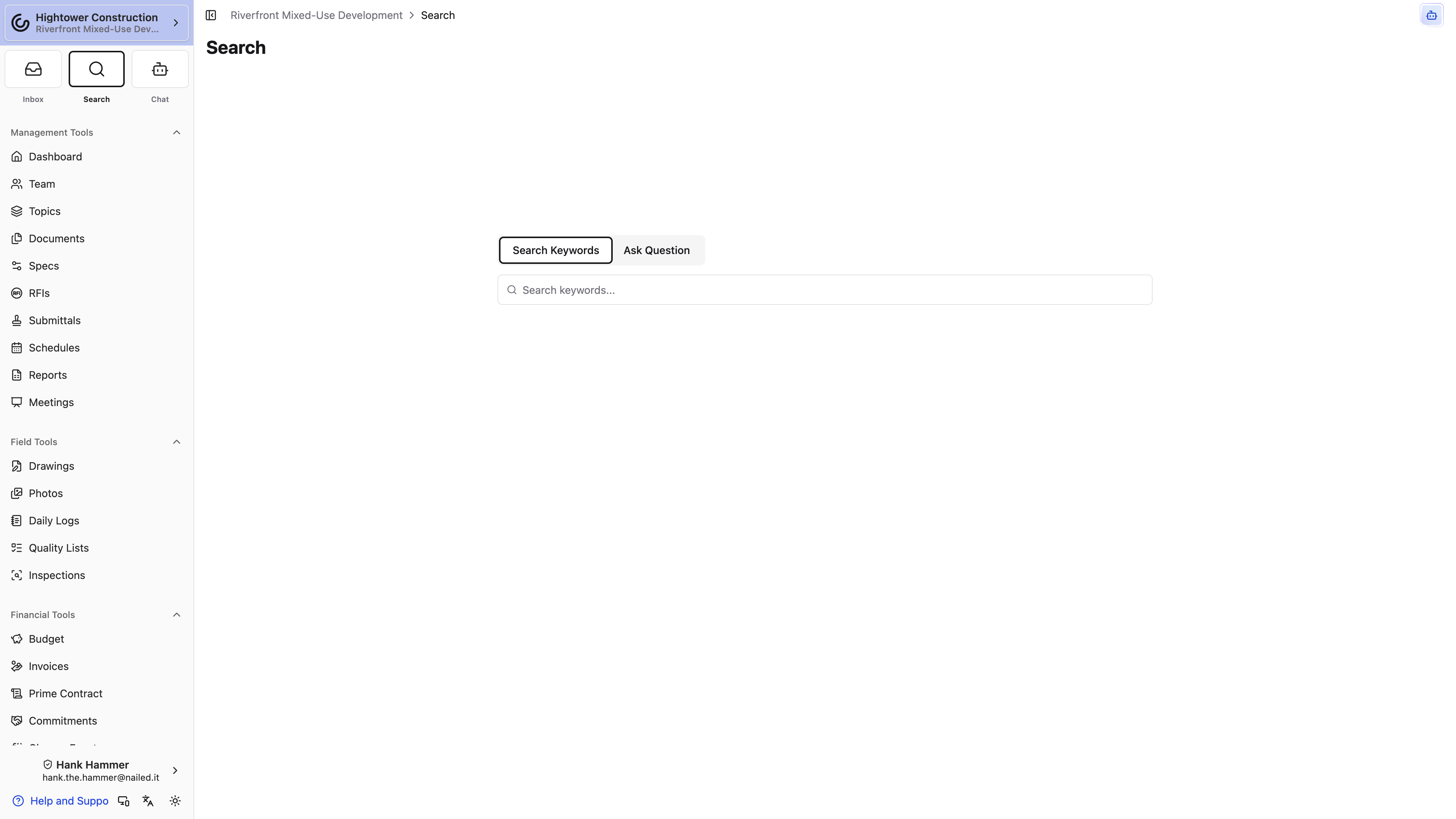
- Open Search in the project.
- Select Search Keywords when the mode selector appears.
- Enter a distinctive number, company, title, or phrase.
- Wait for results to finish loading.
- Refine the query when the results are too broad.
Search updates after a short typing pause and requests up to 50 project results on the main Search page. The latest query is retained for about ten minutes for that project.
Keyword Search reaches incidents by number, title, description, and the descriptions in their records, and work plans by number, title, description, and each item's title, acceptance criteria, and proof of work.
It also matches custom field values on list items, Daily Logs and their entries (including custom sections), incidents and incident records, work plans and work plan items, and invoices. Text, rich text, number, single-select, multi-select, person, company, cost code, and location fields are all searchable. For a select, person, company, cost code, or location field, search the name you see on the record — a cost code matches by its code and title, and a location by its full path. Checkbox and attachment fields aren't searchable, and neither are fields a layout hides. When someone renames a select option, a cost code, or a location, search catches up in the background, so the new name can take a moment to match.
Search uses several matching approaches and is not an exact database report. Use a report or the source tool when you need a complete count.
Open Search results
- Use type badges to jump between grouped result sections.
- Review highlighted matching text before opening a result.
- Open the result to work in its normal project tool.
- Review Photos and Photo Albums in their visual sections.
- Find incidents and their records under the Incidents badge, and work plans and their items under Work Plans. A record or item shows its parent's number and title first, such as an incident followed by the record type.
Search returns only records available through your project and record permissions. A result can stop opening when the source was archived, deleted, moved, or restricted after the search ran.
Ask a project question
Ask a project question
Use Ask Question when one synthesized answer is enough.
- Open Search → Ask Question, or use the question field on Management Tools → Dashboard.
- Ask one focused question that names the record type, status, and time period.
- Select Get Me the Answer or the Dashboard submit action.
- Open the source links and verify the relevant records.
- Select Ask another question for a separate request.
This mode does not carry conversational memory. Include the needed context each time. Enter submits the single-line field, and questions are limited to 5,000 characters. Use Agent when the next question depends on the answer or you need an attachment.
When the Dashboard creates a Chat-style response, select Continue in chat to keep working in Agent.
Use Deep Research
- Write the question.
- Select Use deep research agent below the box.
- Submit and wait for completion, or cancel the running request.
- Open Recent Questions to revisit completed, non-deleted answers.
Deep Research can take longer. It searches more deeply through the same records; it does not expand permissions or guarantee completeness. When the organization uses Agent for AI questions, the checkbox and Recent Questions are replaced by the Agent experience.
Verify an AI answer
- Confirm the project, date range, status, and record type in the request.
- Open the cited RFIs, Submittals, Daily Logs, contracts, or other source records.
- Verify amounts, dates, assignments, statuses, and approvals.
- Narrow the question when unrelated subjects were combined.
- Record formal decisions in the appropriate project tool.
Source links accelerate review; they do not verify generated statements. AI does not imply access to records you cannot open, a complete history, or a definitive interpretation of contract language.
Access and platforms
- Keyword Search is permission-aware and stays within the current project.
- Organization settings determine whether Ask Question and Use deep research agent appear.
- When the organization uses Agent for AI questions, Search shows keyword Search. Open Agent for continuing conversations.
- Search and Dashboard questions have responsive web and native layouts and require an online connection.
- AI answers do not widen project or record access.
Troubleshoot Search
Ask Question or Deep Research is missing
The organization uses Agent for questions. Open Agent from the project sidebar.
Search returns no results
Confirm you are online and in the intended project. Try an exact record number or shorter distinctive term, then confirm you can open the expected record from its source tool. Scanned text, images, and recently added content may not match every visible word. A value in a checkbox, attachment, or hidden custom field won't match at all — search a text field on the record instead.
Search shows an error
Confirm connectivity, clear the retained query, and retry. If it persists, report the project, query, time, browser, and device.
A result will not open
Confirm the record still exists and that your role, project membership, and record access still allow it.
An answer is incomplete or wrong
Open the source records, add a date range, status, project area, or record type, and ask again. Do not act on generated amounts, deadlines, approvals, or contract interpretations without verification.