Specs by Constructable
Construction specification management software for general contractors
Upload the spec book once. AI splits it into divisions and sections, you confirm them, and your team opens any section in a few clicks. Specs are on every plan with unlimited users, so every sub on the job can read the same book. View our flat pricing.
Import and review
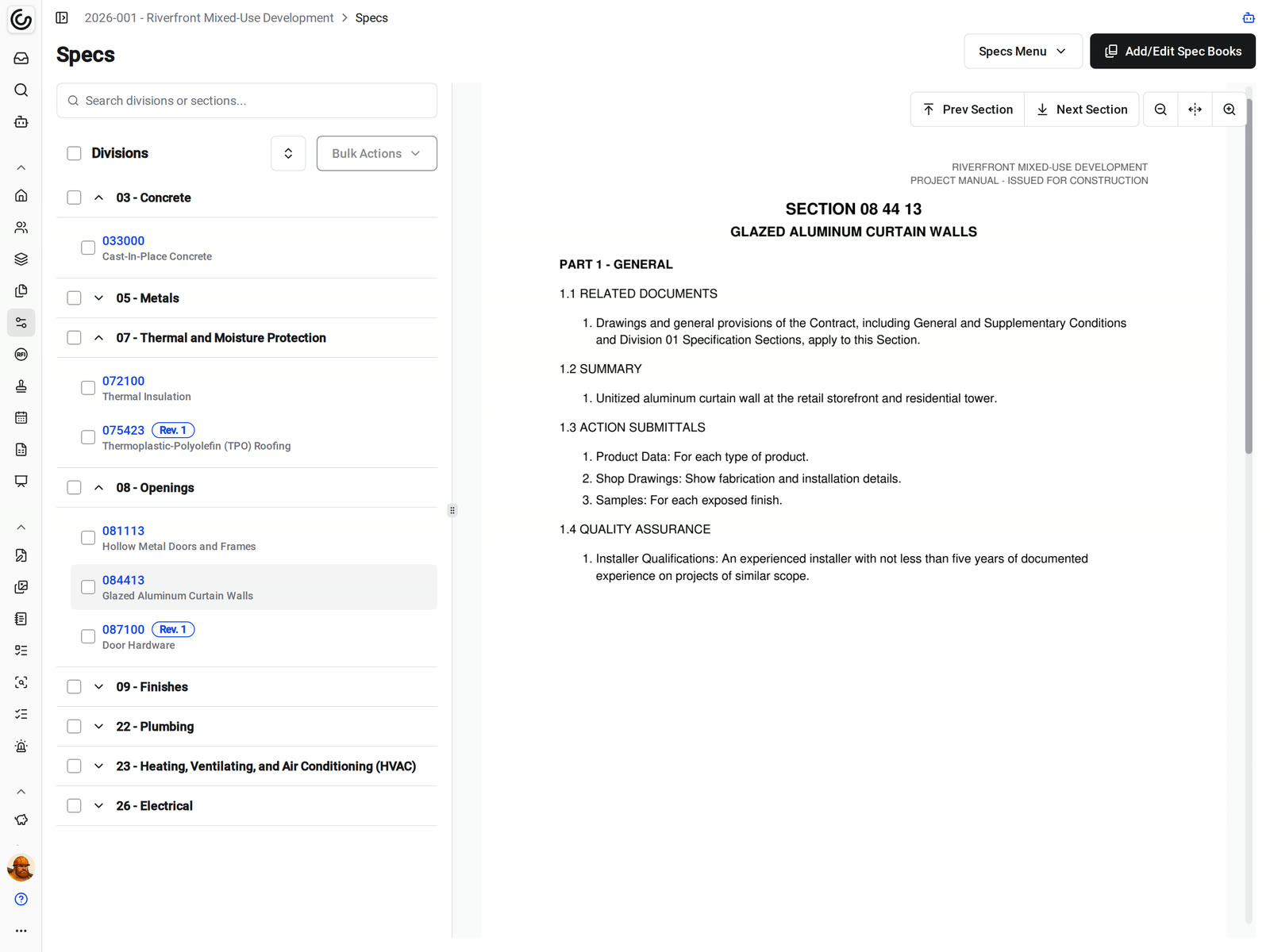
AI automatically imports and organizes your spec sections
Our construction specification management software reads the spec book page by page and finds where each section starts, with its division, section number, and title.
• The project manual arrives: import the PDF and AI lays out the divisions and sections for you
• A section starts on the wrong page: change its start page, number, or title in edit mode
• Ready to issue: publish the book, and only then does the team see it
Addenda
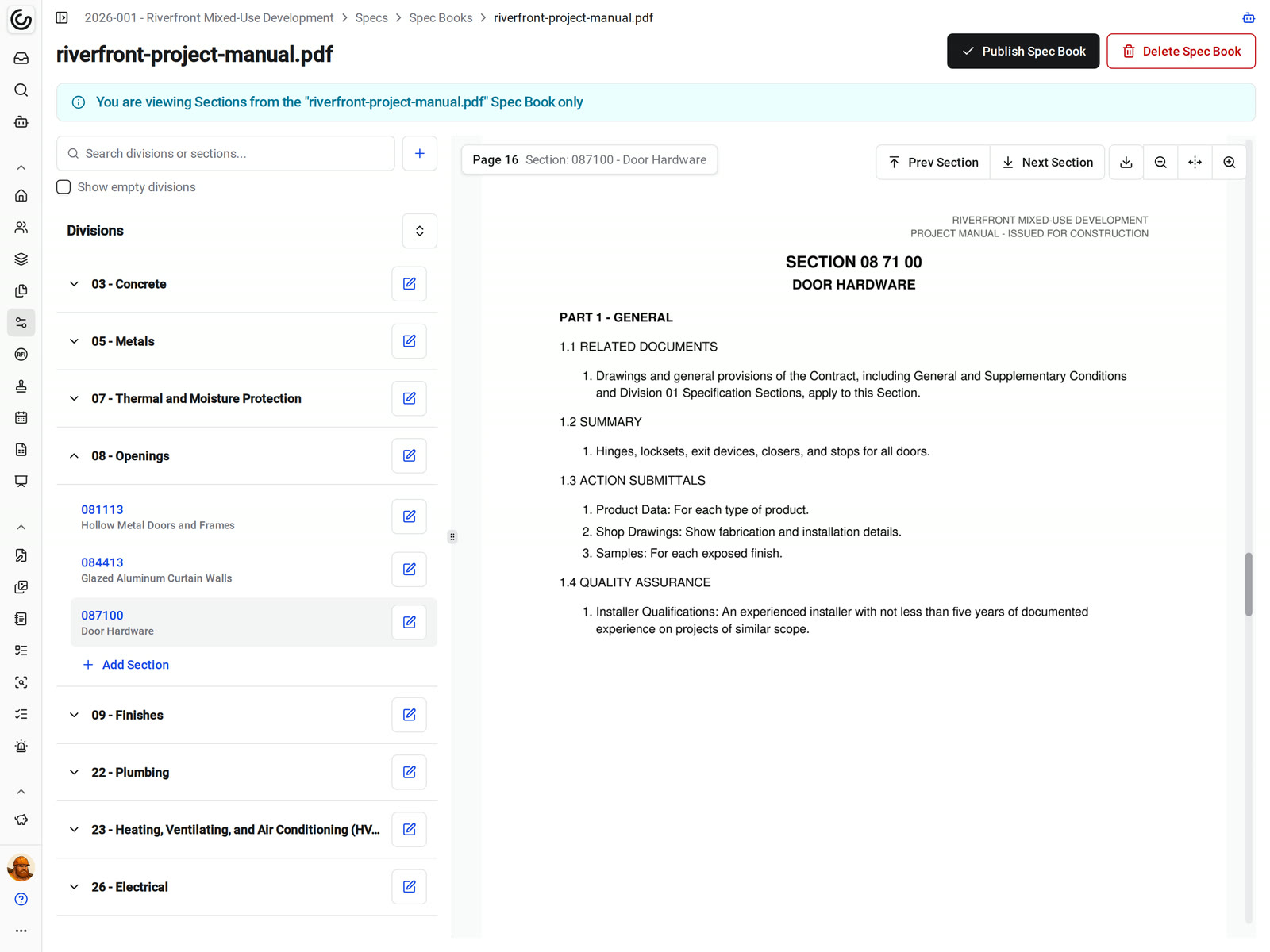
Addenda replace the right sections
Publish an addendum and each reissued section takes the place of the older one with the same division and section number. Everything else stays as it was.
• An addendum reissues two sections: those two sections update and get a revision badge, and the rest of the book stays put
• Someone opens the roofing spec: they get the current version, not the one from the bid set
• A book should come out of the set: unpublish it, and its sections leave the published view while the source stays available
Find and share
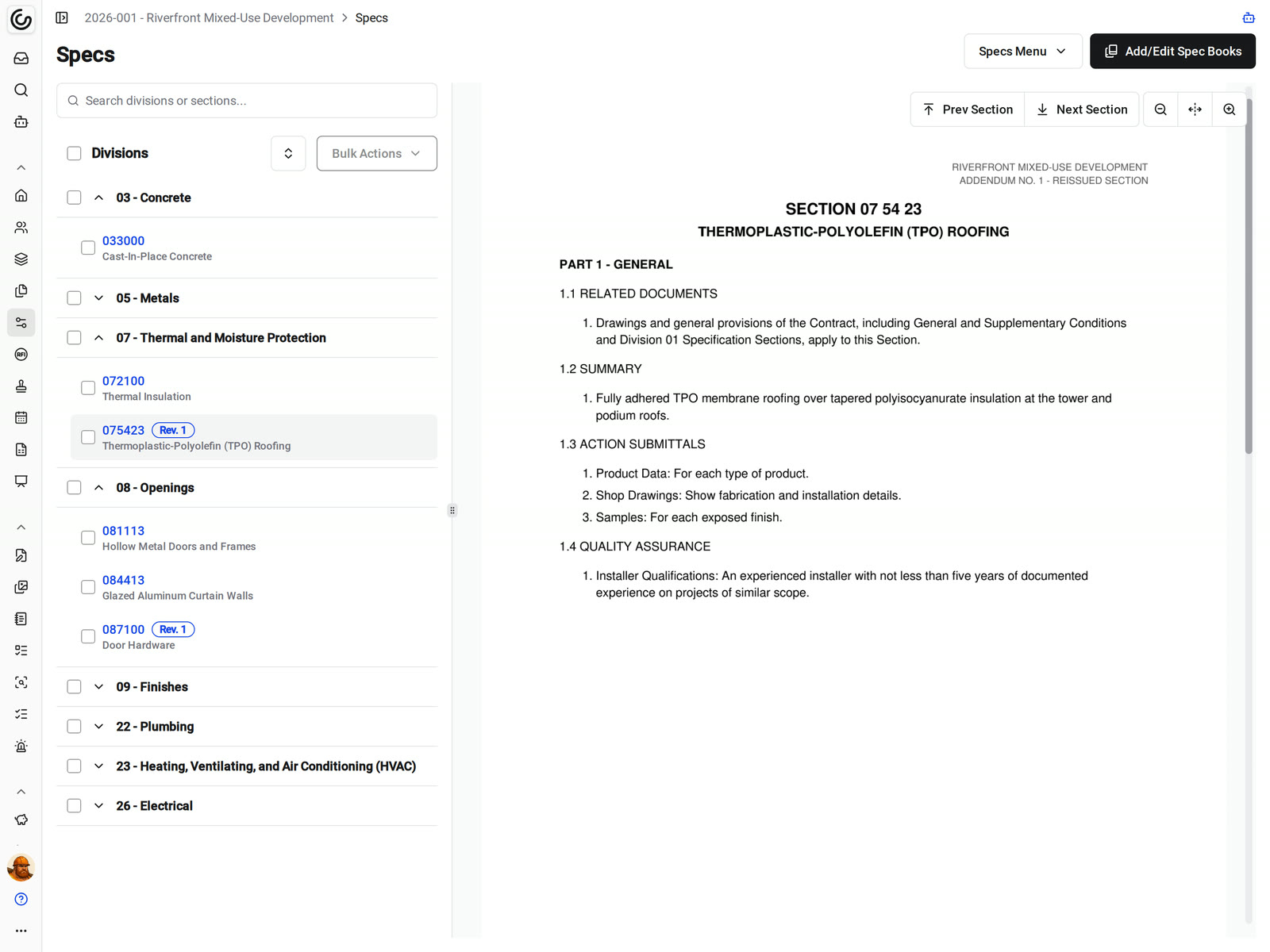
Find any section fast, and send only what's needed
Search by division or section, or expand a division and open the section in the viewer. Specs open on desktop, mobile web, and in the Constructable app for iPhone, iPad, and Android.
• A super needs the concrete spec: search for it on site and read the section on a phone or tablet
• A sub asks for their sections: select them and download one file, or share a download link
• Someone needs the whole book: download all published specs, or the original spec book from the viewer
Specs to submittals
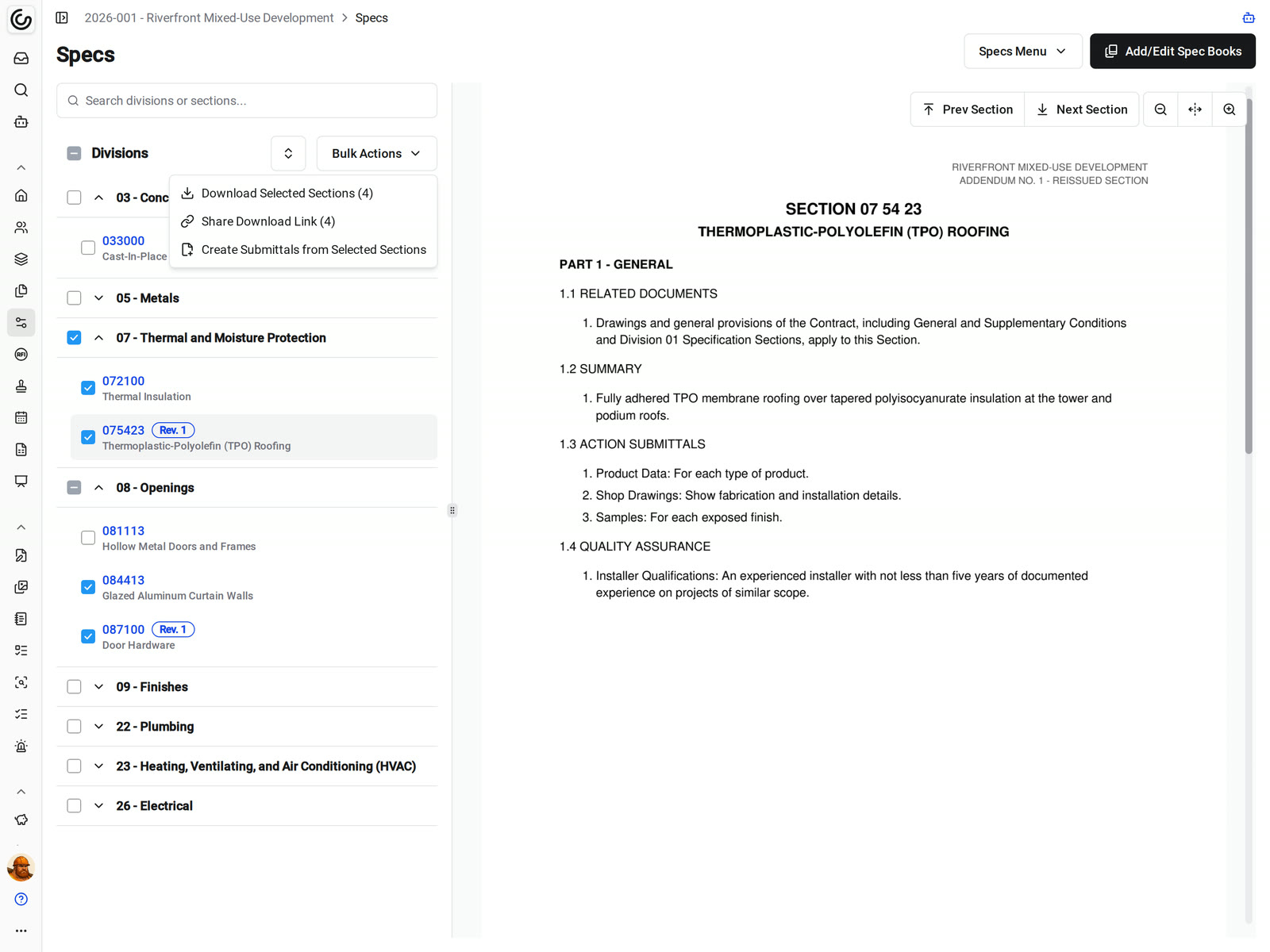
Start the submittal log from the specs
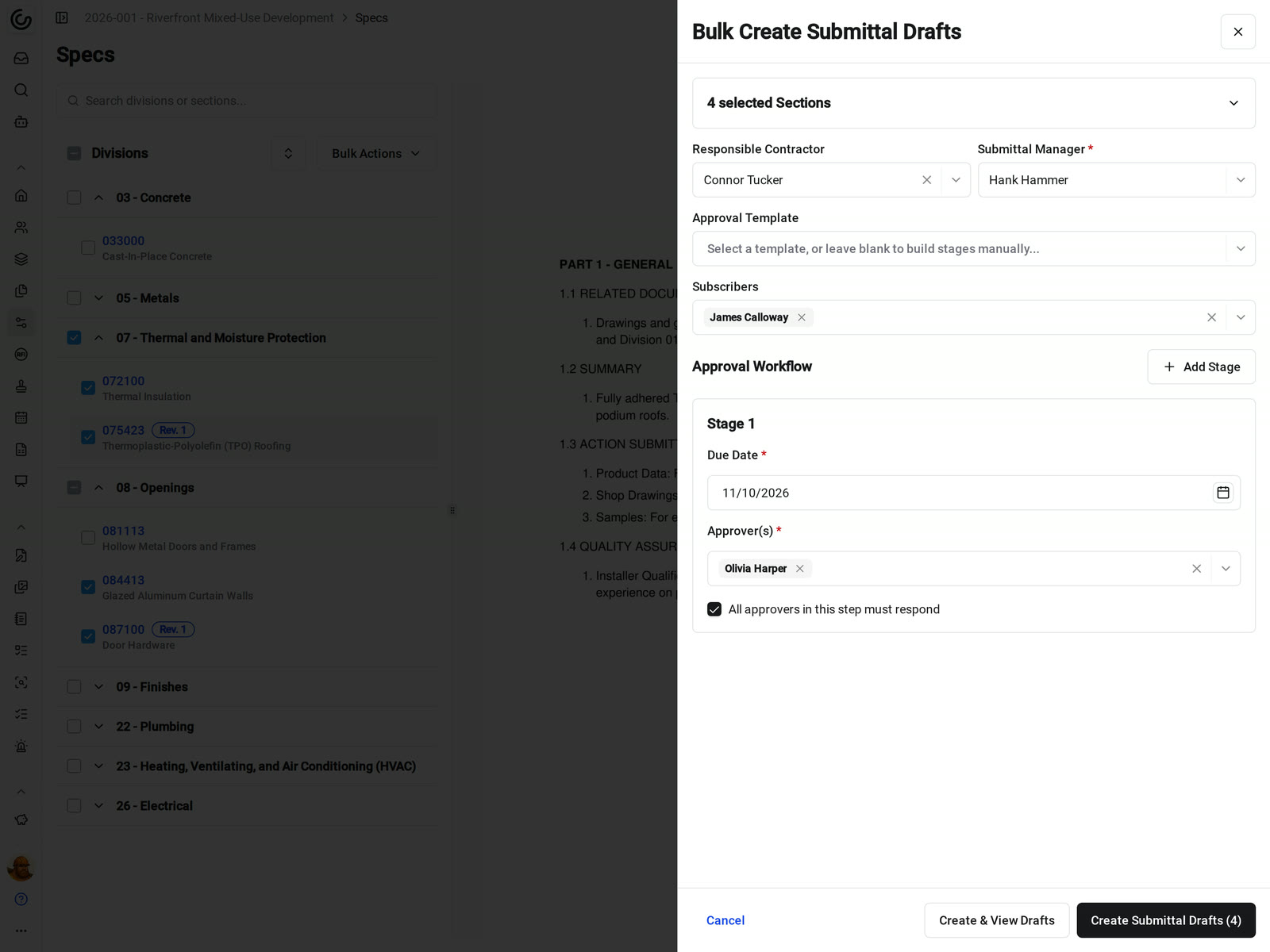
Select the spec sections that need submittals, fill in the details once, and get a draft submittal for each section, titled after it and tied to its section number.
• Setting up the log: choose the responsible contractor, submittal manager, subscribers, and approval workflow for the whole batch
• Numbering: show the spec section in front of each submittal number
• Reporting: filter the submittal log by spec section
AI that reads the specs
Automatically check submittals and drawings against specs
The Agent reads your published specs alongside the submittal or the drawings and reports what doesn't match. It only reports, so you decide what to do with each finding.
• A shop drawing comes in: run PreCheck on the submittal to see where it departs from the governing spec section and drawings, before it goes to the architect
• Before the work starts: run Find discrepancies to list material conflicts between the drawings and the specs
• Checking a finding: each one cites its source, so you can open the section or sheet and confirm it
Bidding and closeout
Specs where bidders and owners need them
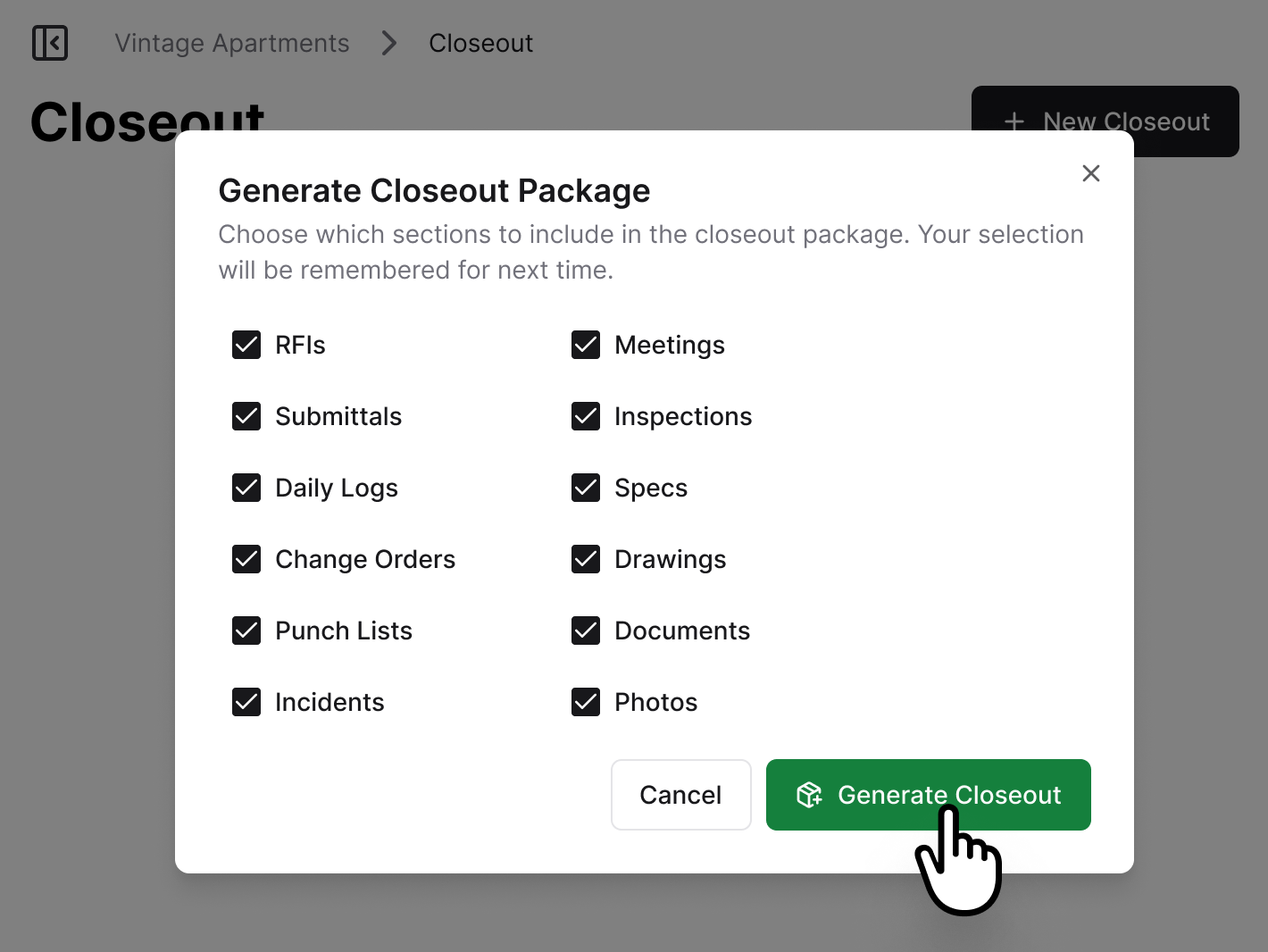
The published specs travel with the bid package during preconstruction and with the closeout package at turnover.
• Bidding: invited bidders select View Specs in Bidding Resources, or download one ZIP of the drawings, specs, documents, and photos
• Turnover: include the specs in the closeout package along with RFIs, submittals, and drawings
• Outside reviewers: share a download link to the sections they need instead of attaching files to an email
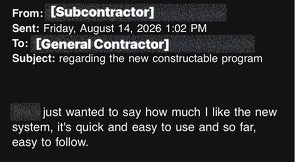
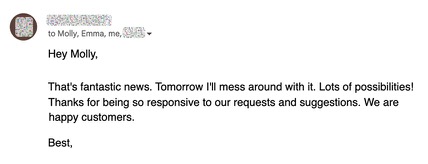
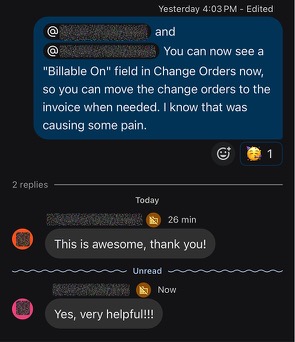
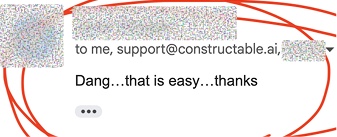
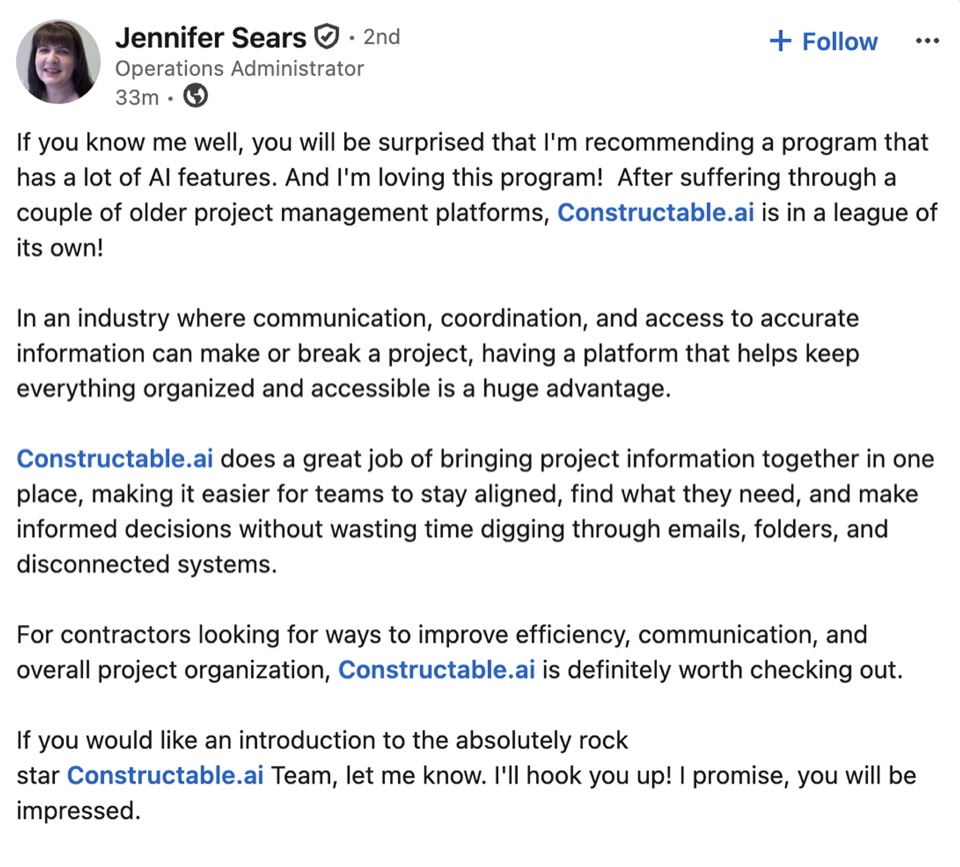
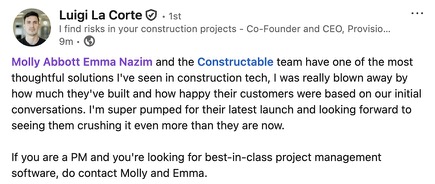
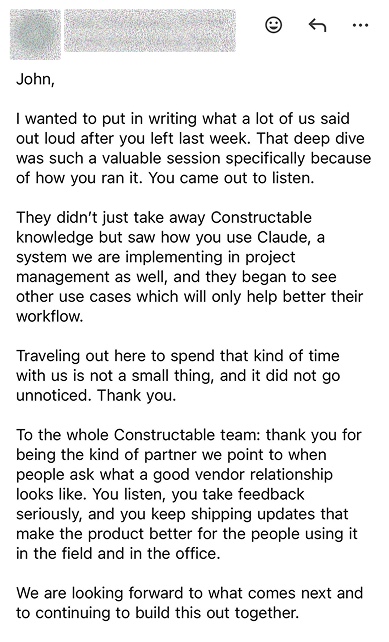
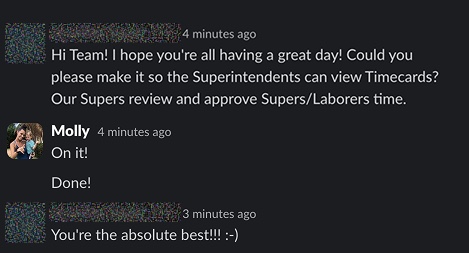
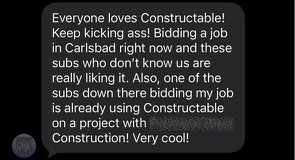
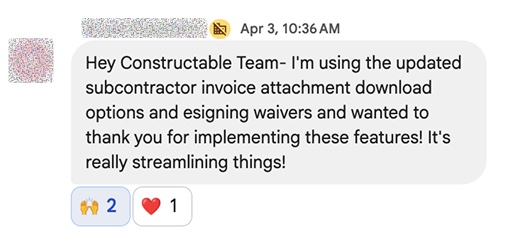
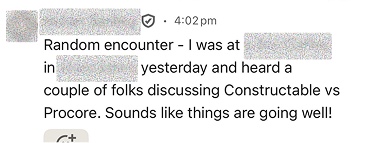
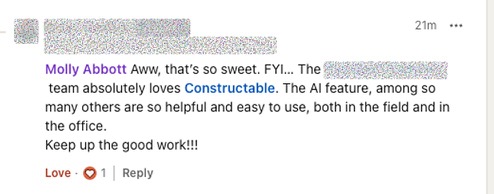
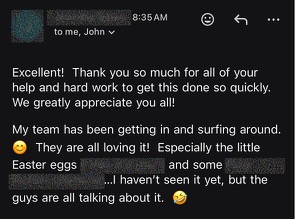
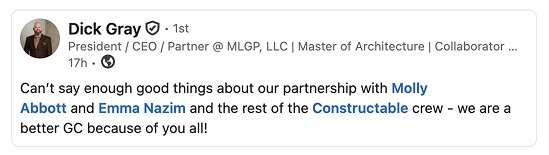
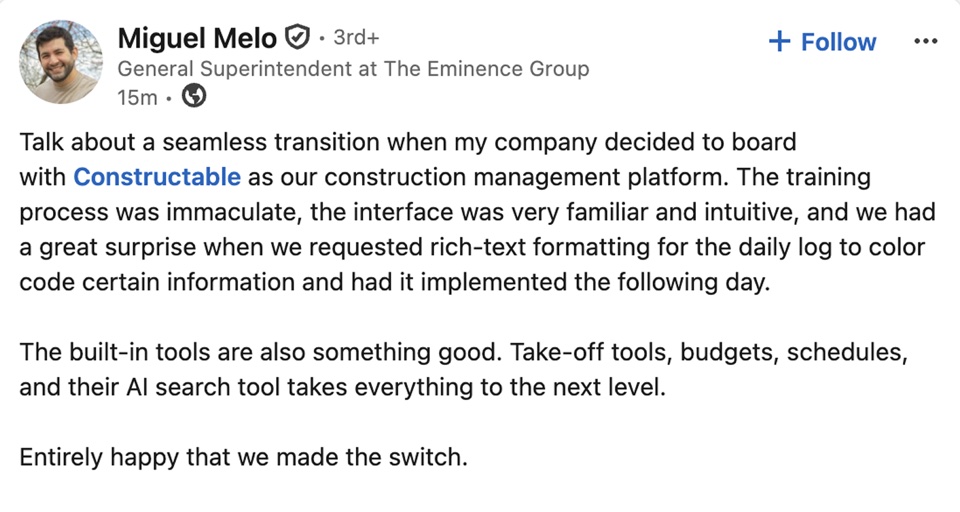
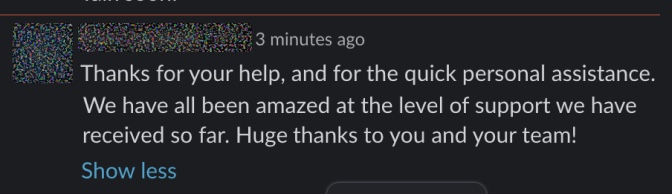
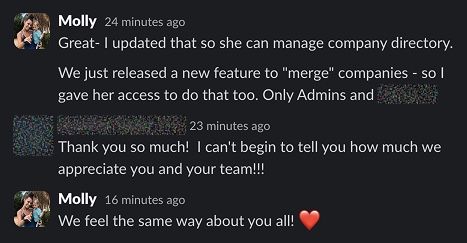
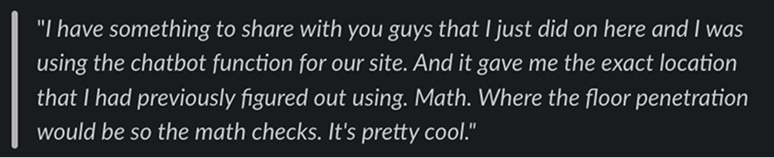
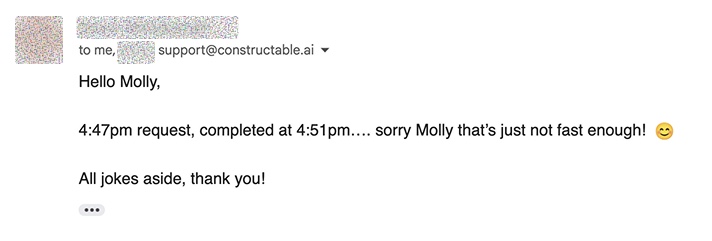
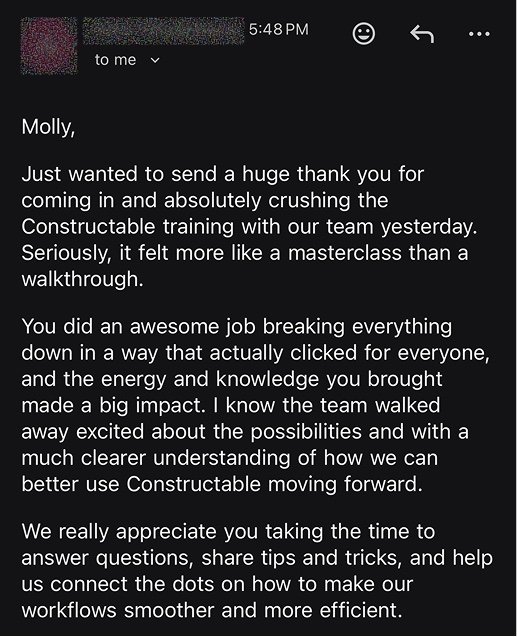
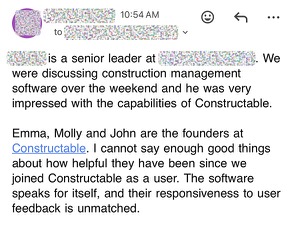
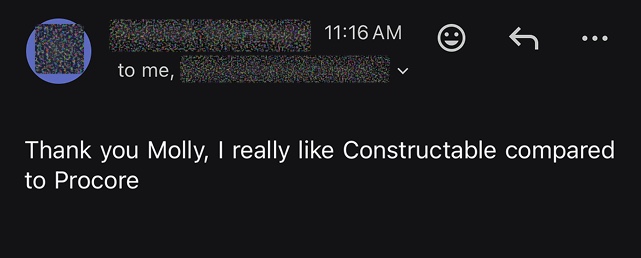
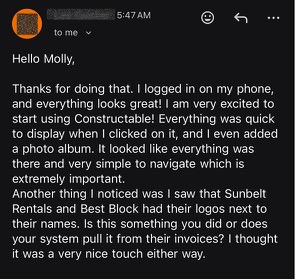
Hear from the GCs building with Constructable
Loved in the office and in the field
Take your specs anywhere with the Constructable app for iPhone, iPad, and Android.


Always build from
the current spec.
Book a 30-minute demo with our team.
WallofHappiness











Frequently Asked Questions
How do I get my spec book into Constructable?
Does Constructable split the spec book into sections automatically?
What happens when an addendum replaces a spec section?
Can I create submittals from spec sections?
Can AI check a submittal against the specs?
Can it find conflicts between the drawings and the specs?
Can bidders see and download the specs?
Can I send someone just a few sections?
Can my field team open specs on a phone or tablet?
Which plan includes specs?
with better bids
more time building