Use this guide to turn specification PDFs into a published set that the project team can browse by division and section. It covers importing, reviewing, publishing, finding, exporting, and replacing specification content.
Start here
- Issue a specification book: Import, review, and publish a spec book.
- Correct detected structure: Manage divisions and sections.
- Find or send specifications: Browse, download, and share specifications.
- Issue an addendum or replacement: Replace, unpublish, or delete content.
- Something is missing: Troubleshoot Specs.
Common task recipes
- Publish a base specification: Import the PDF, review every detected section boundary, publish it, then spot-check the published view.
- Issue an addendum: Import and publish the newer book. When it contains the same division and section number, its version becomes current.
- Send selected sections: Select the published sections, then use Download Selected Sections or Share Download Link.
- Remove a book from the current set without deleting it: Use Unpublish Spec Book.
Prepare and publish
Understand the Specs lifecycle
Spec book PDF → review divisions and sections → publish → browse or export
- A spec book is the imported source PDF.
- Divisions and sections define the page ranges people browse.
- An unpublished book is visible for review to Specs managers.
- Publishing makes its defined sections available in the normal Specs view.
- If a newer published book contains the same section number in the same division, the newer version is shown. This allows addenda to supersede individual sections.
Import, review, and publish a spec book
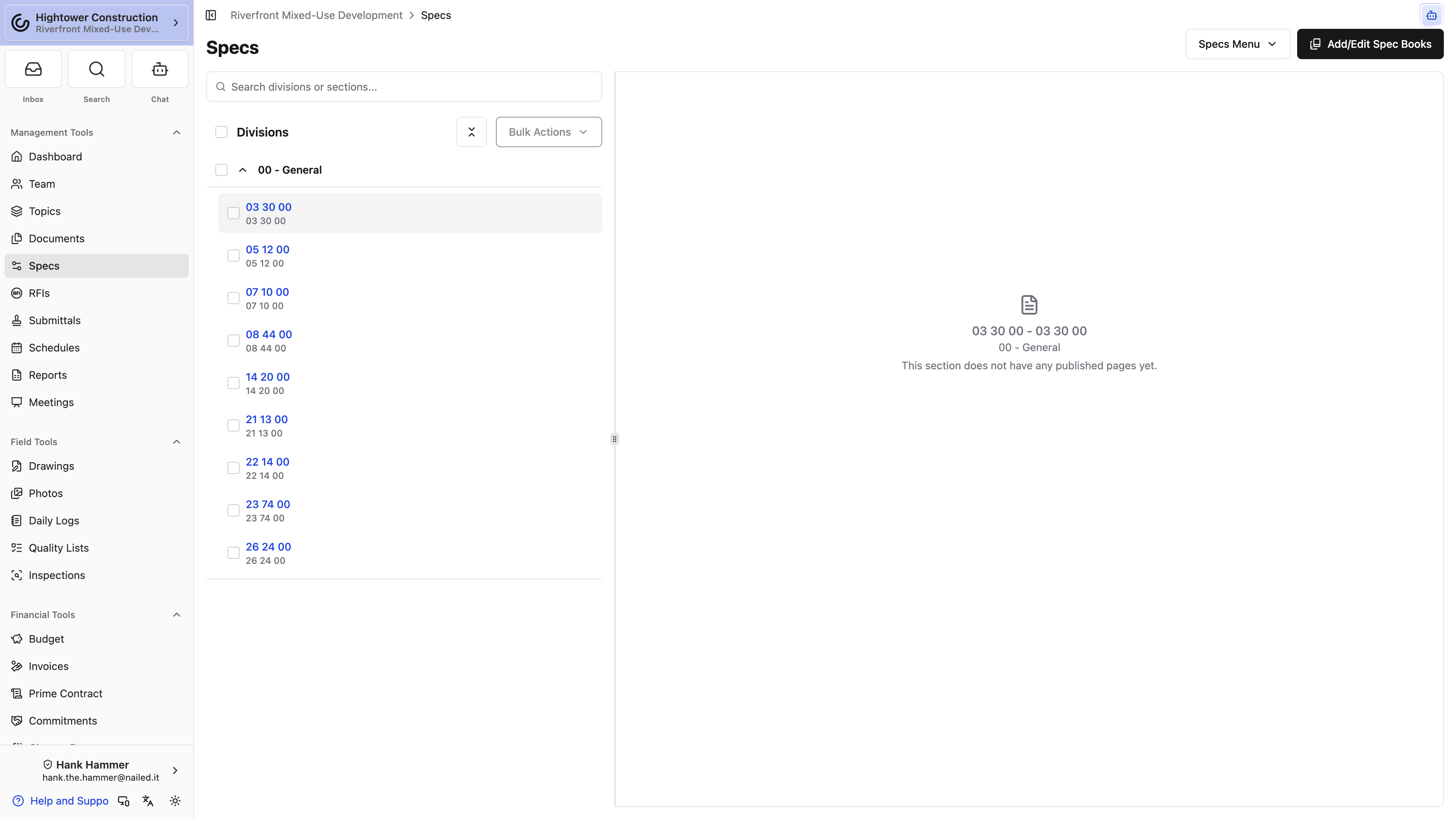
- Open Specs and select Add/Edit Spec Books.
- Select Import Spec Book.
- Add one or more source files and select Upload.
- Open the imported book marked for review.
- Check division names, section numbers and titles, and the first page assigned to each section.
- Add, rename, reorder, or delete divisions and sections as needed.
- Select Publish Spec Book.
- Return to the normal Specs page and spot-check several sections.
Publishing changes what the team can browse; it does not alter the source PDF.
Manage divisions and sections
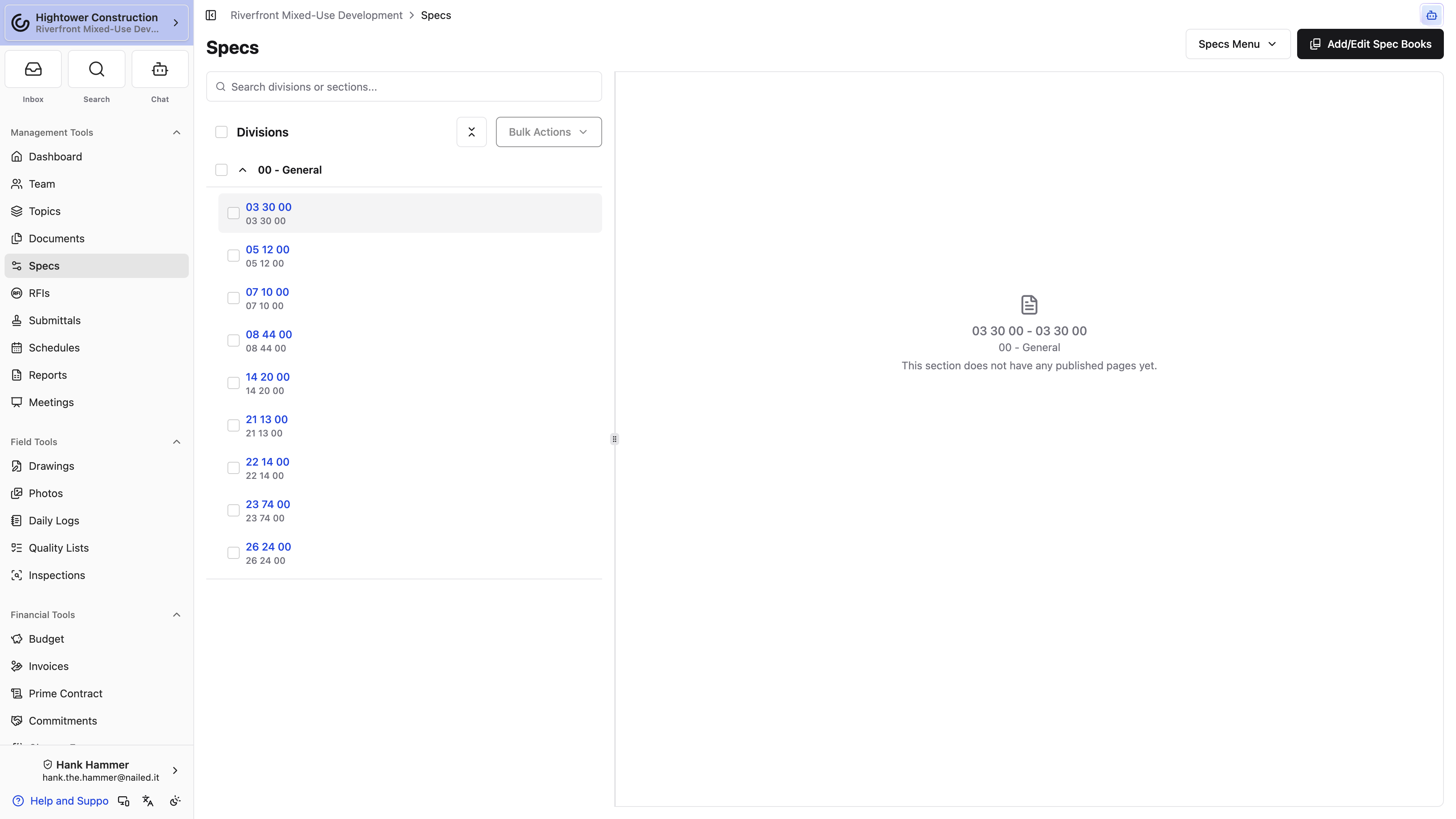
Use edit mode to add or rename divisions and sections, set section numbers and titles, assign each section's starting page, reorder the structure, or remove obsolete content.
Accurate boundaries determine which pages open and which pages appear in selected-section exports. Edit a wrong name or boundary rather than deleting the section.
Note: Deleting a division deletes every section beneath it. Deleting a section removes it from browsing and exports. Neither action can be undone.
Browse and distribute
Browse, download, and share specifications
- Open Specs.
- Expand a division and select a section.
- Read the section in the PDF viewer.
- Select sections when you need a subset.
- Use Download Selected Sections or Share Download Link.
Use Download All Specs to export the entire published set. Exports contain published pages only; books still under review are excluded. On phones and native devices, open the navigation control to browse divisions and sections.
Replace, unpublish, or delete content
- Edit when a title, division, section, or page boundary is wrong.
- Import Spec Book and publish the newer book when issuing replacement sections or an addendum.
- Unpublish Spec Book when its sections should leave the published set but the source book should remain available for review.
- Delete Spec Book only when the book should be removed from the project permanently.
After unpublishing or deleting, check the normal Specs view. Sections disappear when no other published book supplies them.
Troubleshooting
Troubleshoot Specs
The Specs page is empty
Confirm the book finished importing, was published, and has sections with page boundaries. Regular viewers see published content, not books awaiting review.
A management action is missing
Confirm your role has Create, update, or delete specs. Use the division and section management controls to organize specs.
A section opens on the wrong page
Open the book for editing and correct that section's starting page, then verify it in the normal Specs view.
A download or share package is taking time
Packages are generated before download or sharing. Keep the progress dialog open. If generation fails, retry with fewer sections.