Use this guide to keep drawing markup and its conversations together in named coordination records. Topics can span sheets, have their own sharing audience, and remain available after coordination is archived.
Start here
- Create a coordination record: Create and share a Topic.
- Add drawing markup and discussion: Work with Topic markup and conversations.
- Finish or resume coordination: Archive or unarchive a Topic.
- Something is missing: Troubleshoot Topics.
Common task recipes
- Coordinate a plan issue: Create a Topic, set Edit Shared With, save drawing markup to it, and mention the people who need to act.
- Keep a Topic private while preparing it: Create it and leave its initial audience unchanged until it is ready.
- Follow one Topic closely: Open its notification bell and choose All Activity.
- Clear completed coordination: Use Archive Topic; history remains available. Delete Topic removes it and its markup for good.
Create and coordinate
Choose Topics or another record
Use a Topic when named drawing markup and conversation should stay together, possibly across several sheets. Use a comment for a conversation on an existing location or record. Use an RFI, Submittal, or list item when formal status, assignment, response, or workflow history matters.
A Topic can contain several comment Threads. The Topic owns the coordination context; each Thread owns one conversation within it.
Create and share a Topic
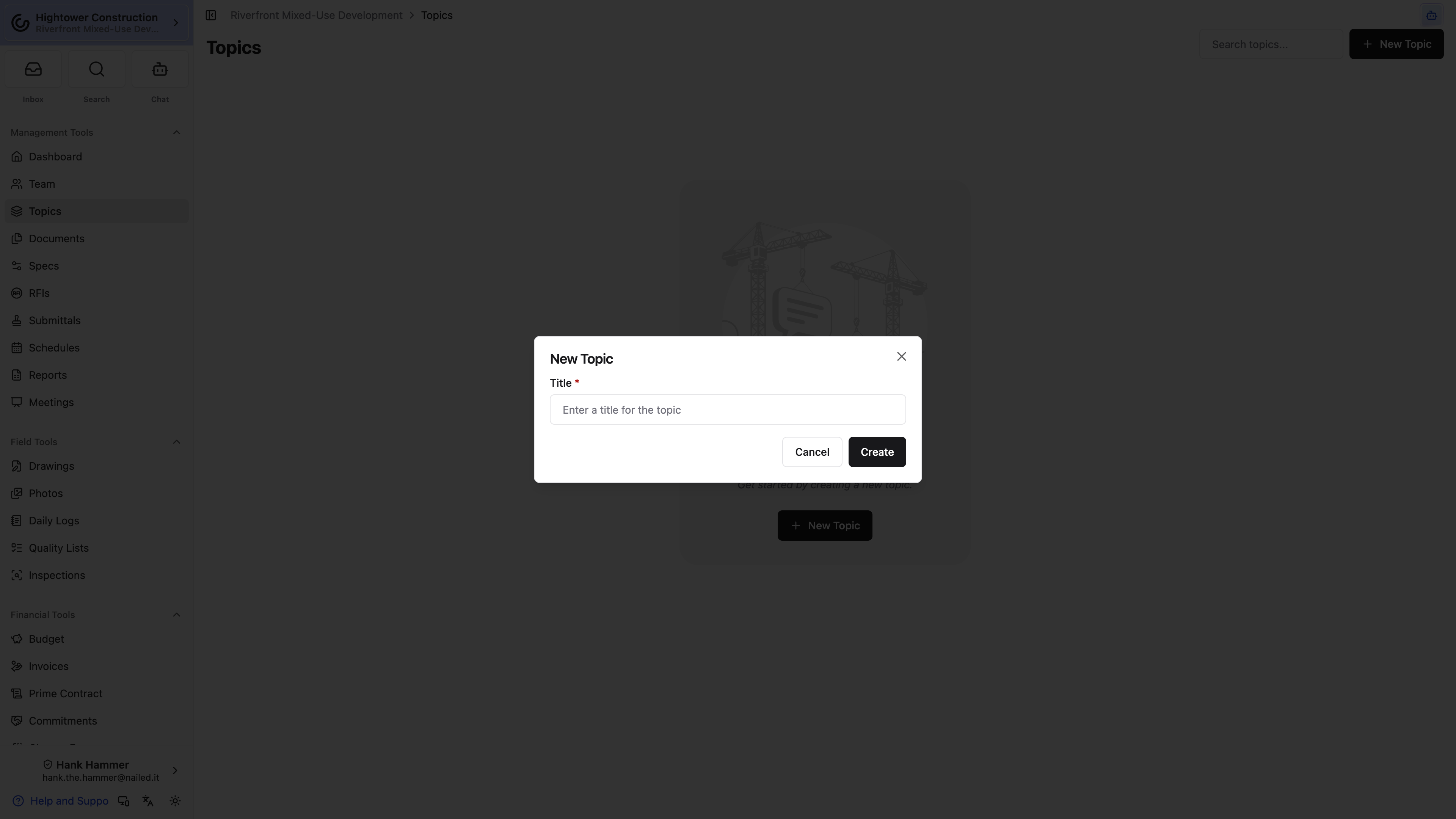
- Open Management Tools → Topics.
- Select New Topic.
- Enter a specific title and create it.
- Open Edit Shared With.
- Choose the intended audience and add specific people.
- Add sheets, markup, and conversations as needed.
A new Topic starts with only its creator. Sharing options are:
- Only me plus specific people you add
- Anyone at [your company] plus specific outside people
- Anyone with access to [project name]
Granting project or company access does not mention Bidder-role users. They are notified only when you mention them by name.
Share with the smallest audience that can complete the work. Topic sharing does not grant access to connected RFIs, Submittals, drawings, or other records.
Work with Topic markup and conversations
- Open the Topic and select Open in Drawing Viewer, or open Topics from the drawing viewer.
- Select the active Topic before adding or editing markup.
- Add comments at the relevant drawing locations.
- Mention the people who need to respond.
- Return to the Topic page to review sheets and activity.
Unsaved drawing markup may begin in Draft Mode. Save it to a new or existing Topic before leaving the viewer.
Markup can be copied or moved between supported Topics and records. Copying preserves the original; moving changes which record owns it.
A Thread that turned out to be noise can be removed on its own with Delete Thread in the thread's actions menu. That's separate from Resolve, which is what you want for a question that got answered — resolving keeps the conversation readable, while deleting means, as the confirmation puts it, all comments in the thread will no longer be accessible. Deleting a Thread needs Add new comments, edit existing comments.
Use the Topic's notification bell to choose All Activity, relevant activity only, or no notifications for that Topic. This personal setting does not change sharing or notify teammates.
Complete and maintain
Archive or unarchive a Topic
Use Archive Topic when coordination is complete or inactive. Archived Topics move to Archived Topics and can be unarchived later.
Archiving preserves markup, activity, and conversations. It does not resolve the comment Threads within the Topic, and resolving a Thread does not archive the Topic.
Delete Topic is the other option in that menu, and it's a different thing entirely. Archiving files coordination away where you can still read it; deleting removes the Topic from the list and takes its markup and comment Threads with it. The confirmation spells that out and asks you to confirm the title. There's no restore.
So the rule is simple: a Topic that ran its course gets archived, because a year from now somebody will want to know how that conflict got resolved. Delete is for the Topic created by mistake or on the wrong sheet.
You'll find both actions in the ⋯ menu — on the Topics index tile, on the Topic itself, and on Topics inside the drawing viewer.
Access and troubleshooting
Check Topics access
Topics appears under Management Tools when the organization has the Field package. Viewing, editing, changing sharing, and creating private Topics use separate permissions. A person needs both an applicable Topics permission and inclusion in the Topic's sharing audience.
Topics and their conversations work on web and native layouts. Record the drawing viewer and play saved recordings on desktop web, mobile web, or the native app.
Troubleshoot Topics
A Topic is missing
Confirm the project, check both active and Archived Topics, verify the Topic is shared with you, and ask an administrator to check your Topics permissions.
Drawing markup is missing
Confirm the sheet and revision, then check whether the markup remains in Draft Mode or was saved to a different Topic.
A connected record will not open
Topic sharing does not grant access to the connected record. Ask an administrator to check that tool's permission and the record's access.
A mentioned person received no Topic notification
Confirm they can open the Topic and connected content. A mention does not override record access or that person's Topic notification setting.