Use this guide to staff one project's Team, grant project access, invite participants, review contact information, and remove people or companies from the job. You can pick companies and people that already exist in Global Directory, or create them from the Team dialogs when your role allows it.
Start here
- Add a client, consultant, or subcontractor: Add a company to the Project Team.
- Add people from a company: Add people and grant project access.
- Build a contact list: Review and export the Project Team.
- Remove someone from this job: Remove a person or company from the project.
- Something is missing: Troubleshoot Team.
Common task recipes
- Staff a project with a subcontractor: Select Management Tools → Team → Add Subcontractor, choose the directory company and people, then choose project access.
- List a contact without giving access: Choose Associate with project without granting access.
- Give an existing user access without another email: Choose Grant access without sending an email invite.
- Prepare a distribution list: Select Copy All Emails to Clipboard.
Build the Project Team
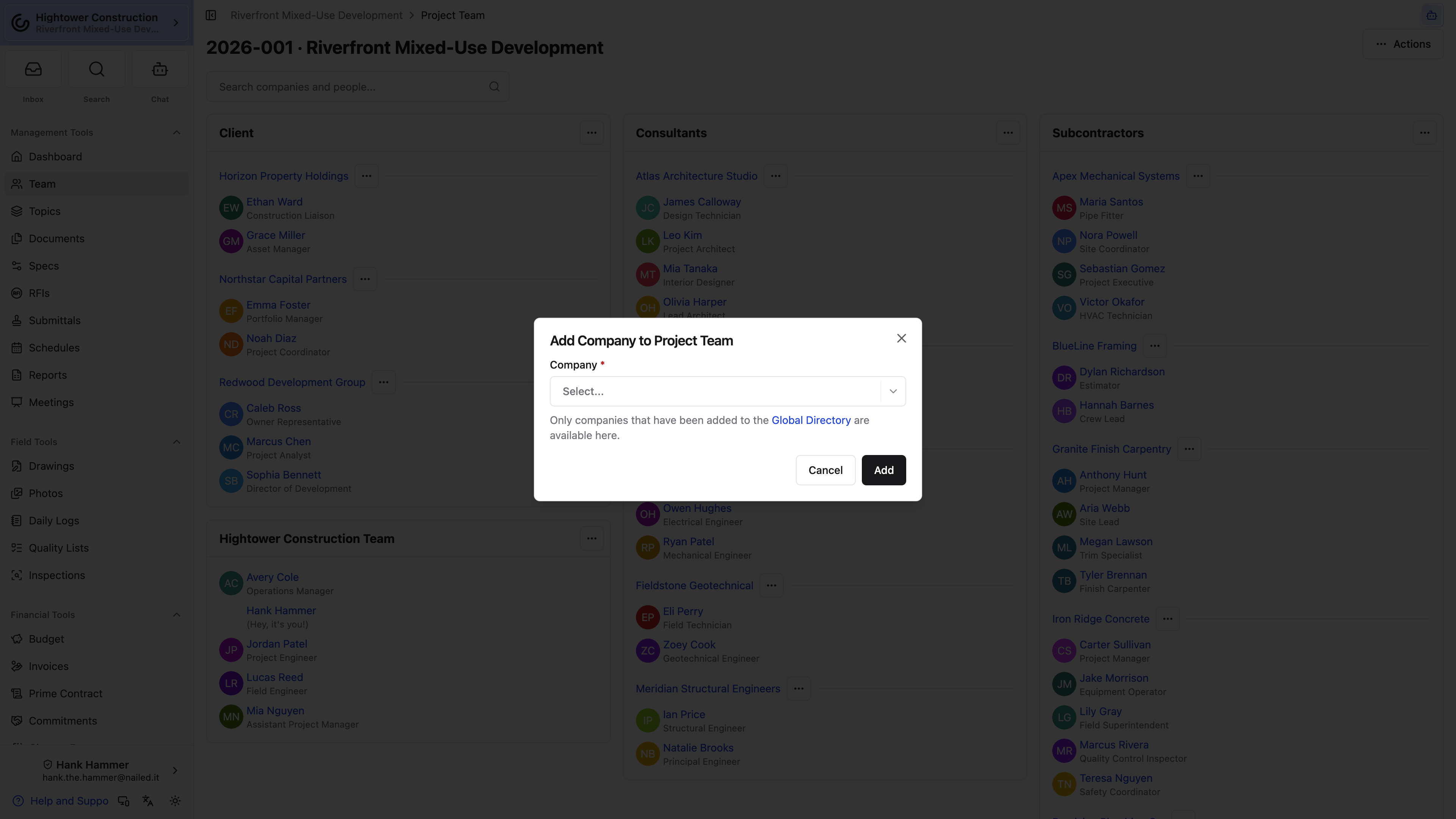
Add a company to the Project Team
- Open the project.
- Select Management Tools → Team.
- Select Add Client, Add Consultant, or Add Subcontractor.
- Select an existing Global Directory company, or select Create new company when your role has Add new companies to the organization global directory, update company information.
- Under Add People to Project (optional), select participants and set Send Invite? for each.
- Save the addition.
When available, Create Commitment and Commitment Title can create the subcontractor's commitment at the same time. For a Client, the equivalent fields are Create Prime Contract and Prime Contract Title. These options also require the corresponding contract permission.
If you don't have permission to create companies, the picker copy reads Only companies already in the directory are available here. Add the company in Global Directory first, then return.
The page groups participants into Client, your organization, Consultants, Subcontractors, and Bidders. Bidders appear only with Bid Management write permission.
Add people and grant project access
- Open Management Tools → Team.
- In the appropriate company or organization section, select Add Team Member or Add People....
- Under Select People, choose one or more directory people, or select Create new person when your role can add that kind of user.
- Choose a Project access option:
- Associate with project without granting access lists the person without letting them open the project.
- Grant access without sending an email invite lets an existing user open the project without sending email.
- Grant access and send email invite grants access and emails the person.
- If sending an invitation, review the email and select Add and Send.
Associate with project without granting access is initially selected, so change it when the person needs to begin work immediately.
Review and maintain
Review and export the Project Team
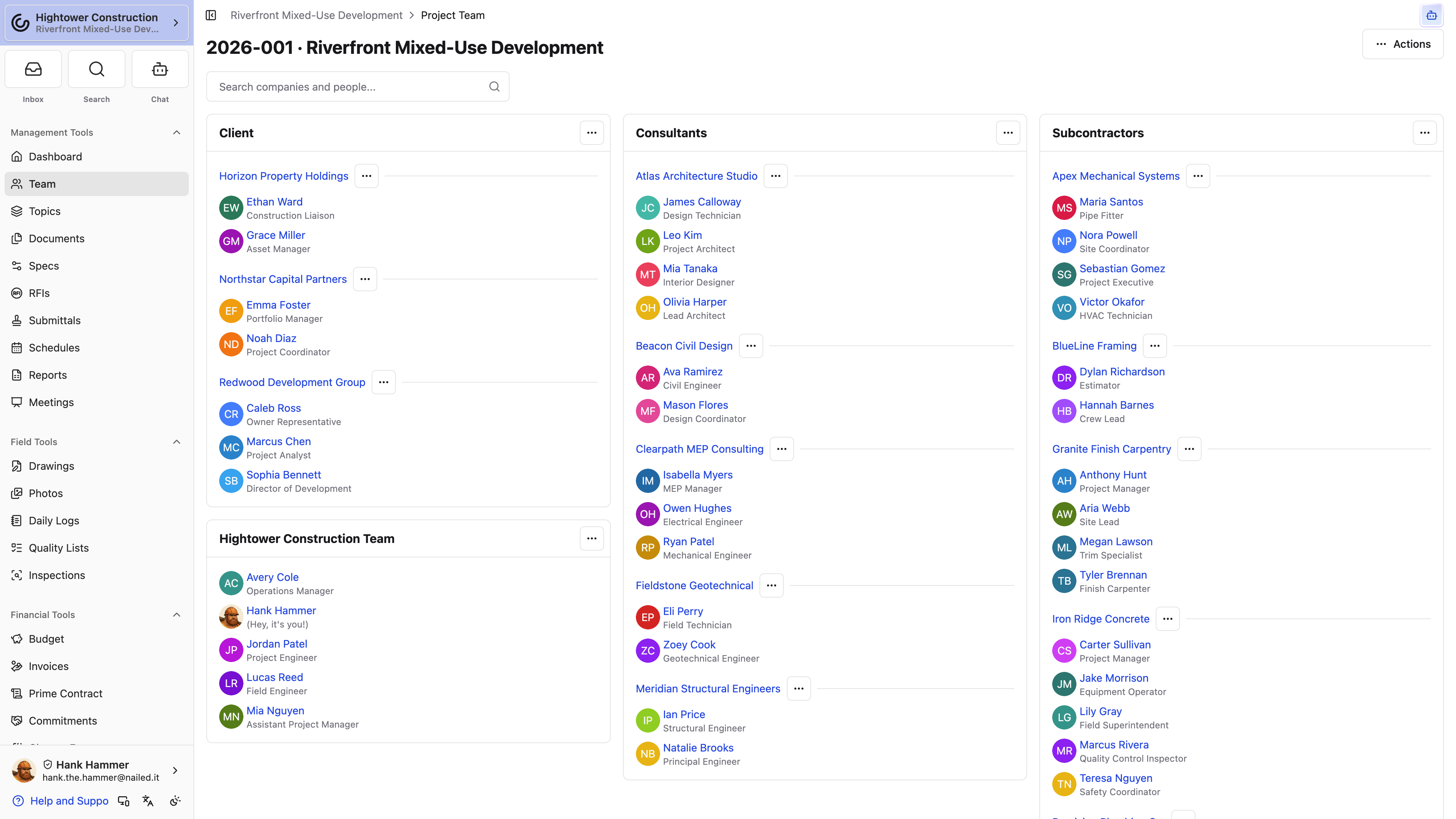
From Management Tools → Team:
- Search with Search companies and people....
- Use Show Project Roles or Hide Project Roles.
- Use Switch to Table View or Switch to List View.
- Select Download Team CSV to export the roster.
- Select Copy All Emails to Clipboard for an email recipient list.
- For one person, open their row's Actions menu and select Copy email. This works in both the list and the table view, and it's the quicker route when you just need to paste one address into an email.
- Select Send Invitation Emails to invite project members in bulk.
Companies on the roster can show commitment titles under the company name — comma-separated when there's more than one. When there are no commitment titles, the line falls back to the company's trades from Global Directory. You need View contact information like email address and phone number to see either. The titles link when you also have View commitments and purchase orders (vendor) or View prime contracts (prime). Purchase orders don't appear there.
Contact fields and exports still require contact-information permission — including Copy email, so a role that can see the roster but not contact details won't find it.
Remove a person or company from the project
- Open Management Tools → Team.
- Open the person's or company's actions.
- Remove them from the Project Team.
Removing someone from this project removes their project membership and access but leaves their Global Directory membership available for other projects. It also takes their name off this project's submittal approval templates, punch templates, and the default manager and subscriber lists for RFIs, Submittals, and Daily Logs. To offboard someone from the entire organization, deactivate them in Global Directory instead.
Note: Removal only locks someone out when their role is limited to Projects they're added to. A role whose Project access is All projects — the default for Admin, Manager, and Employee — can still open every project in the organization. Check the role on the Essentials tab of Roles and Permissions.
Access and troubleshooting
Check Team access and platform availability
Team appears under Management Tools for project users. View the project team is required for the complete roster, including external companies, Bidders, and export actions. Without it, the page can show only members of your own organization.
Use list or table view to review Team. On small screens, check the page actions menu for CSV, email-copy, and invitation actions.
Troubleshoot Team
I cannot add people to a company on the Project Team
Confirm Add people to the project team. This is separate from commitments and financials permissions. Open the company's 3-dot menu and select Add more people.... If the company has no people yet, use the Add People... link under the company name.
I cannot send invitation emails from Team
Confirm Add people to the project team. This is the same permission used to add people, not Reset user passwords and re-invite them to their organization or company.
A company is not available to add
If Create new company is missing, add the company under Global Directory → Companies first, then return to Team. That create link needs Add new companies to the organization global directory, update company information.
Most Team sections are missing
Ask an administrator to confirm View the project team. Without it, only your organization's members may appear.
A Bidder cannot open the normal Team page
Bidder memberships use the bidding experience rather than the standard Project Team page.
Emails or phone numbers are blank
Your role also needs View contact information like email address and phone number.
An invited person cannot open the project
An invitation handles sign-in; it does not guarantee project access. Confirm the person was added with one of the two options that grants project access.