Use this guide to set up a project Budget, record approved changes without rewriting the baseline, read current revenue and cost exposure, update forecasts, and export or investigate Budget activity.
Start here
- Set up the Budget: Set up a project Budget.
- Change an approved Budget: Add and manage Budget Modifications.
- Protect approved values: Lock or unlock Budget values.
- Review project position, or manage cost without the revenue side: Read the Budget.
- Include or exclude pending changes: Control pending Change Orders in totals.
- Update a forecast: Override Forecast at Completion.
- Trace or export a value: Use the activity log and exports.
- Something is missing or blocked: Troubleshoot Budget.
Set up and edit
Set up a project Budget
Open Budget. If the project has no Budget, select Setup Budget and choose:
- Import Budget File to build items from an existing bid sheet, spreadsheet, or PDF.
- Copy from Prime SoV to use owner SOV lines as a starting point.
- Add Budget Items to enter the Budget manually.
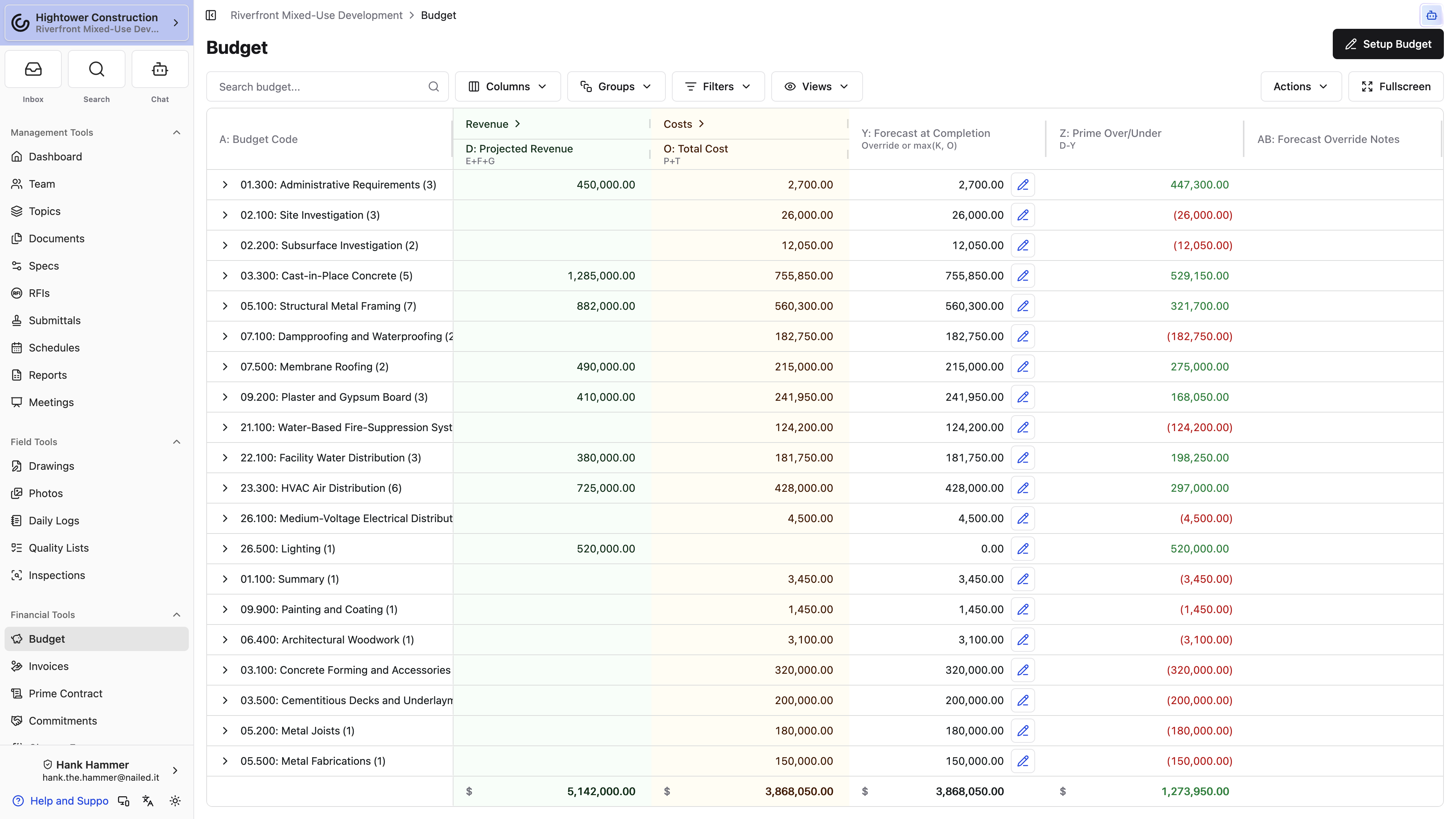
The project's Budget Type records that choice as Imported from CSV, Copied from Prime SOV, or Manual. Not Selected leaves Budget amounts at zero. Autofill from Prime SOV (Legacy) supports existing projects; don't switch away from it without confirming how that project's lines are maintained.
Before adding or importing lines, confirm the organization and project coding:
- A Budget Code combines a cost code and cost type — and, on a project with Sub Projects, the sub project too.
- Subprojects separate phases or locations when the project uses them. The same cost code in two sub projects is two Budget Codes, each with its own row, totals, and forecast.
- Revenue codes organize Prime Contract revenue and can map to the cost codes they fund.
- When Require Cost Type on Line Items is enabled in Organization Settings → Financial Settings, every imported or manually entered line needs a cost type to roll up correctly.
Note: Copying the Prime SOV is a starting point, not a completed cost Budget. Review every code and amount because owner revenue and project cost are different values.
Added lines to the Prime SOV after setup? Open Actions → Edit Budget, then Actions → Copy from Prime SoV. It adds only the Prime SOV lines that aren't on the Budget yet, into the Original Budget, and the dialog tells you how many lines and what total it will add. When every line is already there, the dialog says so and there's nothing to copy. The option isn't offered while the Original Budget is locked.
Add and manage Budget Modifications
Keep the Original Budget as the baseline. Record later approved changes as Budget Modifications:
- Open Budget.
- Select Add Budget Modification.
- Enter a Title and choose whether the modification starts Locked. The switch starts on, so turn it off if the values still need review.
- Enter the first line's Cost Code, Description, and Amount, plus cost type and subproject when you use them. Cost Code lists project-enabled cost codes. Codes already on the budget appear first under On this budget.
- Select Add another line item for the next change. The line you just finished collapses into a one-row summary with its cost code, description, and amount.
- Keep adding with Add line item. Select the pencil on a collapsed line to reopen it, the trash can to remove it, or the up chevron on the open line to collapse it. From the second line on, the footer shows the running total and how many lines you've entered.
- Select Save and Close. The open line is saved along with the rest.
Opening another line, collapsing, or saving checks the open line first, so a line with a missing cost code, description, or amount stays open until you fix it. A blank line you added and never filled in is simply dropped.
Use a negative line in a new modification to reverse an approved amount. This preserves the original value and the correction instead of rewriting history.
The source labels explain where a change came from:
- Budget: [title] is a modification created directly by a user.
- Budget Impact #NNN is linked to a Prime Change Order.
A Prime Change Order creates or updates its Budget Modification when it reaches its Billable On date. That modification locks automatically.
Lock or unlock Budget values
Lock the Original Budget when its coding and amounts are approved. Lock later modifications independently after reviewing their values and related change documents.
Use Actions → Edit Budget to open the Budget editor. Locking uses financial write access. Unlocking a Budget Modification requires Unlock Budget modifications.
Unlock only to correct a value that was wrong when approved. If the project changed later, add a Budget Modification. Unlocking doesn't delete values, but changing approved history can make the Budget disagree with a related Prime Change Order or accounting record.
Note: A modification linked to a Prime Change Order locks when the change reaches Billable On. Unlocking it doesn't alter the Change Order.
Review and forecast
Read the Budget
Three tabs sit at the top of the page, and which one you want depends on the question you're answering.
- Combined Budget is the full picture — owner revenue and project cost side by side, which is what you need when someone asks whether the job is making money.
- Budget vs Cost drops the revenue side entirely and puts what you budgeted next to what you've committed and spent. It's the cost-management view: no revenue columns, no revenue-only rows, and the Commitments and Costs detail already expanded instead of tucked behind a group header.
- WIP Report is billed vs complete: Over Billed and Under Billed, then Revenue (actual revenue, projected revenue, revenue % complete) and Costs (actual costs, forecast at completion, costs % complete). Column letters stay on this tab the way they do on Combined Budget. For the same columns rolled up one row per project, see Read the Global WIP Report.
The tab you were last on is remembered per project, so the view you work in every morning is the one that opens. Projects using revenue codes start on Budget vs Cost; everyone else starts on Combined Budget. Each tab keeps its own column layout and saved views, so hiding a column on one won't disturb the other.
On Combined Budget the grid groups records by Budget Code and reads left to right:
- Revenue: Prime SOVs, Prime Change Orders, pending Prime Change Orders, actual revenue, and revenue remaining.
- Budget: Original Expense Budget, Budget Modifications, and Prime Change Order Costs.
- Costs: vendor SOVs, vendor Change Orders, pending vendor Change Orders, Non-Committed Costs, and vendor invoices.
- Forecast and variance: Remaining Budget, Forecast at Completion, Prime Over/Under, and Expense Budget Over/Under.
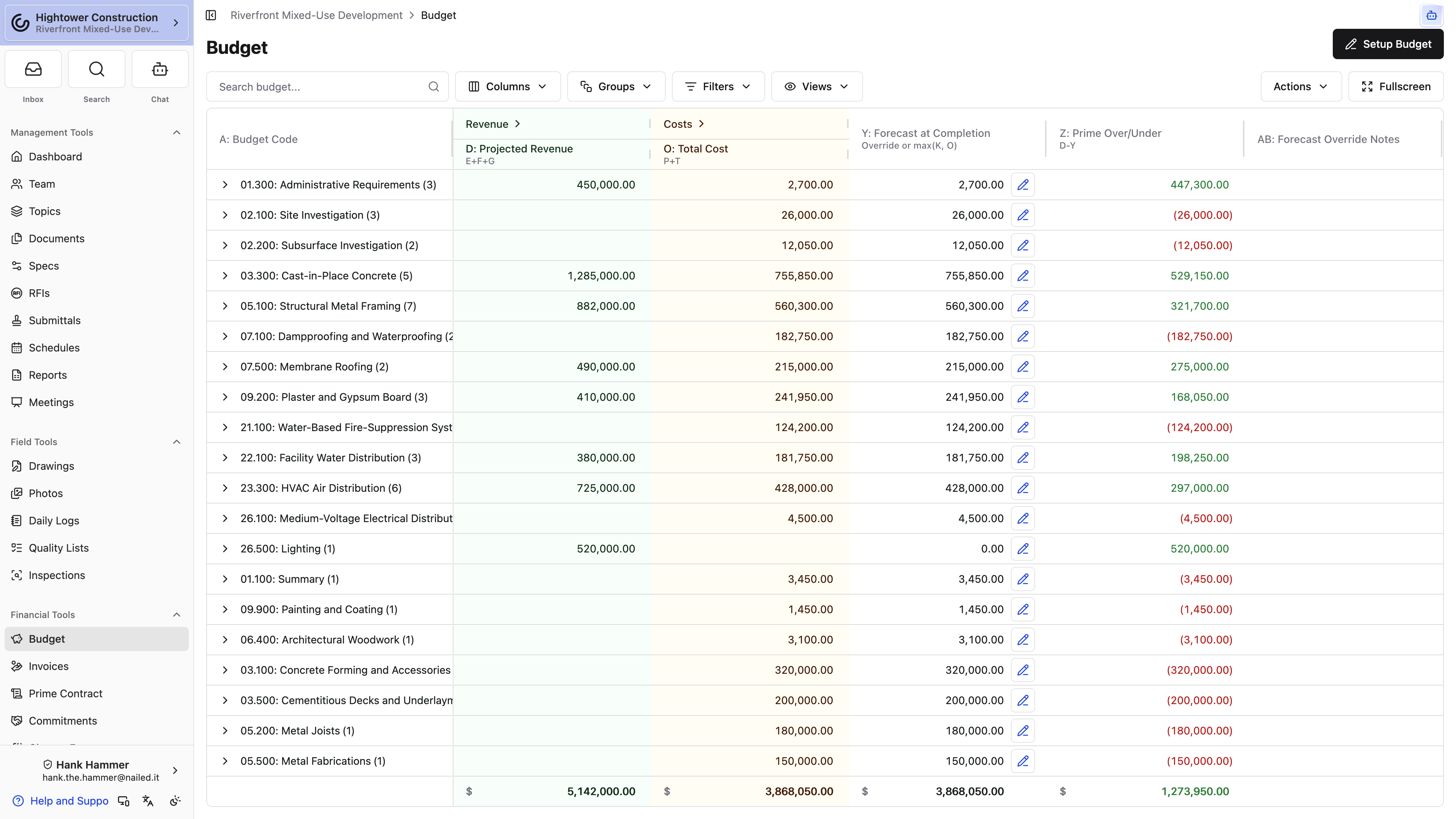
Budget vs Cost keeps three groups: Budget (Original Budget, Budget Modifications, Prime Change Order Budget Impact, Revised Budget), Commitments (Vendor Commitments and Vendor Invoices, with the vendor SOV and Change Order detail available but hidden), and Costs (Non-committed Costs, Actual Costs, Costs % Complete). It also drops the column letters — the A, B, C prefixes that let you trace the combined view's arithmetic aren't there, because without the revenue columns there's no long formula to trace.
Use search, filters, and grouping to narrow the grid. WIP Report uses the same Budget Code filter as the other tabs. Group rows don't show an expand arrow or a count of the rows inside — double-click a group row, or select it and press Enter, to open it.
On a project with Sub Projects, each Budget Code label ends with its sub project, such as "- Building A", so the same cost code in two buildings reads as two rows. A Sub Project filter appears on these projects; pick No sub project to see the lines that aren't assigned to one.
Need a cell's ingredients? Click a money total on Combined Budget or Budget vs Cost. A breakdown opens titled with the row and column names and lists each Source, Amount, and Description, with Total at the bottom. Source names that are records open in a new tab. Percentage-complete, forecast, Over Billed, and Under Billed cells don't open that breakdown.
The Budget is a current calculation, not a signed financial statement. Confirm source records and accounting sync before using it for a contractual decision.
Control pending Change Orders in totals
Open Actions and use Show Pending Change Orders in Totals:
- Selected: pending Prime and vendor Change Orders count in totals.
- Cleared: totals use billable or executed changes; pending values remain visible but are excluded.
The setting changes the current view and saved grid configuration. It doesn't change, delete, execute, or void a Change Order.
When two users report different totals, compare this setting, their permissions, filters, and grouping first.
Override Forecast at Completion
Use the pencil beside Forecast at Completion when the project team knows about an expected final cost that source records don't yet show.
On a project with Sub Projects, an override belongs to one Budget Code in one sub project, and the sheet's title names the sub project. Overriding "Concrete" for Building A leaves Building B's forecast alone.
The sheet splits the number you already know from the number you're still expecting:
- Current estimate is read-only. For each underlying cost code it's the greater of Revised Budget and Total Cost; a group row adds those leaf values.
- Forecast to Complete is the cost still expected from today through project completion. Edit it and Forecast at Complete follows.
- Forecast at Complete is the expected final total, including actual cost already recorded. Edit it and Forecast to Complete follows. This is the value stored on the override. The Budget grid column is still labeled Forecast at Completion.
A table of estimate contributors lists Source, Amount, and Description, with Total at the footer. Source names that are records open from the sheet.
A new override starts Forecast at Complete at the current estimate, so Forecast to Complete starts at zero. Clear the amount to unset the override. Turn Active off to keep the note without applying the number, and add Notes explaining the assumption.
Use a Commitment, Change Event, Change Order, invoice, or Receipt when a formal source record already exists; don't use an override to conceal a missing transaction.
Forecast at Completion estimates final cost, not the timing of cash.
Audit and export
Use the activity log and exports
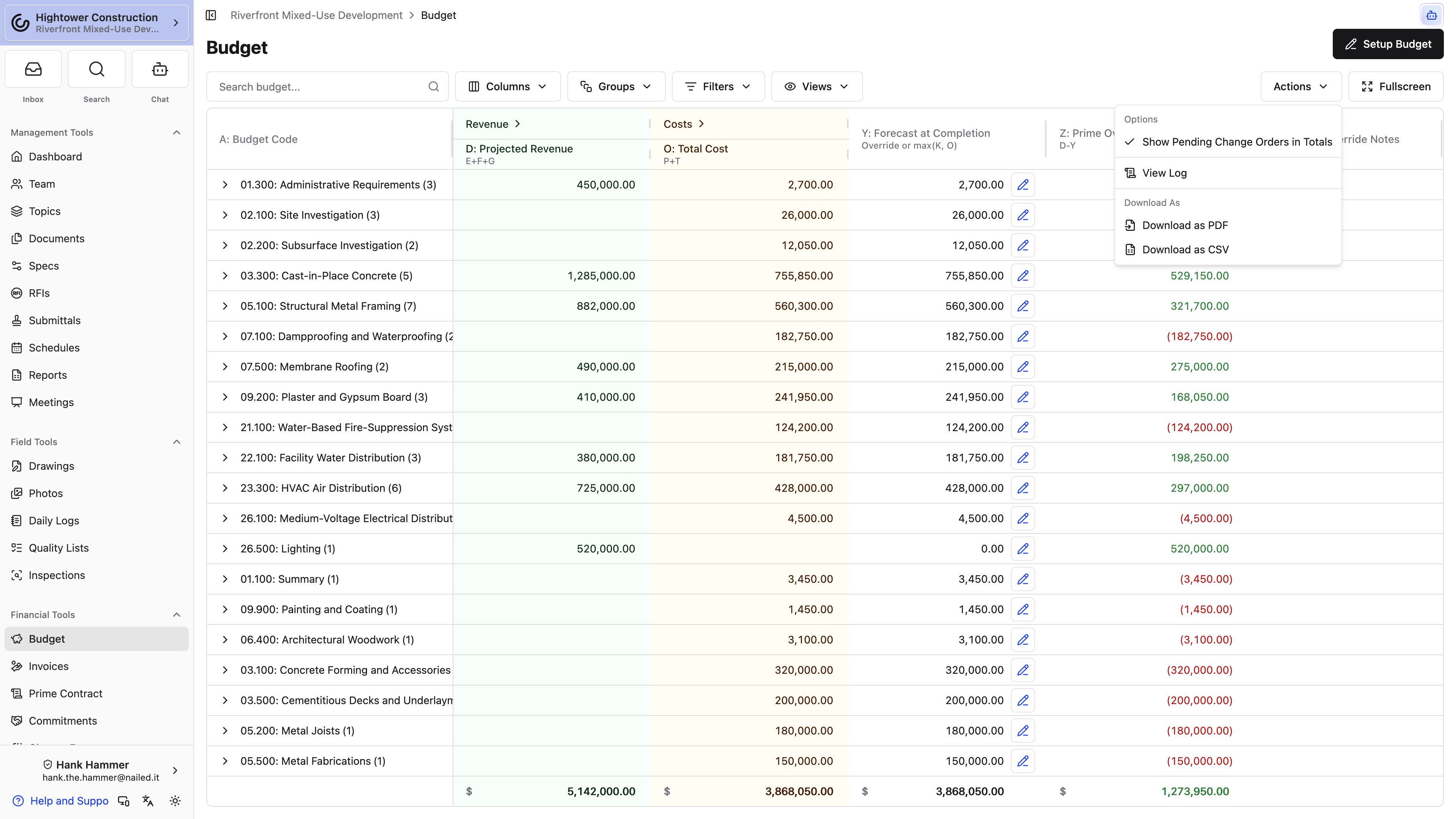
- Select Actions → View Log and filter the date range to trace activity from Budget changes, Commitments, Change Orders, and forecast overrides.
- Select Actions → Download PDF for a readable snapshot.
- Select Actions → Download as CSV for spreadsheet analysis or reconciliation.
Check filters, grouping, and Show Pending Change Orders in Totals before exporting. Exports don't update when project records change; generate a new file for a current view.
The activity log supports investigation. Signed contracts, approved invoices, and accounting-system history remain the authoritative records for those transactions.
Connected setup and troubleshooting
Use Budget with accounting integrations
Accounting behavior depends on the mappings configured for the organization:
- Sage Intacct project estimates can create the Original Budget or later Budget Modifications.
- A manually built or imported Budget also satisfies workflows that require Budget lines.
- Imports create Constructable records from a file; they don't create a live QuickBooks or Sage link.
On a Sage-connected project, Add Change Order is blocked while the Budget has no line items when the project participates in Sage sync. Add or sync Budget lines first. This restriction doesn't apply to a project that's excluded from accounting sync.
Don't recreate a Budget or accounting record because a sync link is pending or in error. Fix and retry the existing link so the systems remain one-to-one.
Troubleshoot Budget
Budget is missing
Confirm the organization has the Financial package and the role has View financial reports. Financial Tools won't appear when the package isn't available.
All Budget amounts are zero
Open project financial settings and check Budget Type. Not Selected leaves the Budget waiting for setup.
Setup Budget opens the editor immediately
The project already has original lines, often from an import, while Budget Type was still Not Selected. Constructable completes setup and opens those lines for review.
A line or modification can't be edited
Check whether the Original Budget or modification is locked. Use a new modification for a later change. Unlock only with the required permission and only to correct approved history.
A PCO can't be created on a Sage project
Add at least one Budget line or allow the configured Sage project estimate to sync. Also confirm whether the project is excluded from Sage sync.
Two users see different totals
Compare the tab they're on — Combined Budget, Budget vs Cost, and WIP Report carry different columns and their own saved views — then Show Pending Change Orders in Totals, filters, grouping, and access to the source financial records.
One cost code shows up on several rows
The project uses Sub Projects, and each sub project's lines on that code are their own Budget Code. Filter by Sub Project, or group by cost code, to see them together.
The revenue columns are gone
You're on Budget vs Cost, which leaves revenue out on purpose. Switch to Combined Budget at the top of the page.
A Budget Code reads differently in Edit Budget
On projects using revenue codes, the Budget report labels a line with the revenue code that funds it, while Edit Budget shows the underlying cost code and cost type you're actually editing. Both point at the same line.