Use this guide to review project stages, overdue work, assignments, notifications, and signatures across your organization. Global Dashboard identifies exceptions; open the project record when you need details or an action.
Start here
- Review the organization portfolio: Use Global Dashboard.
- Work cross-project assignments: Review widgets and Ball-in-Court.
- Something is missing or surprising: Troubleshoot Global Dashboard.
Common task recipes
- Run a morning portfolio check: Scan active project stages, open and overdue RFIs and Submittals, then work through Global Ball-in-Court.
- Investigate a cross-project count: Select All RFIs or All Submittals, identify the project and record, then confirm the current state there.
- Follow a signature item: Open it from Global Dashboard and act only when the source document and your role allow it.
Review the portfolio
Use Global Dashboard
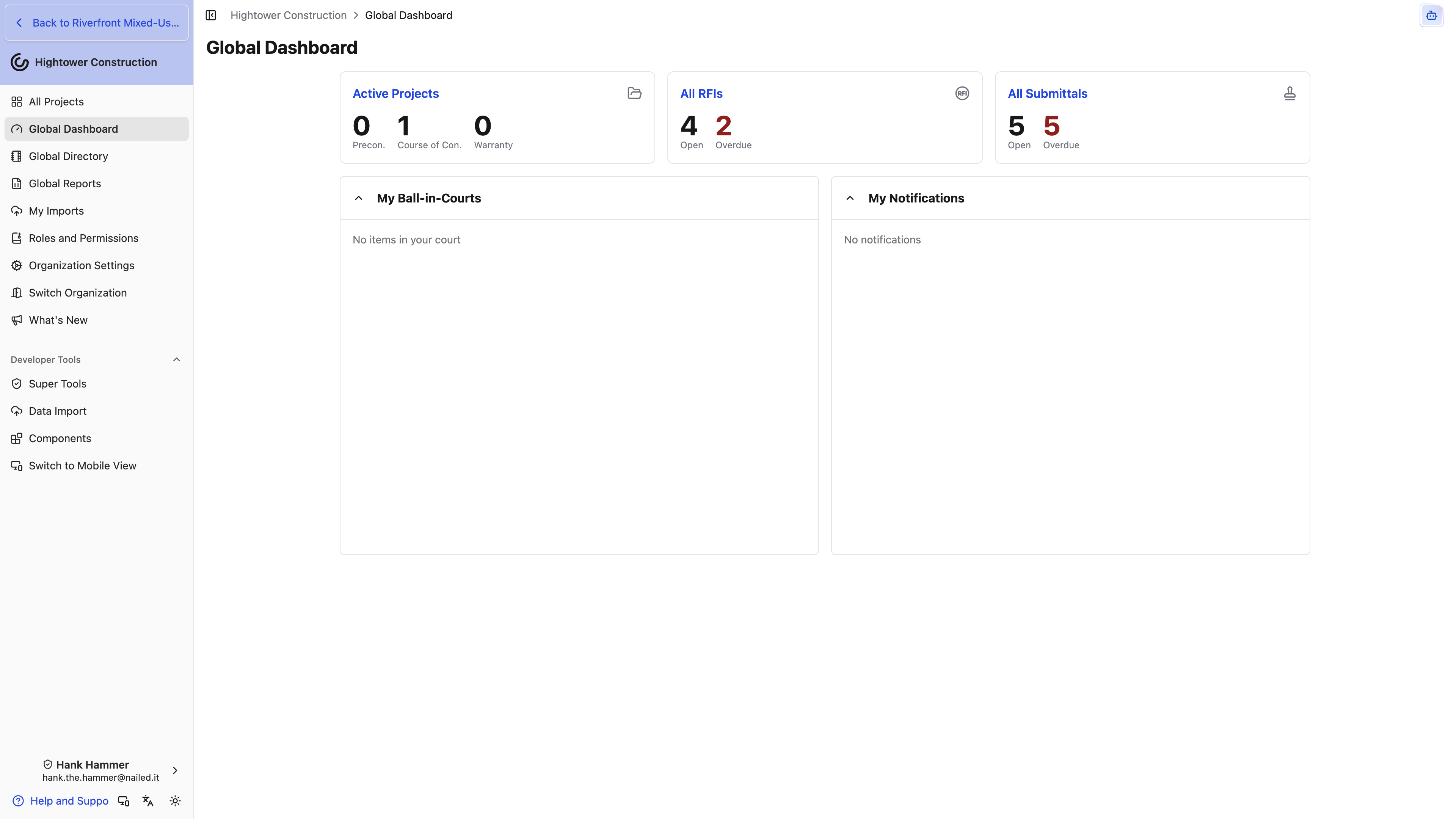
Open Global Dashboard from the organization navigation. Depending on access, it can show:
- Most Recent, up to five projects you've visited
- Active Projects by Preconstruction, Course of Construction, and Warranty stage
- Open and overdue RFIs across projects
- Open and overdue Submittals across projects
- Global Ball-in-Court
- Organization notifications
- Documents waiting for signature
Select a summary or item to open the related list, project, or record. Use the record itself as the current source before taking action or quoting a count.
Most Recent lists the projects you opened lately, including a template you visited. It stays hidden until you have organization-level View all projects in your organization and at least one project that still resolves.
Review widgets and Ball-in-Court
- Scan active-project stages and open or overdue totals.
- Select All RFIs or All Submittals to review individual records.
- Review Global Ball-in-Court for work assigned to you across projects.
- Open organization notifications to reach their project records.
- Review signature items and open the source document before acting. Each document is labeled with its project number (when the project has one), project name, and document name — for example, "2611 - Gym Refresh › Commitment: ELECTRICAL" — and the label links to the source record when Constructable can resolve it.
Each signature item names its Next Signer. If that's you, select Review & Sign. Otherwise, with Manage financials like change orders, contracts, receipts (excluding financial reporting), you can select Send Reminder. A line under the button, such as "Last sent Oct 14, 3:05 PM", shows when we last emailed that signer the request, whether it was the first send or a reminder, so you can tell a fresh request from one that's been sitting for a week.
Global Ball-in-Court includes accessible open RFIs, Submittals, Work Plans, list items, and invoices under review currently requiring your attention. A Work Plan appears while you owe its authorization, an item sign-off that isn't locked by a hold point, or its acceptance. Each row shows the project name with the record and links to it. Closed records and projects you cannot access are excluded, and Work Plans don't appear on a Field-package organization.
Access and troubleshooting
Check Global Dashboard access
Global Dashboard appears in organization navigation for every default role. Individual widgets still follow organization-level access to their underlying tools and projects. A user can see Active Projects without seeing RFI or Submittal widgets. Some widgets still need View non-financial reports.
Panels stack on smaller screens and appear side by side on extra-wide screens.
Troubleshoot Global Dashboard
Only Active Projects is visible
Ask an administrator to verify organization-level access to RFIs, Submittals, and the other underlying tools.
Global Ball-in-Court is empty
Confirm you are currently responsible for an accessible open RFI, Submittal, Work Plan, list item, or invoice under review in at least one project. A Work Plan counts only while it's waiting on your signature — an item locked by a hold point isn't in your court yet.
A count differs from a project view or Global Report
Compare project access, record status, revisions, filters, and update timing. Dashboard widgets often count open or overdue exceptions rather than every record.
A notification or signature item looks out of date
Open the project record or source document. Global Dashboard reflects an event or summary; the record is the current source.