Use this guide to review current work on one project. Dashboard summarizes project metrics, assignments, recent field activity, notes, signatures, and notifications; open the related record when you need full history or an action.
Start here
- Review today's priorities: Use the project Dashboard.
- Find work waiting on you: Review metrics and Ball-in-Court.
- Understand why a widget is missing: Check Dashboard access and availability.
- A count looks wrong: Troubleshoot Dashboard.
Common task recipes
- Triage a project: Open Management Tools → Dashboard, scan overdue widgets, work through My Ball-in-Courts, and review Latest Daily Logs.
- Investigate an overdue count: Select the widget, open the related list or report, then confirm status on the individual record.
- Find the project roster: Use Management Tools → Team; Team is a separate tool.
Review project work
Use the project Dashboard
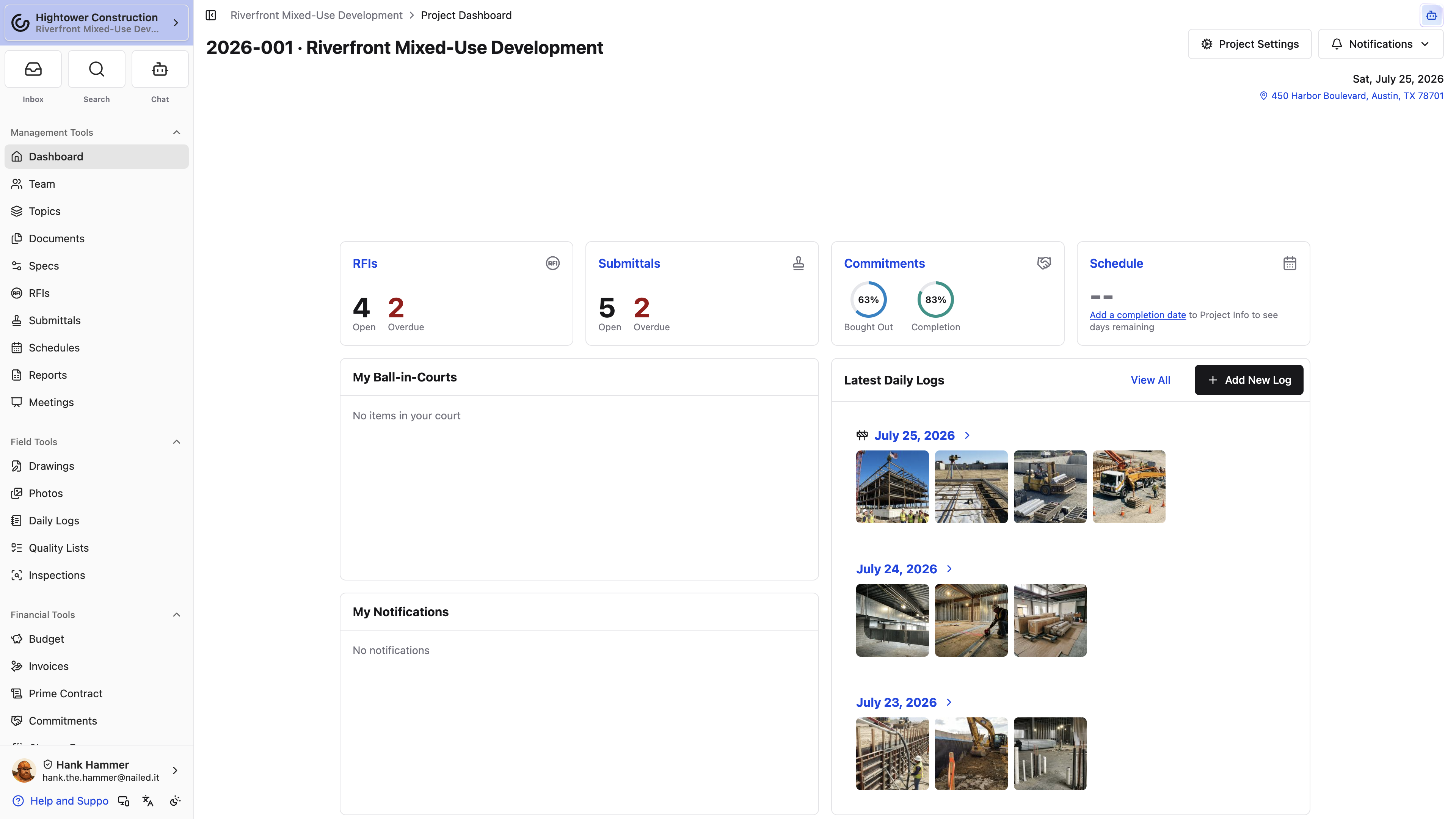
- Open the project.
- Select Management Tools → Dashboard.
- Scan the available summary widgets.
- Open a widget or item to reach its tool or record.
- Use View All where available when you need more than the preview.
Depending on package, settings, and permissions, Dashboard can show project question answering or Chat-style AI, RFI and Submittal widgets, Commitments, Schedule, My Ball-in-Courts, project notifications, Latest Daily Logs, project notes, and documents waiting for signature. The Document name in that signatures list links to the source commitment, contract, or Change Order when Constructable can resolve it.
Every widget here is a snapshot meant to point you somewhere, not a substitute for the record. Delays, weather, progress, and staffing all get confirmed in Daily Logs itself.
Review metrics and Ball-in-Court
- RFIs shows open and overdue counts.
- Submittals shows open and overdue counts and excludes superseded revisions.
- Commitments shows a completion percentage when Financials is enabled and your role can see all commitments.
- Schedule shows days until the estimated completion date, or links to add one.
- My Ball-in-Courts lists accessible RFIs, Submittals, Work Plans, list items, and invoices under review currently requiring your attention, typed as RFI, Submittal, Work Plan, List Item, and Invoice. A Work Plan appears while you owe its authorization, an item sign-off that isn't locked by a hold point, or its acceptance; its due date is the earliest due date among the items waiting on you. Use All My Ball-in-Courts for the full list.
- Latest Daily Logs shows the three most recent logs. Each one gives you its date, a construction icon when the log records a delay, a one-line staffing count built from the log's personnel entries — "Acme Electric: 5 workers, 8 hours" — and up to four attachment previews. Long staffing lines are trimmed to two lines; open the log for the rest. Add New Log appears when you have write permission, and View All opens Daily Logs.
Open an overdue or assigned record, confirm its current status and Ball-in-Court, and take action in that tool. A widget is a summary snapshot rather than the authoritative record.
Access and troubleshooting
Check Dashboard access and availability
Dashboard opens for anyone with project access, on every package. The widgets on it are what change.
On a Field-package organization the RFI and Submittal widgets, the documents-awaiting-signature panel, and the RFI, Submittal, and Work Plan entries in My Ball-in-Courts aren't there, because those tools aren't part of that package. You're left with Schedule, My Ball-in-Courts for list items, notifications, Latest Daily Logs, and project notes.
Each widget also checks access to its related tool. RFI and Submittal widgets need their read permissions on top of the package, Commitments needs Financials and all-commitments access, and Schedule needs schedule read access. When none of the four qualify, the widget row is left out rather than shown empty. Panels stack on smaller screens.
Troubleshoot Dashboard
Dashboard is missing
Confirm you have access to the project. Dashboard sits under Management Tools.
A widget is missing
Check your permission for its underlying tool, then check the organization's package. RFI, Submittal, and signature panels don't appear on a Field-package organization regardless of role.
My Ball-in-Courts is empty
Confirm you are currently assigned, responsible, or Ball-in-Court on an open record you can access. Closed and inaccessible records are excluded, and on a Field-package organization only list items are counted.
A count differs from a report or list
Compare statuses, revisions, filters, and update timing. Dashboard widgets may count only open or overdue records, while a report can include additional statuses. Confirm the current state on the records.
Schedule shows a link instead of a number
The project has no estimated completion date. Follow the link to add one.